
1. تعارف
This manual provides essential information for the safe and efficient use of your InFocus IF195a Touch Pad. Please read this manual thoroughly before operating the device and retain it for future reference.
2. حفاظت جي ڄاڻ
- ڊوائيس کي انتهائي گرمي پد، سڌي سج جي روشني، يا وڌيڪ نمي جي سامهون نه رکو.
- ڊوائيس کي مضبوط اثرن لاءِ ڇڏڻ يا تابع ڪرڻ کان پاسو ڪريو.
- Use only the charger provided or approved by InFocus.
- پاڻ ڊوائيس کي ڌار ڪرڻ يا مرمت ڪرڻ جي ڪوشش نه ڪريو. سڀني سروسنگ کي قابل اهلڪارن جي حوالي ڪريو.
- ڊوائيس کي پاڻي ۽ ٻين مائع کان پري رکو.
- مقامي ضابطن جي مطابق ڊوائيس ۽ ان جي بيٽري کي ذميواري سان ختم ڪريو.
3. پراڊڪٽ ختمview
The InFocus IF195a is a 20-inch Android-powered touch pad designed for interactive use. Familiarize yourself with its components.
3.1 محاذ View

شڪل 1: سامهون view of the InFocus IF195a Touch Pad. This image shows the large 20-inch display with the Android operating system interface, including various app icons and the Google search bar. The device features a sleek bezel around the screen.
- ڏيکاريو: 20-inch multi-touch screen.
- سامهون ڪئميرا: Located at the top center bezel.
- مائڪروفون: Integrated for voice input.
3.2 طرف View ۽ بندرگاهن
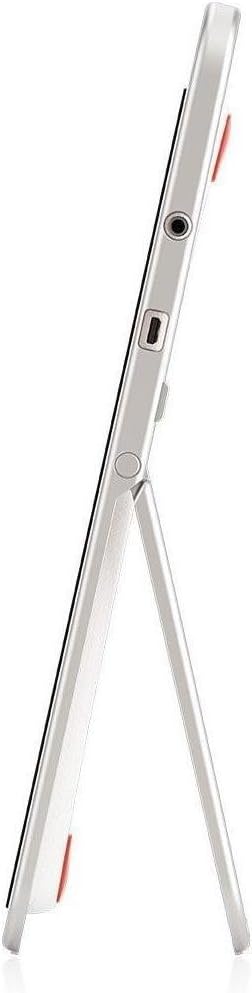
شڪل 2: پاسي view of the InFocus IF195a Touch Pad. This image highlights the device's slim profile and the integrated kickstand, which allows for upright positioning. Visible ports include a headphone jack and a USB port.
- پاور بٽڻ: Used to turn the device on/off or put it to sleep.
- حجم بٽڻ: ڊوائيس جي آڊيو آئوٽ پٽ کي ترتيب ڏيو.
- هيڊ فون جڪ (3.5mm): ٻاهرين آڊيو ڊوائيسز کي ڳنڍڻ لاءِ.
- مائڪرو USB پورٽ: چارج ڪرڻ ۽ ڊيٽا جي منتقلي لاء.
- انٽيگريٽيڊ ڪڪ اسٽينڊ: Allows the device to stand upright.
4. سيٽ اپ
4.1 انباڪسنگ ۽ شروعاتي چارج
- Carefully remove the InFocus IF195a Touch Pad and all accessories from the packaging.
- Connect the provided power adapter to the Micro-USB port on the device and plug it into a power outlet. Allow the device to charge fully before first use. The charging indicator will typically show a full battery when complete.
4.2 پاور آن/آف
- پاور آن ڪرڻ: Press and hold the Power button until the InFocus logo appears on the screen.
- پاور آف ڪرڻ: پاور بٽڻ کي دٻايو ۽ رکو جيستائين پاور آف مينيو ظاهر نه ٿئي. "پاور آف" چونڊيو ۽ تصديق ڪريو.
- سمهڻ/جاڳڻ: Briefly press the Power button to put the device into sleep mode or wake it up.
4.3 شروعاتي سيٽ اپ مددگار
Upon first power-on, the device will guide you through an initial setup process:
- ٻولي جي چونڊ: پنھنجي پسند جي Chooseولي چونڊيو.
- وائي فائي ڪنيڪشن: Select your Wi-Fi network from the list and enter the password. A stable internet connection is required for many features.
- گوگل کاتو: Sign in with an existing Google account or create a new one. This is necessary to download apps from the Google Play Store and access Google services.
- تاريخ ۽ وقت: Set the correct date and time or allow the device to set it automatically via the network.
- رازداري سيٽنگون: Review ۽ رازداري سيٽنگون ترتيب ڏيو جيئن مرضي.
5. ڊوائيس کي هلائڻ
5.1 ڇڪڻ جا اشارا
- ٽيپ ڪريو: ڪا شيءِ چونڊڻ يا ايپليڪيشن کولڻ لاءِ هڪ ڀيرو اسڪرين کي ڇهو.
- ڇڪيو ۽ رکو: Press and hold an item to access contextual menus or drag items.
- سوائپ لسٽن ذريعي اسڪرول ڪرڻ يا گهر اسڪرينن جي وچ ۾ سوئچ ڪرڻ لاءِ پنهنجي آڱر کي اسڪرين تي ڇڪيو.
- زوم ڪرڻ لاءِ پنچ: تصويرن، نقشن، يا تي زوم ان يا آئوٽ ڪرڻ لاءِ ٻه آڱريون استعمال ڪريو web صفحا.
5.2 هوم اسڪرين ۽ نيويگيشن
- هوم بٽڻ: توهان کي مکيه هوم اسڪرين ڏانهن موٽائي ٿو.
- پوئتي بٽڻ: پوئين اسڪرين ڏانهن واپس اچي ٿو يا موجوده ايپليڪيشن کي بند ڪري ٿو.
- تازو ائپس بٽڻ: جلدي سوئچنگ لاءِ تازو استعمال ٿيل ايپليڪيشنن جي فهرست ڏيکاري ٿو.
- نوٽيفڪيشن پينل: اطلاعن ۽ تڪڙي سيٽنگن تائين رسائي حاصل ڪرڻ لاءِ اسڪرين جي چوٽي کان هيٺ سوائپ ڪريو.
5.3 ايپليڪيشنن کي انسٽال ڪرڻ ۽ منظم ڪرڻ
- گوگل پلي اسٽور: Open the "Play Store" app to browse and download applications. A Google account is required.
- ائپس انسٽال ڪرڻ: Select an app and tap "Install." Follow on-screen prompts for permissions.
- ايپس کي انسٽال ڪرڻ: ڏانهن وڃو سيٽنگون > ائپس, select the desired app, and tap "Uninstall." Alternatively, touch and hold an app icon on the home screen and drag it to the "Uninstall" option (if available).
5.4 ٻاهرين ڊوائيسز سان ڳنڍڻ
- هيڊفون: هيڊ فون جيڪ ۾ 3.5mm هيڊفون لڳايو.
- USB ڊوائيسز: Connect compatible USB devices (e.g., flash drives, keyboards) to the Micro-USB port using an appropriate adapter if necessary. The device supports USB On-The-Go (OTG).
6. سار سنڀال
6.1 ڊوائيس کي صاف ڪرڻ
- ڊوائيس جي اسڪرين ۽ جسم کي صاف ڪرڻ لاء نرم، لنٽ کان خالي ڪپڙو استعمال ڪريو.
- ضدي نشانن لاءِ، ٿورو ڊيampen پاڻي سان ڪپڙو يا اسڪرين ڪلينر خاص طور تي اليڪٽرانڪس لاءِ ٺهيل آهي.
- سخت ڪيميڪل، رگڙيندڙ صاف ڪندڙ، يا ايروسول اسپري استعمال ڪرڻ کان پاسو ڪريو.
6.2 بيٽري جي سنڀال
- بيٽري جي زندگي کي وڌائڻ لاءِ، بيٽري کي بار بار مڪمل طور تي چارج ڪرڻ کان پاسو ڪريو.
- مڪمل چارج ٿيڻ کان پوءِ ڊوائيس کي گهڻي وقت تائين چارجر سان ڳنڍيل نه ڇڏيو.
- Store the device in a cool, dry place if not used for a long time, with the battery charged to about 50%.
6.3 سافٽ ويئر اپڊيٽ
بهترين ڪارڪردگي ۽ سيڪيورٽي کي يقيني بڻائڻ لاءِ وقتي طور تي سافٽ ويئر اپڊيٽس جي جانچ ڪريو. وڃو سيٽنگون > ٽيبليٽ بابت > سسٽم اپڊيٽس to check for and install available updates. Ensure your device is connected to Wi-Fi and has sufficient battery charge before starting an update.
7. مسئلا حل ڪرڻ
| مسئلو | ممڪن حل |
|---|---|
| ڊوائيس پاور آن نه ٿيندي. | Ensure the device is charged. Connect the charger and wait a few minutes before attempting to power on again. If unresponsive, perform a hard reset by holding the power button for 10-15 seconds. |
| وائي فائي ڪنيڪشن جا مسئلا. | سيٽنگز ۾ چيڪ ڪريو ته وائي فائي فعال آهي يا نه. پنهنجو وائي فائي روٽر ٻيهر شروع ڪريو. نيٽ ورڪ وساريو ۽ ٻيهر ڳنڍيو. پڪ ڪريو ته توهان وائي فائي سگنل جي حد اندر آهيو. |
| Applications are crashing or freezing. | Close and restart the application. Clear the app's cache (سيٽنگون > ايپس > [ايپ جو نالو] > اسٽوريج > ڪيش صاف ڪريو). جيڪڏهن مسئلو برقرار رهي، ته ايپ کي انسٽال ڪريو ۽ ٻيهر انسٽال ڪريو. |
| اسڪرين غير جوابده آهي. | Restart the device. Ensure the screen is clean and free of debris. If the issue continues, contact support. |
| سست ڪارڪردگي. | Close unnecessary background applications. Clear cache for frequently used apps. Check available storage (سيٽنگون> اسٽوريج) and free up space if needed. Consider a factory reset as a last resort. |
7.1 فيڪٽري ري سيٽ
فيڪٽري ري سيٽ توهان جي ڊوائيس مان سڀ ڊيٽا ختم ڪري ڇڏيندو ۽ ان کي ان جي اصل فيڪٽري سيٽنگن ۾ بحال ڪندو. اڳتي وڌڻ کان اڳ سڀني اهم ڊيٽا جو بيڪ اپ وٺو.
- ڏانهن وڃو سيٽنگون > بيڪ اپ ۽ ري سيٽ > فيڪٽري ڊيٽا ري سيٽ.
- Read the warning message carefully.
- Tap "Reset tablet" and then "Erase everything" to confirm.
- ڊوائيس ٻيهر شروع ٿيندو ۽ ري سيٽ عمل شروع ڪندو.
8. ٽيڪنيڪل وضاحتون
| خاصيت | تفصيل |
|---|---|
| ماڊل | IF195a |
| برانڊ | InFocus |
| ڊسپلي سائيز | 20 انچ |
| وڌ ۾ وڌ قرارداد | 1600 x 900 |
| پروسيسر | ARM Cortex-A15 Quad-Core 1.8 GHz |
| رام جي گنجائش | 2 جي بي |
| رکڻ جي گنجائش | 16 جي بي |
| آپريٽنگ سسٽم | اينڊرائيڊ 4.4 کٽ ڪيٽ |
| ريئر ڪئميرا ريزوليوشن | 5 ايم پي |
| طول و عرض (L x W x H) | 61.6 x 47 x 8.6 سينٽي |
| وزن | 3.7 ڪلو |
| رنگ | ڀورو |
9. وارنٽي ۽ سپورٽ
For warranty information, please refer to the warranty card included with your product or visit the official InFocus website. For technical support, product registration, or service inquiries, please contact InFocus customer service through their official channels.
Please note that warranty terms may vary by region and retailer. Keep your proof of purchase for warranty claims.