
1. تعارف
The VisionTek VT1000 Universal Dual Full HD USB 3.0 Laptop Monitor Docking Station is designed to expand the connectivity of your laptop, whether it runs Windows, macOS, or Chrome OS. This docking station allows you to connect to dual displays and a variety of peripherals through a single USB connection, transforming your laptop into a complete workstation.
پيداوار ختمview
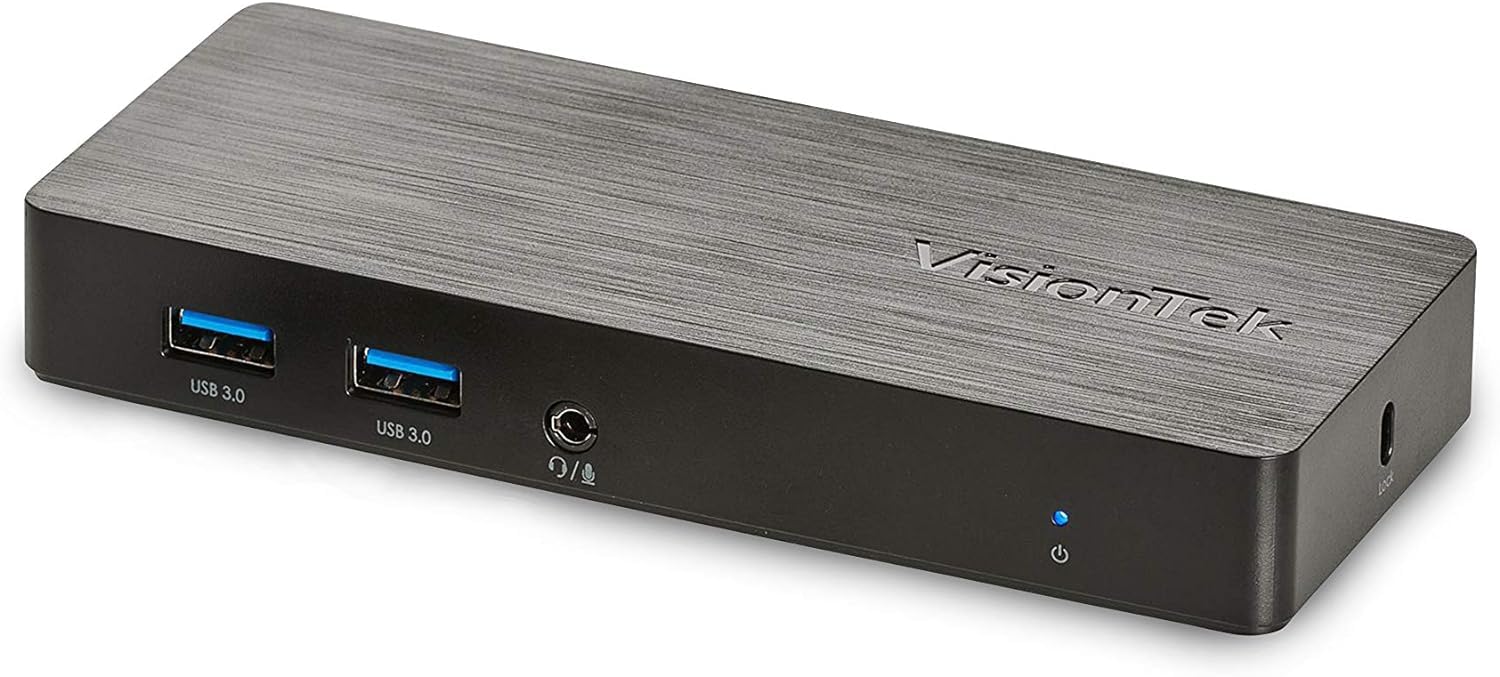
تصوير: سامهون view of the VisionTek VT1000 docking station.
دٻي ۾ ڇا آهي
- VT1000 Dual Display Universal USB 3.0 Docking Station
- USB 3.0 ڪيبل
- User Manual (Quick Installation Guide)
- پاور اڊاپٽر

Image: The VisionTek VT1000 docking station and its included accessories.
2. اهم خاصيتون
- Dual Full HD Displays: Connect two monitors to your laptop with full HD resolution (1920 x 1080 @ 60Hz) via 1x DisplayPort, 1x HDMI, and 1x 1080P VGA.
- وڌايل رابطي: Features 3x USB 3.0 ports (5 Gbps transfer speed), 1x RJ45 (10/100/1000) Gigabit Ethernet port, and a headphone audio line in/out jack.
- Plug and Display: Utilizes DisplayLink drivers for plug-and-play functionality, simplifying setup for various workspaces.
- وسيع آپريٽنگ سسٽم مطابقت: Compatible with Ultrabook, MacBook, Microsoft Surface Pro, Chromebook, Windows 11, Windows 10, Windows 8.1, Windows 7, and Mac OS 10.13 and up operating systems.
- ڪمپيڪٽ ڊيزائن: Designed to be compact, taking up minimal desk space while providing extensive functionality.
3. بندرگاهن ۽ اشارا
The VT1000 docking station provides a comprehensive set of ports for various connectivity needs. Refer to the video below for a visual guide to the ports.
سامهون پينل
- 2x USB 3.0 پورٽ: تيز رفتار USB ڊوائيسز کي ڳنڍڻ لاءِ.
- آڊيو آئوٽ (هيڊ فون جيڪ): هيڊفون يا ٻاهرين اسپيڪرن کي ڳنڍڻ لاءِ.
- مائڪ ۾: هڪ مائڪرو فون ڳنڍڻ لاء.
- پاور اشارو LED: Illuminates when the dock is powered on.
پوئتي پينل
- 1x VGA Port: For connecting a VGA monitor.
- 1x HDMI پورٽ: For connecting an HDMI monitor.
- 1x DisplayPort: For connecting a DisplayPort monitor.
- 1x RJ45 Gigabit Ethernet Port: وائرڊ نيٽ ورڪ ڪنيڪشن لاءِ.
- 1x USB 3.0 پورٽ: تيز رفتار USB ڊوائيسز کي ڳنڍڻ لاءِ.
- USB-B Port (Upstream): For connecting the dock to your laptop via the included USB 3.0 cable.
- ڊي سي 5V پاور ان پٽ: پاور اڊاپٽر کي ڳنڍڻ لاءِ.
- سيڪيورٽي لاڪ سلاٽ: For securing the docking station.
Official Product Video: VisionTek VT1000 Universal Dual Display USB 3.0 Dock
Video: This official VisionTek video provides a visual overview of the VT1000 docking station, highlighting its features, ports, and connectivity options. It demonstrates how the dock can expand your laptop's capabilities into a full workstation.
4. سيٽ اپ جون هدايتون
- پاور Connectنيو: Plug the included power adapter into the DC 5V input port on the rear of the VT1000 docking station, then plug the adapter into a power outlet. The power indicator LED on the front of the dock should illuminate.
- ليپ ٽاپ سان ڳنڍيو: Use the provided USB 3.0 cable to connect the USB-B port on the rear of the docking station to an available USB 3.0 port on your laptop.
- ڳنڍڻ مانيٽر: Connect your external monitors to the desired video output ports on the rear of the docking station (HDMI, DisplayPort, or VGA). The VT1000 supports dual displays.
- پردي سان ڳنڍڻ: Connect your keyboard, mouse, external hard drives, printers, webcams, or other USB devices to the USB 3.0 ports on the front and rear of the docking station.
- نيٽ ورڪ ڳنڍيو (اختياري): For a wired internet connection, connect an Ethernet cable from your router or network switch to the RJ45 Gigabit Ethernet port on the rear of the docking station.
- آڊيو ڳنڍيو (اختياري): If desired, connect headphones or speakers to the audio out jack and a microphone to the mic in jack on the front of the docking station.
- ڊرائيور لڳائڻ: The VT1000 features DisplayLink Plug and Play technology, typically requiring no manual driver installation on compatible operating systems. If prompted, follow on-screen instructions or visit the VisionTek support website for the latest DisplayLink drivers.
5. آپريٽنگ هدايتون
Once the VT1000 docking station is set up, it operates seamlessly with your connected laptop.
- نمائش جي ترتيب: After connecting your monitors, your operating system should automatically detect them. You can configure display settings (e.g., extend, duplicate, primary display) through your computer's display settings.
- USB ڊوائس جو استعمال: Connected USB devices will function as if directly connected to your laptop.
- نيٽ ورڪ رسائي: The Gigabit Ethernet port provides a stable and fast wired network connection.
- آڊيو ڪارڪردگي: The audio ports allow for external audio output and microphone input. Ensure your operating system's sound settings are configured to use the docking station's audio device.
- طاقت جو انتظام: The docking station requires external power and does not supply power to your laptop. Ensure your laptop's power adapter is connected for charging.
6. وضاحتون
| خاصيت | تفصيل |
|---|---|
| برانڊ | ويزن ٽيڪن |
| ماڊل نمبر | 901147 (VT1000 Series) |
| آپريٽنگ سسٽم مطابقت | Windows 11, Windows 10, Windows 8.1, Windows 7, macOS 10.13 and later, Chrome OS |
| شيءِ جو وزن | 8 اونس |
| پيداوار جي ماپ (LxWxH) | 5.95 x 2.8 x 0.8 انچ |
| ھارڊويئر انٽرفيس | DisplayPort, Ethernet, HDMI, USB, USB 3.0, VGA |
| مطابقت رکندڙ ڊوائيسز | ليپ ٽاپ |
| ڪل USB بندرگاهن | 3 (USB 3.0) |
| ڪل HDMI بندرگاهن | 1 |
| واتtage | 20 واٽ |
7. مسئلا حل ڪرڻ
- ڪابه ڊسپلي آئوٽ پٽ ناهي:
- Ensure the docking station's power adapter is securely connected and the power indicator LED is on.
- Verify that the USB 3.0 cable connecting the dock to your laptop is firmly seated at both ends.
- Check that monitor cables (HDMI, DisplayPort, VGA) are securely connected to both the dock and the monitors.
- Confirm that your monitors are powered on and set to the correct input source.
- Restart your laptop and the docking station.
- Ensure DisplayLink drivers are installed and up-to-date, if necessary. Although typically plug-and-play, some systems may benefit from manual driver installation from the DisplayLink webسائيٽ.
- USB ڊوائيسز ڪم نه ڪري رهيون آهن:
- Ensure the docking station is powered on and connected to your laptop.
- Try connecting the USB device to a different USB port on the dock or directly to your laptop to rule out device issues.
- Some high-power USB devices may require their own external power supply.
- نيٽ ورڪ ڪنيڪشن جا مسئلا:
- Verify the Ethernet cable is securely connected to both the dock and your network.
- Check your laptop's network settings to ensure the Ethernet adapter is enabled.
- Restart your router/modem, the docking station, and your laptop.
- آڊيو ڪم نه ڪري رهيو آهي:
- Check your laptop's sound settings to ensure the docking station's audio output is selected as the default playback device.
- Ensure headphones/speakers are properly connected to the audio out jack.
- Adjust volume levels on both your laptop and the connected audio device.
8. سار سنڀال
- صفائي: ڊاکنگ اسٽيشن جي ٻاهرين حصي کي صاف ڪرڻ لاءِ نرم، سڪل ڪپڙو استعمال ڪريو. مائع صاف ڪندڙ يا محلول استعمال ڪرڻ کان پاسو ڪريو.
- اسٽوريج: Store the docking station in a cool, dry place away from direct sunlight and extreme temperatures when not in use for extended periods.
- ڪيبل جو انتظام: پڪ ڪريو ته ڪيبل تمام گهڻو مڙيل يا الجھيل نه آهن ته جيئن نقصان کان بچي سگهجي.
9. وارنٽي ۽ سپورٽ
The VisionTek VT1000 Universal Dual Full HD USB 3.0 Laptop Monitor Docking Station comes with a 2 سالن جي محدود وارنٽي. To ensure coverage, register your product with VisionTek within 30 days of purchase.
VisionTek offers excellent US-based customer support for any technical assistance or inquiries you may have. For support, please visit the official VisionTek webسائيٽ تي وڃو يا پنهنجي پراڊڪٽ پيڪنگنگ ۾ ڏنل رابطي جي معلومات جو حوالو ڏيو.
For further information and driver downloads, please visit: VisionTek سپورٽ