
1. پراڊڪٽ ختمview
The LoraTap Smart WiFi Bulb Socket E26 transforms your standard light bulbs into smart, app-controlled devices. This adapter allows for voice control via Amazon Alexa and Google Home, remote control through the Smart Life app, and programmable timers and schedules. It is designed for use with E26 base LED, CFL, Fluorescent, and Corn bulbs, with a maximum power output of 30W.
2. حفاظت جي ڄاڻ
- This device is designed for use with LED, CFL, Fluorescent, and Corn bulbs only.
- Do not use with Incandescent, Halogen, or Tungsten bulbs. Using incompatible bulb types may damage the smart socket.
- مجموعي واٽ کي يقيني بڻائيtage of the connected bulb does not exceed 30W.
- صرف اندروني استعمال لاء.
- Always disconnect power before installation or removal.
The image below illustrates compatible and incompatible bulb types.

تصوير: Lamp Compatibility Confirmation. This image shows green checkmarks for LED, Fluorescent, CFL, and Corn bulbs, indicating compatibility. Red crosses are shown over Dimmer Light, Incandescent, Tungsten, and Halogen lamps, indicating incompatibility. A note states: 'NOT work with dimmer lights, incandescent, tungsten or halogen lamps, otherwise it will damage the light socket.'
3. وضاحتون
| خاصيت | تفصيل |
|---|---|
| برانڊ | لورا ٽيپ |
| ماڊل | B07PMJ6RM6 |
| بلب جو بنياد | E26 |
| وڌ ۾ وڌ واٽtage | 30 واٽ |
| Light Type Compatibility | LED, CFL, Fluorescent, Corn Bulb |
| ڪنٽرول جو طريقو | App (Smart Life/Tuya), Voice (Alexa, Google Home) |
| جلدtage | 120 وولٽ (AC) |
| وائي فائي معياري | 2.4GHz Wi-Fi Network (5GHz not supported) |
| مواد | Acrylonitrile Butadiene Styrene (ABS) |
| پيداوار جي ماپ | 2.68"W x 2.83"H |
| شيءِ جو وزن | 6.4 اونس |
The image below provides a visual representation of the product dimensions.

تصوير: Product Dimensions. This diagram shows the dimensions of the E26 smart bulb socket, including its width (2.68 inches), total height (2.83 inches), and the added length to the light fixture (1.58 inches).
4. سيٽ اپ گائيڊ
4.1 قبل از انسٽاليشن چيڪ
- وائي فائي نيٽورڪ: Ensure your Wi-Fi network is 2.4GHz. This device does not support 5GHz Wi-Fi or consolidated 2.4GHz/5GHz dual-band networks where the bands cannot be separated.
- روٽر جي قربت: The smart socket should be installed within 10 meters (approximately 30 feet) of your Wi-Fi router for optimal signal strength during pairing and operation.

تصوير: Installation Distance. This image illustrates that the device should be within 10 meters of the Wi-Fi router for a good signal, showing a green happy face for <10m and a red sad face for >10m.
4.2 تنصيب جا مرحلا
- بجلي بند: Ensure the power to the light fixture is turned off at the switch or circuit breaker.
- اسڪرو ان: Screw the LoraTap Smart WiFi Bulb Socket into your existing E26 light fixture.
- بلب داخل ڪريو: Screw a compatible LED, CFL, Fluorescent, or Corn bulb into the smart socket.
- پاور آن: Restore power to the light fixture. The bulb should turn on.

تصوير: Easy Installation. This image shows a person screwing a light bulb into the smart socket, and then the smart socket with bulb being installed into a lamp درستگي.
4.3 ايپ جوئرنگ
- ايپ ڊائون لوڊ ڪريو Download the 'Smart Life' or 'Tuya' app from your smartphone's app store (available on iPhone App Store and Android App Store).
- رجسٽر/لاگ ان: ايپ کوليو ۽ نئين اڪائونٽ لاءِ رجسٽر ٿيو يا جيڪڏهن توهان وٽ اڳ ۾ ئي اڪائونٽ آهي ته لاگ ان ٿيو.
- پيئرنگ موڊ داخل ڪريو: Press and hold the button on the smart socket until the light indicator starts flashing rapidly. This indicates it is in pairing mode.
- ڊوائيس شامل ڪريو: In the Smart Life app, tap the '+' symbol in the top right corner to add a new device. Select 'Lighting' > 'Light Source (Wi-Fi)'.
- Confirm Flashing: Confirm that the indicator light is flashing rapidly in the app.
- وائي فائي سان ڳنڍيو: Enter your 2.4GHz Wi-Fi network name and password. Ensure your phone is also connected to the 2.4GHz network during this step.
- جوڙڻ: The app will begin searching for and connecting to the device. Once connected, the device will be added successfully.
- ڊوائيس جو نالو تبديل ڪريو: You can rename the device within the app (e.g., 'Kitchen Light') for easier control.

تصوير: Easy Pairing. This image shows a step-by-step guide for pairing the smart socket with the Smart Life/Tuya app, including Wi-Fi compatibility confirmation (2.4GHz only), adding the device, entering Wi-Fi credentials, and successful device addition.
5. آپريٽنگ هدايتون
5.1 ايپ ڪنٽرول
Once paired, you can control your smart bulb socket from anywhere using the Smart Life app:
- آن/بند ڪريو: Tap the switch icon in the app to turn the light on or off.
- حقيقي وقت جي موٽ: The app provides real-time status of your light (on/off).
- گروپ ڪنٽرول: Group multiple smart sockets together to control them simultaneously.
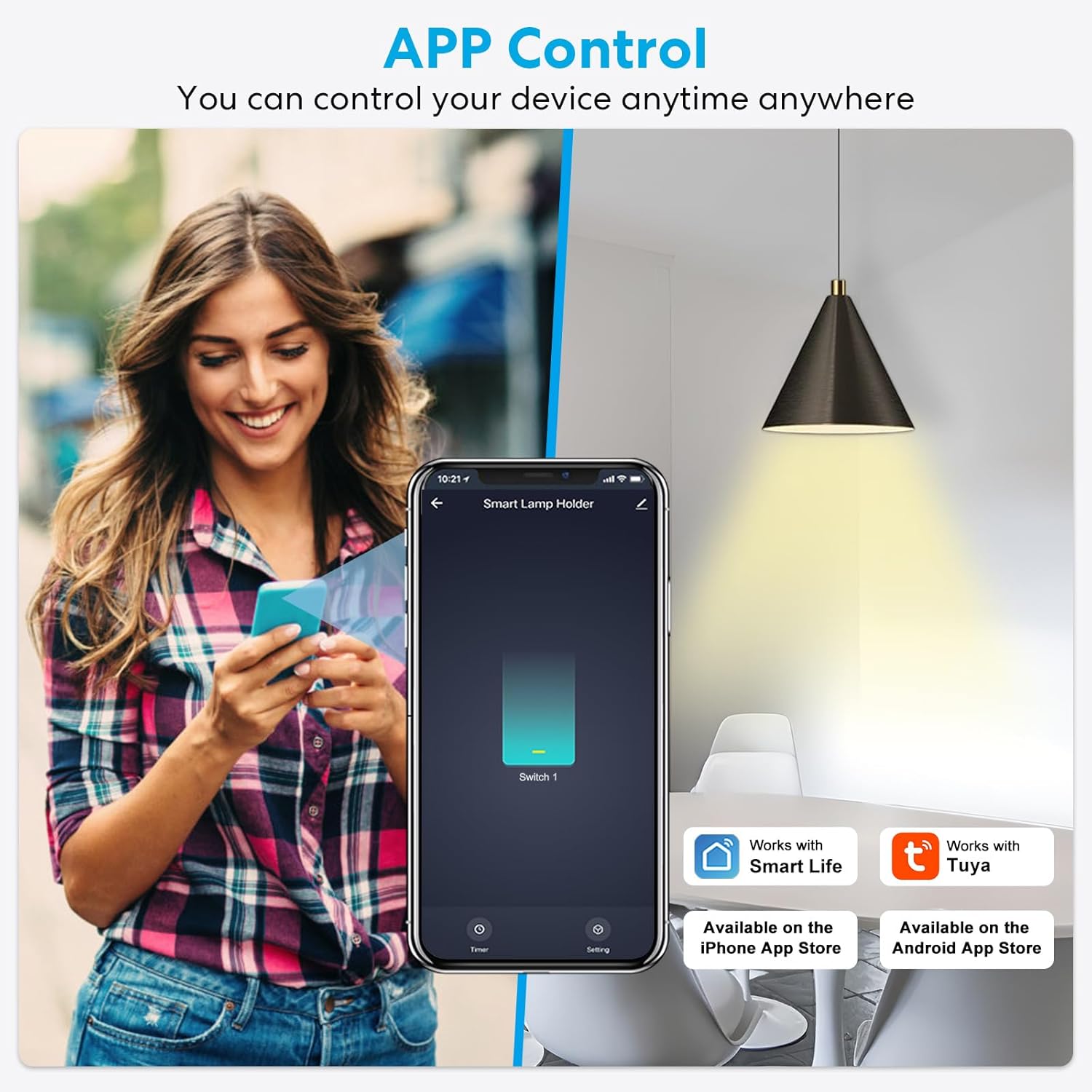
تصوير: App Control. This image shows a person using a smartphone with the Smart Life app interface, demonstrating how to turn a smart lamp holder on or off remotely.

تصوير: Real-Time Feedback and Relay Status. This image displays the Smart Life app showing real-time on/off status of the light and options to set the relay status (ON, OFF, or Remember last status) after a power outage.
5.2 وائس ڪنٽرول
Integrate your smart socket with Amazon Alexa or Google Home for convenient voice commands:
- لنڪ اڪائونٽس: In the Alexa or Google Home app, link your Smart Life account.
- دريافت ڪريو آلات: نوان ڊوائيس ڳولڻ لاءِ Alexa يا Google کان پڇو.
- وائس حڪم: Use commands like "Alexa, turn on Kitchen Light" or "Hey Google, turn off Bedroom Lamp."

تصوير: Voice Control. This image shows a woman in a kitchen interacting with smart speakers (Google Home, Amazon Echo) to control a light, with a speech bubble indicating "Alexa, turn off kitchen light."
5.3 ٽائمر ۽ شيڊول جا ڪم
Automate your lighting with various timer and scheduling options:
- شيڊول: Set specific times for the light to turn on or off daily or on selected days.
- ڳڻپ Set a countdown timer for the light to turn off after a specified duration.
- انچنگ ٽائمر: Set the light to turn off automatically after a short, adjustable period (e.g., 30 minutes) once turned on.
- Circulate Timer: Create recurring on/off cycles for specific periods, useful for simulating occupancy.
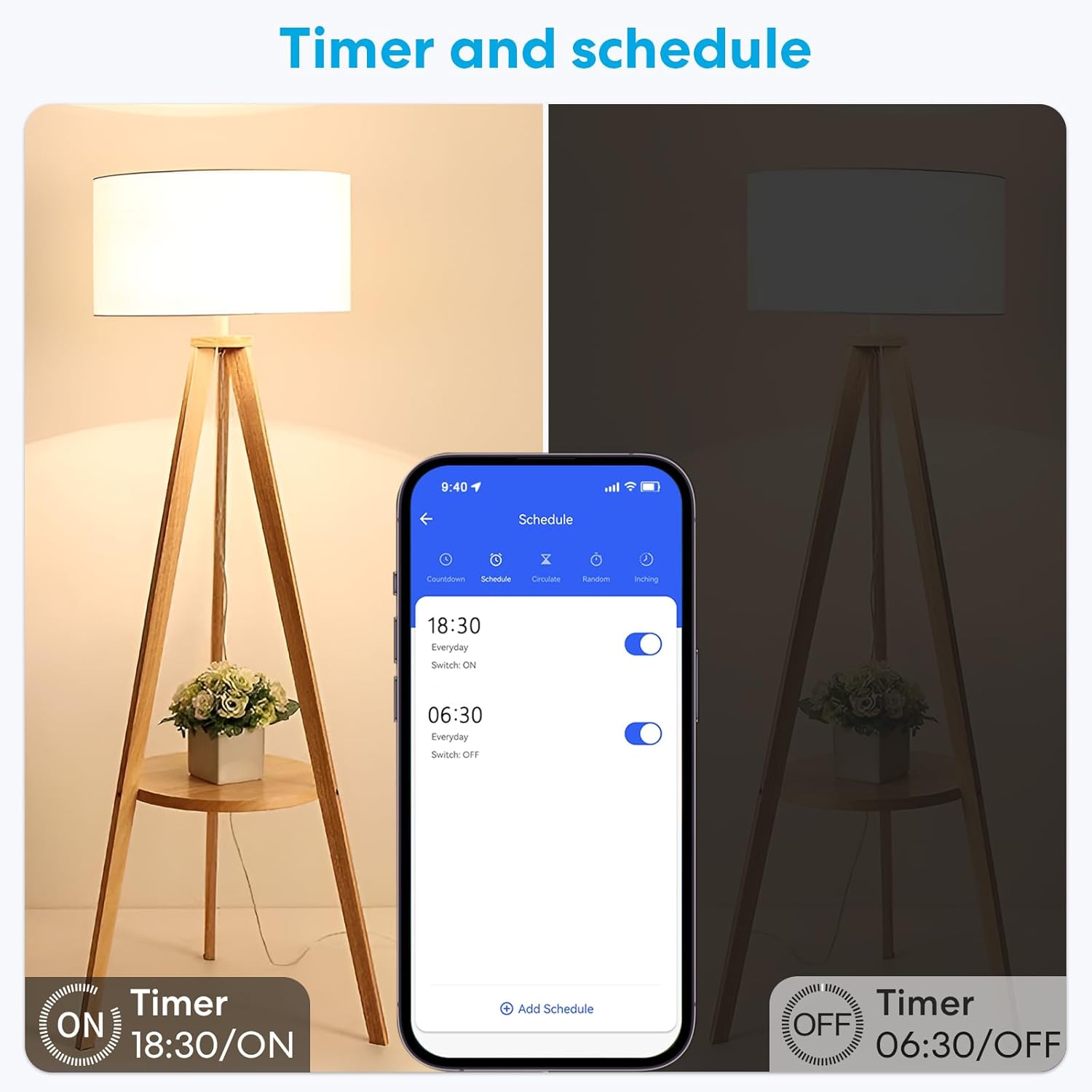
تصوير: Timer and Schedule. This image displays the Smart Life app interface showing options to set daily schedules for turning lights on (e.g., 18:30) and off (e.g., 06:30).

تصوير: Inching Timer and Circulate Timer. This image shows the app interface for setting an Inching Timer (e.g., 30 minutes) and a Circulate Timer with specific on/off schedules for different days.
5.4 ڊوائيس شيئرنگ
Share control of your smart socket with family members:
- In the Smart Life app, navigate to the device settings.
- Select 'Share Device' and enter the accounts of family members you wish to grant access to.

تصوير: Device Sharing. This image illustrates how to share control of the smart device with multiple family members through the app.
6. سار سنڀال
To ensure optimal performance and longevity of your LoraTap Smart WiFi Bulb Socket, follow these simple maintenance guidelines:
- صفائي: Gently wipe the exterior of the smart socket with a dry, soft cloth. Do not use liquid cleaners or abrasive materials.
- ڪنيڪشن چيڪ: Periodically ensure the smart socket is securely screwed into the light fixture and the bulb is firmly seated in the socket.
- فرم ويئر اپڊيٽس: Check the Smart Life app regularly for any available firmware updates for your device. Updates can improve performance and add new features.
- اوور لوڊ ڪرڻ کان پاسو ڪريو: وڌ ۾ وڌ وات کان وڌيڪ نه ڪريوtage جو 30W.
7. مسئلا حل ڪرڻ
If you encounter issues with your LoraTap Smart WiFi Bulb Socket, refer to the following common solutions:
| مسئلو | ممڪن سبب / حل |
|---|---|
| Device fails to connect to Wi-Fi or frequently disconnects. |
|
| Light does not turn on after installation. |
|
| Voice control (Alexa/Google Home) is not working. |
|
| Smart socket stopped working after a few months. |
|
8. وارنٽي ۽ سپورٽ
LoraTap products are designed for reliability and performance. For warranty information, technical support, or any questions regarding your Smart WiFi Bulb Socket, please visit the official LoraTap website or contact their customer service directly. You can often find support contact details within the Smart Life or Tuya app under the 'Me' or 'Profile' section, or by searching for 'LoraTap support' online.