
1. پراڊڪٽ ختمview
The VisionTek VT8000 is a versatile USB-C docking station designed to expand your laptop's connectivity and display capabilities. It supports up to four 4K displays simultaneously via HDMI or DisplayPort, making it suitable for complex multi-monitor setups. This docking station connects to your host system using a single USB-C or USB-A connection and provides 100W of Power Delivery to compatible laptops.
اهم خاصيتون شامل آهن:
- Quad 4K Display Compatibility: Connects four 4K displays (3840 x 2160 @ 60Hz) simultaneously through HDMI or DisplayPort.
- مختلف ڪنيڪشن جا اختيار: Features 4x HDMI, 4x DisplayPort, 4x USB-A (5Gbps), 1x USB-C PD (30W for peripherals), Audio/Mic combo, SD/Micro SD card readers, 2.5 Gigabit Ethernet, and a Kensington Lock slot.
- Robust 100W USB-C Power Delivery: Delivers up to 100W of power to charge your connected laptop (power supply included).
- Universal Device Support: Compatible with USB 3.0, USB-C, and M1 Mac systems, as well as Windows, macOS, and ChromeOS.
- Advanced Enterprise Features: Includes Wake on LAN, MAC Address Pass-Through, and PXE Boot.

Image 1.1: The VisionTek VT8000 USB-C 4X Monitor Docking Station, showcasinان جي ڪمپيڪٽ ڊيزائن ۽ گھڻن بندرگاهن جي ڪري.
2. پيڪيج مواد
پڪ ڪريو ته سڀئي شيون پيڪيج ۾ موجود آهن:
- VisionTek VT8000 Docking Station
- 180W DC 20V/9A Power Adapter
- USB-C کان USB-C ڪيبل (1m)
- USB-C کان USB-A اڊاپٽر
- استعمال ڪندڙ جو دستياب (ھي دستاويز)
3. سيٽ اپ جون هدايتون
Follow these steps to set up your VisionTek VT8000 docking station:
3.1. ڊرائيور لڳائڻ
The VT8000 utilizes DisplayLink technology for multi-monitor support. Before connecting the docking station, it is recommended to install the latest DisplayLink drivers for your operating system. Visit the official DisplayLink website or VisionTek support page to download the appropriate drivers.
- Download the latest DisplayLink drivers for Windows, macOS, or ChromeOS.
- Install the drivers by following the on-screen instructions. Restart your computer if prompted.
3.2. ڊاکنگ اسٽيشن کي ڳنڍڻ
- پاور Connectنيو: Plug the 180W power adapter into the DC 20V port on the rear of the docking station, then plug the adapter into a power outlet. The power LED on the front of the dock will illuminate.
- هوسٽ سسٽم سان ڳنڍيو: Use the provided USB-C to USB-C cable to connect the docking station's 'COMPUTER' port to your laptop's USB-C port. If your laptop only has USB-A ports, use the included USB-C to USB-A adapter with the USB-C cable.
- ڊسپلي ڳنڍيو: Connect your monitors to the available HDMI or DisplayPort outputs on the rear of the docking station. The VT8000 supports up to four displays.
- پردي سان ڳنڍڻ: Plug your USB devices (keyboard, mouse, external drives) into the USB-A ports. Connect your headset or speakers to the Audio/Mic combo jack. For wired network access, connect an Ethernet cable to the 2.5 Gigabit Ethernet port.

تصوير 3.1: تفصيلي view of the VisionTek VT8000 docking station ports, including HDMI, DisplayPort, USB-A, USB-C, Ethernet, and audio jacks.

Image 3.2: Front and rear port layout of the VT8000, illustrating connections for additional devices, displays, and networking.
4. ڊاکنگ اسٽيشن کي هلائڻ
4.1. ڊسپلي ترتيب
Once connected, your operating system should detect the external displays. You may need to configure display settings (resolution, orientation, extension/mirroring) within your OS display settings.
- ونڊوز: Right-click on the desktop, select 'Display settings'.
- macOS: Go to System Settings (or System Preferences) > Displays.
The VT8000 supports various display configurations:
| ميزبان سسٽم | 1 ڏيکاريو | 2 ڏيکاري ٿو | 3 ڏيکاري ٿو | 4 ڏيکاري ٿو |
|---|---|---|---|---|
| ونڊوز | 5120 x 2880 @ 60Hz (DP Stream 1+2) or 4096 x 2160 @ 60Hz (HDMI) | 5120 x 2880 @ 60Hz (DP Stream 1+2) or 4096 x 2160 @ 60Hz (HDMI) | Display 1-2: 5120 x 2880 @ 60Hz, Display 3-4: 4096 x 2160 @ 60Hz | 4096 x 2160 @ 60Hz |
| macOS | 4096 x 2160 @ 60Hz | 4096 x 2160 @ 60Hz | 4096 x 2160 @ 60Hz | 4096 x 2160 @ 60Hz |
| ChromeOS | 4096 x 2160 @ 60Hz | 4096 x 2160 @ 60Hz | 4096 x 2160 @ 60Hz | 4096 x 2160 @ 60Hz |

Image 4.1: Visual representation of the VT8000's ability to extend up to four displays, with resolution details for different operating systems.
4.2. پاور پهچائڻ
The VT8000 provides up to 100W of Power Delivery to your host laptop via the USB-C connection, ensuring your device remains charged while connected. The dedicated USB-C PD (30W) port on the front is for charging mobile devices or other low-power peripherals.
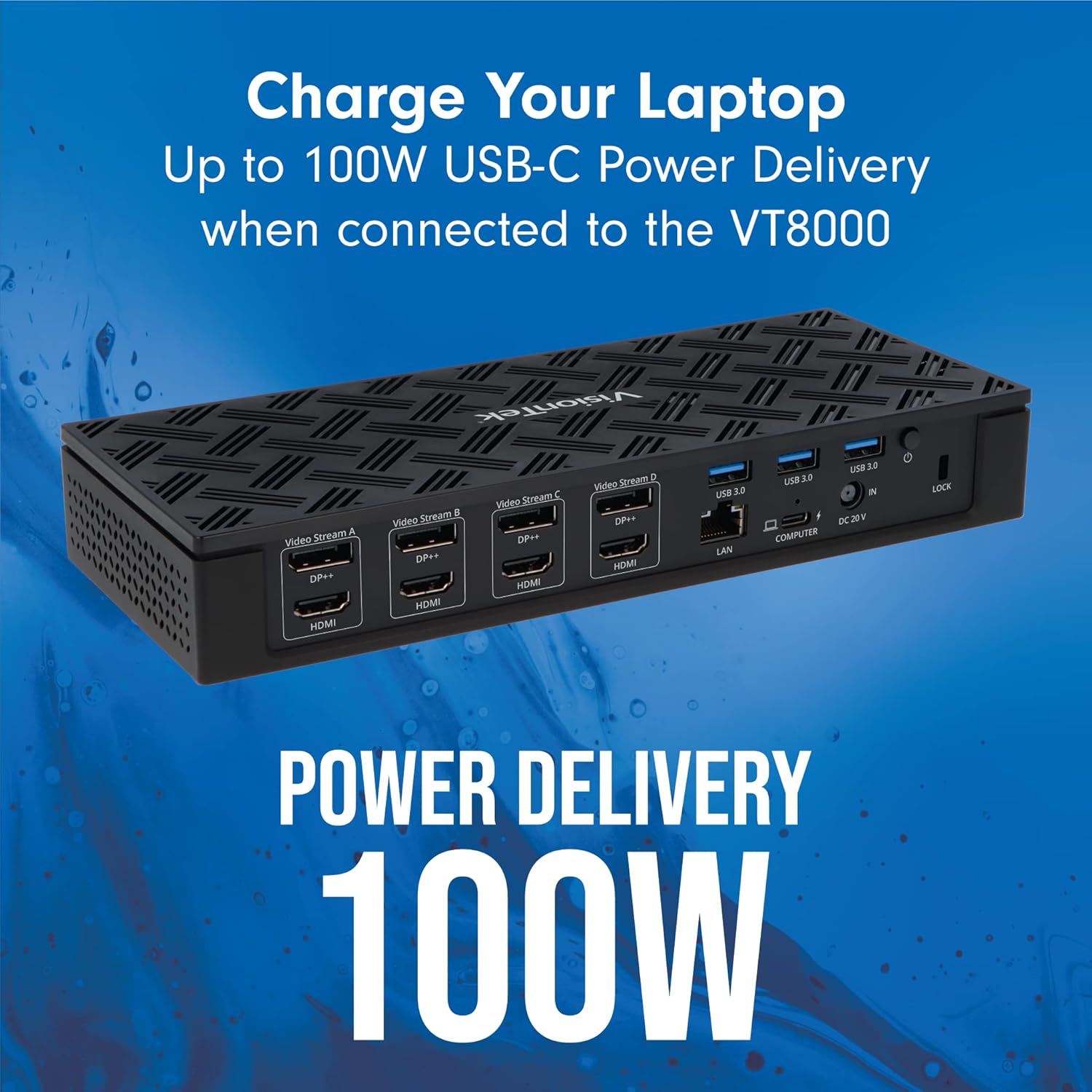
Image 4.2: The VT8000 docking station providing 100W USB-C Power Delivery to a connected laptop.
4.3. عالمگير مطابقت
The docking station is designed for broad compatibility with Windows, macOS (including M1 Macs), and ChromeOS systems that have a USB-C or USB-A port (USB 3.0 or higher recommended for optimal performance).

Image 4.3: A laptop connected to the VT8000, illustrating its universal compatibility with various operating systems.
5. سار سنڀال
To ensure the longevity and optimal performance of your VisionTek VT8000 docking station, follow these maintenance guidelines:
- صفائي: Use a soft, dry, anti-static cloth to clean the exterior of the docking station. Avoid using liquid cleaners or aerosol sprays, which can damage the device.
- وينٽيليشن: Ensure the docking station is placed in a well-ventilated area to prevent overheating. Do not block the ventilation openings.
- ڪيبل جو انتظام: ڪيبلن ۽ بندرگاهن کي نقصان کان بچائڻ لاءِ ڪيبلن کي منظم ۽ ڪنڪ يا گهڻي موڙ کان پاڪ رکو.
- اسٽوريج: جڏهن گهڻي عرصي تائين استعمال ۾ نه هجي، ته پاور اڊاپٽر کي ڊسڪنيڪٽ ڪريو ۽ ڊاکنگ اسٽيشن کي ٿڌي، سڪل جاءِ تي ذخيرو ڪريو.
6. مسئلا حل ڪرڻ
If you encounter issues with your VT8000 docking station, refer to the following troubleshooting steps:
6.1. ڪوبه ڊسپلي آئوٽ پٽ ناهي
- ڪنيڪشن چيڪ ڪريو: Ensure all display cables (HDMI/DisplayPort) are securely connected to both the docking station and the monitors.
- هوسٽ ڪنيڪشن جي تصديق ڪريو: Confirm the USB-C cable connecting the dock to your laptop is firmly seated.
- پاور سائيڪل: Disconnect the power adapter from the docking station, wait 10 seconds, then reconnect it. Restart your computer.
- ڊرائيور چيڪ: Ensure the latest DisplayLink drivers are installed and updated. Reinstall if necessary.
- مانيٽر ان پٽ: Verify your monitors are set to the correct input source (HDMI or DisplayPort).
6.2. Intermittent Display or Device Disconnections
- ڪيبل سالميت: Inspect all cables for damage. Try using different cables if available.
- بجلي جي فراهمي: Ensure the 180W power adapter is correctly connected and providing stable power.
- ڊرائيور جي استحڪام: Outdated or corrupted DisplayLink drivers can cause instability. Update or reinstall drivers.
- MacBook Sleep Issues: Some users report display disconnection after a MacBook enters sleep mode. Restarting the MacBook often resolves this. Ensure your macOS is updated and DisplayLink drivers are current. Adjust power settings to prevent deep sleep if this issue persists.
6.3. No Power Delivery to Laptop
- پاور اڊاپٽر چيڪ ڪريو: Confirm the 180W power adapter is fully connected to the dock and a working power outlet.
- USB-C ڪيبل: Ensure you are using the provided USB-C to USB-C cable, which supports Power Delivery.
- ليپ ٽاپ مطابقت: پڪ ڪريو ته توهان جو ليپ ٽاپ USB-C پاور ڊليوري کي سپورٽ ڪري ٿو.
6.4. نيٽ ورڪ ڪنيڪٽوٽي جا مسئلا
- Ethernet ڪيبل: ڊاک ۽ پنهنجي روٽر/موڊيم ٻنهي سان ايٿرنيٽ ڪيبل ڪنيڪشن چيڪ ڪريو.
- ڊرائيور چيڪ: Ensure network drivers are correctly installed.
- روٽر/موڊيم: پنھنجي نيٽ ورڪ سامان کي ٻيهر شروع ڪريو.
7. وضاحتون
| خاصيت | تفصيل |
|---|---|
| ماڊل نمبر | VT8000 |
| برانڊ | ويزن ٽيڪن |
| ميزبان ڪنيڪشن | USB-C or USB-A (via adapter) |
| وڊيو آئوٽ | 4x HDMI, 4x DisplayPort (supports up to 4 displays simultaneously) |
| وڌ ۾ وڌ ريڪارڊ | 4096 x 2160 @ 60Hz (Quad Display), 5120 x 2880 @ 60Hz (Dual Display on Windows) |
| USB-A بندرگاهن | 4x USB 3.0 (5Gbps) |
| USB-C بندرگاهن | 1x USB-C PD (30W for peripherals) |
| پاور پهچائڻ | Up to 100W to host laptop |
| ايٿرنيٽ | 2.5 گيگاابٽ ايٿرنيٽ |
| آڊيو | 1x Audio/Mic Combo Jack |
| ڪارڊ ريڊر | ايس ڊي / مائڪرو ايس ڊي ڪارڊ ريڊر |
| سيڪيورٽي | ڪينسنگٽن لاڪ سلاٽ |
| آپريٽنگ سسٽم | Windows 11, 10, 8.1, 7 | macOS 10.10 and later | ChromeOS |
| طول و عرض (LxWxH) | 3.86 x 2.5 x 1.5 انچ |
| وزن | 1 پائونڊ |
8. وارنٽي ۽ سپورٽ
8.1. وارنٽي ڄاڻ
VisionTek products are covered by a manufacturer's warranty. For specific details regarding the warranty period and terms for your VT8000 docking station, please refer to the warranty card included with your product or visit the official VisionTek webسائيٽ. وارنٽي دعوائن لاءِ خريداري جو ثبوت رکو.
8.2. ٽيڪنيڪل سپورٽ
If you require technical assistance or have questions not covered in this manual, please contact VisionTek customer support. Support resources, including FAQs and contact information, can be found on the official VisionTek webسائيٽ:
ويزن ٽيڪن Webسائيٽ: www.visiontek.com
When contacting support, please have your product model number (VT8000) and a detailed description of your issue ready.