
تعارف
The HyperGear HyperStream 1080P Webcam provides high-definition video and clear audio for various applications, including online meetings, classes, and streaming. This manual provides instructions for setup, operation, maintenance, and troubleshooting to ensure optimal performance of your webڪيم.
پيڪيج مواد
مھرباني ڪري تصديق ڪريو ته سڀ شيون توھان جي پيڪيج ۾ موجود آھن:
- HyperGear HyperStream 1080P Webڪئميرا
- USB ڪيبل
- بلٽ ان مائڪروفون
پيداوار ختمview
The HyperGear HyperStream 1080P Webcam is designed for ease of use and high-quality performance. Key features include:
- Crystal-Clear 1080P HD Resolution: Delivers sharp and vibrant visuals.
- Built-in Noise Reduction Microphone: Captures clear audio by reducing background sounds.
- پلگ ۽ پلي يو ايس بي ڪنيڪشن: Requires no additional software or drivers for quick setup.
- Wide-Angle 110° Lens: هڪ وسيع ميدان تي قبضو ڪري ٿو view, suitable for group interactions.
- Auto-White Balance: Automatically adjusts to various lighting conditions for optimal image quality.
- ترتيب ڏيڻ واري ڪلپ تي جبل: Securely attaches to monitors or laptops, and can also be positioned as a standalone unit.
سيٽ اپ جون هدايتون
Follow these steps to set up your HyperGear HyperStream 1080P Webڪيمرا:
- ان کي کوليو Webڪيمرا: احتياط سان ختم ڪريو webcam and its USB cable from the packaging.

Image: The HyperGear HyperStream 1080P Webcam is designed for instant plug-and-play setup without requiring additional drivers. Simply connect the USB cable to your computer.
- جبل Webڪيمرا:
- مانيٽر/ليپ ٽاپ تي: Open the adjustable clip and place it securely on top of your monitor or laptop screen. Adjust the angle to ensure the webڪيم مستحڪم آهي ۽ توهان جي سامهون آهي.
- ڊيسڪ تي: هڪ مستحڪم اسٽينڊ ٺاهڻ لاءِ ڪلپ کي فولڊ ڪريو ۽ رکو webcam on a flat surface, such as your desk.

تصوير: دي webcam features an adjustable mount that allows it to be clamped onto any screen or display, or positioned as a standalone unit on your desk. It offers 180-degree rotation for flexible positioning.
- پنهنجي ڊوائيس سان ڳنڍيو: USB ڪيبل کي پلگ ان ڪريو webcam into an available USB port on your computer (PC, Mac) or Xbox console. The webcam is plug-and-play, so no additional drivers are typically required.
- ڪنيڪشن جي تصديق ڪريو: Your operating system should automatically detect the webcam. You can verify its connection in your device settings or within your preferred video conferencing/streaming application.
آپريٽنگ هدايتون
Once connected, the HyperGear HyperStream 1080P Webcam is ready for use with various applications.
سسٽم مطابقت
جي webcam is compatible with multiple operating systems and platforms:
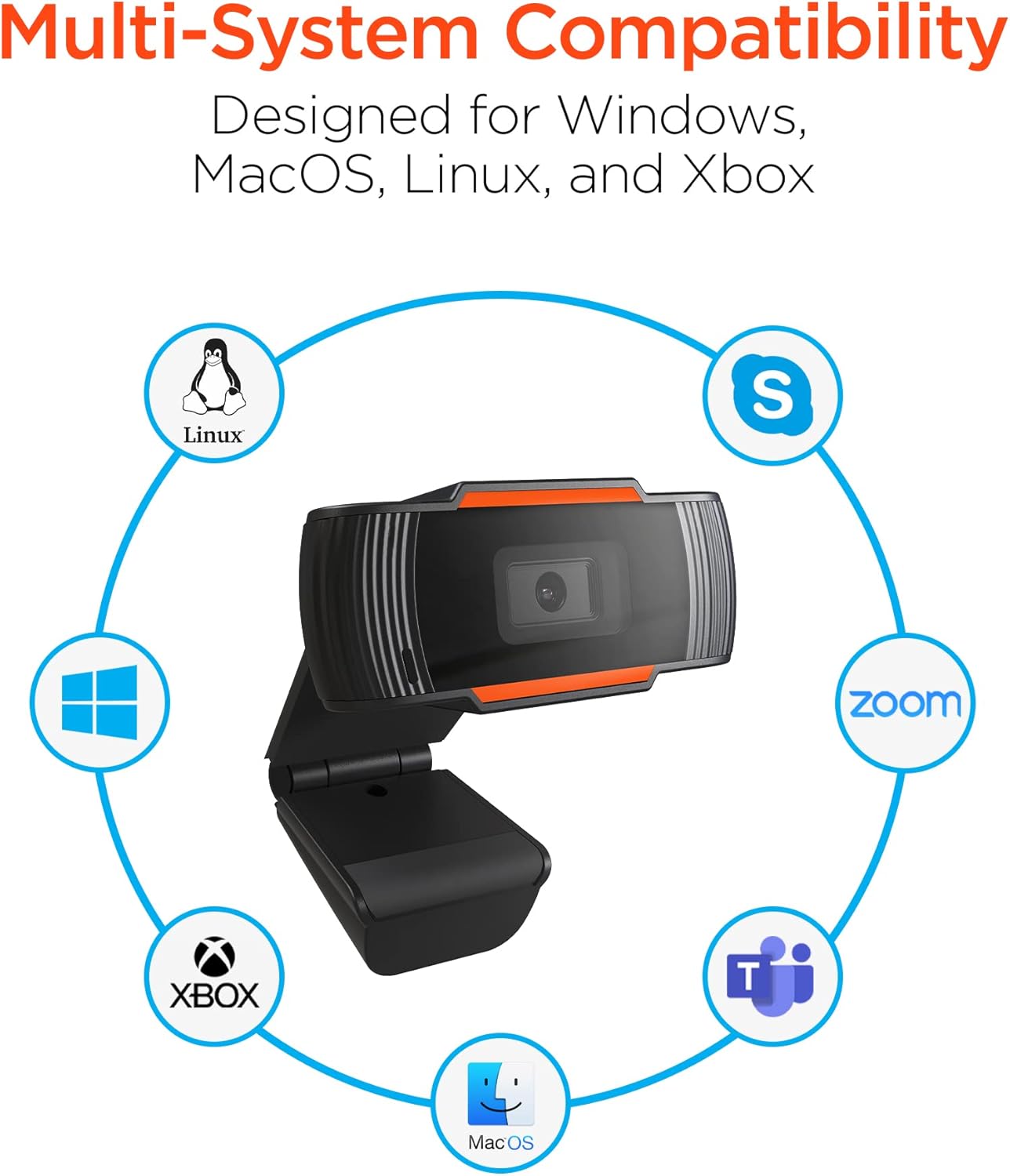
Image: The HyperGear HyperStream 1080P Webcam offers multi-system compatibility, designed for use with Windows, MacOS, Linux, and Xbox, as well as popular communication platforms like Skype, Zoom, and Microsoft Teams.
- ونڊوز
- macOS
- لينڪس
- Xbox
- Compatible with popular video conferencing software (e.g., Skype, Zoom, Microsoft Teams).
استعمال ڪندي Webڪئميرا
- منتخب ڪريو Webڪيمرا: In your video conferencing or streaming application, navigate to the video and audio settings. Select "HyperGear HyperStream 1080P Webcam" as your video input device and its integrated microphone as your audio input device.
- Adjust Position and Angle: کي يقيني بڻايو webcam is positioned to capture your desired view. The 110° wide-angle lens is ideal for capturing multiple participants or a broader background.

Image: The 110° ultra wide-angle lens ensures that your entire team and presentations fit within the frame, making it suitable for group meetings and collaborative environments.
- Benefit from Auto-White Balance and Fixed Focus: جي webcam automatically adjusts for optimal lighting and maintains a sharp focus on subjects within its field of view, eliminating the need for manual adjustments.

تصوير: دي webcam features fixed focus and auto-white balance (AWB) to automatically adjust to various lighting conditions (like daylight or fluorescent), ensuring clear and sharp visuals without manual intervention.
- Utilize Noise Reduction Microphone: The built-in microphone actively reduces ambient noise, ensuring your voice is clear and easily understood during calls.

Image: The integrated noise reduction microphone minimizes unwanted background noise and distortions, ensuring clear audio during your video calls and streams.
سار سنڀال
توهان جي ڊگهي عمر ۽ بهترين ڪارڪردگي کي يقيني بڻائڻ لاءِ webڪيم، انهن سار سنڀال جي هدايتن تي عمل ڪريو:
- صفائي: نرم، لِنٽ فري ڪپڙي سان لينس کي نرميءَ سان صاف ڪريو. سخت ڪيميڪلز يا رگڙيندڙ مواد استعمال ڪرڻ کان پاسو ڪريو جيڪي لينس کي ڇڪي سگهن ٿا يا سي کي نقصان پهچائي سگهن ٿا.asing.
- اسٽوريج: جڏهن استعمال ۾ نه هجي، ذخيرو ڪريو webcam in a clean, dry place away from extreme temperatures and direct sunlight.
- سنڀالڻ: dropٽڻ کان پاسو ڪريو webcam or subjecting it to strong impacts, which could damage internal components.
مشڪلاتون
If you encounter issues with your HyperGear HyperStream 1080P Webcam, try the following troubleshooting steps:
- Webڪيم نه مليو:
- پڪ ڪريو ته USB ڪيبل محفوظ طور تي ٻنهي ۾ لڳل آهي webcam and your computer's USB port.
- پلگ ان ڪرڻ جي ڪوشش ڪريو webڪيم هڪ مختلف USB پورٽ ۾.
- پنهنجي ڪمپيوٽر کي ٻيهر شروع ڪريو.
- Check your operating system's device manager (Windows) or System Information (macOS) to see if the webڪيم درج ٿيل آهي.
- ڪابه وڊيو آئوٽ:
- تصديق ڪريو ته webتوهان جي ايپليڪيشن جي سيٽنگن ۾ cam کي وڊيو ان پٽ ڊوائيس طور چونڊيو ويو آهي.
- پڪ ڪريو ته ڪو ٻيو ايپليڪيشن هن وقت استعمال نه ڪري رهيو آهي webcam, as some systems only allow one application to access it at a time.
- Check for any physical obstructions covering the lens.
- No Audio Input (Microphone):
- تصديق ڪريو ته webcam's microphone is selected as the audio input device in your application's settings and your system's sound settings.
- Check that the microphone is not muted in your application or system settings.
- Ensure your system's privacy settings allow applications to access the microphone.
- خراب وڊيو معيار:
- Ensure you have adequate lighting in your environment. While the webcam has auto-white balance, sufficient ambient light is crucial for best results.
- صاف ڪريو webcam lens if it appears smudged or dirty.
- Check your internet connection speed if streaming or video conferencing, as a slow connection can affect video quality.
وضاحتون
| خاصيت | تفصيل |
|---|---|
| برانڊ | هائپر گيئر |
| ماڊل نالو | HyperStream Portable 1080P |
| وڊيو ڪيپچر ريزوليوشن | 1080 ص |
| رابطي ٽيڪنالاجي | USB |
| رنگ | ڪارو |
| خاص خصوصيت | ترتيب ڏيڻ وارو |
| Camcorder جو قسم | Webڪئميرا |
| آپريٽنگ سسٽم | ونڊوز، macOS |
| لينس جو قسم | وائڊ اينگل |
| فوڪس جو قسم | فڪسڊ فوڪس |
| تصويري اسپيڪٽ ريشو | 16:9 |
| نمائش ڪنٽرول جو قسم | خودڪار |
| مؤثر وڊيو حل | 1920 پکسلز |
| مطابقت رکندڙ ڊوائيسز | پرسنل ڪمپيوٽر |
| بلٽ ان ميڊيا | مائڪروفون، USB ڪيبل |
| شيءِ جو وزن | 4.72 آونس |
| يو پي سي | 633755155390 |
| ASIN | B09S51KSC4 |
وارنٽي ۽ سپورٽ
For warranty information and customer support, please refer to the documentation included with your purchase or visit the official HyperGear webسائيٽ.
توھان پڻ دورو ڪري سگھو ٿا HyperGear Store on Amazon وڌيڪ پراڊڪٽ جي معلومات ۽ سپورٽ وسيلن لاءِ.