
1. تعارف
This instruction manual provides comprehensive guidance for the installation, operation, and maintenance of your ISUDAR PCM 3.1 Wireless Carplay & Android Auto Module. This module is designed to enhance your driving experience by integrating modern smartphone functionalities directly into your Porsche's original infotainment system.
The module supports wireless and wired Apple CarPlay and Android Auto, enabling seamless access to navigation, music, messaging, and voice control. It ensures that all original vehicle functions, such as steering wheel controls, radio buttons, and existing camera systems, remain fully operational.
2. مطابقت
This module is compatible with Porsche vehicles equipped with the PCM 3.1 system. Please verify your car's system before purchase. Compatible models typically include:
- Porsche Panamera (2010-2016)
- Porsche Cayenne (2011-2015)
- Porsche Macan (2014-2016)
- Porsche Cayman (PCM 3.1)
- Porsche Boxster (2010-2016)
- Porsche 911 (997/991 with PCM 3.1)
- Porsche 718 (PCM 3.1)
Note: This module is NOT compatible with CDR, PCM 3.0, or PCM 4.0 systems. If your central control unit has a "NAVI" button, it is typically a PCM 3.1 system.

Figure 2.1: Visual guide for identifying PCM 3.1 vs. PCM 4.0 systems.
3. اهم خاصيتون
- Wireless & Wired Apple CarPlay and Android Auto: Seamlessly integrate your smartphone for navigation, music, and communication.
- طاقتور پروسيسر: Equipped with SUNPLUS SPHE8368U, Cortex A9 for enhanced processing power, anti-interference, and high stability.
- 5GHz وائي فائي ماڊل: Built-in 5GHz WiFi ensures a more stable and faster wireless connection.
- Non-destructive Installation: Designed for integration without altering original vehicle wiring.
- Original Controls Retention: Supports steering wheel controls and radio buttons.
- وائس ڪنٽرول: Activate Siri & Google Assistant for hands-free operation.
- Camera & Parking Sensor Support: Compatible with original OEM cameras, aftermarket CVBS/AHD cameras, and parking sensors.
- آئيني لنڪ: Display mobile screens on the car radio, with audio played through car speakers.
- U-Disk ان پٽ: Supports music and video playback from USB drives.
- DSP Sound Processor & EQ Adjustment: پنهنجي آڊيو تجربي کي ترتيب ڏيو.
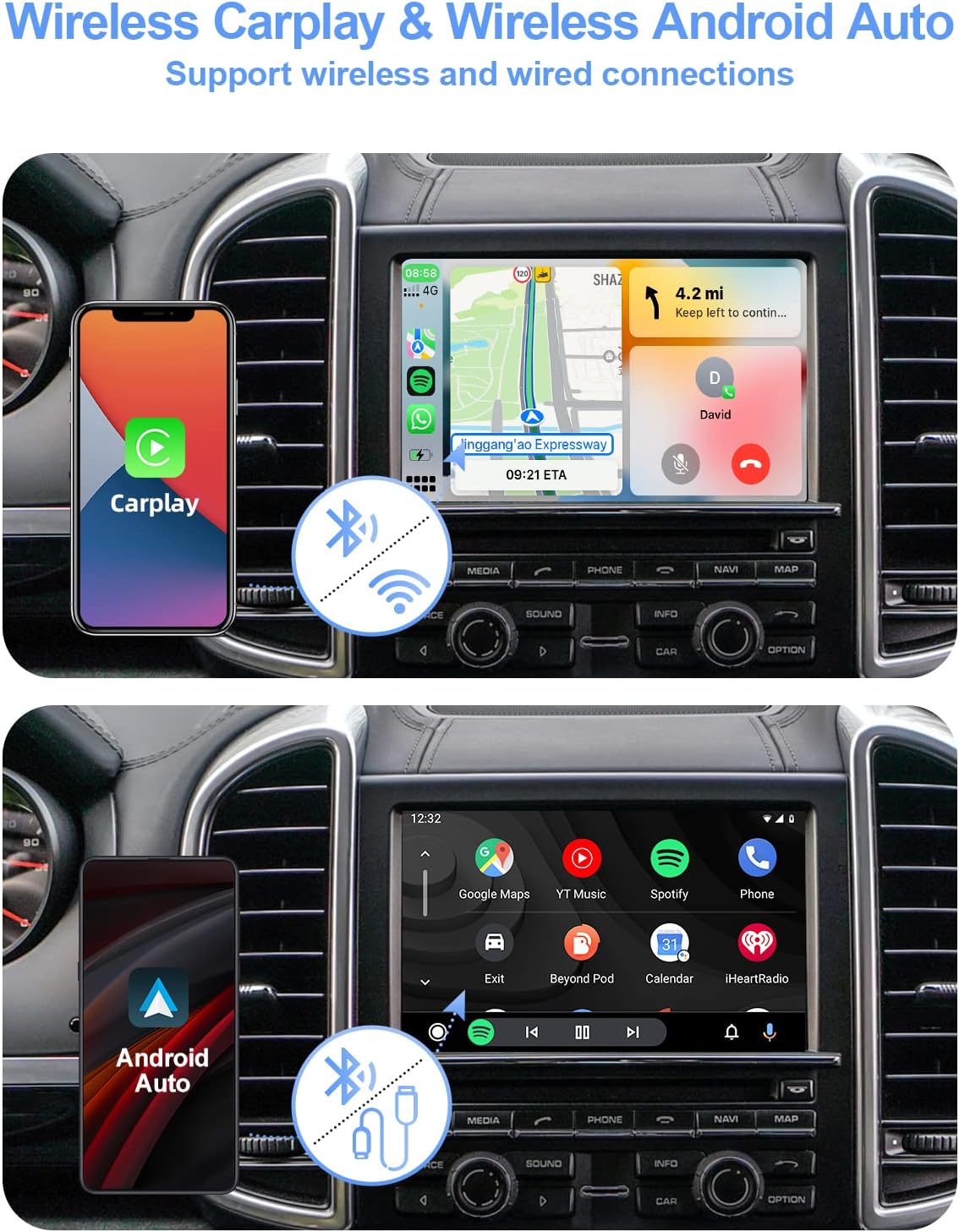
شڪل 3.1: وائرليس ڪار پلي ۽ اينڊرائيڊ آٽو ڪارڪردگي.

Figure 3.2: Powerful processor and 5GHz WiFi module.

Figure 3.3: Support for OEM and aftermarket cameras and parking sensors.
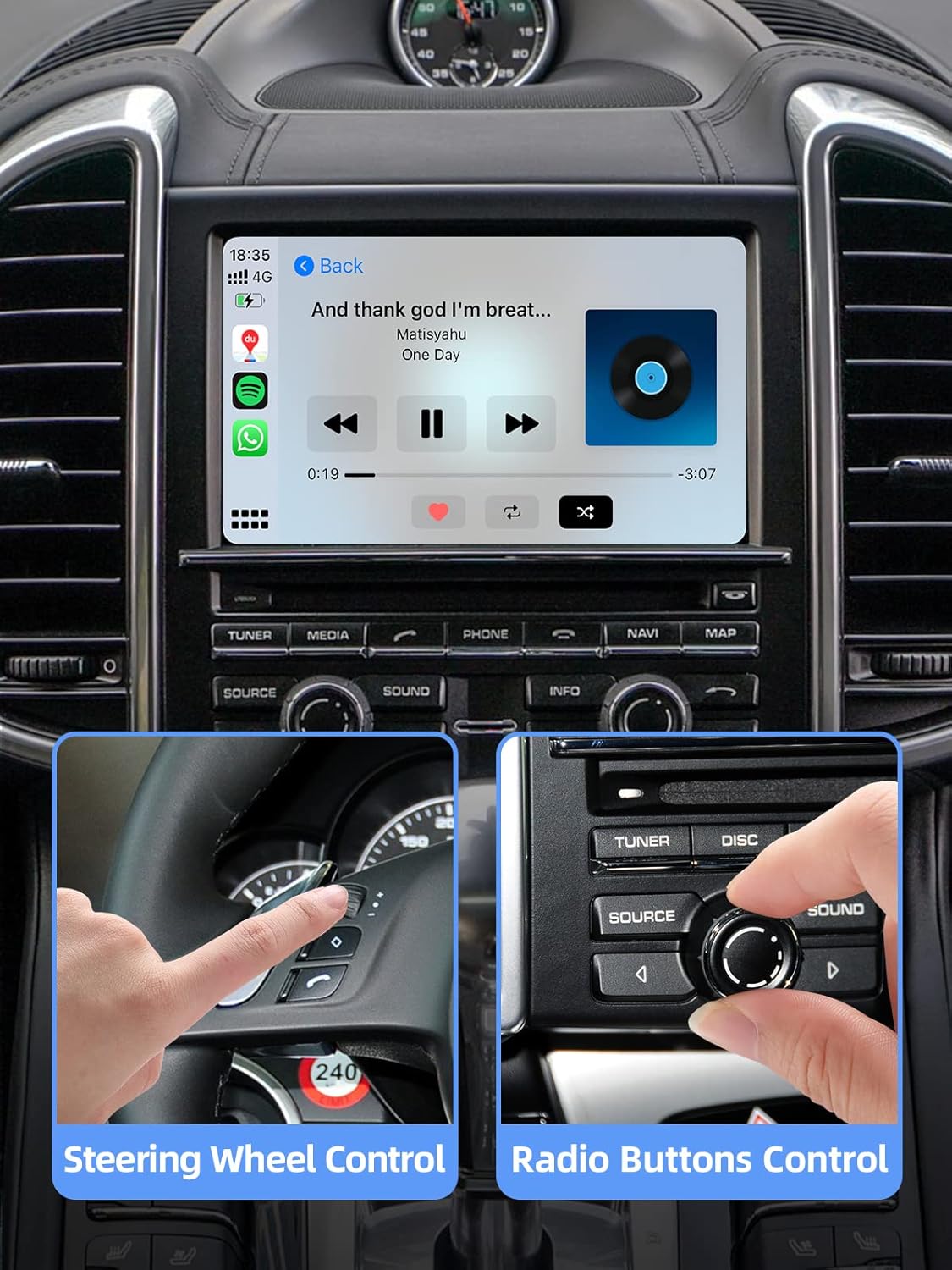
Figure 3.4: Steering wheel and radio button control.
4. سيٽ اپ ۽ تنصيب
The ISUDAR PCM 3.1 module is designed for non-destructive installation. Professional installation is recommended, but experienced users can follow the detailed steps provided. Ensure your vehicle's AUX input is activated for audio output.
4.1. دٻي ۾ ڇا آهي

شڪل 4.1: پيڪيج جو مواد.
4.2. انسٽاليشن وڊيو گائيڊ
هڪ بصري قدم بہ قدم گائيڊ لاءِ، مهرباني ڪري سرڪاري انسٽاليشن وڊيو ڏسو:
Video 4.1: PCM 3.1 Module Installation Guide. This video demonstrates the complete installation process, including disassembling the head unit, connecting the module, and reassembling the unit.
4.3. Key Installation Steps (Refer to video for full details)
- Remove the CD Part: Unscrew the 3 screws at the rear of the radio and 2 screws at the bottom. Use tweezers to press down the left and right shrapnel on the lower side, then push the DVD driver out and extract it upwards.
- Remove FPC Cable: Pull up on the buckles on each side of the DVD drive FPC slot and carefully remove the FPC cable.
- اينٽينا ڳنڍيو: Insert the two antennas and the two patch cables into the designated holes.
- Install Screw Posts: Install the corresponding screw posts to the 3 screw vacancies of the motherboard.
- Plug FPC Cable into Module: Plug the ISUDAR FPC cable into the radio motherboard. Then, plug our FPC cable into the ISUDAR's motherboard.
- Connect WiFi & Bluetooth Antennas: Plug the WiFi & Bluetooth Antenna into the ISUDAR's motherboard.
- Place & Fasten CP Motherboard: Place the CP motherboard and fasten it with screws.
- Insert Monitor Cables: Insert the 2 cables of the monitor and ISUDAR's cable into the corresponding position of the CP motherboard. Ensure cables are inserted in the right direction, not obliquely. The buckles must be pressed flat. Incorrect insertion can damage the machine.
- Organize Cables & Reinstall CD Part: Carefully organize all FPC cables to avoid breaking them during reinstallation. Snap the left and right shrapnel back to their original position.
- Lock Screws: Install the movement and lock all the screws.
- Connect Power & USB Cables: Plug the two adapter cables with our power cable and USB cable. Plug the power cord into the original car CD host.
اهم نوٽس:
- Do not bend the antenna cable excessively, as this can attenuate the signal.
- Do not bundle the antenna with the power cable, as this can also attenuate the signal.

Figure 4.2: Easy Installation Steps.
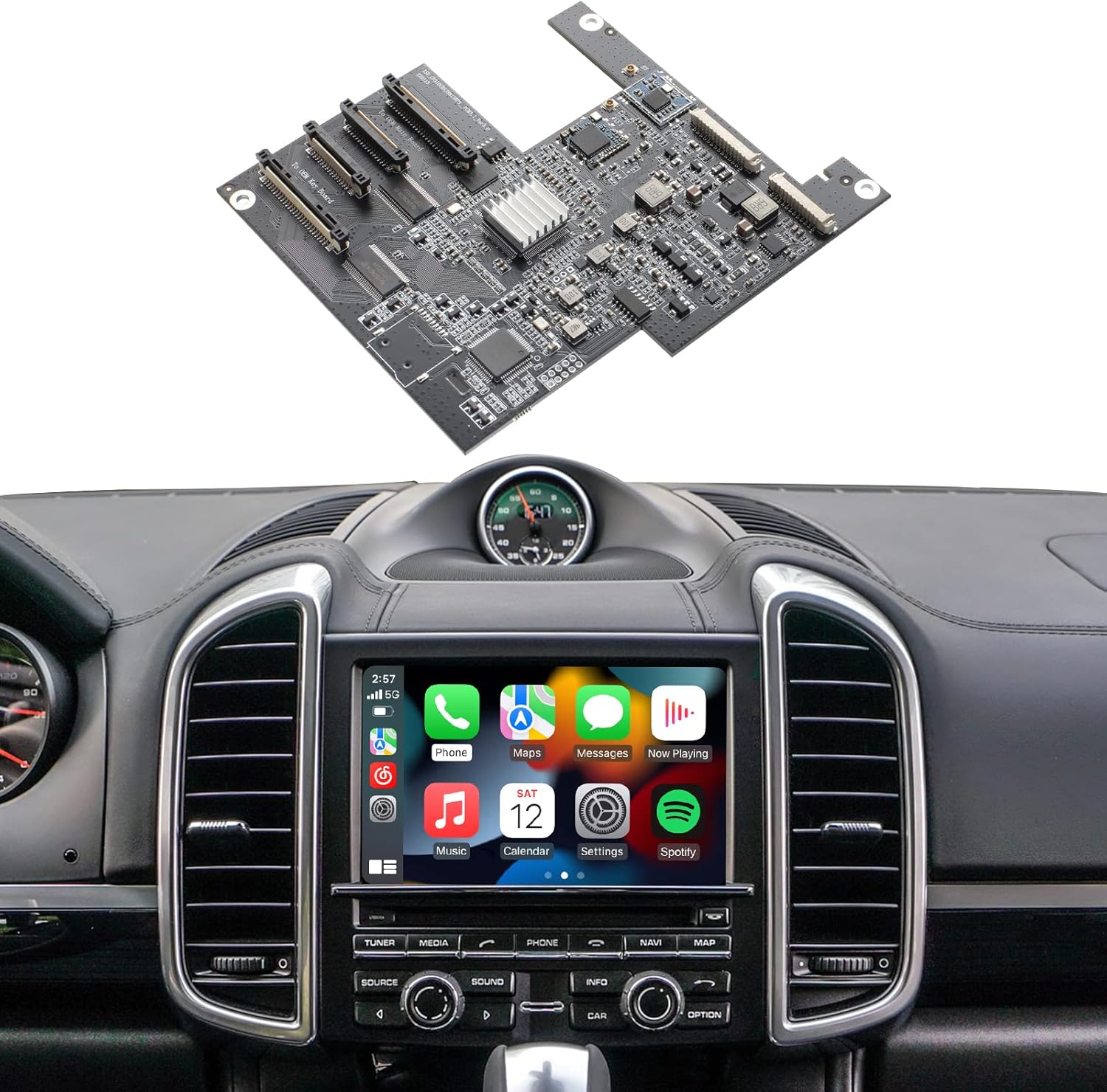
Figure 4.3: Module installed and operating.
5. آپريٽنگ هدايتون
Once installed, the ISUDAR module integrates seamlessly with your Porsche's PCM 3.1 system. The sound will be routed via AUX, so ensure your car's AUX input is activated.
5.1. Activating CarPlay/Android Auto
After installation, switch to the AUX input on your PCM system to access the module's interface. Your phone should automatically connect wirelessly if previously paired, or you can connect via USB for wired CarPlay/Android Auto.
5.2. ايپل CarPlay استعمال ڪندي
Apple CarPlay allows you to use your iPhone's features on the car's display. This includes navigation (Apple Maps, Google Maps, Waze), making calls, sending messages, and playing music from apps like Spotify.

Figure 5.1: Apple CarPlay Navigation.

Figure 5.2: Apple CarPlay Music.
5.3. Android آٽو استعمال ڪندي
Android Auto provides a simplified interface for Android phones, allowing access to Google Maps, music apps, and voice commands. Wireless Android Auto is supported for compatible mobile devices.
5.4. آئيني لنڪ جي ڪارڪردگي
The Mirror Link feature allows you to display your mobile phone screen directly onto the car's display. Audio from the mirrored content will play through the car's speakers.

شڪل 5.3: آئيني لنڪ عمل ۾.
5.5. Voice Control (Siri & Google Assistant)
The module supports voice activation for Siri and Google Assistant. Simply use the voice command button on your steering wheel or the designated button on the screen to activate. The PCM 3.1 Carplay module does not require an external microphone.

Figure 5.4: Voice control with Siri.
5.6. Steering Wheel & Radio Button Control
Navigate the CarPlay/Android Auto interface using your vehicle's existing steering wheel controls and radio buttons, ensuring a familiar and safe user experience.

Figure 5.5: Enjoy Smart and Safe Driving with integrated controls.
6. سار سنڀال
The ISUDAR PCM 3.1 module requires minimal maintenance. Keep the car's interior clean and free from excessive dust, which can affect electronic components. Avoid exposing the unit to extreme temperatures or moisture.
- سافٽ ويئر اپڊيٽ: وقتي طور تي ٺاهيندڙ جي چيڪ ڪريو webبهترين ڪارڪردگي ۽ مطابقت کي يقيني بڻائڻ لاءِ ڪنهن به دستياب فرم ويئر اپڊيٽ لاءِ سائيٽ.
- ڪيبل جو انتظام: Ensure all cables remain securely connected and are not pinched or bent, as this can lead to signal loss or damage.
- صفائي: Use a soft, dry cloth to clean the screen and surrounding areas. Avoid abrasive cleaners or solvents.
7. مسئلا حل ڪرڻ
If you encounter issues with your ISUDAR PCM 3.1 module, please refer to the following common problems and solutions:
- No Sound After Installation:
Ensure your car's AUX input is activated. The module's audio output relies on the AUX channel. If not activated, contact your car dealer or a professional for assistance. - ڪار پلي/اينڊرائيڊ آٽو وائرليس طور تي نه ڳنڍجي رهيو آهي:
Verify that your phone's Wi-Fi and Bluetooth are enabled. Ensure the module's Wi-Fi is set to 5GHz for optimal performance, but if issues persist, try switching to 2.4GHz. Sometimes, re-pairing the phone or restarting the car's infotainment system can resolve the issue. - Screen Freezes or Goes Fuzzy:
This can sometimes be caused by Wi-Fi interference or an unstable connection. Try restarting the car's engine to reset the system. Ensure the FPC cables are correctly and securely inserted, as improper seating can cause display issues. - Original Car Functions Lost:
The module is designed for non-destructive installation and should not affect original car functions. If any stock functionality is lost, double-check all cable connections, especially the main power harness and FPC cables, to ensure they are properly seated. - Backup Camera Issues (Aftermarket):
If using an aftermarket camera, ensure the correct settings are applied within the CarPlay system to recognize it. Voltage shutdown issues on the PCM monitor or incorrect camera display might indicate wiring problems or incompatibility. - Random Source Changes (CarPlay to Radio):
This can be a complex issue. Ensure all connections are secure. If the problem persists, contact ISUDAR customer support for potential firmware updates or advanced diagnostics. - Screen Brightness Low:
Check if there are brightness settings within the module's interface. If not, the brightness might be fixed or dependent on the car's original screen settings.
For persistent issues, please contact ISUDAR customer support with your product model and a detailed description of the problem.
8. وضاحتون
| وصف | قدر |
|---|---|
| شيءِ جو وزن | 1.52 پائونڊ |
| پيڪيج جي ماپ | 8.82 x 5.79 x 5 انچ |
| ڊسپلي سائيز | 13 Inches (referring to compatible car screen) |
| آواز جو حڪم | Buttons, Microphone (Siri/Google Assistant) |
| رابطي ٽيڪنالاجي | بلوٽوٿ، يو ايس بي، وائي فائي |
| نقشي جو قسم | Mobile Device Dependent |
| آپريٽنگ سسٽم | Android (for Android Auto functionality) |
| ٺاهيندڙ | اسرار |
9. وارنٽي ۽ سپورٽ
The ISUDAR PCM 3.1 Wireless Carplay & Android Auto Module comes with a manufacturer's warranty. For specific warranty details, please refer to the product documentation included in your package or contact ISUDAR directly.
واپسي جي پاليسي: This product typically offers a 30-day refund/replacement policy from the date of purchase.
ڪسٽمر سپورٽ: For technical assistance, troubleshooting, or warranty claims, please contact ISUDAR customer support. Contact information can usually be found on the product packaging, the official ISUDAR webسائيٽ، يا توهان جي خريداري پليٽ فارم ذريعي.
ISUDAR is a brand dedicated to providing high-quality in-vehicle electronic products, including car audio, navigators, and driving recorders. Their commitment to customer satisfaction extends to product support and service.