
1. تعارف
The PikDik Mini Portable Photo Printer PD-Q2 is a compact thermal printer designed for on-the-go printing. It connects via Bluetooth to compatible Android and iOS devices, allowing users to print photos, labels, lists, and more without the need for ink cartridges. This manual provides essential information for setting up, operating, maintaining, and troubleshooting your PD-Q2 printer.
2. حفاظت جي ڄاڻ
- پرنٽر کي پاڻي يا گهڻي نمي جي سامهون نه رکو.
- Avoid extreme temperatures. Operate and store the printer within recommended environmental conditions.
- Use only the provided charging cable and recommended power sources.
- ٻارن جي پهچ کان پري رکو.
- پرنٽر کي پاڻ ڌار ڪرڻ يا مرمت ڪرڻ جي ڪوشش نه ڪريو. مدد لاءِ ڪسٽمر سپورٽ سان رابطو ڪريو.
3. پيڪيج مواد
مھرباني ڪري ھيٺ ڏنل شين لاءِ پيڪيج چيڪ ڪريو:
- PikDik Mini Portable Photo Printer PD-Q2
- USB قسم-سي چارجنگ ڪيبل
- Roll of Thermal Photo Paper
- استعمال ڪندڙ دستي
4. پراڊڪٽ ختمview
The PD-Q2 printer features a compact design with a single power/function button and a paper output slot. It utilizes thermal printing technology, eliminating the need for ink. The device is powered by a built-in rechargeable lithium battery.
5. سيٽ اپ گائيڊ
5.1 پرنٽر کي چارج ڪرڻ
Before first use, fully charge the printer. Connect the provided USB Type-C cable to the printer's charging port and a compatible USB power adapter. The LED indicator will show charging status.
5.2 ٿرمل پيپر لوڊ ڪندي
- Open the printer's paper compartment cover.
- Insert a new roll of thermal paper, ensuring the printing side faces the print head.
- Pull a small length of paper out of the slot and close the cover securely.
5.3 ايپ انسٽاليشن ۽ بلوٽوٿ ڪنيڪشن
The PikDik PD-Q2 printer requires the "Meta Print" application for operation. Follow these steps to connect your device:
- پرنٽر کي چالو ڪريو: پاور بٽڻ کي دٻايو ۽ رکو جيستائين اشاري جي روشني روشن نه ٿئي.
- Download and Install the "Meta Print" APP: ڳولھيو "Meta Print" on your smartphone's app store (Google Play for Android or App Store for iOS) and install it.
- بلوٽوت کي فعال ڪريو: On your phone or tablet, go to your device's settings and ensure Bluetooth is turned on.
- Connect in the APP: Open the "Meta Print" app. The app will guide you to link the printer via Bluetooth. Select the PD-Q2 from the list of available devices.
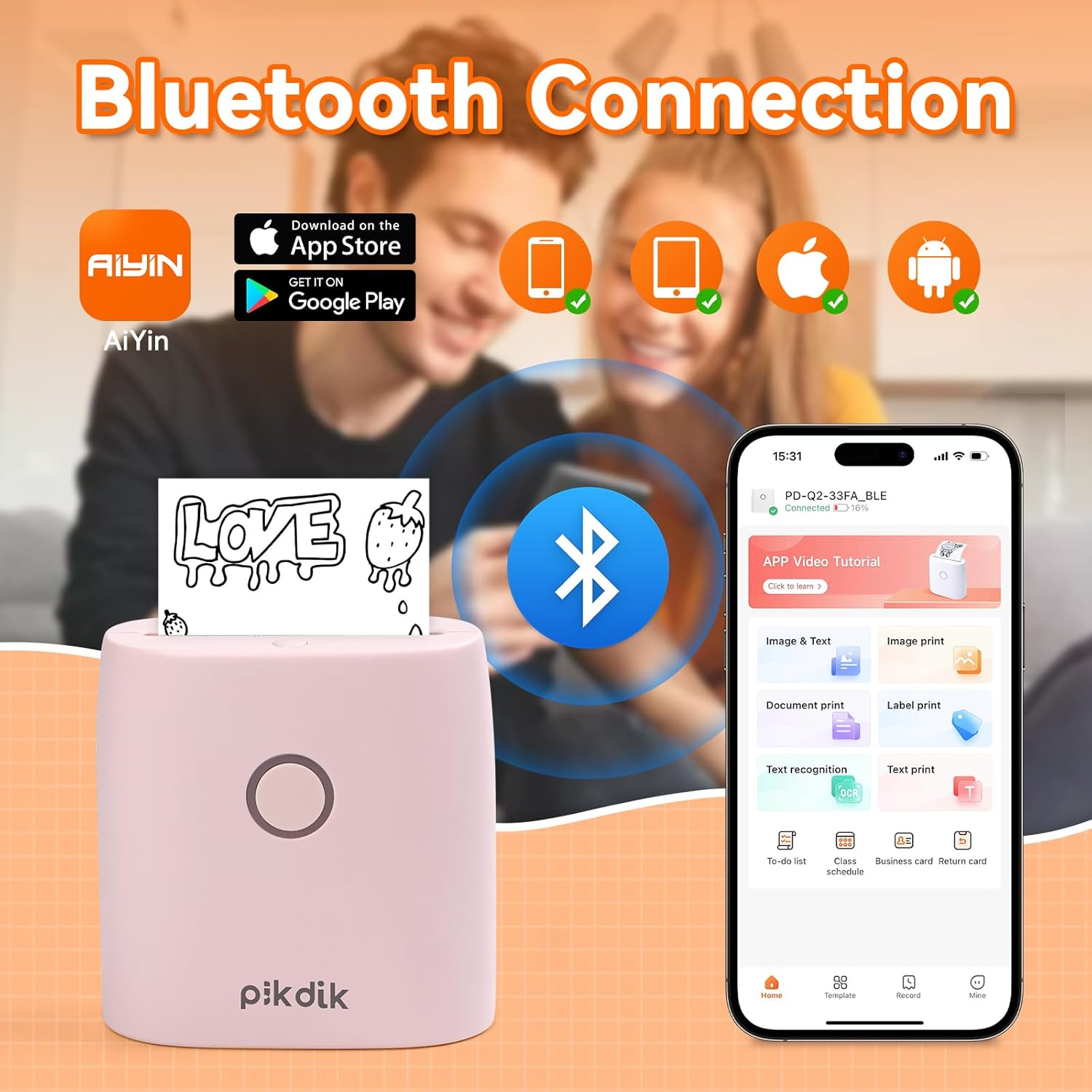
Image: The printer connects to your smartphone via Bluetooth using the Meta Print app, available on both Android and iOS.
6. آپريٽنگ هدايتون
6.1 Printing Content
Once connected to the "Meta Print" app, you can select various content types for printing:
- Image & Text: Print photos, graphics, or combine them with text.
- دستاويز پرنٽ: Print documents or notes.
- Label Print: Create and print custom labels.
- متن جي سڃاڻپ: Convert images of text into editable text for printing.
- سانچو: Utilize pre-designed templates for to-do lists, business cards, emojis, and more.
After selecting and editing your content within the app, tap the print button to initiate printing. The printer will output the thermal paper with your printed content.

Image: The printer is suitable for various applications such as journaling, scrapbooking, printing shopping lists, and notes.
6.2 Print Quality and Limitations
The PD-Q2 printer offers a 300 DPI resolution for clear and detailed black and white prints. As a thermal printer, it does not support color printing.
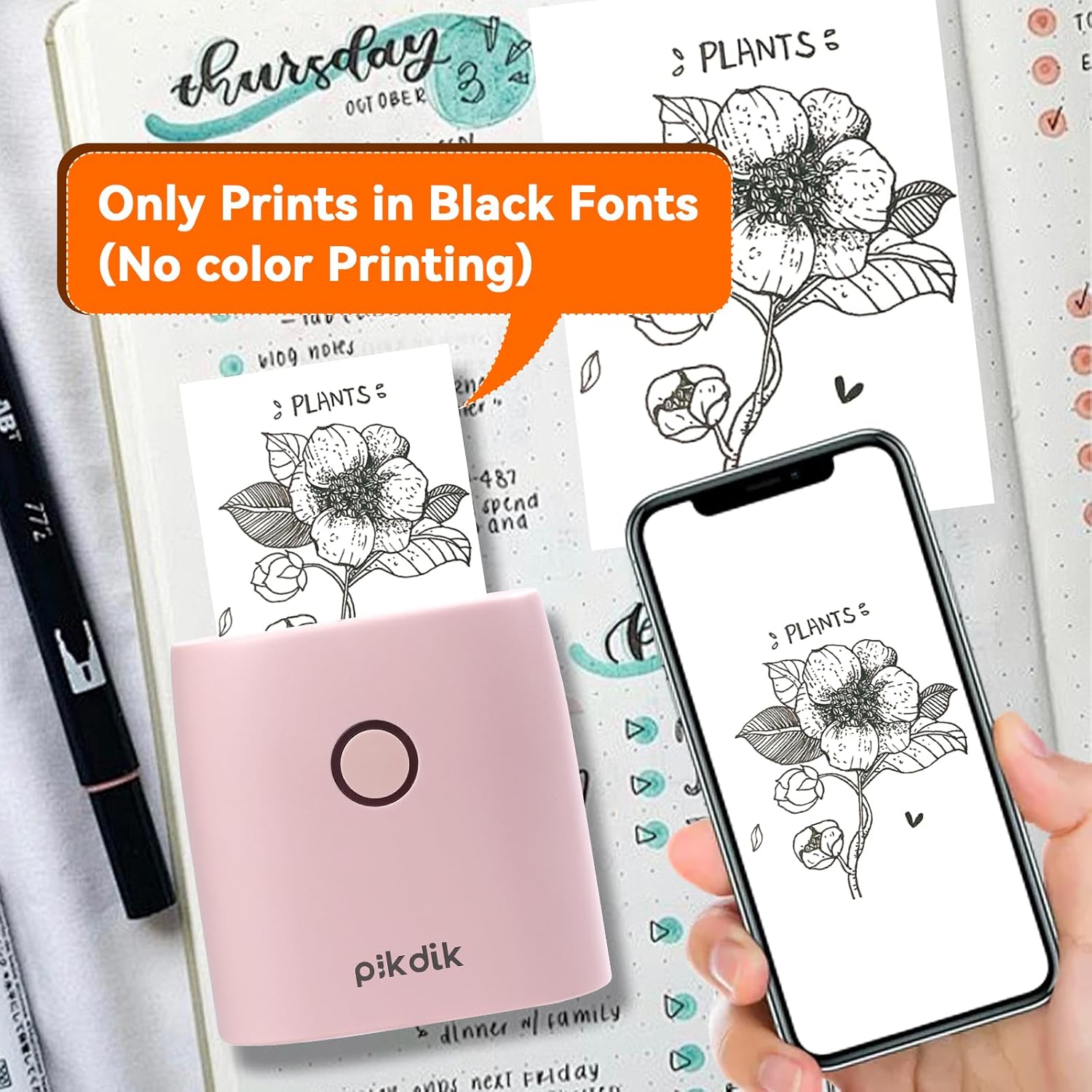
Image: The printer produces prints exclusively in black and white, as shown with a plant illustration.

Image: The 300 DPI resolution of the Q2 printer provides enhanced clarity and detail in prints compared to lower resolution alternatives.
7. سار سنڀال
7.1 پرنٽر جي صفائي
To maintain optimal print quality, periodically clean the print head. Use a soft, lint-free cloth lightly dampened with isopropyl alcohol. Gently wipe the print head surface. Ensure the printer is turned off and completely dry before use.
7.2 Replacing Thermal Paper
When the paper roll is depleted, replace it by following the steps in Section 5.2. Use only thermal paper compatible with the PD-Q2 printer to ensure proper function and print quality.
8. مسئلا حل ڪرڻ
| مسئلو | ممڪن سبب | حل |
|---|---|---|
| پرنٽر آن نٿو ٿئي | بيٽري گهٽ آهي؛ پاور بٽڻ صحيح طرح سان نه دٻايو ويو آهي | پرنٽر کي چارج ڪريو؛ ڪجهه سيڪنڊن لاءِ پاور بٽڻ کي دٻايو ۽ رکو. |
| بلوٽوٿ ذريعي ڳنڍي نٿو سگھجي | Bluetooth off on phone; Printer not in pairing mode; App issue | Ensure phone Bluetooth is on; Restart printer and app; Re-pair device in app. |
| Poor print quality (faint, pixelated) | Low battery; Print head dirty; Incorrect paper type; Image resolution too low | Charge printer; Clean print head (Section 7.1); Use correct thermal paper; Use higher resolution images. |
| ڪاغذ جو جام | Paper not loaded correctly; Foreign object in paper path | Open cover, remove jammed paper, reload correctly; Check for obstructions. |
| پرنٽر جواب نه ڏئي رهيو آهي | سسٽم جي غلطي | Perform a soft reset by turning the printer off and on again. If issue persists, contact support. |
9. وضاحتون
| خاصيت | تفصيل |
|---|---|
| ماڊل | Q2 |
| پکيڙ (D x W x H) | 4.1 x 8.4 x 8.4 سينٽي (1.6 x 3.3 x 3.3 انچ) |
| وزن | 0.57 پائونڊ (تقريبن 258.55 گرام) |
| ڇپائي ٽيڪنالاجي | حرارتي |
| پرنٽ ريزوليوشن | 300 DPI (Monochrome) |
| رابطي | بلوٽوٿ |
| مطابقت رکندڙ ڊوائيسز | اسمارٽ فونز، ٽيبليٽس (اينڊرائيڊ، آئي او ايس) |
| وڌ ۾ وڌ ميڊيا سائيز | 2 انچ |
| طاقت جو ذريعو | Built-in Lithium Polymer Battery (Rechargeable via USB Type-C) |
| ايپ جو نالو | Meta Print |
10. وارنٽي ۽ سپورٽ
For warranty information and technical support, please refer to the warranty card included with your product or contact PikDik customer service directly. Keep your purchase receipt as proof of purchase.