
1. پراڊڪٽ ختمview
The Mobility Lab 12-in-1 USB-C Docking Station is designed to expand the connectivity of your USB-C enabled devices, such as laptops and tablets. It provides multiple ports for external displays, data transfer, network connectivity, and audio output, enhancing productivity and versatility.

تصوير: مٿي کان هيٺ تائين view of the Mobility Lab 12-in-1 USB-C Docking Station, showing its sleek grey design and integrated USB-C cable.
2. اهم خاصيتون
- Dual HDMI Output: Supports 4K (3840 x 2160p @ 30Hz) for single display and Full HD (1920 x 1080p @ 60Hz) for dual displays.
- تيز رفتار ڊيٽا جي منتقلي: Four USB 3.0 ports with transfer speeds up to 5Gb/s.
- پاور پهچائڻ: USB-C port supports up to 100W power delivery to charge your connected device.
- گيگابٽ ايٿنيٽ: Provides stable and fast internet connection with speeds of 10/100/1000 Mb/s.
- آڊيو ڪنيڪشن: 3.5mm audio jack with microphone and audio output functions.
- ڪارڊ پڙهندڙ: Integrated SD and Micro SD card slots for convenient data access.
- Tablet Stand Functionality: Features an integrated slot to hold tablets up to 16 cm wide.
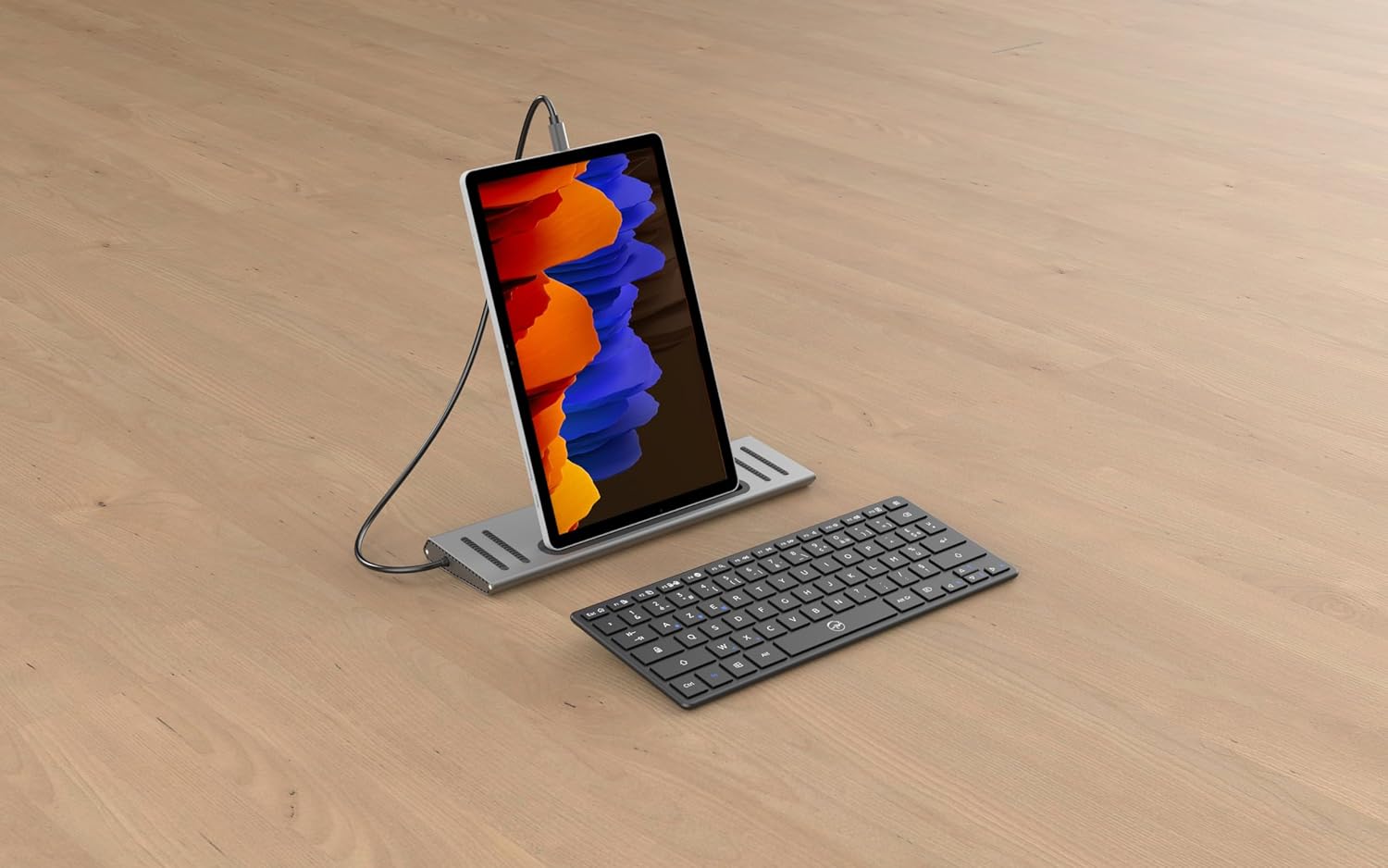
Image: The docking station shown with various cables and peripherals connected, illustrating its multiple ports and connectivity options.
3. پيڪيج مواد
پڪ ڪريو ته سڀئي شيون پيڪيج ۾ موجود آهن:
- Mobility Lab 12-in-1 USB-C Docking Station (Model: ML312897)
- استعمال ڪندڙ جو دستياب (ھي دستاويز)
4. سيٽ اپ
پنھنجي ڊاکنگ اسٽيشن قائم ڪرڻ لاءِ ھيٺين قدمن تي عمل ڪريو:
- هوسٽ ڊيوائس سان ڳنڍيو: Plug the integrated USB-C cable from the docking station into an available USB-C port on your laptop or tablet. Ensure your device's USB-C port supports video output (DisplayPort Alternate Mode) and Power Delivery for full functionality.
- پاور ڳنڍيو (اختياري): If your laptop requires charging via USB-C, connect your laptop's original USB-C power adapter to the USB-C Power Delivery port on the docking station. The docking station supports up to 100W power pass-through.
- ڊسپلي ڳنڍيو:
- For a single external display, connect an HDMI cable from your monitor to either HDMI port on the docking station.
- For dual external displays, connect HDMI cables from both monitors to the two HDMI ports on the docking station.

Image: A laptop connected to the docking station, which in turn is connected to two external monitors, demonstrating a multi-display setup.
- پردي سان ڳنڍڻ:
- USB ڊوائيسز: Connect USB devices such as keyboards, mice, external hard drives, or USB flash drives to the four USB 3.0 ports.
- Ethernet: For a stable wired internet connection, connect an Ethernet cable from your router or modem to the RJ45 Ethernet port on the docking station.
- آڊيو: Plug headphones or speakers into the 3.5mm audio jack for audio output.
- ميموري ڪارڊ: Insert SD or Micro SD cards into the respective card reader slots.
5. آپريٽنگ هدايتون
Once connected, the docking station operates automatically.
5.1. ڊسپلي ترتيب
Your operating system (Windows or Android) should automatically detect the connected displays. You may need to adjust display settings:
- ونڊوز: Right-click on the desktop, select "Display settings." Here you can arrange displays, change resolution, and set display modes (Extend, Duplicate, Second screen only).
- Android: Display settings may vary by device. Look for "Display" or "HDMI output" options in your device's settings.
5.2. ڊيٽا جي منتقلي
Connected USB devices and memory cards will appear as removable drives in your file explorer, allowing for easy drag-and-drop file منتقلي
5.3. نيٽ ورڪ ڪنيڪشن
The Ethernet port provides a wired network connection. Ensure your device's network settings are configured for a wired connection if necessary.
5.4. آڊيو آئوٽ
Select the docking station's audio output as your default playback device in your operating system's sound settings.
5.5. Tablet Integration
The integrated slot is designed to securely hold a tablet, providing a convenient setup for tablet-based workflows.
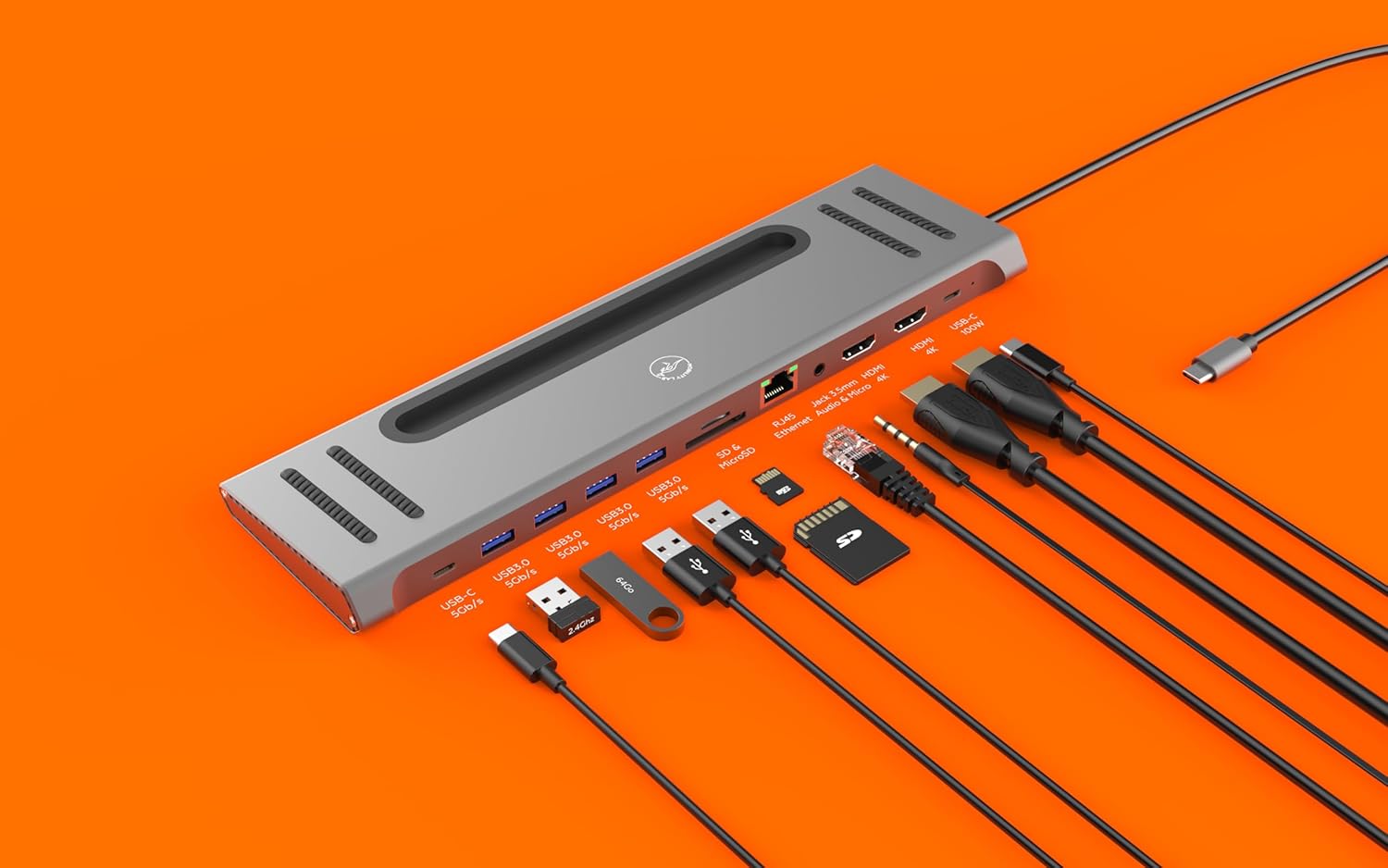
Image: The docking station with a tablet placed vertically in its integrated stand slot, alongside a keyboard, illustrating its use as a workstation.
6. سار سنڀال
توهان جي ڊاکنگ اسٽيشن جي ڊگهي عمر ۽ بهترين ڪارڪردگي کي يقيني بڻائڻ لاءِ:
- ڊوائيس کي صاف ۽ مٽيءَ کان پاڪ رکو. صفائي لاءِ نرم، سڪل ڪپڙو استعمال ڪريو.
- ڊوائيس کي انتهائي گرمي پد، نمي، يا سڌي سج جي روشني کي ظاهر ڪرڻ کان بچاء.
- پاڻ ڊوائيس کي ڌار ڪرڻ يا مرمت ڪرڻ جي ڪوشش نه ڪريو. قابل سروس اهلڪارن سان رجوع ڪريو.
- Disconnect all cables before moving or storing the docking station.
7. مسئلا حل ڪرڻ
جيڪڏهن توهان کي مسئلا درپيش اچن ٿا، ته هيٺ ڏنل عام مسئلن ۽ حلن جو حوالو ڏيو:
| مسئلو | حل |
|---|---|
| ڪابه ڊسپلي پيداوار |
|
| USB ڊوائيسز سڃاڻپ نه ٿيون آهن |
|
| Ethernet connection unstable or not working |
|
| آڊيو ڪم نه ڪري رهيو آهي |
|
8. وضاحتون
| خاصيت | تفصيل |
|---|---|
| ماڊل نمبر | ايم ايل 312897 |
| بندرگاهن | 2x HDMI, 4x USB 3.0, 1x Ethernet (RJ45), 1x 3.5mm Audio Jack, 1x SD Card Slot, 1x Micro SD Card Slot, 1x USB-C PD (Input) |
| HDMI Resolution (Single Display) | Up to 3840 x 2160p @ 30Hz (4K) |
| HDMI Resolution (Dual Displays) | Up to 1920 x 1080p @ 60Hz (Full HD) |
| USB 3.0 ڊيٽا جي منتقلي جي رفتار | 5Gb/s تائين |
| Ethernet اسپيڊ | 10/100/1000 Mb/s |
| پاور پهچائڻ | Up to 100W via USB-C PD port |
| طول و عرض (L x W x H) | 280 x 80 x 20 ملي ميٽر (تقريبن) |
| وزن | 250 گرام |
| رنگ | ڀورو |

Image: A technical diagram illustrating the dimensions of the docking station: 280mm length, 80mm width, and 18mm height, with a 55cm integrated cable.
9. مطابقت
The Mobility Lab 12-in-1 USB-C Docking Station is compatible with:
- Windows computers with a USB-C port supporting DisplayPort Alternate Mode and Power Delivery.
- Android tablets with a USB-C port supporting DisplayPort Alternate Mode.
Note: Full functionality, especially multi-display output and Power Delivery, depends on the capabilities of your host device's USB-C port.
10. وارنٽي ۽ سپورٽ
For warranty information and technical support, please refer to the official Mobility Lab webسائيٽ تي وڃو يا انهن جي ڪسٽمر سروس سان رابطو ڪريو. وارنٽي دعوائن لاءِ پنهنجي خريداري جي رسيد رکو.
ٺاهيندڙ: متحرڪ
اصليت جو ملڪ: چين