
تعارف
This manual provides detailed instructions for the setup, operation, and maintenance of your Prechen 10.1 inch Portable Touchscreen Monitor, Model HD-101. Please read this manual thoroughly before using the device to ensure proper functionality and to prevent damage.
پيداوار جون خاصيتون
- Portable Touchscreen: This 10.1-inch monitor is compact and lightweight, designed for portability. The touchscreen functionality allows for intuitive navigation and interaction, enhancing productivity on the go.
- High-Resolution IPS Display: Features a 1920x1200 resolution with a 16:10 aspect ratio, delivering clear and vibrant visuals. IPS technology provides wide viewing angles and accurate color reproduction, suitable for various applications.
- ورسٽائل ڪنيڪشن: Equipped with HDMI and USB-C ports, offering flexible connection options. It can be easily connected to Windows PCs, laptops, and gaming consoles like Xbox. Note: USB-C is for touch functionality and power.
- مربوط ڳالهائيندڙ: Built-in speakers provide clear and dynamic audio, eliminating the need for external speakers during media consumption, gaming, or virtual meetings.
- VESA جبل مطابقت: The monitor supports VESA mounting standards, allowing for attachment to compatible stands or arms for customized workspace setups and comfortable viewing angles.
سيٽ اپ ڪريو
پيڪيج مواد
پڪ ڪريو ته سڀئي شيون پيڪيج ۾ موجود آهن:
- Prechen 10.1 inch Portable Touchscreen Monitor
- HDMI ڪيبل
- USB-C کان USB-C ڪيبل
- USB-A to USB-C Cable (for power/touch)
- پاور اڊاپٽر
- استعمال ڪندڙ جو دستياب (ھي دستاويز)
مانيٽر کي ڳنڍڻ
- پاور ڪنيڪشن: Connect the provided power adapter to the DC Power Port on the monitor and plug it into a power outlet. Alternatively, if your device supports power delivery, connect a USB-C to USB-C cable to the USB-C (Power & Touch) port for both power and signal.
- وڊيو ڪنيڪشن:
- HDMI: Connect one end of the HDMI cable to the HDMI port on the monitor and the other end to the HDMI output of your computer or device.
- USB-C (DisplayPort Alternate Mode): If your device supports DisplayPort Alternate Mode over USB-C, connect a USB-C to USB-C cable to the USB-C (Power & Touch) port on the monitor and your device. This single cable can provide video, power, and touch functionality.
- رابطي جي ڪارڪردگي: For touch functionality, ensure the USB-C (Power & Touch) port is connected to your device. If using HDMI for video, you will also need to connect a USB-A to USB-C cable from your device's USB-A port to the monitor's USB-C (Power & Touch) port.
- آڊيو آئوٽ: If you wish to use external headphones or speakers, connect them to the 3.5mm Audio Port on the monitor.
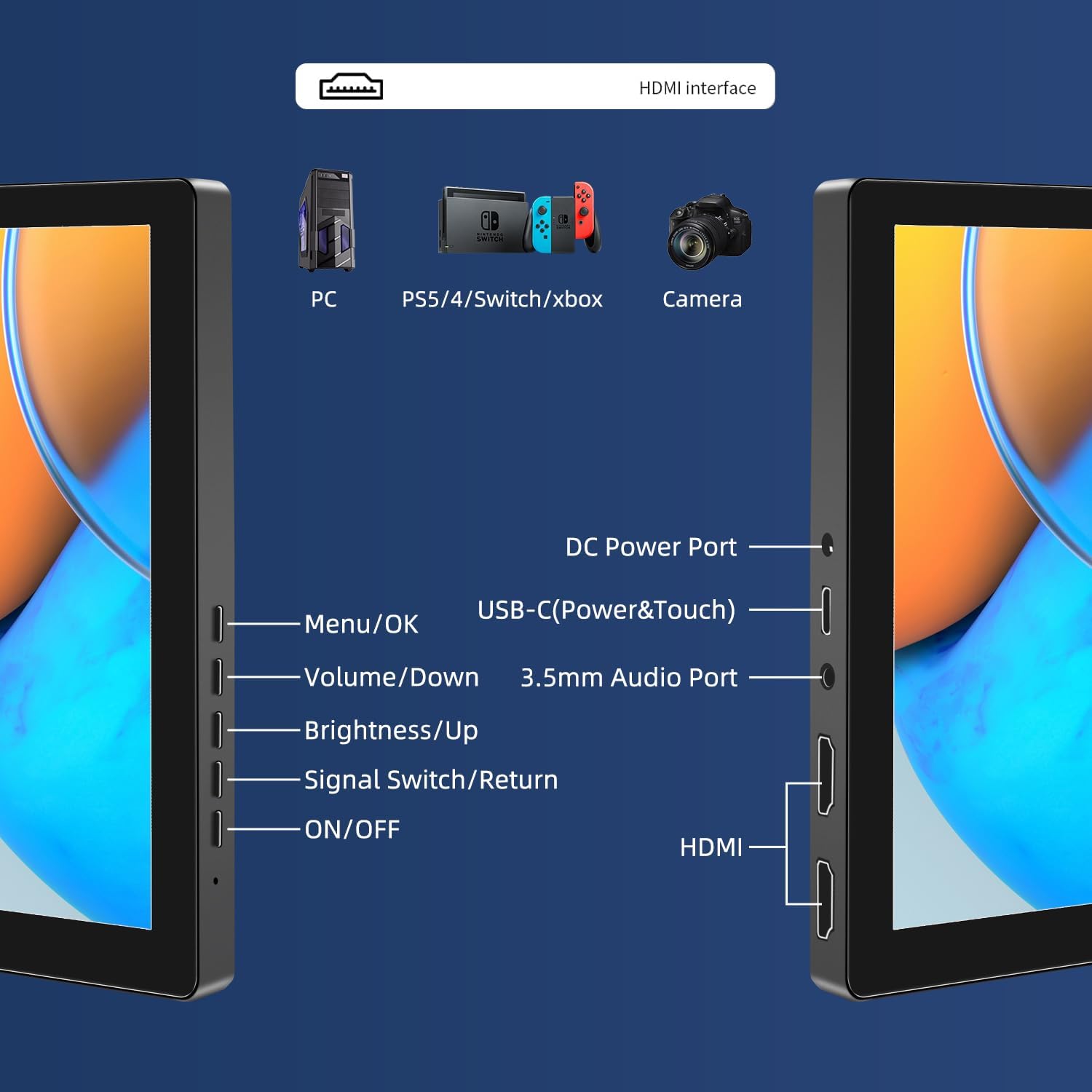
تصوير: مٿانview of the monitor's ports including DC Power, USB-C (Power & Touch), 3.5mm Audio, HDMI, and control buttons.
آپريٽنگ هدايتون
پاور آن / آف
- To power on the monitor, press the آن/بند بٽڻ
- بجلي کي بند ڪرڻ لاءِ ، دٻايو ۽ رکو آن/بند button for a few seconds until the screen turns off.
آن اسڪرين ڊسپلي (او ايس ڊي) مينيو استعمال ڪندي
او ايس ڊي مينيو توهان کي مختلف ڊسپلي سيٽنگون ترتيب ڏيڻ جي اجازت ڏئي ٿو.
- کي دٻايو نامو / ٺيڪ او ايس ڊي مينيو کولڻ لاءِ بٽڻ دٻايو.
- استعمال ڪريو حجم/ھي ۽ روشني/مٿي مينيو آپشنز ذريعي نيويگيٽ ڪرڻ لاءِ بٽڻ.
- دٻايو نامو / ٺيڪ ڪو آپشن چونڊڻ يا سيٽنگ جي تصديق ڪرڻ لاءِ.
- کي دٻايو Signal Switch/Return button to go back to the previous menu or exit the OSD.
Adjusting Display Modes
The monitor supports multiple display modes when connected to a computer:
- نقل موڊ: Displays the same content on both your primary screen and the portable monitor.
- توسيع موڊ: توهان جي ڊيسڪ ٽاپ کي ٻنهي اسڪرينن تي وڌائي ٿو، وڌيڪ ڪم جي جڳهه فراهم ڪري ٿو.
- ٻيو اسڪرين موڊ: ڊسپلي طور صرف پورٽيبل مانيٽر استعمال ڪري ٿو.
These modes are typically configured through your operating system's display settings (e.g., Windows Display Settings, macOS System Preferences).
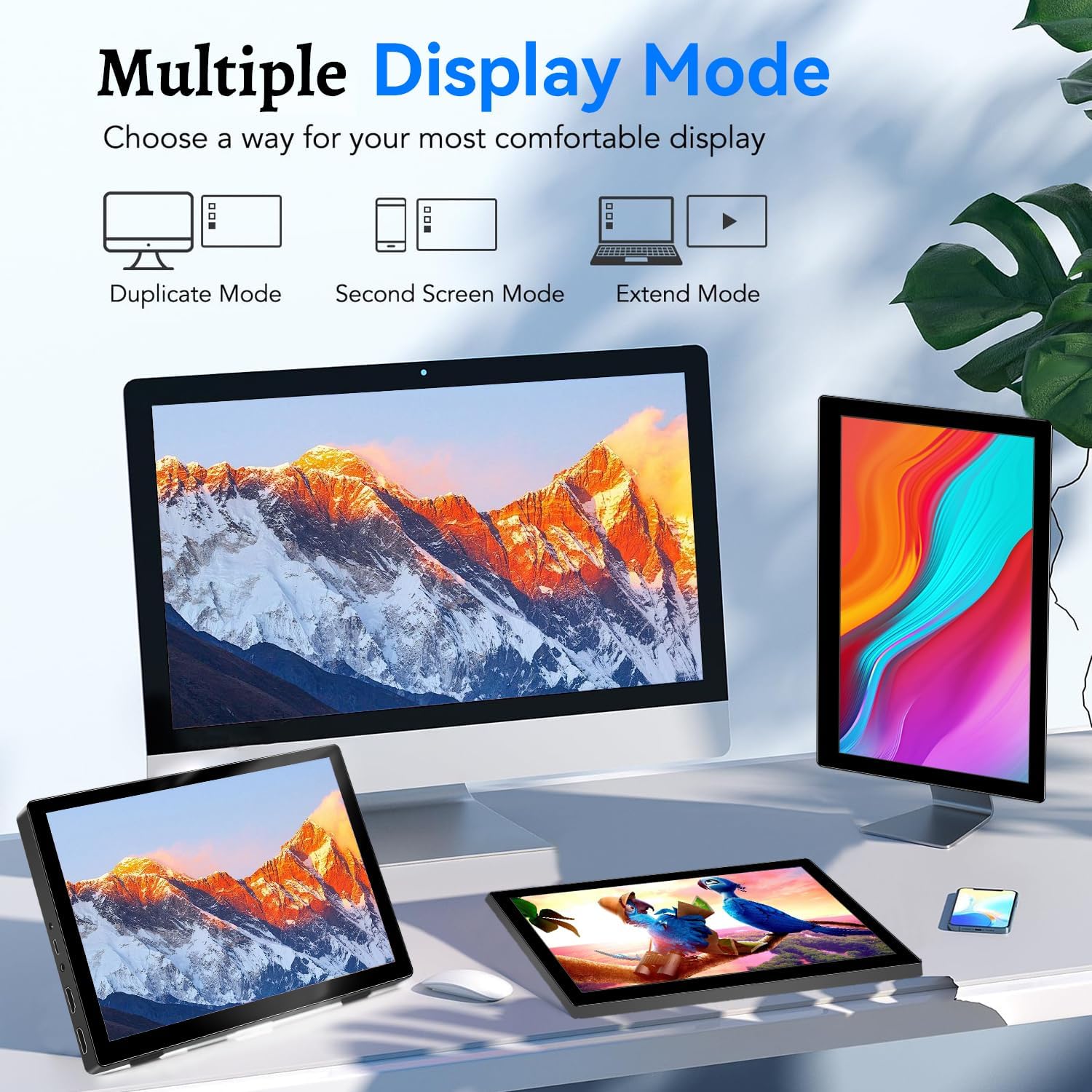
Image: Visual representation of Duplicate, Second Screen, and Extend display modes.
Using Touchscreen Functionality
The monitor supports 10-point touchscreen technology. Ensure the USB-C (Power & Touch) port is correctly connected to your device for touch input to function.

تصوير: Examples of 10-point touchscreen gestures for interaction.
سار سنڀال
- اسڪرين جي صفائي: نرم، لِنٽ کان خالي ڪپڙو استعمال ڪريو ٿورڙو ڊيampened with water or a non-abrasive screen cleaner. Do not spray cleaner directly onto the screen.
- سي جي صفائيasing: مانيٽر صاف ڪريو casing نرم، سڪل ڪپڙي سان. مضبوط ڊٽرجنٽ يا محلول استعمال ڪرڻ کان پاسو ڪريو.
- اسٽوريج: جڏهن استعمال ۾ نه هجي، مانيٽر کي ٿڌي، سڪل جاءِ تي، سڌي سج جي روشني ۽ انتهائي گرمي پد کان پري رکو.
- سنڀالڻ: Avoid dropping or subjecting the monitor to strong impacts. Do not place heavy objects on top of the monitor.
مشڪلاتون
| مسئلو | ممڪن سبب | حل |
|---|---|---|
| ڪابه ڊسپلي/ڪاري اسڪرين ناهي |
|
|
| ٽچ اسڪرين جواب نه ڏئي رهيو آهي |
|
|
| اسپيڪرن مان ڪو به آڊيو ناهي |
|
|
| Image quality issues (blurry, distorted) |
|
|
وضاحتون
| خاصيت | تفصيل |
|---|---|
| برانڊ | پريان |
| ماڊل نمبر | HD-101 |
| اسڪرين جي ماپ | 10.1 انچ |
| قرارداد | 1920 x 1200 (UXGA Wide) |
| اسپيڪٽ ريشو | 16:10 |
| پينل جو قسم | آئي پي ايس |
| ريفريش جي شرح | 60 هز |
| جوابي وقت | 1 ايم ايس |
| رابطي | 1x HDMI, 1x USB-C (Power & Touch), 1x 3.5mm Audio Jack, 1x DC Power Port |
| طول و عرض (L x W x H) | 21.8 x 15.8 x 1.4 سينٽي |
| وزن | 990 گرام |
| ٺاهيندڙ | Shenzhen Kenowa Electronics Co., LTD |
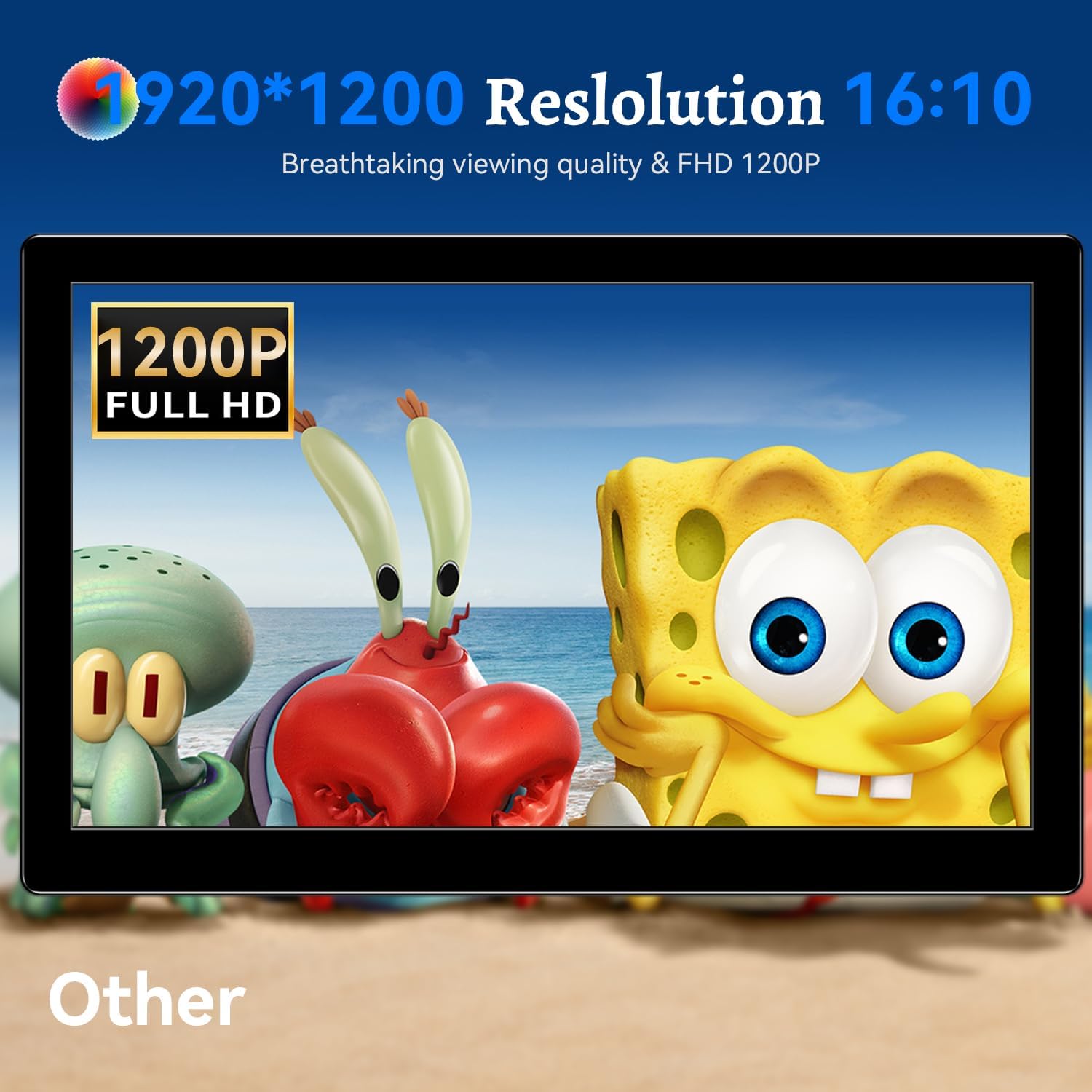
تصوير: مانيٽر شوasing its 1920x1200 Full HD resolution.

Image: The monitor's IPS panel offering wide viewing angles and rich colors.
وارنٽي ۽ سپورٽ
For warranty information and technical support, please refer to the warranty card included with your product or contact Prechen customer service through their official website. Please have your model number (HD-101) and purchase details ready when contacting support.