
1. تعارف
خريد ڪرڻ لاءِ مهربانيasing the Pisichen 8-inch Touch Panel Mobile HD Mini Monitor. This compact and versatile display is designed to enhance your productivity and entertainment experience across various devices. Featuring a responsive 5-point capacitive touch screen and multiple connectivity options, it offers a seamless and immersive visual interface.

Figure 1.1: Pisichen 8-inch Touch Panel Mobile HD Mini Monitor
This monitor is equipped with:
- 5-Point Capacitive Touch: For intuitive and precise interaction.
- HD 800x480 Resolution: Delivering clear and vivid visuals.
- مختلف رابطي: Two HDMI ports and one USB-C port for broad compatibility.
- گھڻن ڊسپلي موڊس: Supports duplicate, extended, and second screen modes.
- HDR Mode & Built-in Speakers: Enhances visual depth and provides integrated audio.
2. پيڪيج مواد
مھرباني ڪري ھيٺ ڏنل شين لاءِ پيڪيج چيڪ ڪريو:
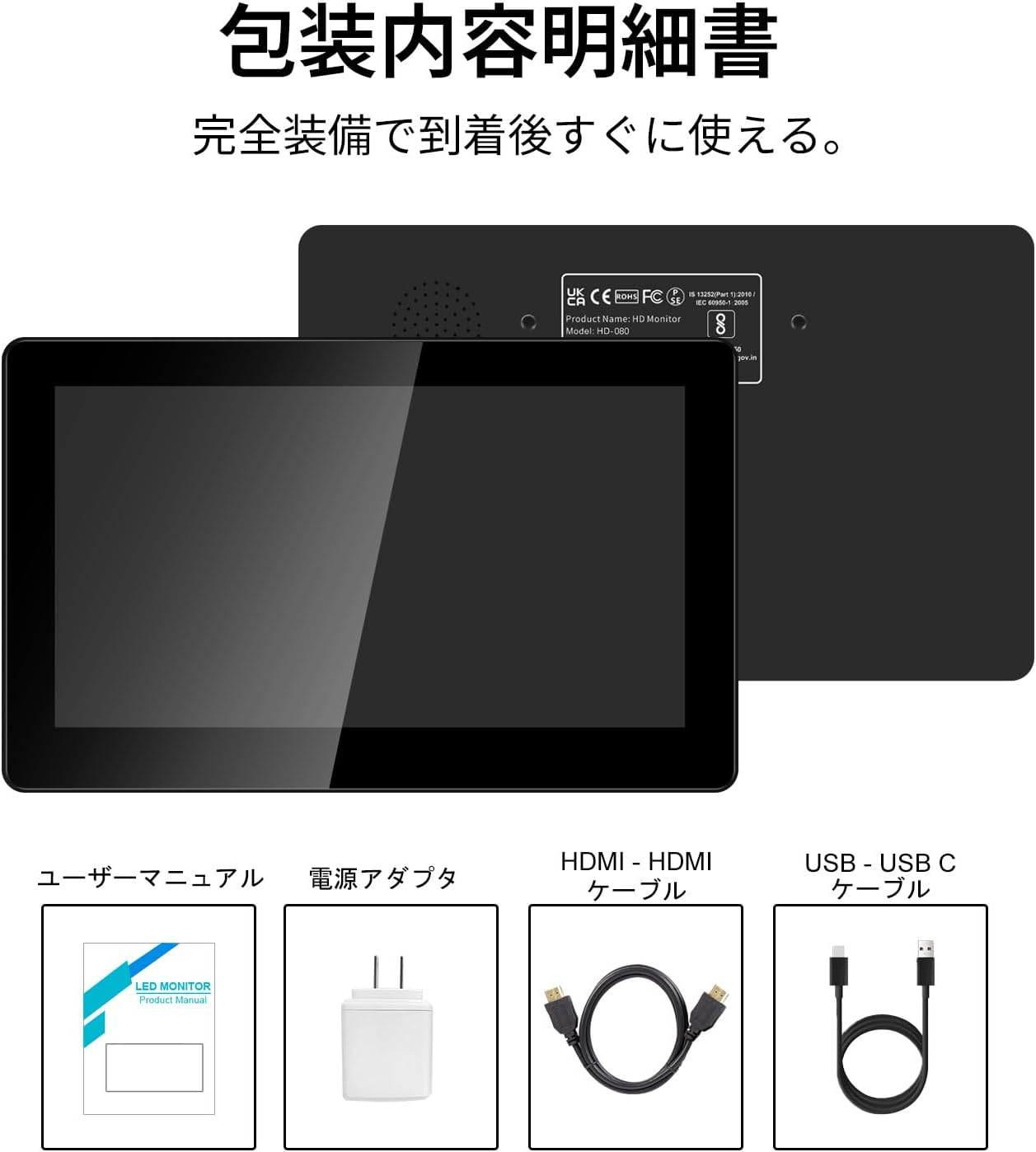
شڪل 2.1: پيڪيج مواد
- Pisichen 8-inch Touch Panel Mobile HD Mini Monitor
- استعمال ڪندڙ دستي
- پاور اڊاپٽر
- HDMI کان HDMI ڪيبل
- USB-A to USB-C Cable (for power and touch functionality)
3. سيٽ اپ جون هدايتون
Follow these steps to set up your Pisichen mini monitor:
3.1 مانيٽر کي ڳنڍڻ
- پاور ڪنيڪشن: Connect the provided power adapter to the monitor's power port and plug it into a power outlet. Alternatively, use the USB-C port for power by connecting it to a compatible USB power source.
- ويڊيو جو انٽرويو
- For HDMI devices (PC, laptop, game console): Use the HDMI to HDMI cable to connect your device's HDMI output to one of the monitor's HDMI ports (HDMI 1 or HDMI 2).
- For USB-C devices (with DisplayPort Alternate Mode support): Connect a USB-C to USB-C cable (not included) from your device to the monitor's USB-C port. This single cable can provide both video and power/touch.
- Touch Functionality (for HDMI connections): If using an HDMI connection and requiring touch functionality, connect the provided USB-A to USB-C cable from your source device's USB-A port to the monitor's USB-C port. This enables touch input.
- آڊيو آئوٽ: If you prefer external audio, connect headphones or external speakers to the 3.5mm audio jack on the monitor.

شڪل 3.1: بندرگاهن ۽ ڪنيڪشن جي نگراني ڪريو
3.2 شروعاتي پاور آن
Once connected, press the ON/OFF button on the side of the monitor to power it on. The monitor should automatically detect the input signal. If not, use the menu buttons to select the correct input source.
4. آپريٽنگ هدايتون
4.1 بنيادي ڪنٽرول
The monitor features several buttons on its side for control:
- آن / آف بٽڻ: Powers the monitor on or off.
- Volume Down / Brightness Up: Adjusts volume or increases brightness.
- Volume Up / Brightness Down: Adjusts volume or decreases brightness.
- Signal Switch / Return: Switches between input signals or acts as a 'back' button in menus.
- Menu / OK: Opens the OSD (On-Screen Display) menu or confirms a selection.
4.2 ٽچ پينل آپريشن
The 5-point capacitive touch panel allows for intuitive interaction:
- ٽيپ ڪريو: Select items or activate functions.
- سوائپ Scroll through content or navigate interfaces.
- زوم ڪرڻ لاءِ پنچ: Enlarge or reduce content (e.g., images, maps).
- گھڻن آڱرين جا اشارا: Supported for specific operating systems and applications.

Figure 4.1: 5-Point Touch Panel Gestures
Note: Touch functionality may require specific driver installation on some operating systems or devices. Ensure your device supports touch input over the chosen connection method.
4.3 ڊسپلي موڊس
ڪمپيوٽر سان ڳنڍيل هجڻ تي مانيٽر مختلف ڊسپلي موڊس کي سپورٽ ڪري ٿو:
- نقل موڊ: Displays the same content on both your primary screen and the mini monitor.
- وڌايل موڊ: Extends your desktop across both screens, allowing for more workspace.
- ٻيو اسڪرين موڊ: Uses only the mini monitor as the display.
- پورٽريٽ موڊ: The monitor can be rotated for vertical display, useful for specific applications.
اهي طريقا عام طور تي توهان جي آپريٽنگ سسٽم جي ڊسپلي سيٽنگن ذريعي ترتيب ڏئي سگهجن ٿا.

شڪل 4.2: گھڻا ڊسپلي موڊ
4.4 HDR Mode
The monitor supports HDR (High Dynamic Range) mode, which can be enabled via the OSD menu or your connected device's display settings. HDR provides a wider range of colors and contrasts, resulting in a more vibrant and realistic image.
5. سار سنڀال
To ensure the longevity and optimal performance of your Pisichen mini monitor, follow these maintenance guidelines:
- اسڪرين جي صفائي: نرم، لِنٽ کان خالي ڪپڙو استعمال ڪريو ٿورڙو ڊيampened with water or a screen-cleaning solution. Avoid harsh chemicals, abrasive materials, or excessive moisture.
- سي جي صفائيasing: مانيٽر جي سي صاف ڪريوasing نرم، سڪل ڪپڙي سان.
- اسٽوريج: جڏهن گهڻي عرصي تائين استعمال ۾ نه هجي، ته مانيٽر کي سڌي سج جي روشني ۽ انتهائي گرمي پد کان پري ٿڌي، سڪل جاءِ تي رکو.
- سنڀالڻ: مانيٽر کي ڇڏڻ يا ان کي مضبوط ڌڪن جي تابع ڪرڻ کان پاسو ڪريو. ان جي مٿان ڳري شيون نه رکو.
- وينٽيليشن: Ensure the monitor's vents are not blocked to prevent overheating.
6. مسئلا حل ڪرڻ
جيڪڏهن توهان کي پنهنجي مانيٽر سان مسئلا درپيش اچن ٿا، ته هيٺ ڏنل عام مسئلن ۽ حلن جو حوالو ڏيو:
- ڪابه ڊسپلي / ڪاري اسڪرين ناهي:
- Ensure the power adapter is securely connected and the monitor is powered on.
- Verify that the video cable (HDMI or USB-C) is properly connected to both the monitor and the source device.
- Check if the correct input source is selected using the monitor's menu buttons.
- جيڪڏهن ممڪن هجي ته مختلف وڊيو ڪيبل يا سورس ڊيوائس سان ٽيسٽ ڪريو.
- ڪو به ٽچ ڪارڪردگي:
- If using HDMI, ensure the USB-A to USB-C cable is connected from your source device to the monitor's USB-C port.
- For USB-C connections, ensure your device supports touch input over USB-C.
- Check your operating system's settings for touch screen calibration or driver status.
- نه آڊيو:
- Increase the monitor's volume using the side buttons.
- Check your source device's audio output settings to ensure audio is being sent to the monitor.
- If using external speakers/headphones, ensure they are properly connected to the 3.5mm audio jack.
- Image Quality Issues (e.g., lines on screen, distorted colors):
- نقصان يا ڍلو ڪنيڪشن لاءِ وڊيو ڪيبل چيڪ ڪريو.
- Adjust the monitor's display settings (brightness, contrast, color temperature) via the OSD menu.
- Ensure your source device's display resolution and refresh rate are compatible with the monitor's specifications.
- If persistent, try connecting to a different source device or using a different cable.
7. وضاحتون
| برانڊ | پسيچن |
| ماڊل نمبر | HD-8TS-800P |
| اسڪرين جي ماپ | 8 انچ |
| قرارداد | 800 x 480 پکسلز |
| اسپيڪٽ ريشو | 16:9 |
| ٽچ پينل | 5-point Capacitive Touch |
| رابطي | 2x HDMI, 1x USB-C (Power/Touch), 1x 3.5mm Audio Jack |
| رنگ | ڪارو |
| شين جي طول و عرض (ڊبليو ايڇ ڊي ڊي) | 206 x 130 x 20 ملي ميٽر (تقريبن) |
| پيداوار جو وزن | 910 جي |
| خاصيتون | HDR Mode, Built-in Dual Stereo Speakers |
8. وارنٽي ۽ سپورٽ
Pisichen is committed to providing reliable and high-quality products. While specific warranty details are not provided in this manual, please retain your proof of purchase for any warranty claims. For technical support, troubleshooting assistance, or inquiries regarding your product, please contact Pisichen customer service through the retailer where you purchased the product or visit the official Pisichen brand store online.
We strive for continuous innovation, product content updates, and ongoing improvement in product quality. Our goal is to be a company loved and trusted by our customers.