1. تعارف
Thank you for choosing the PUTRIMS K12 Google TV Projector. This manual provides essential information for the safe and efficient use of your new projector. Please read it thoroughly before operation and keep it for future reference.

Figure 1.1: PUTRIMS K12 Projector
2. حفاظت جي ڄاڻ
- جڏهن ايلamp تي آهي.
- وڌيڪ گرم ٿيڻ کان بچڻ لاءِ مناسب وائيٽليشن کي يقيني بڻايو وڃي.
- پروجيڪٽر کي پاڻي يا ٻين مائع شين کان پري رکو.
- صرف مهيا ڪيل پاور اڊاپٽر استعمال ڪريو.
- پروجيڪٽر کي غير مستحڪم سطحن تي رکڻ کان پاسو ڪريو.
- Do not attempt to disassemble or repair the projector yourself. Contact customer support for assistance.
3. پيڪيج مواد
پڪ ڪريو ته سڀئي شيون توهان جي پيڪيج ۾ موجود آهن:
- PUTRIMS K12 پروجيڪٽر
- ريموٽ ڪنٽرول
- پاور ڪنڊ
- HDMI ڪيبل
- پروجيڪٽر لينس ڍڪ
- استعمال ڪندڙ جو دستياب (ھي دستاويز)
4. پراڊڪٽ ختمview
The PUTRIMS K12 projector is designed for a versatile home theater and business experience. It features a sleek design with essential ports for connectivity.
شڪل 4.1: سامهون view of the K12 Projector, showing the lens and auto-focus sensors.

شڪل 4.2: پوئتي view of the K12 Projector, highlighting HDMI, USB, and audio ports.
Video 4.1: General product overview and feature demonstration of the PUTRIMS K12 projector.
5. سيٽ اپ
5.1 جسماني سيٽ اپ
The K12 projector offers flexible installation options to suit various environments:
- ٽيبل ٽاپ جي جڳھ: پروجيڪٽر کي هڪ مستحڪم، هموار مٿاڇري تي رکو.
- تپائي چڙهڻ: Use the M5 screw hole on the bottom to attach a tripod.
- ڇت تي چڙهڻ: Securely mount the projector to the ceiling using a compatible mount.
- ڀت لڳائڻ: Attach the projector to a wall using a suitable bracket.

Figure 5.1: Diverse installation methods for the K12 Projector.
5.2 شروعاتي پاور آن
- پاور ڪنڊ کي پروجيڪٽر ۽ پاور آئوٽ سان ڳنڍيو.
- ان کي آن ڪرڻ لاءِ پروجيڪٽر يا ريموٽ ڪنٽرول تي پاور بٽڻ کي دٻايو.
- The projector will automatically perform auto-focus and keystone correction.
5.3 نيٽ ورڪ ڪنيڪشن (وائي فائي)
To access online streaming services and updates, connect your projector to a WiFi network:
- Navigate to the 'Settings' menu on the projector.
- Select 'Network' or 'WiFi Settings'.
- Turn on WiFi and select your desired network from the list.
- جيڪڏهن چيو وڃي ته پاسورڊ داخل ڪريو ۽ ڳنڍيو.
5.4 بلوٽوٿ ڪنيڪشن
Connect external Bluetooth speakers or headphones for enhanced audio:
- 'سيٽنگون' ڏانهن وڃو ۽ 'بلوٽوٿ' چونڊيو.
- بلوٽوٿ آن ڪريو ۽ پنهنجي ٻاهرين ڊوائيس کي پيئرنگ موڊ ۾ رکو.
- جوڙڻ لاءِ فهرست مان پنهنجو ڊوائيس چونڊيو.
5.5 اسڪرين مررنگ
Share content from your mobile devices or computer wirelessly:
- For iOS devices (Airplay): Ensure your iOS device and the projector are connected to the same WiFi network. Open the 'iOS Cast' interface on the projector. On your iOS device, open Control Center, tap 'Screen Mirroring', and select 'K12-xxxx' from the list.
- For Android/Windows devices (Miracast): Ensure your device and the projector are connected to the same WiFi network. Open the 'Miracast' interface on the projector. On your Android/Windows device, enable screen mirroring/cast feature and select 'K12-xxxx' to connect.
6. آپريٽنگ هدايتون
6.1 گوگل ٽي وي جون خاصيتون
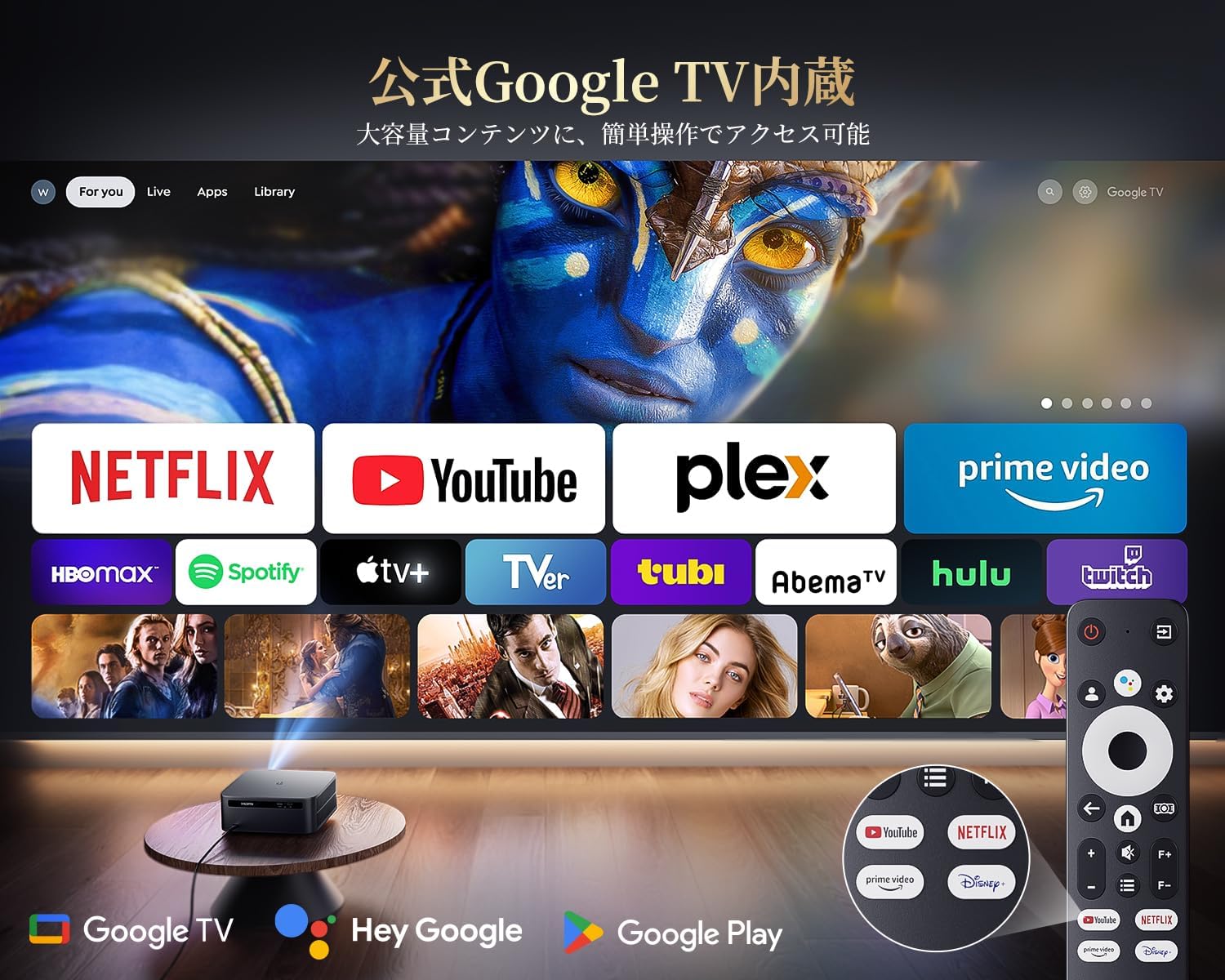
The PUTRIMS K12 comes with official Google TV, providing access to a vast library of content and applications.
- اسٽريمنگ ائپس: Directly access Netflix, Disney+, YouTube, Prime Video, Hulu, and many more with a single click.
- گوگل پلي اسٽور: Download and install over 10,000 applications and games.
- باقاعده تازه ڪاريون: The projector receives periodic updates to enhance security and stability.

Figure 6.1: Google TV interface with popular streaming applications.
6.2 وائس ڪنٽرول
Utilize the Google Voice Assistant for convenient control of your projector and content.
- Press the voice control button on your remote.
- Speak commands such as "Open Netflix," "Play One Piece," "Tell me the weather," or "Increase volume."

Figure 6.2: Using the Google Voice Assistant with the remote control.
6.3 تصويري ترتيب
The K12 projector features advanced image adjustment capabilities for optimal viewing.
- خودڪار فوٽو: The projector automatically adjusts the focus for a clear image upon startup or movement.
- خودڪار Keystone اصلاح: It automatically corrects horizontal and vertical trapezoidal distortions, ensuring a perfectly rectangular image even from an angle.
- زوم فنڪشن: Adjust the screen size from 50% to 100% without moving the projector.
- تناسب تناسب: Supports 4:3 and 16:9 aspect ratios.
- روشني ۽ تضاد: Customize brightness and contrast settings to your preference.

Figure 6.3: Automatic focus and keystone correction in action.

Figure 6.4: Projection distances and corresponding screen sizes (100", 120", 150").
6.4 ٻاهرين ڊوائيسز کي ڳنڍڻ
The K12 projector offers multiple connectivity options for various devices:
- HDMI آرڪ: Connect to soundbars, laptops, gaming consoles (Switch, PS5), or DVD players.
- USB: Play media directly from USB memory sticks.
- 3.5mm آڊيو پورٽ: ٻاهرين آڊيو سسٽم سان ڳنڍيو.

Figure 6.5: Seamless connection with various external devices.
7. سار سنڀال
7.1 لينس جي صفائي
To maintain optimal image quality, regularly clean the projector lens.
- پڪ ڪريو ته پروجيڪٽر بند ٿيل آهي ۽ ان پلگ ٿيل آهي.
- Gently wipe the lens with a soft, lint-free cloth or a cotton swab.
- ضدي داغن لاءِ، لينس جي صفائي جو حل استعمال ڪريو جيڪو خاص طور تي آپٽيڪل سطحن لاءِ ٺهيل آهي.
- Avoid using abrasive materials or harsh chemicals that could damage the lens.
8. مسئلا حل ڪرڻ
هتي عام مسئلن جا حل آهن جيڪي توهان کي منهن ڏئي سگهن ٿا:
- No image/signal: Check all cable connections (HDMI, power). Ensure the correct input source is selected on the projector.
- ٻرندڙ تصوير: The projector features auto-focus. If the image remains blurry, ensure the lens is clean and there are no obstructions.
- Image not rectangular: The projector has auto-keystone correction. If issues persist, ensure the projector is placed on a stable surface and try repositioning it.
- آواز ڪونهي: Check volume settings on both the projector and connected devices. Ensure external speakers are properly connected via Bluetooth or audio cable. If using HDMI ARC, verify the connection and settings.
- WiFi/Bluetooth connection issues: Ensure the projector and your device are within range of the router/device. Restart both the projector and the router/device.
- App crashes or malfunctions (for unofficial Android TV versions): The PUTRIMS K12 has an official Google TV license, which ensures stability. If you experience issues, ensure your system is updated.
وڌيڪ مدد لاءِ، مھرباني ڪري وارنٽي ۽ سپورٽ سيڪشن ڏسو.
9. وضاحتون
| خاصيت | وصف |
|---|---|
| برانڊ | PUTRIMS |
| ماڊل | ڪي 12 |
| روشني | 1500 ANSI ليمن |
| قرارداد | 1080P FHD (4K Support) |
| آپريٽنگ سسٽم | سرڪاري گوگل ٽي وي |
| وائس ڪنٽرول | گوگل وائس اسسٽنٽ |
| فڪر | Omnidirectional Auto Focus |
| Keystone جو سڌارو | Horizontal & Vertical Auto Keystone Correction |
| زوم | 50%-100% |
| وڌ ۾ وڌ اسڪرين سائيز | 300 انچ |
| وائي فائي | وائي فائي 6 |
| بلوٽوٿ | بلوٽوٿ 5.3 |
| آڊيو آئوٽ | 20W HIFI Speaker, 3.5mm Audio Jack |
| ان پٽ پورٽس | HDMI ARC, USB |
| طول و عرض | 40.5 x 30.2 x 17 سينٽي |
| وزن | 3.31 ڪلو |
10. وارنٽي ۽ سپورٽ
PUTRIMS is committed to providing excellent customer service. Your K12 projector comes with comprehensive support:
- بعد-سيلز سروس: 24 hours a day, 365 days a year.
- ٽيڪنيڪل سپورٽ: Professional technical assistance is available.
- وارنٽي: Free exchange or 100% refund guarantee for initial defects or natural failures under normal use.
If you have any questions or require assistance, please contact PUTRIMS customer support via the official email address provided in your product packaging or on the official webسائيٽ.