
1. تعارف
This manual provides essential instructions for the installation, operation, and maintenance of your new wangpeng Gray US Backlit Keyboard. Please read this manual thoroughly before proceeding with installation to ensure proper function and to prevent damage to your device.
2. مطابقت
This keyboard is specifically designed for the following HP laptop models:
- HP 17-CN Series
- HP 17CP Series
- HP 17S-CU Series
- HP 470 G8 Series
- HP TPN-I140 Series
- HP TPN-I139 Series
Important: Please verify your laptop model and compare the physical appearance of your original keyboard with the product images before installation.
3. پيڪيج مواد
توهان جي پيڪيج ۾ هيٺ ڏنل شيون هجڻ گهرجن:
- 1 x wangpeng Gray US Backlit Keyboard
4. حفاظت جي ڄاڻ
انسٽاليشن دوران هيٺ ڏنل حفاظتي احتياط جو مشاهدو ڪريو:
- Always power off your laptop and disconnect it from the power adapter before beginning any installation or removal process.
- Remove the laptop battery if it is user-removable.
- Use appropriate tools to avoid damaging your laptop's casing يا اندروني جزا.
- Handle the keyboard and internal connectors with care to prevent electrostatic discharge (ESD) damage. Consider using an anti-static wrist strap.
- جيڪڏهن توهان کي ڪنهن به قدم بابت پڪ ناهي، ته پيشه ورانه مدد حاصل ڪريو.
5. سيٽ اپ / انسٽاليشن
Installing a laptop keyboard typically involves disassembling parts of the laptop. The exact steps may vary by model. The following is a general guide. For detailed, model-specific instructions, refer to your laptop's official service manual or a reputable online guide for your specific HP model.
عام لڳائڻ جا مرحلا:
- پنھنجي ڪم جي جڳھ کي تيار ڪريو: Ensure a clean, well-lit, and static-free environment. Gather necessary tools (e.g., small Phillips head screwdriver, plastic pry tool).
- پاور آف ۽ ڊس ڪنيڪٽ: Shut down your laptop completely. Disconnect the AC adapter and remove the battery (if external). Press and hold the power button for 15 seconds to discharge any residual power.
- ڪي بورڊ تائين رسائي حاصل ڪريو: Depending on your HP model, the keyboard may be accessible from the top (by prying it out) or from the bottom (requiring removal of the bottom case, motherboard, or other components). Carefully follow your laptop's specific disassembly guide.
- پراڻو ڪي بورڊ ڊسڪنيڪٽ ڪريو: Once the old keyboard is accessible, carefully disconnect its ribbon cables from the motherboard. There are usually two cables: one for the keys and one for the backlight. Gently lift the small retaining clips on the connectors before pulling the cables out.
- پراڻو ڪي بورڊ هٽايو: Remove any screws or clips securing the old keyboard. Carefully lift it out.
- نئون ڪي بورڊ انسٽال ڪريو: Position the new wangpeng keyboard into place. Ensure it sits flush.
- نئون ڪي بورڊ ڳنڍيو: Carefully insert the ribbon cables of the new keyboard into their respective connectors on the motherboard. Ensure they are fully seated and then gently push down the retaining clips to secure them.
- ليپ ٽاپ کي ٻيهر گڏ ڪريو: Reassemble your laptop by reversing the disassembly steps. Ensure all screws are tightened appropriately and no cables are pinched.
- شروعاتي ٽيسٽ: Reconnect the battery and AC adapter. Power on the laptop. Test all keys, including function keys and the backlight function, before fully securing all panels.
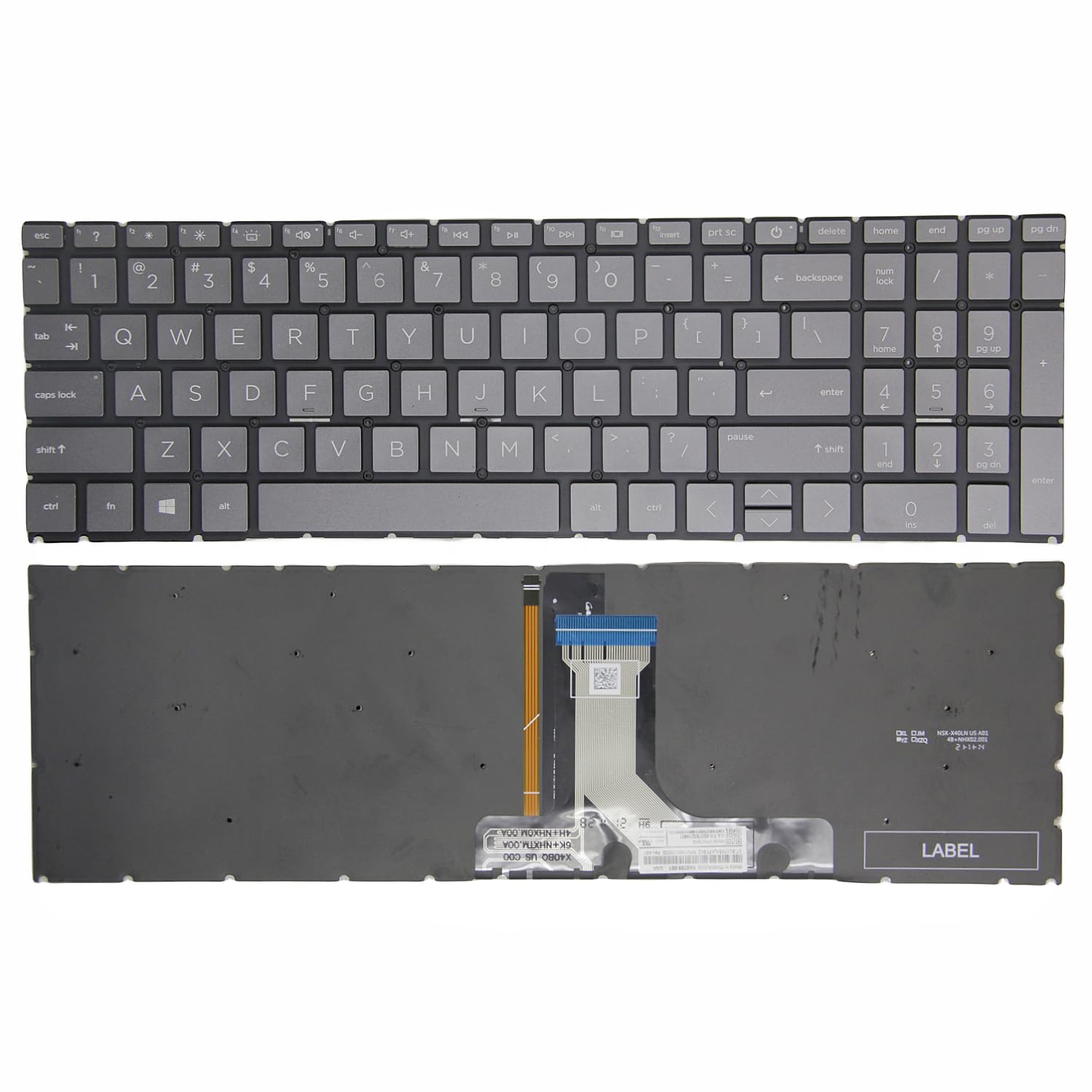
An image showing the new gray US backlit keyboard, highlighting its layout and keycaps. This represents the product you are installing.
6. آپريٽنگ هدايتون
This keyboard features a backlight for improved visibility in low-light conditions.
- بيڪ لائيٽ کي چالو ڪرڻ/غير فعال ڪرڻ: The backlight is typically controlled by a function key combination. Look for a key with a keyboard or light icon (often on F5, F9, F10, or F11). Press the Fn key simultaneously with the corresponding function key to toggle the backlight on/off or adjust its brightness levels.
- روشني جي ترتيب: Some models may offer multiple brightness levels or an automatic adjustment feature. Refer to your laptop's operating system settings or HP documentation for advanced backlight control options.
7. سار سنڀال
To ensure the longevity and optimal performance of your keyboard:
- صفائي: نرم، لِنٽ کان خالي ڪپڙو استعمال ڪريو ٿورڙو ڊيampened with water or a mild electronics cleaner to wipe the keycaps. Avoid spraying liquids directly onto the keyboard. Use compressed air to remove dust and debris from between the keys.
- ڦڦڙن کان بچڻ: Keep liquids away from your laptop to prevent damage to the keyboard and internal components.
- نرم استعمال: ٽائيپ ڪرڻ وقت گهڻي طاقت کان پاسو ڪريو.
8. مسئلا حل ڪرڻ
جيڪڏهن توهان کي پنهنجي نئين ڪيبورڊ سان مسئلا درپيش اچن ٿا، ته هيٺ ڏنل مسئلا حل ڪرڻ جي قدمن تي غور ڪريو:
- ڪي بورڊ جواب نه ڏئي رهيو آهي:
- Ensure the ribbon cables are securely connected to the motherboard. Re-seat them if necessary.
- پنهنجي ليپ ٽاپ کي ٻيهر شروع ڪريو.
- Check Device Manager (Windows) for any keyboard-related errors or outdated drivers.
- بيڪ لائيٽ ڪم نه ڪري رهي آهي:
- Ensure the backlight ribbon cable is properly connected.
- Try the Fn + Function key combination to activate the backlight.
- Check your laptop's BIOS/UEFI settings for any keyboard backlight options.
- مخصوص ڪنجيون ڪم نه ڪري رهيون آهن:
- This could indicate a faulty keyboard. Verify connections again.
If issues persist after troubleshooting, contact customer support or consult a professional technician.
9. وضاحتون
| برانڊ | wangpeng |
| ماڊل مطابقت | HP 17-CN, 17CP, 17S-CU, 470 G8, TPN-I140, TPN-I139 Series |
| ترتيب | يو ايس ترتيب |
| رنگ | ڀورو |
| پٺاڻ | ها |
| حالت | نئون |
10. وارنٽي ۽ سپورٽ
This wangpeng keyboard comes with a 3-مهيني وارنٽي from the date of purchase. This warranty covers manufacturing defects. It does not cover damage caused by improper installation, misuse, accidents, or unauthorized modifications.
For warranty claims, technical support, or further assistance, please contact your retailer or the wangpeng customer service department with your purchase details.