
Tongtion H-1
Tongtion Wireless HDMI Extender User Manual
ماڊل: H-1
1. پراڊڪٽ ختمview
The Tongtion Wireless HDMI Extender (Model H-1) provides a solution for extending HDMI video and audio signals wirelessly. It supports 1080P Full HD resolution at 60Hz and offers a transmission range of up to 1640 feet (500 meters) in line-of-sight conditions. Designed for plug-and-play operation, it eliminates the need for complex driver installations or software configurations, making it suitable for various applications including conference rooms, live events, and home theaters.
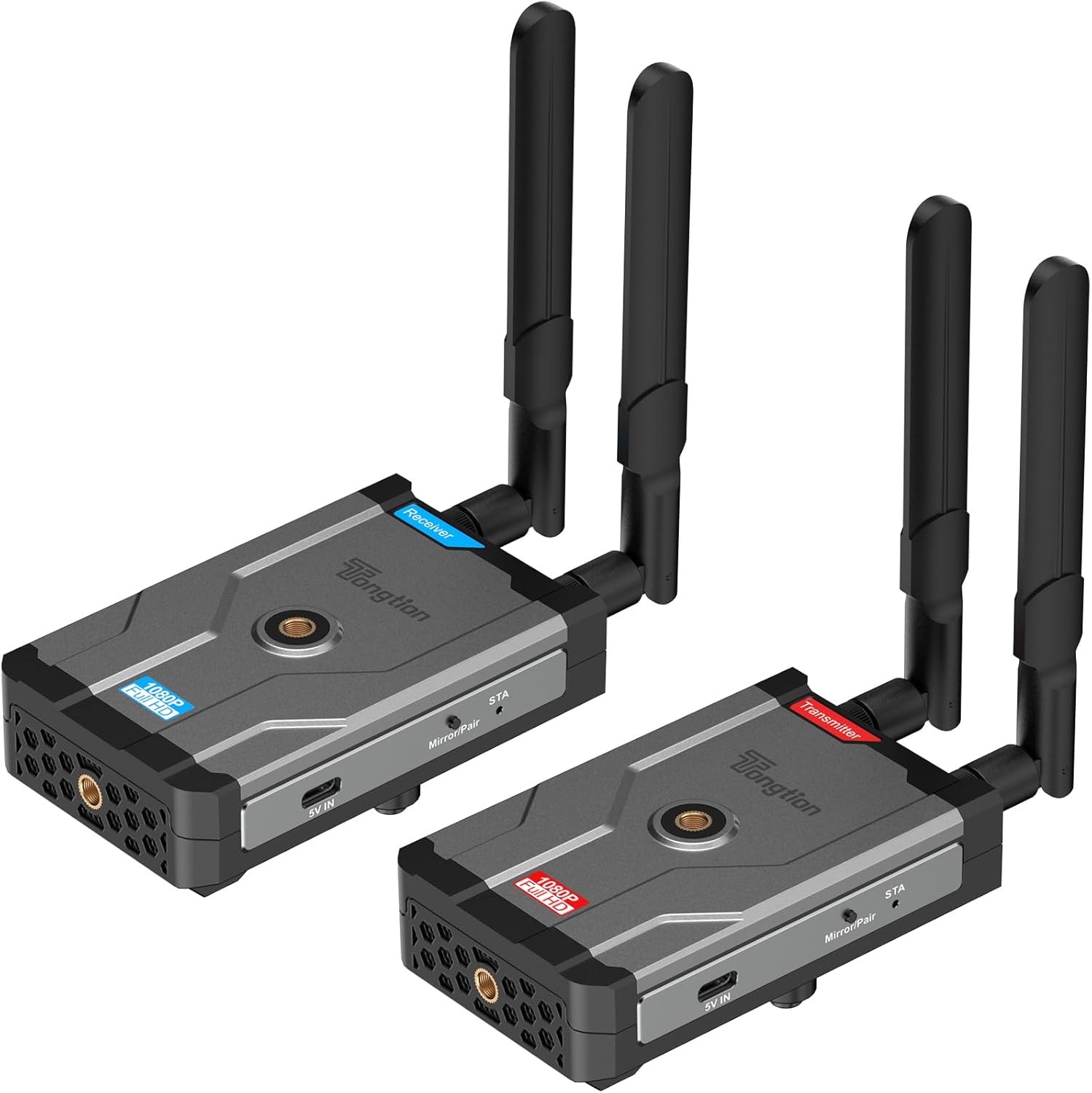
Image: The Tongtion Wireless HDMI Extender system, showing both the transmitter and receiver units with their antennas.
2. دٻي ۾ ڇا آهي
پڪ ڪريو ته سڀئي جزا پيڪيج ۾ موجود آهن:
- 1 x وائرليس HDMI ٽرانسميٽر
- 1 x وائرليس HDMI وصول ڪندڙ
- 4 ايڪس انٽناز
- 2 x پاور اڊاپٽر
- 2 x USB-C Power Cables
- 1 x يوزر گائيڊ
- HDMI ڪيبل

Image: A visual representation of the package contents, including the transmitter, receiver, antennas, power adapters, USB-C cables, and user guide.
3. وضاحتون
| خاصيت | تفصيل |
|---|---|
| ماڊل نمبر | ايڇ-1 |
| قرارداد جي حمايت | 1920×1080@60Hz (1080P Full HD) |
| ٽرانسميشن جي حد | Up to 500m (1640ft) Line-of-Sight |
| وائرليس فريڪوئنسي | 5GHz (802.11a/n) |
| Antenna جي جوڙجڪ | 2T2R Dual-Antenna |
| HDMI معيار | HDMI1.4 / HDCP1.4 |
| پاور جا اختيار | Power bank, NP-F series batteries (not included), USB-C ports |
| رنگ | ڪارو |
| شيءِ جو وزن | 1.17 پائونڊ (0.53 ڪلوگرام) |
| پيداوار جي ماپ | 5.87 x 3.74 x 0.96 انچ (14.9 x 9.5 x 2.4 سينٽي) |
| خاص خصوصيت | پاڻمرادو ٺھيل |
4. سيٽ اپ جون هدايتون
The Tongtion Wireless HDMI Extender is designed for true plug-and-play operation, requiring no drivers or software installation.
- اينٽينا ڳنڍيو: Screw the four provided antennas onto the designated ports on both the Transmitter and Receiver units. Ensure they are securely fastened.

تصوير: ويجهو تصوير view of the transmitter and receiver units, highlighting the antenna connection points.
- وصول ڪندڙ کي طاقت ڏيو: Connect one end of a USB-C power cable to the Receiver unit's USB-C port and the other end to a power adapter. Plug the power adapter into an electrical outlet. Alternatively, use a power bank or compatible NP-F series battery (not included) for portable power.
- Connect Receiver to Display: Use an HDMI cable to connect the HDMI OUT port on the Receiver unit to the HDMI input port on your display device (e.g., TV, projector, monitor).
- ٽرانسميٽر کي طاقت ڏيو: Connect the second USB-C power cable to the Transmitter unit's USB-C port and the other end to its power adapter. Plug the power adapter into an electrical outlet. Similar to the receiver, a power bank or NP-F series battery can be used.
- Connect Transmitter to Source: Use an HDMI cable to connect the HDMI IN port on the Transmitter unit to the HDMI output port on your source device (e.g., laptop, camera, set-top box, PC, DV).

Image: A diagram illustrating the connection process: transmitter connected to a laptop and receiver connected to a television.
- خودڪار جوڙڻ: The Transmitter and Receiver units are designed to pair automatically within seconds. No manual pairing or software configuration is typically required. Wait for the connection indicator lights on both units to show a stable connection.
Note: For optimal performance, ensure a clear line of sight between the transmitter and receiver, especially for longer distances. Walls and other obstructions can reduce the effective transmission range.
5. آپريٽنگ هدايتون
Once the setup is complete and the units are paired, the system operates automatically.
- پاور آن: Ensure both the Transmitter and Receiver units are powered on.
- سورس ڊيوائس آئوٽ پُٽ: Ensure your source device (laptop, camera, etc.) is outputting video via its HDMI port.
- ڊسپلي ان پٽ: Set your display device (TV, projector) to the correct HDMI input channel where the Receiver is connected.
- سگنل ٽرانسميشن: The video and audio signal from your source device will be wirelessly transmitted to your display.
- One-Button Sync: If pairing is lost or you need to re-sync, press the sync button on both the Transmitter and Receiver units simultaneously.

Image: A visual representation of the extender in operation, showing a clear 1080P Full HD signal being transmitted wirelessly to a display.
5.1. Universal Device Compatibility
The system is compatible with a wide range of HDMI-enabled devices:
- ماخذ ڊوائيسز: Cameras, Laptops, Set-top boxes, Switchers, PCs, DVs.
- ڊسپلي ڊوائيسز: Projectors, TVs, Monitors.
It supports HDMI1.4/HDCP1.4, allowing for protected content streaming from various platforms.

Image: An illustration demonstrating the broad compatibility of the wireless HDMI extender with various input and output devices.
5.2. ٽرانسميشن رينج ۽ ڪارڪردگي
The device offers a long-range 5GHz dual-antenna transmission, minimizing interference and ensuring stable signal coverage.
- Line-of-Sight (LOS) Range: 1640 فوٽ (500 ميٽر) تائين.
- Through-Wall Penetration: Effective range is reduced when transmitting through walls or obstructions. Typical ranges are 164-295 feet (50-90 meters) through complex home environments.
- دير: The system is designed for low latency, suitable for video streaming and presentations. Note: Not recommended for gaming due to potential minor latency.

Image: A graphic depicting the extensive transmission range of 1640 feet and the low latency of 0.15 seconds, with a visual of the transmitter and receiver units.

تصوير: هڪ مٿي view of a house layout illustrating the signal penetration capabilities through walls and the difference between line-of-sight and obstructed transmission ranges.
6. مسئلا حل ڪرڻ
جيڪڏهن توهان کي مسئلا درپيش اچن ٿا، ته هيٺ ڏنل عام مسئلا حل ڪرڻ جي قدمن جو حوالو ڏيو:
- ڊسپلي تي ڪوبه سگنل ناهي:
- Ensure both Transmitter and Receiver are powered on and their power indicators are lit.
- Verify all HDMI cables are securely connected to the correct ports (HDMI IN on Transmitter, HDMI OUT on Receiver).
- چيڪ ڪريو ته توهان جو ڊسپلي ڊوائيس صحيح HDMI ان پٽ سورس تي سيٽ ٿيل آهي.
- Ensure the source device is outputting an HDMI signal.
- Try pressing the sync button on both units simultaneously to re-establish pairing.
- Reduce the distance between the Transmitter and Receiver, and remove any obstructions.
- Intermittent Signal / Poor Quality:
- پڪ ڪريو ته اينٽينا محفوظ طور تي ڳنڍيل آهن ۽ صحيح طور تي رخ ڪن ٿا.
- Check for strong interference sources (e.g., Wi-Fi routers, microwaves) operating on the 5GHz band nearby.
- Move the units closer together or adjust their positions to improve line of sight.
- Verify that the power supply is stable and sufficient for both units.
- نه آڊيو:
- پنهنجي سورس ڊيوائس تي آڊيو سيٽنگون چيڪ ڪريو.
- Ensure the display device's volume is not muted or set too low.
- Confirm HDMI cables are fully inserted.
- يونٽ جيڪي جوڙيل نه آهن:
- پڪ ڪريو ته ٻنهي يونٽن تي هلندڙ آهن.
- Perform a manual sync by pressing the pairing button on both units.
- Power cycle both the Transmitter and Receiver units.
7. سار سنڀال
To ensure the longevity and optimal performance of your Wireless HDMI Extender, follow these maintenance guidelines:
- صفائي: يونٽن جي ٻاهرين حصي کي صاف ڪرڻ لاءِ نرم، سڪل ڪپڙو استعمال ڪريو. مائع صاف ڪندڙ يا ايروسول استعمال نه ڪريو.
- اسٽوريج: جڏهن گهڻي عرصي تائين استعمال ۾ نه هجي، ته يونٽن کي سڌي سج جي روشني ۽ انتهائي گرمي پد کان پري ٿڌي، سڪل جاءِ تي ذخيرو ڪريو.
- سنڀالڻ: Handle the units and antennas with care to avoid physical damage. Avoid dropping or subjecting them to strong impacts.
- وينٽيليشن: Ensure the units have adequate ventilation to prevent overheating, especially during prolonged operation. Do not block ventilation holes.
- بجلي جي فراهمي: Always use the provided power adapters or compatible power sources to prevent damage.
8. وارنٽي ۽ سپورٽ
The Tongtion Wireless HDMI Extender comes with a 1-سال وارنٽي خريداري جي تاريخ کان.
Tongtion also provides لائفائمٽ سپورٽ for this product. If you encounter any issues or have questions that are not covered in this manual, please contact Tongtion customer support through their official channels or refer to the 24/7 troubleshooting guides mentioned in the product features.
وڌيڪ مدد لاء، دورو ڪريو جي Tongtion Store on Amazon.
Ask a question about this manual
Ask about setup, troubleshooting, compatibility, parts, safety, or missing instructions. Manuals+ will review the question and use this page’s manual context to help answer it.