
1. تعارف
The CHROX X99 Pro Android 13.0 TV Box is a smart multimedia player designed to transform your television into a powerful entertainment hub. Featuring the latest Android 13.0 operating system and a robust H313 Quad-core processor, this device offers fast performance, 4K video playback, and extensive connectivity options for an enhanced viewتجربو.
2. پيڪيج مواد
مھرباني ڪري تصديق ڪريو ته ھيٺ ڏنل سڀ شيون توھان جي پيڪيج ۾ شامل آھن:
- 1 x CHROX X99 Pro Android 13.0 TV Box
- 1 x پاور اڊاپٽر
- 1 x ريموٽ ڪنٽرول
- 1 x HDMI ڪيبل
- 1 x استعمال ڪندڙ دستياب (هي دستاويز)
3. پراڊڪٽ ختمview
The CHROX X99 Pro TV Box is equipped with advanced hardware to deliver a smooth and responsive user experience. Below is an overview ڊوائيس ۽ ان جي بندرگاهن جو.

شڪل 3.1: مٿي view of the CHROX X99 Pro Android TV Box, showing the 'X99 Pro' logo and '5G' indicator.
3.1 Front and Side Panels

شڪل 3.2: پاسي view of the CHROX X99 Pro Android TV Box, highlighting the USB ports and TF card slot.
The side panel features two USB ports (one USB 3.0 and one USB 2.0) for connecting external storage devices, keyboards, mice, or other peripherals. A TF card slot is also present for expanding storage.
3.2 ريئر پينل
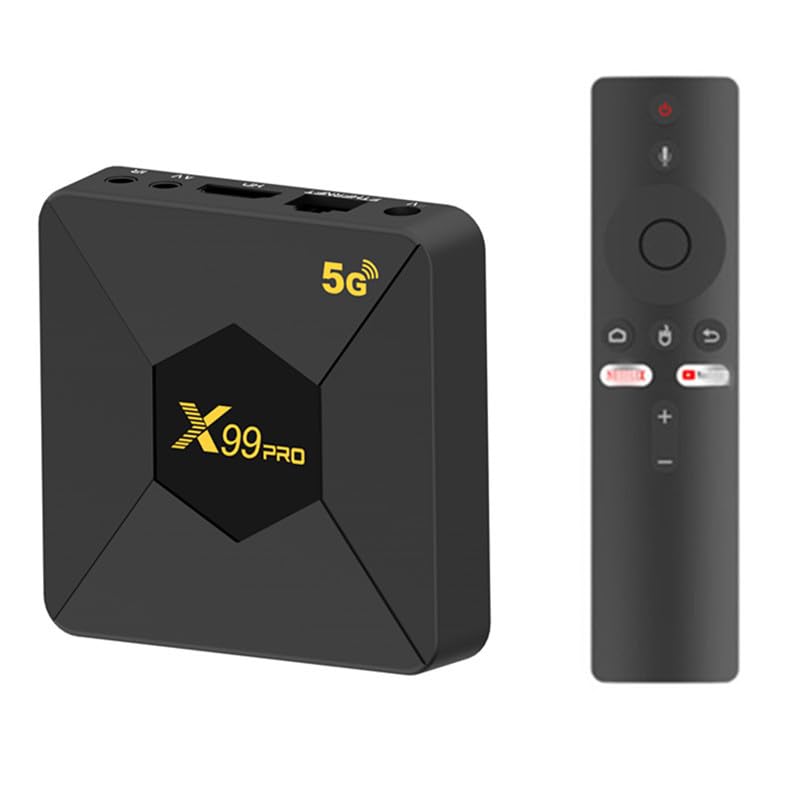
شڪل 3.3: پوئتي view of the CHROX X99 Pro Android TV Box, showing the power input, Ethernet, HDMI, AV, and IR ports.
The rear panel provides essential connectivity:
- ڊي سي 5V پاور ان پٽ: هتي مهيا ڪيل پاور اڊاپٽر کي ڳنڍيو.
- Ethernet (RJ-45): وائرڊ نيٽ ورڪ ڪنيڪشن لاءِ.
- HDMI: Connect to your TV or display for video and audio output.
- اي وي: Analog video/audio output for older TVs.
- IR: External IR receiver port (if applicable).
4. سيٽ اپ گائيڊ
Follow these steps for initial setup of your CHROX X99 Pro TV Box:
- ٽي وي سان ڳنڍيو: Use the provided HDMI cable to connect the HDMI port on the TV Box to an HDMI input port on your television. Note the HDMI input number on your TV (e.g., HDMI 1, HDMI 2).
- پاور سان ڳنڍيو: Plug the power adapter into the DC 5V input port on the TV Box, then plug the adapter into a wall outlet. The device should power on automatically, or you may need to press the power button on the remote control.
- نيٽ ورڪ سان ڳنڍيو (اختياري):
- وائرڊ ڪنيڪشن: Connect an Ethernet cable from your router to the Ethernet port on the TV Box.
- وائرليس ڪنيڪشن: Skip this step for now; you will configure Wi-Fi during the initial software setup.
- Select TV Input: Turn on your TV and use its remote control to select the correct HDMI input source that corresponds to where you connected the TV Box.
- شروعاتي سيٽ اپ: The Android system will boot up. Follow the on-screen prompts to select your language, connect to Wi-Fi (if not using Ethernet), and complete any other initial configuration steps.
5. آپريٽنگ هدايتون
5.1 ريموٽ ڪنٽرول
The included remote control allows you to navigate the Android interface. Familiarize yourself with its buttons:
- پاور بٽڻ: Turns the device on/off or puts it into standby mode.
- نيويگيشن بٽڻ (مٿي/هيٺ/کاٻي/ساڄي): Move cursor or selection.
- OKيڪ بٽڻ: Confirms selection or opens an item.
- پوئتي بٽڻ: پوئين اسڪرين ڏانهن واپسي.
- هوم بٽڻ: مکيه Android هوم اسڪرين ڏانهن واپس اچي ٿو.
- مينيو بٽڻ: Accesses context-sensitive menus.
- حجم بٽڻ: آڊيو جي مقدار کي ترتيب ڏئي ٿو.
5.2 اينڊرائيڊ انٽرفيس کي نيويگيٽ ڪرڻ
The CHROX X99 Pro runs on Android 13.0, providing a user-friendly interface. Use the remote control's navigation buttons to move between apps and settings. Press the OK button to launch an application or confirm a selection.
5.3 ايپليڪيشنن کي انسٽال ڪرڻ ۽ منظم ڪرڻ
You can install applications from the pre-installed app store or by sideloading APK files. To manage apps:
- ڏانهن وڃو سيٽنگون > ائپس جي طرف view installed applications.
- Select an app to see options like کليل, زبردستي روڪيو, انسٽال ڪريو, صاف ڊيٽا، يا ڪيش صاف ڪريو.
5.4 نيٽورڪ سيٽنگون
To configure network connectivity:
- ڏانهن وڃو سيٽنگون> نيٽورڪ ۽ انٽرنيٽ.
- For Wi-Fi, select وائي فائي, choose your network, and enter the password.
- For Ethernet, ensure the cable is connected; the device should automatically obtain an IP address.
5.5 بلوٽوٽ جوڙي
To connect Bluetooth devices (e.g., headphones, game controllers):
- ڏانهن وڃو سيٽنگون> ڳنڍيل ڊوائيس> نئون ڊوائيس جوڙيو.
- پنھنجي بلوٽوٽ ڊيوائس کي پيئرنگ موڊ ۾ وجھو.
- Select your device from the list on the TV Box to pair.
6. وضاحتون
Detailed technical specifications for the CHROX X99 Pro Android 13.0 TV Box:
| خاصيت | تفصيل |
|---|---|
| برانڊ | CHROX |
| ماڊل نالو | X99 پرو |
| آپريٽنگ سسٽم | Android 13.0 |
| سي پي يو | H313 Quad-core Cortex-A53 |
| جي پي يو | مالي-T720MP2 |
| رام | 2GB DDR3 |
| روم | 8GB EMMC |
| وائي فائي | 2.4G/5GHz ڊول بينڊ |
| ايٿرنيٽ | 10/100M RJ-45 |
| بلوٽوٿ | حمايت ڪئي |
| USB ميزبان | 1x USB 3.0، 1x USB 2.0 |
| وڊيو آئوٽ | HDMI 2.0 (up to 8K, 6K@30fps MAX Resolution Output with HDR, CEC, HDCP 2.2) |
| ڪارڊ ريڊر | ايس ڊي / SDHC / ايم ايم سي ڪارڊ |
| وڊيو ڊيڪوڊنگ | 8K H.265, 4K@60fps, 3D support |
| سپورٽ ٿيل وڊيو فارميٽ | AVI, RM, RMVB, TS, VOB, MKV, MOV, ISO, WMV, ASF, FLV, DAT, MPG, MPEG |
| سپورٽ ٿيل آڊيو فارميٽ | MP3, WMA, AAC, WAV, OGG, AC3, DDP, TRUEHD, DTS, HD, FLAC, APE |
| سپورٽ ٿيل فوٽو فارميٽس | HD JPEG, BMP, GIF, PNG, TIFF |
7. مسئلا حل ڪرڻ
جيڪڏهن توهان کي پنهنجي ٽي وي باڪس سان مسئلا درپيش اچن ٿا، ته هيٺ ڏنل عام مسئلن ۽ حلن جو حوالو ڏيو:
- طاقت ناهي:
- پڪ ڪريو ته پاور اڊاپٽر محفوظ طور تي ٽي وي باڪس ۽ ڪم ڪندڙ پاور آئوٽليٽ سان ڳنڍيل آهي.
- ڪوشش ڪريو مختلف پاور آئوٽليٽ.
- ٽي وي تي ڪابه ڊسپلي ناهي:
- Check that the HDMI cable is firmly connected to both the TV Box and the TV.
- پڪ ڪريو ته توهان جو ٽي وي صحيح HDMI ان پٽ سورس تي سيٽ ٿيل آهي.
- پنهنجي ٽي وي تي هڪ مختلف HDMI ڪيبل يا HDMI پورٽ آزمايو.
- وائي فائي ڪنيڪشن ناهي:
- ڏانهن وڃو سيٽنگون > نيٽ ورڪ ۽ انٽرنيٽ > وائي فائي and ensure Wi-Fi is enabled.
- Check if your Wi-Fi password is entered correctly.
- Restart your Wi-Fi router and the TV Box.
- Ensure the TV Box is within range of your Wi-Fi router.
- ريموٽ ڪنٽرول جواب نه ڏئي رهيو آهي:
- ريموٽ ڪنٽرول ۾ بيٽرين کي تبديل ڪريو.
- Ensure there are no obstructions between the remote control and the TV Box's IR receiver.
- Applications Crashing or Freezing:
- ڏانهن وڃو سيٽنگون > ائپس, select the problematic app, and try ڪيش صاف ڪريو or صاف ڊيٽا.
- If the issue persists, try انسٽال ڪريو and then reinstall the app.
- Ensure the TV Box has sufficient free storage space.
8. سار سنڀال
To ensure the longevity and optimal performance of your CHROX X99 Pro TV Box, follow these maintenance guidelines:
- صاف رکو: ڊوائيس کي باقاعدي طور تي نرم، سڪل ڪپڙي سان صاف ڪريو. مائع صاف ڪندڙ يا رگڙيندڙ مواد استعمال ڪرڻ کان پاسو ڪريو.
- وينٽيليشن: پڪ ڪريو ته ڊوائيس کي وڌيڪ گرم ٿيڻ کان روڪڻ لاءِ سٺي هوادار علائقي ۾ رکيو ويو آهي. ڪنهن به وينٽيليشن جي سوراخن کي نه بلاڪ ڪريو.
- درجه حرارت ۽ نمي: Operate the device within recommended temperature and humidity ranges. Avoid extreme heat, cold, or damp ماحول.
- صحيح طور تي پاور بند ڪريو: Always power off the device correctly through the system menu or by using the remote control's power button to put it into standby. Avoid simply unplugging it from the power source.
- سافٽ ويئر اپڊيٽ: وقتي طور تي سسٽم اپڊيٽس جي جانچ ڪريو سيٽنگون پڪ ڪرڻ لاءِ ته توهان وٽ جديد خاصيتون ۽ سيڪيورٽي پيچ آهن.
- جسماني نقصان کان بچاء: Do not drop, strike, or attempt to disassemble the device. Unauthorized opening voids any warranty.
9. وارنٽي ۽ سپورٽ
The CHROX X99 Pro Android 13.0 TV Box comes with a standard manufacturer's warranty. Please refer to the warranty card included in your package for specific terms and conditions, including the warranty period and coverage details.
For technical support, troubleshooting assistance beyond this manual, or warranty claims, please contact the seller or manufacturer directly through the contact information provided at the point of purchase or on the product packaging. When contacting support, please have your product model (X99 Pro) and purchase details readily available.