
Thundeal TD93 Pro
Thundeal TD93 Pro Mini Projector User Manual
Model: TD93 Pro | Brand: Thundeal
1. تعارف
This manual provides detailed instructions for the setup, operation, and maintenance of your Thundeal TD93 Pro Mini Projector. Please read this manual thoroughly before using the product to ensure proper functionality and to extend its lifespan.

Image 1.1: Thundeal TD93 Pro Mini Projector overview.
2. دٻي ۾ ڇا آهي
پڪ ڪريو ته هيٺ ڏنل سڀئي شيون توهان جي پيڪيج ۾ شامل آهن:
- Thundeal TD93 Pro Projector
- ريموٽ ڪنٽرول
- پاور ڪنڊ
- استعمال ڪندڙ جو دستياب (ھي دستاويز)
- اي ڪي ڪيبل
- HDMI ڪيبل
- پروجيڪٽر لينس ڍڪ

Image 2.1: Package contents of the TD93 Pro Projector.
3. Product Specifications and Features
3.1. ٽيڪنيڪل وضاحتون
| ماڊل نمبر | TD93 Pro (Item Model Number: TD97) |
| اصلي قرارداد | 1920 x 1080 (مڪمل HD) |
| وڌ ۾ وڌ ريزوليوشن سپورٽ | 2K 4K UHD (from HD Signal) |
| روشني | 12000 Lumens |
| مقابلي جي نسبت | 15000:1 |
| اسپيڪٽ ريشو | 4:3 / 16:9 / خودڪار |
| آپريٽنگ سسٽم | Android 9.0 OS |
| وائرليس ڪنيڪشن | 2.4G / 5G WiFi, Bluetooth-compatible |
| ياداشت | RAM 1G DDR3 + ROM 8G |
| Keystone جو سڌارو | 6D Keystone (4-point corner +/- 60°, Vertical +/- 60°) |
| زوم فنڪشن | 50-100% Proportional Reduction |
| پروجيڪٽ جي ماپ | 49 to 300 inches (recommended 93-150 inches) |
| پروجئشن جو فاصلو | 1.6 to 6.5 meters (recommended 3-5 meters) |
| Lamp حياتي | 50,000 ڪلاڪ |
| آڊيو | Built-in 5W stereo speakers with SRS sound system |
| خاص خاصيتون | 3D-Ready (Red-Blue 3D), Auto Horizontal Keystone, Built-In Wi-Fi, Portable, Dust Removal Net |
3.2. اهم خاصيتون
- High Definition Visuals: Native 1080P resolution with support for 2K/4K UHD signals, delivering clear and vibrant images.
- Smart Android OS: Integrated Android 9.0 operating system allows direct app downloads and streaming.
- ڊبل بينڊ وائي فائي: 2.4G and 5G WiFi connectivity for stable and fast wireless streaming and screen mirroring.
- بلوٽوت ڪنيڪشن: Connect external Bluetooth speakers or headphones for enhanced audio.
- تصوير جي اعليٰ اصلاح: 6D Keystone correction (4-point and vertical) for flexible placement and precise image alignment.
- لچڪدار پروجئشن: Adjustable zoom from 50% to 100% and support for screen sizes up to 300 inches.
- ڊگھي رھندڙ ايلamp: LED ايلamp designed for up to 50,000 hours of operation.
- Multi-Media Compatibility: Supports various input sources including HDMI, USB, AV, and direct office file USB ذريعي پلے بیک.

Image 3.1: Visual comparison of projector brightness and resolution.
4. سيٽ اپ گائيڊ
4.1. پروجيڪٽر جي جاءِ
The projector can be placed in various positions to suit your viewing environment:
- ڊيسڪ تي: پروجيڪٽر کي هڪ مستحڪم، هموار مٿاڇري تي رکو.
- ٽرائيپڊ تي: Utilize the 6mm screw hole on the bottom for tripod mounting.
- Ceiling Hoisting: Mount the projector to the ceiling using a compatible hanger.
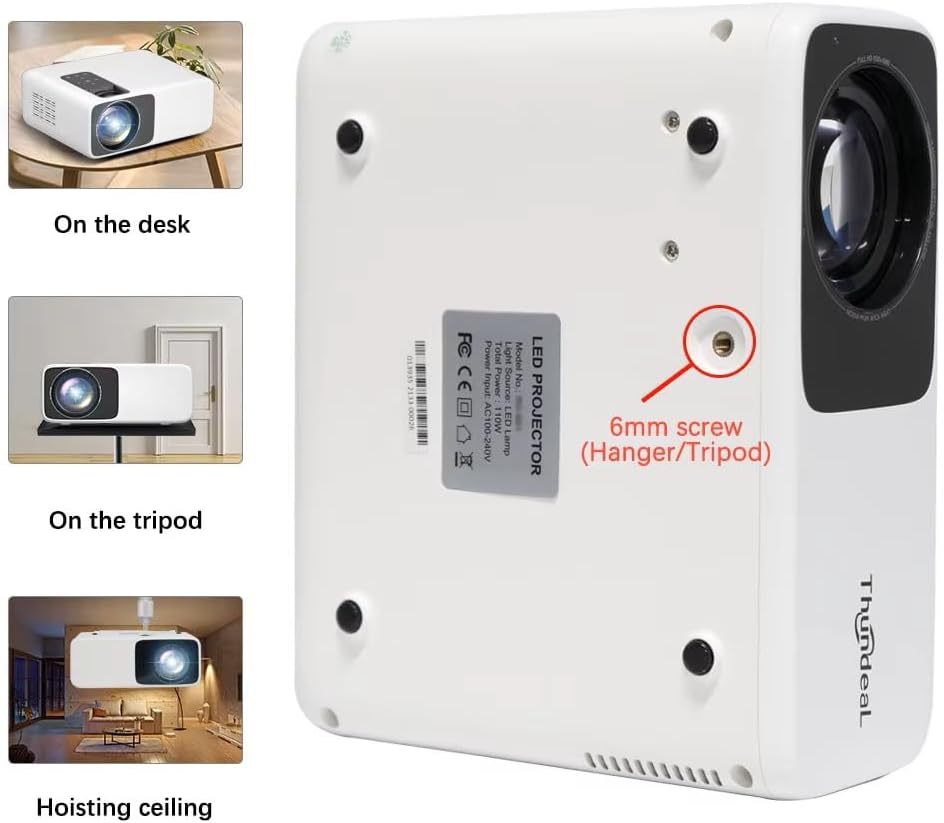
Image 4.1: Projector placement options and mounting point.
بهترين لاءِ viewing, ensure the projector is positioned perpendicular to the screen or wall. Adjust the projection distance (1.6 to 6.5 meters) to achieve your desired screen size (49 to 300 inches). A distance of 3-5 meters for a 93-150 inch screen is recommended for eye comfort.
4.2. پاور ڪنيڪشن
- پاور ڪنڊ کي پروجيڪٽر جي پاور ان پٽ پورٽ سان ڳنڍيو.
- بجلي جي تار جي ٻئي ڇيڙي کي معياري بجلي جي آئوٽليٽ ۾ لڳايو.
- پروجيڪٽر يا ريموٽ ڪنٽرول تي پاور بٽڻ کي دٻايو ان کي آن ڪرڻ لاءِ.
5. آپريٽنگ هدايتون
5.1. Multi-Media Connections
The TD93 Pro projector offers various ports for connecting external devices:
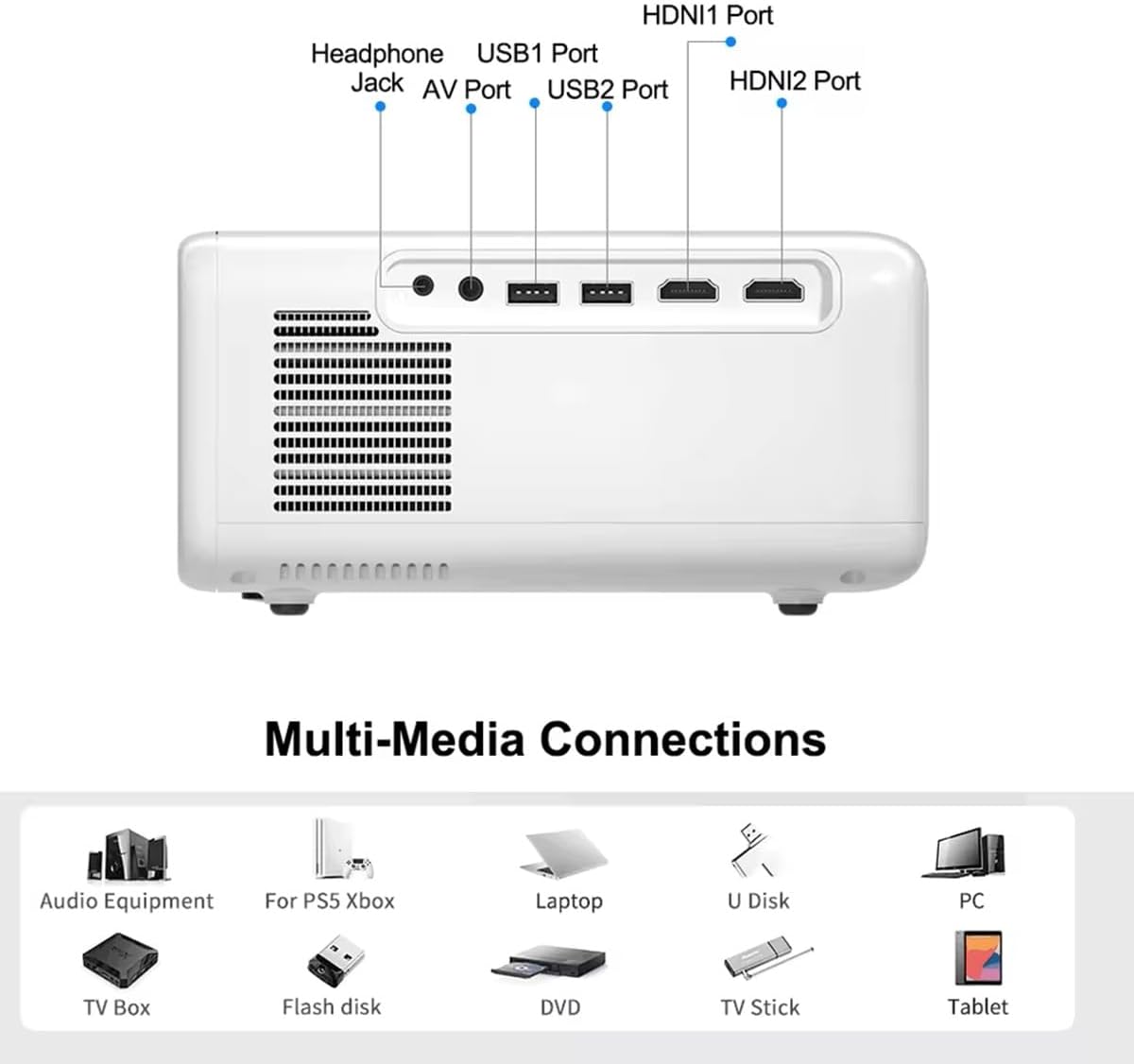
Image 5.1: Available multimedia connection ports.
- HDMI Ports (HDMI1, HDMI2): Connect devices such as TV boxes, gaming consoles (PS5, Xbox), laptops, or Blu-ray players.
- USB پورٽس (USB1، USB2): Connect USB flash drives for direct media playback (photos, videos, office documents).
- اي وي پورٽ: Connect older devices using the provided AV cable.
- هيڊ فون جڪ (3.5mm): ٻاهرين هيڊفون يا اسپيڪر ڳنڍيو.
To switch input sources, use the "Source" button on the remote control or the projector's control panel and select the desired input (HDMI1, HDMI2, AV, USB).
5.2. وائرليس ڪنيڪشن
5.2.1. WiFi Connection (2.4G/5G)
The projector supports dual-band WiFi for internet access and network features:
- Navigate to the "Settings" menu on the projector's Android interface.
- Select "Network & Internet" and then "Wi-Fi".
- وائي فائي آن ڪريو ۽ فهرست مان پنھنجو گهربل نيٽ ورڪ چونڊيو.
- جيڪڏهن چيو وڃي ته پاسورڊ داخل ڪريو ۽ ڳنڍيو.
5.2.2. بلوٽوٽ ڪنيڪشن
Connect Bluetooth-compatible audio devices like speakers or headphones:
- Go to "Settings" > "Connected devices" > "Bluetooth".
- بلوٽوت کي چالو ڪريو.
- پنھنجي بلوٽوٽ ڊيوائس کي پيئرنگ موڊ ۾ وجھو.
- جوڙڻ لاءِ موجود ڊوائيسز جي فهرست مان پنهنجو ڊوائيس چونڊيو.
5.3. Screen Mirroring (Airplay/WiFi-Display)
Wirelessly display content from your Android or iOS phone:

Image 5.2: Screen mirroring from iOS and Android devices.
- Ensure both your projector and mobile device are connected to the same Wi-Fi network.
- On the projector's main interface, select the "Screen Mirroring" or "Airplay/WiFi-Display" application.
- For iOS devices: Open Control Center, tap "Screen Mirroring" or "AirPlay Mirroring", and select the projector from the list.
- For Android devices: Open the notification panel, find "Cast", "Smart View", "Wireless Display", or similar function, and select the projector.
5.4. تصوير جي ترتيب
5.4.1. Keystone Correction (6D)
The projector features 6D keystone correction to adjust image shape:
- عمودي ڪيسٽون: Adjust +/- 60 degrees vertically using the remote control.
- 4-Point Corner Keystone: Adjust each of the four corners independently by +/- 60 degrees for side projection or irregular surfaces. This allows for precise rectangular image alignment.
Access keystone settings via the projector's menu or dedicated buttons on the remote.
5.4.2. زوم فنڪشن
Adjust the display size from 50% to 100% proportionally without moving the projector. This feature is useful for fine-tuning the image size to fit your screen or wall.
Access the zoom function through the projector's menu settings.
5.5. Android OS and App Usage
The integrated Android 9.0 OS allows you to download and install applications directly from the Play Store. Ensure the projector is connected to Wi-Fi to access online services and apps.
- Play Store: Access the Google Play Store to download streaming apps, games, and utilities.
- ميڊيا پلے بیک Use pre-installed media players or download alternatives (e.g., VLC player for AC3 audio support).
6. سار سنڀال
6.1. Dust Removal
The projector is equipped with a built-in dust net for easy cleaning. Regularly clean the dust net to maintain optimal performance and prevent overheating. Press to pop out the dust net for cleaning.
6.2. کولنگ سسٽم
The advanced cooling system is designed to dissipate heat efficiently and extend the lamp's lifespan. Ensure proper ventilation around the projector and avoid blocking air vents during operation.
6.3. ايلamp حياتي
ايل اي ڊي ايلamp has an estimated lifespan of 50,000 hours. No lamp replacement is typically required during the product's operational life under normal usage conditions.
7. مسئلا حل ڪرڻ
7.1. No Image Displayed
- چيڪ ڪريو ته پروجيڪٽر تي طاقت آهي.
- Verify the input source is correctly selected (e.g., HDMI1, USB).
- پڪ ڪريو ته سڀئي ڪيبل محفوظ طور تي ڳنڍيل آهن.
- ڌيان ۽ ڪيسٽون اصلاح کي ترتيب ڏيو.
7.2. ڪو آواز
- پروجيڪٽر ۽ ڳنڍيل سورس ڊيوائس تي حجم جي سطح چيڪ ڪريو.
- Ensure external speakers or headphones are properly connected and powered on if used.
- If using an external source, verify its audio output settings.
- For AC3 audio, ensure you are using a compatible player like VLC.
7.3. Connectivity Issues (WiFi/Bluetooth)
- Ensure WiFi is enabled and you are connected to the correct network.
- پروجيڪٽر ۽ پنهنجي روٽر/بلوٽوٿ ڊيوائس کي ٻيهر شروع ڪريو.
- For screen mirroring, confirm both devices are on the same Wi-Fi network.
7.4. Image is Blurry or Distorted
- پروجيڪٽر لينس تي فوڪس انگوزي کي ترتيب ڏيو.
- Use the keystone correction features to correct any trapezoidal distortion.
- پڪ ڪريو ته پروجيڪشن جي مٿاڇري سڌي ۽ هموار آهي.
8. وارنٽي ۽ سپورٽ
وارنٽي جي معلومات ۽ ٽيڪنيڪل سپورٽ لاءِ، مھرباني ڪري خريداري وقت مهيا ڪيل دستاويزن جو حوالو ڏيو يا پنھنجي پرچون ڪندڙ سان رابطو ڪريو. خريداري جي ثبوت طور پنھنجي خريداري جي رسيد رکو.
Ask a question about this manual
Ask about setup, troubleshooting, compatibility, parts, safety, or missing instructions. Manuals+ will review the question and use this page’s manual context to help answer it.