
1. پراڊڪٽ ختمview
The CITLLA PRO MAX E510 is an ergonomic wireless mouse designed for comfort and efficiency across multiple devices. It features dual Bluetooth and 2.4G wireless connectivity, adjustable DPI settings, and a unique smart flying scroll wheel with a side thumb wheel for enhanced navigation.

Image: The CITLLA PRO MAX E510 Wireless Bluetooth Mouse in white, showcasing its ergonomic design and multiple buttons.
2. سيٽ اپ جون هدايتون
2.1 شروعاتي چارجنگ
Before first use, fully charge the mouse using the provided USB-C cable. The charging port is located at the front of the mouse. A full charge can last up to 60 days. The mouse features an auto-sleep mode after 15 minutes of inactivity to conserve battery life.
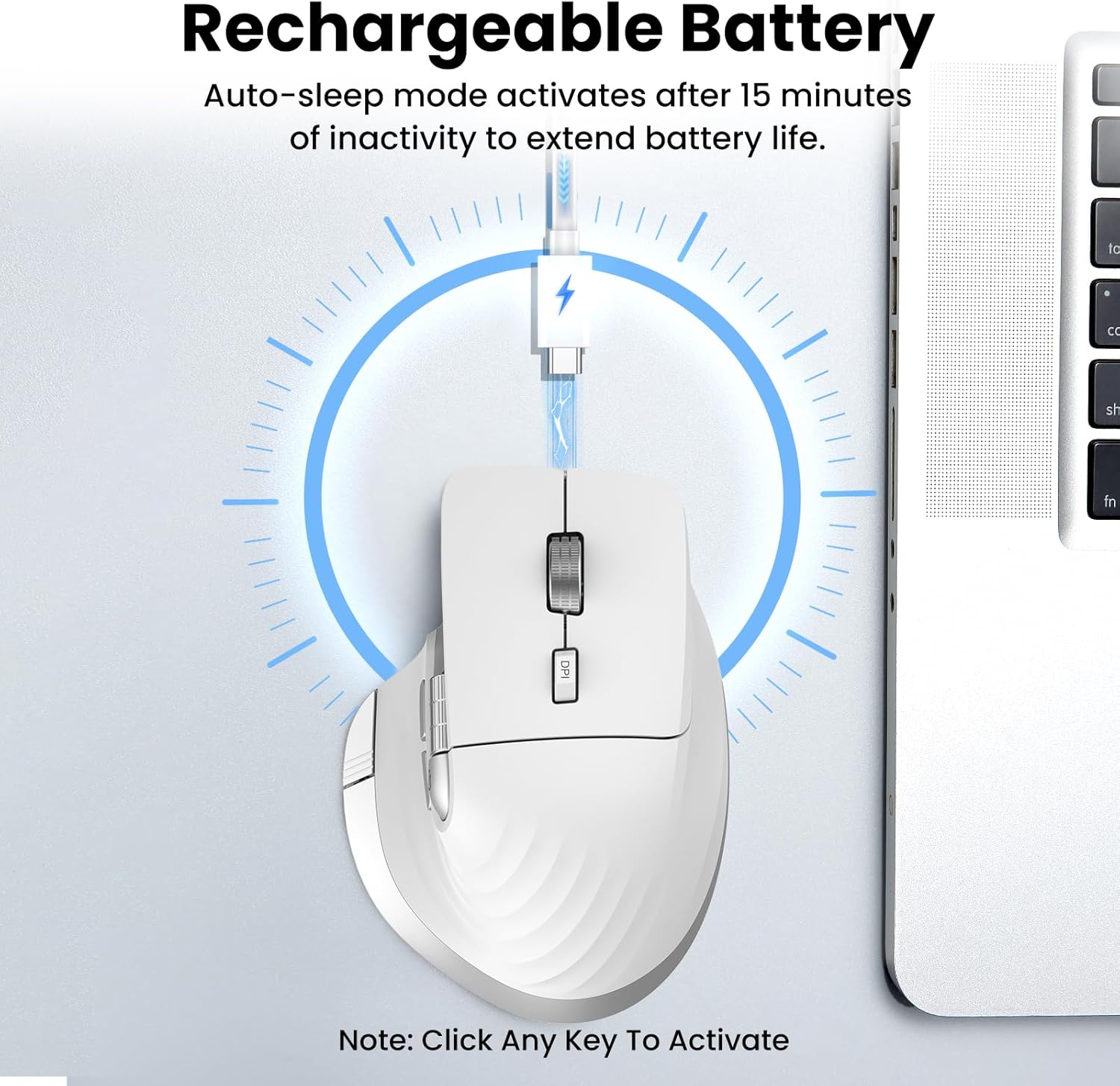
Image: The mouse connected to a USB-C charging cable, illustrating the rechargeable battery feature.
2.2 ڊوائيسز سان ڳنڍڻ
The mouse supports connection to up to three devices via 2.4G wireless (USB receiver) and two Bluetooth channels (Bluetooth 1, Bluetooth 2).
- 2.4G وائرليس ڪنيڪشن:
- Locate the USB receiver stored in the compartment on the underside of the mouse.
- USB رسيور کي توهان جي ڪمپيوٽر تي موجود USB پورٽ ۾ پلگ ان ڪريو.
- Turn on the mouse using the On/Off switch located on the bottom.
- Press the 'Devices Switch Button' (labeled 6 in the button diagram) until the white indicator light for 2.4G (labeled 7) illuminates. The mouse should now be connected.
- Bluetooth Connection (Bluetooth 1 / Bluetooth 2):
- آن/آف سوئچ استعمال ڪندي ماؤس کي آن ڪريو.
- Press the 'Devices Switch Button' (6) to select either Bluetooth 1 (blue indicator) or Bluetooth 2 (green indicator).
- Press and hold the 'Devices Switch Button' for 3-5 seconds until the selected Bluetooth indicator light starts flashing rapidly. This indicates pairing mode.
- On your device (laptop, tablet, smartphone), go to Bluetooth settings and search for new devices.
- Select "CITLLA E510" (or similar name) from the list of available devices to pair.
- هڪ دفعو جوڙيو ويو، اشاري جي روشني چمڪندي بند ٿي ويندي ۽ مضبوط رهندي.

Image: Diagram showing the mouse wirelessly connected to a laptop, desktop monitor, and tablet, illustrating its multi-device capability.
3. آپريٽنگ هدايتون
3.1 بٽڻ جا ڪم

Image: Detailed diagram of the mouse buttons and their corresponding functions.
- 1. Left Button: معياري کاٻي ڪلڪ فنڪشن.
- 2. Right Button: معياري ساڄي ڪلڪ فنڪشن.
- 3. Smart Flying Scroll Wheel: For ultra-fast, nearly silent vertical scrolling.
- 4. DPI Button: Press to cycle through 4 adjustable DPI levels (1000/1600/2400/3200).
- 5. Side Wheel: For fast horizontal scrolling.
- 6. Devices Switch Button: Press to switch between connected devices (2.4G, Bluetooth 1, Bluetooth 2). Press and hold to enter Bluetooth pairing mode.
- 7. Devices Indicators: White for 2.4G, Blue for Bluetooth 1, Green for Bluetooth 2. Also includes a low power indicator.
- 8. Forward/Back Buttons: Navigate forward/back in web browsers or switch applications (macOS).
- 9. Return to Desktop Button: Instantly minimizes all windows to show the desktop (Windows only). For macOS, this button can be used for Full Screen (Control+Command+F).
3.2 Scrolling Functions
The mouse features two distinct scrolling mechanisms:
- جي اسمارٽ فلائنگ اسڪرول ويل (3) on top provides smooth and rapid vertical scrolling, ideal for long documents or web صفحا.
- جي پاسي واري ڦيٿي (5) allows for horizontal scrolling, which is particularly useful for navigating wide spreadsheets or timelines.
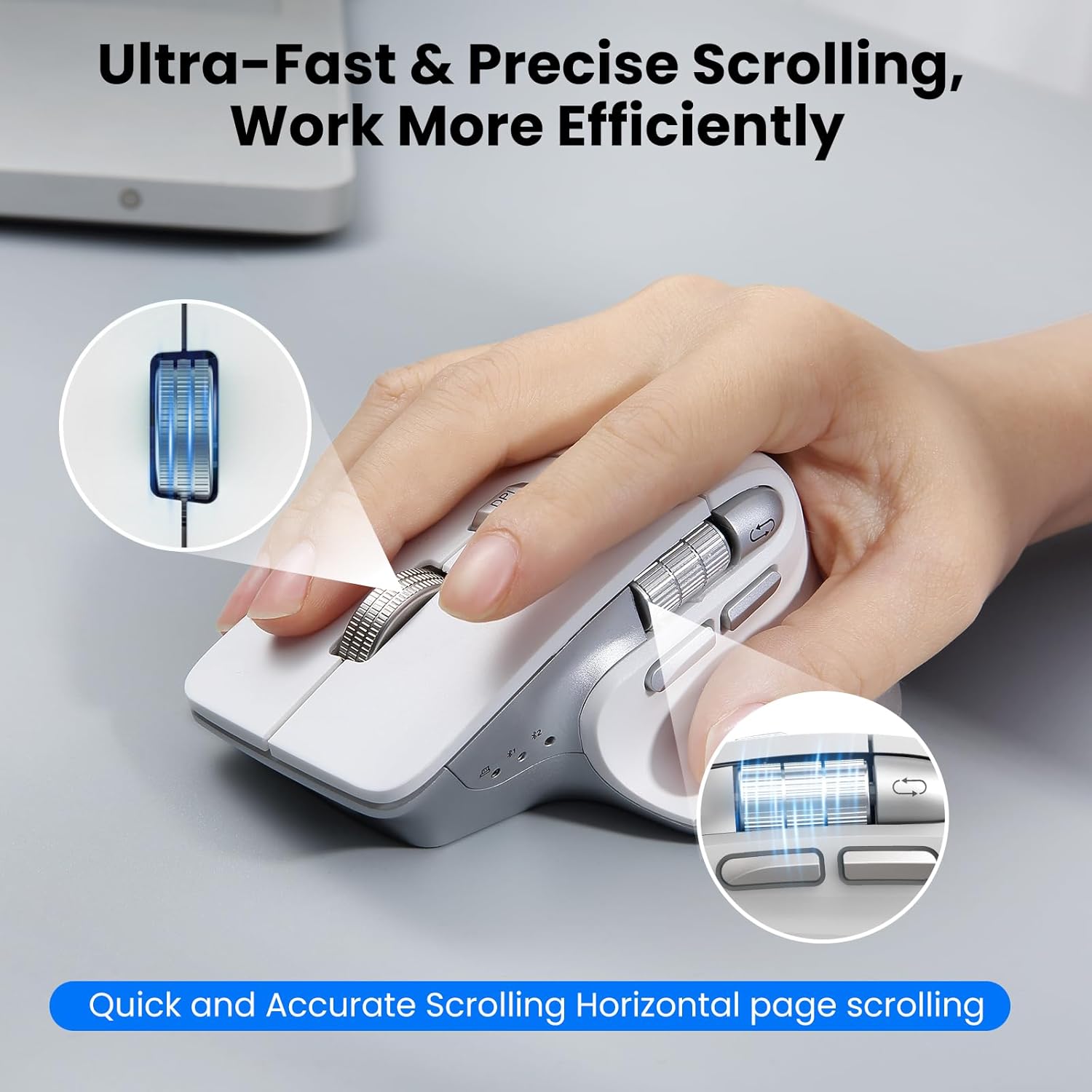
Image: A hand operating the mouse, highlighting the smart flying scroll wheel and the side thumb wheel for efficient navigation.
3.3 ڊي پي آئي ايڊجسٽمينٽ
The DPI (Dots Per Inch) button (4) allows you to adjust the cursor sensitivity. Press the DPI button to cycle through the four available settings: 1000, 1600, 2400, and 3200 DPI. Choose a setting that best suits your task, whether it's precise graphic design or fast-paced gaming.

Image: A visual representation of the 4-level adjustable DPI settings (1000, 1600, 2400, 3200 DPI).
3.4 خاص خاصيتون
- Silent Click Design: The mouse is engineered for quiet operation, making it suitable for shared workspaces and quiet environments.
- Return to Desktop (Windows Only): The dedicated button (9) provides a quick way to minimize all open windows and display your desktop. This feature is specific to Windows operating systems.

Image: A laptop screen showing multiple open windows, with an arrow indicating the 'Return to Desktop' button on the mouse minimizing them.
3.5 Product Feature Video
Video: An official product video from CITLLA showcasing the key features and functionality of the PRO MAX E510 Wireless Bluetooth Mouse, including its ergonomic design, multi-device connectivity, and smart scrolling.
4. سار سنڀال
4.1 صفائي
To maintain optimal performance, regularly clean your mouse. Use a soft, dry cloth to wipe the exterior. For stubborn dirt, a slightly damp cloth can be used, ensuring no moisture enters the internal components. Avoid harsh chemicals or abrasive materials.
4.2 بيٽري جي سنڀال
The mouse is equipped with a rechargeable battery. Charge it using a standard USB-C cable. The low power indicator will alert you when charging is needed. To prolong battery life, the mouse enters an auto-sleep mode after 15 minutes of inactivity. Click any button to reactivate it.
5. مسئلا حل ڪرڻ
- مائوس جواب نه ڏئي رهيو آهي:
- پڪ ڪريو ته ماؤس چالو آهي.
- بيٽري جي سطح چيڪ ڪريو ۽ ضروري هجي ته چارج ڪريو.
- Verify the correct connection mode (2.4G, BT1, BT2) is selected using the Devices Switch Button.
- 2.4G لاءِ، پڪ ڪريو ته USB رسيور محفوظ طور تي پلگ ان ٿيل آهي.
- For Bluetooth, re-pair the mouse with your device.
- ڪرسر جي حرڪت بي ترتيب يا سست آهي:
- Adjust the DPI setting using the DPI button (4) to a higher sensitivity.
- پڪ ڪريو ته مائوس سينسر صاف ۽ رڪاوٽن کان پاڪ آهي.
- Use the mouse on a suitable surface (e.g., a mouse pad).
- ڊوائيسز جي وچ ۾ سوئچ نه ٿو ڪري سگھجي:
- Ensure all devices are properly paired/connected to their respective channels (2.4G, BT1, BT2).
- Press the Devices Switch Button (6) firmly to cycle through the connections.
- Return to Desktop button not working:
- This feature is only supported on Windows systems.
- پڪ ڪريو ته توهان جو ونڊوز آپريٽنگ سسٽم جديد آهي.
6. وضاحتون
| پيداوار جي ماپ | 4.6 x 2.6 x 0.04 انچ |
| شيءِ جو وزن | 6.7 اونس |
| بيٽريون | 1 غير معياري بيٽري (شامل) |
| رابطي ٽيڪنالاجي | بلوٽوٿ، 2.4G USB وائرليس |
| خاص خاصيتون | 4 Way Scrolling, Ergonomic Design, Rechargeable, Silent Click, Wireless |
| تحريڪ جي سڃاڻپ ٽيڪنالاجي | بصري |
7. مطابقت
The CITLLA PRO MAX E510 Wireless Bluetooth Mouse is compatible with a wide range of operating systems:
- ونڊوز
- Mac OS
- ڪروم او ايس
- لينڪس
- iOS
- Android

Image: Icons for Android, Linux, Windows, Chrome OS, and Mac OS, indicating wide compatibility.
8. دٻي ۾ ڇا آهي
- CITLLA PRO MAX E510 Wireless Bluetooth Mouse
- USB-C چارجنگ ڪيبل
- 2.4G USB Receiver (stored in mouse)
- استعمال ڪندڙ دستي
9. وارنٽي ۽ سپورٽ
For warranty information, technical support, or any inquiries regarding your CITLLA PRO MAX E510 Wireless Bluetooth Mouse, please refer to the contact information provided in the packaging or visit the official CITLLA website. Our customer service team is available to assist you with any product-related concerns.