
AINAVI CA1350
AINAVI 13.5-inch Android Headrest Monitor User Manual
ماڊل: CA1350
تعارف
This manual provides detailed instructions for the installation, operation, maintenance, and troubleshooting of your AINAVI 13.5-inch Android Headrest Monitor. Please read this manual thoroughly before using the product to ensure proper function and safety.
پيڪيج مواد
پڪ ڪريو ته هيٺ ڏنل سڀئي شيون توهان جي پيڪيج ۾ شامل آهن:
- Headrest Monitor Screen (2 PCS)
- Universal Mounting Bracket (2 PCS)
- 12V Cigarette Lighter Cable (1 PC) + 12V DC Adapter
- HDMI Cable (2 PCS)
- پيداوار جو دستور
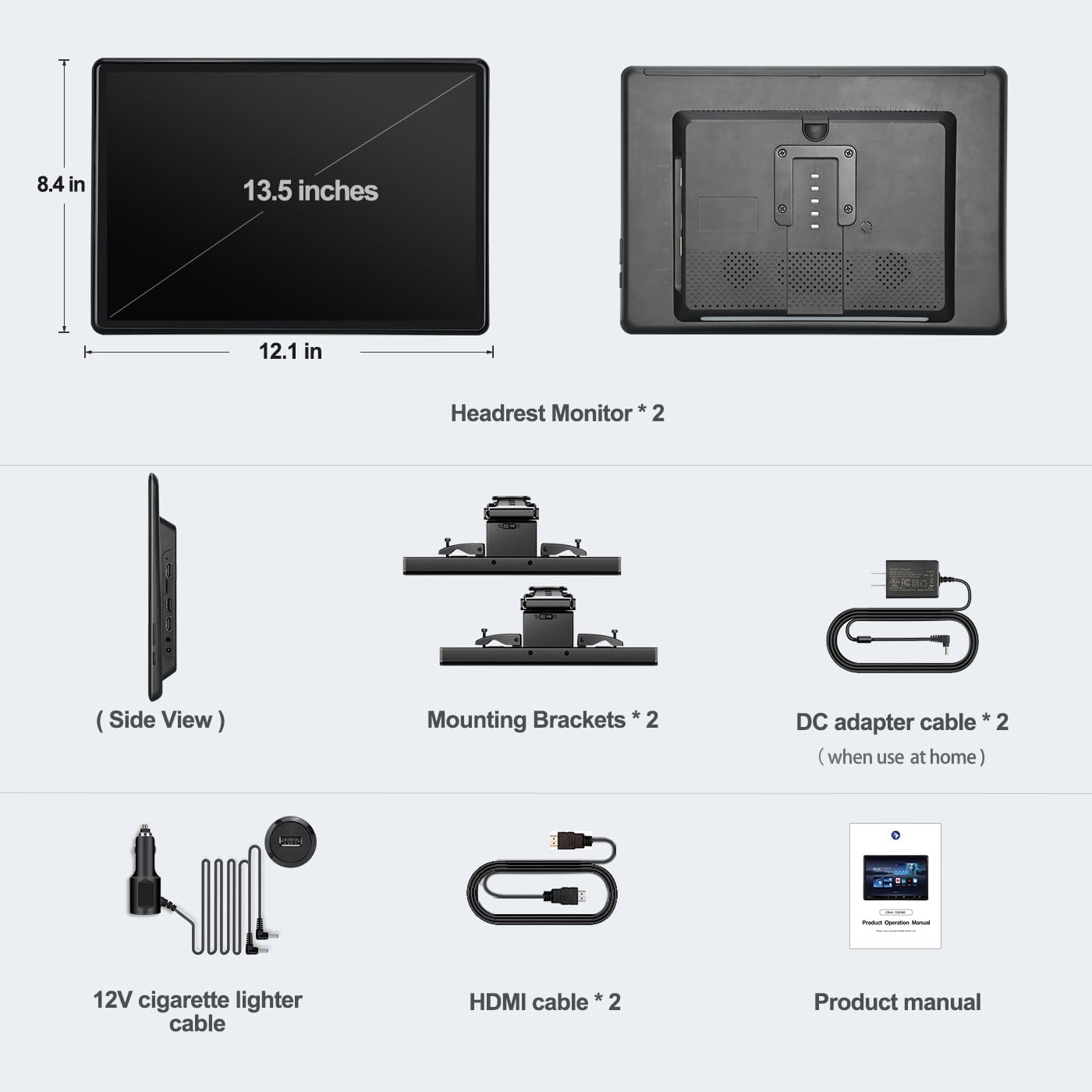
Figure 1: Package Contents. This image displays all components included with the AINAVI 13.5-inch Android Headrest Monitor system.
سيٽ اپ ڪريو
تنصيب
The AINAVI Headrest Monitor features a universal mounting bracket designed for easy installation, compatible with most car headrests (supports round steel poles only). Installation can typically be completed within 3 minutes.
- Attach the universal mounting bracket to the headrest poles. Ensure it is securely fastened.
- Slide the headrest monitor onto the bracket until it clicks into place.
- Adjust the monitor's position and angle for optimal viewing. The bracket allows for vertical adjustment and supports metal posts with 130-200mm distance adjustment.

Figure 2: Headrest Bracket Installation. This image shows the steps to attach the universal mounting bracket to the headrest poles.
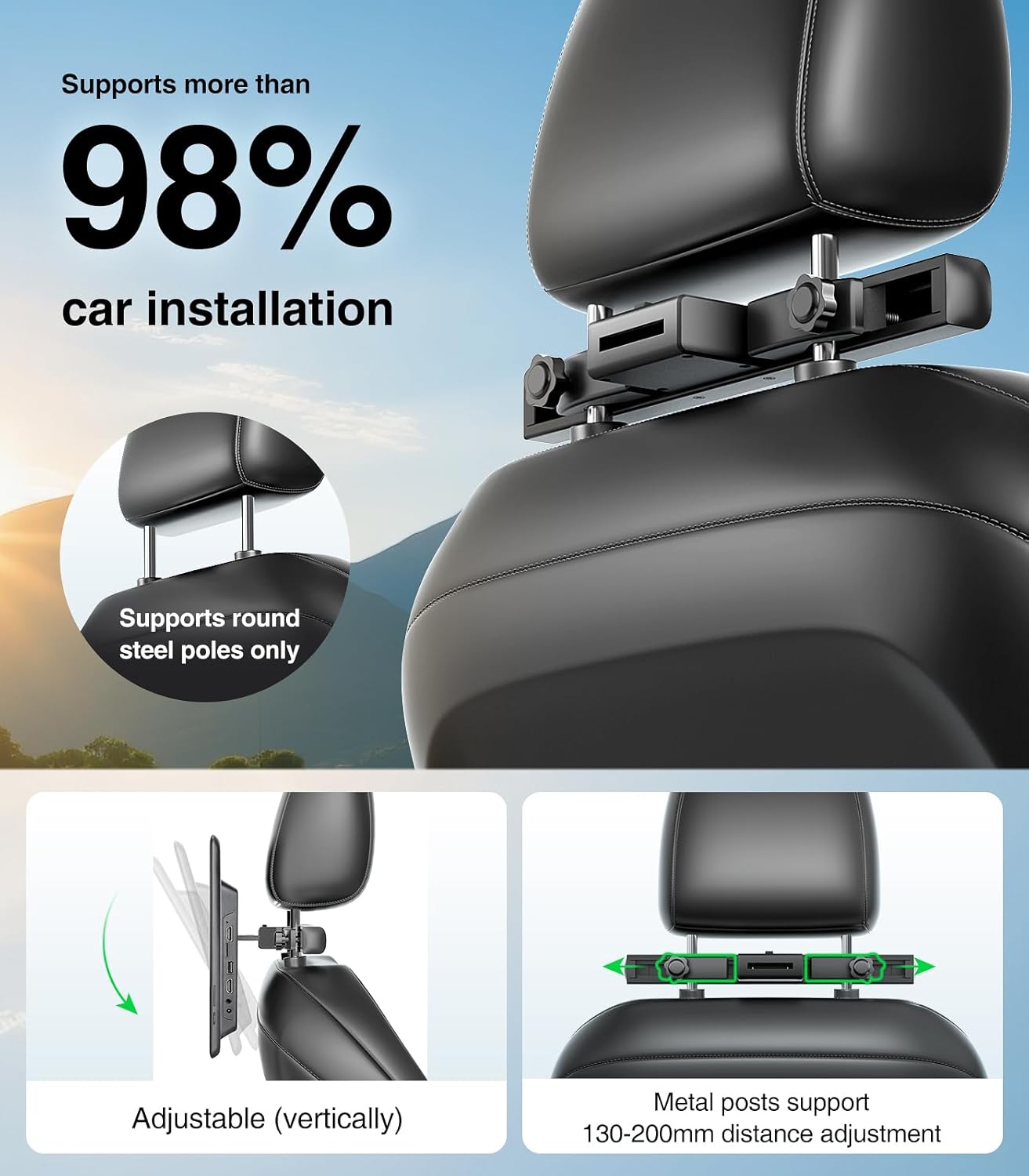
Figure 3: Universal Mounting Bracket. This image highlights the adjustable features of the mounting bracket, compatible with most car headrests.
بجلي جي فراهمي
The headrest monitor supports three power supply modes:
- ڊي سي اڊاپٽر: گھر جي استعمال لاء.
- Car Charger (12V): For in-car use, connecting to the vehicle's cigarette lighter socket.
- USB پاور: Can also be powered via USB.
وڊيو انسٽاليشن ھدايت
For a visual guide on the installation process and initial setup, please refer to the video below.
Video 1: AINAVI Headrest Monitor Installation. This video demonstrates how to install the 13.5-inch car headrest monitor and connect its power supply.
آپريٽنگ هدايتون
پاور آن / آف
Press and hold the power button located on the side of the monitor for approximately two seconds to turn the device on or off.
Android 13.0 System and Apps
The monitor runs on Android 13.0, providing access to a wide range of applications. You can install apps from the Google Play Store or via APK files. Popular streaming services like Netflix, Disney+, Prime Video, HBO, TikTok, and YouTube are supported when connected to WiFi.

Figure 4: Android Interface and App Support. This image displays the user interface with pre-installed and downloadable applications for entertainment.
ميڊيا پلے بیک
The monitor supports 4K HD video playback and is equipped with an SD card port and USB port. It is compatible with various media formats including MP4, MPG, AVI, MKV, MOV, 3GP, MP3, MAV, FLAC, AAC, OGG, and OGA. You can play content directly from USB flash drives or SD cards.

Figure 5: High-Resolution Display. This image emphasizes the monitor's 13.5-inch IPS touchscreen with 1920x1280 HD resolution for clear media playback.
اسڪرين مررنگ
The device supports iOS AirPlay and Android Miracast for phone screen mirroring. Connect your phone to the same WiFi network as the monitor to mirror your phone's screen. The MyCar Link app can turn your phone into a smart remote control for the car video player.

Figure 6: Screen Mirroring Functionality. This image illustrates how to use iOS AirPlay and Android Miracast to mirror phone content to the monitor.
Synchronized Display
With both HDMI input and HDMI output ports, you can connect two screens using an HDMI cable to play the same movie simultaneously. The HDMI input also allows connection to external devices such as computers, TV boxes, Xbox, PS4, and PS5.

Figure 7: Synchronized Display and Connectivity. This image demonstrates the ability to synchronize content across two monitors and connect various external devices.
آڊيو آئوٽ پُٽ موڊس
The monitor offers multiple audio output options:
- بلٽ ان اسپيڪرز: سڌو آڊيو پلے بیک لاءِ.
- ايف ايم ٽرسمٽر: Transmit audio to your car's speakers via FM radio.
- بلوٽوٿ هيڊ سيٽ: Connect one Bluetooth headset per screen for private listening.
- وائرڊ هيڊ سيٽ: Use the 3.5mm audio output jack for wired headphones.

Figure 8: Connectivity Ports. This image provides a close-up view of the available ports for media input and audio output.
پيداوار جون خاصيتون ختم ٿي ويونview
Explore the key features and functionalities of your AINAVI Headrest Monitor through this video.
Video 2: AINAVI 13.5-inch Android Car TV Features. This video showcases the various functions and capabilities of the Android headrest monitor, including app usage, screen mirroring, and connectivity options.
سار سنڀال
To ensure the longevity and optimal performance of your AINAVI Headrest Monitor, follow these maintenance guidelines:
- صفائي: اسڪرين ۽ ٻاهرين حصي کي صاف ڪرڻ لاءِ نرم، سڪل ڪپڙو استعمال ڪريو. رگڙيندڙ صاف ڪندڙ يا محلولن کان پاسو ڪريو.
- گرمي پد: ڊوائيس کي گهڻي عرصي تائين انتهائي گرمي پد (گرم يا ٿڌو) ۾ نه رکو.
- اسٽوريج: When not in use for long periods, store the monitor in a cool, dry place.
- سافٽ ويئر اپڊيٽ: The device supports OTA (Over-The-Air) updates. Regularly check for and install available software updates to improve performance and security.
مشڪلاتون
If you encounter any issues with your AINAVI Headrest Monitor, please refer to the following common troubleshooting steps:
- طاقت ناهي: Ensure the power cable is securely connected to both the monitor and the power source (car charger or DC adapter). Check the vehicle's cigarette lighter fuse if using the car charger.
- ڪابه ڊسپلي: If the screen remains black after powering on, try restarting the device. Ensure the brightness settings are not set to minimum.
- ٽچ اسڪرين غير جوابده: Restart the device. If the issue persists, perform a factory reset (refer to the System settings).
- آواز ناهي: Check the volume levels on the monitor and any connected audio devices (Bluetooth headphones, car stereo). Ensure the correct audio output mode is selected in settings.
- وائي فائي ڪنيڪٽيويٽي جا مسئلا: Verify that your WiFi network is active and within range. Re-enter the WiFi password if necessary. Try restarting your router or phone hotspot.
- اسڪرين مررنگ ناڪامي: Ensure both the phone and monitor are connected to the same WiFi network. Check that the screen mirroring function is enabled on both devices.
- ايپس ڪم نه ڪري رهيون آهن: Ensure the device has a stable internet connection. Clear the app's cache or reinstall the app from the Google Play Store.
جيڪڏهن انهن قدمن سان مسئلو حل نه ٿيو ته مهرباني ڪري ڪسٽمر سپورٽ سان رابطو ڪريو.
وضاحتون
| خاصيت | تفصيل |
|---|---|
| برانڊ | AINAVI |
| ماڊل نمبر | CA1350 |
| اسڪرين جي ماپ | 13.5 انچ |
| ڊسپلي جو قسم | LED, IPS Touchscreen |
| اصلي قرارداد | 1920x1280 |
| آپريٽنگ سسٽم | Android 13.0 |
| رام | 2 جي بي |
| روم | 32 جي بي |
| رابطي ٽيڪنالاجي | 5G WiFi, Bluetooth, Screen Mirroring (Miracast+Airplay), USB, HDMI In and Out |
| مطابقت رکندڙ ڊوائيسز | Android phone, iPhone |
| ميڊيا جو قسم | SD Card, USB Flash Drive |
| ويڊيو پلے بیک | Supports 4K HD video playback |
| آڊيو آئوٽ | Built-in speakers, FM Transmitter, Bluetooth, 3.5mm Audio Out |
| بجلي جي فراهمي | DC Adapter, 12V Car Charger |
| يو پي سي | 610371334828 |
وارنٽي
The AINAVI 13.5-inch Android Headrest Monitor comes with a 12-month warranty from the date of purchase. This warranty covers manufacturing defects and malfunctions under normal use. Please retain your proof of purchase for warranty claims. The warranty does not cover damage caused by misuse, accidents, unauthorized modifications, or improper installation.
حمايت
For further assistance, technical support, or warranty inquiries, please contact AINAVI customer service through the following channels:
- آن لائن سپورٽ: Visit the official AINAVI webسوالن ۽ سپورٽ وسيلن لاءِ سائيٽ.
- اي ميل سپورٽ: پنهنجي پراڊڪٽ پيڪنگنگ يا سرڪاري دستاويز جو حوالو ڏيو webڪسٽمر سپورٽ اي ميل ايڊريس لاءِ سائيٽ.
- پرچون ڪندڙ سپورٽ: پرچون ڪندڙ سان رابطو ڪريو جنھن کان توھان پراڊڪٽ خريد ڪيو.