
1. تعارف
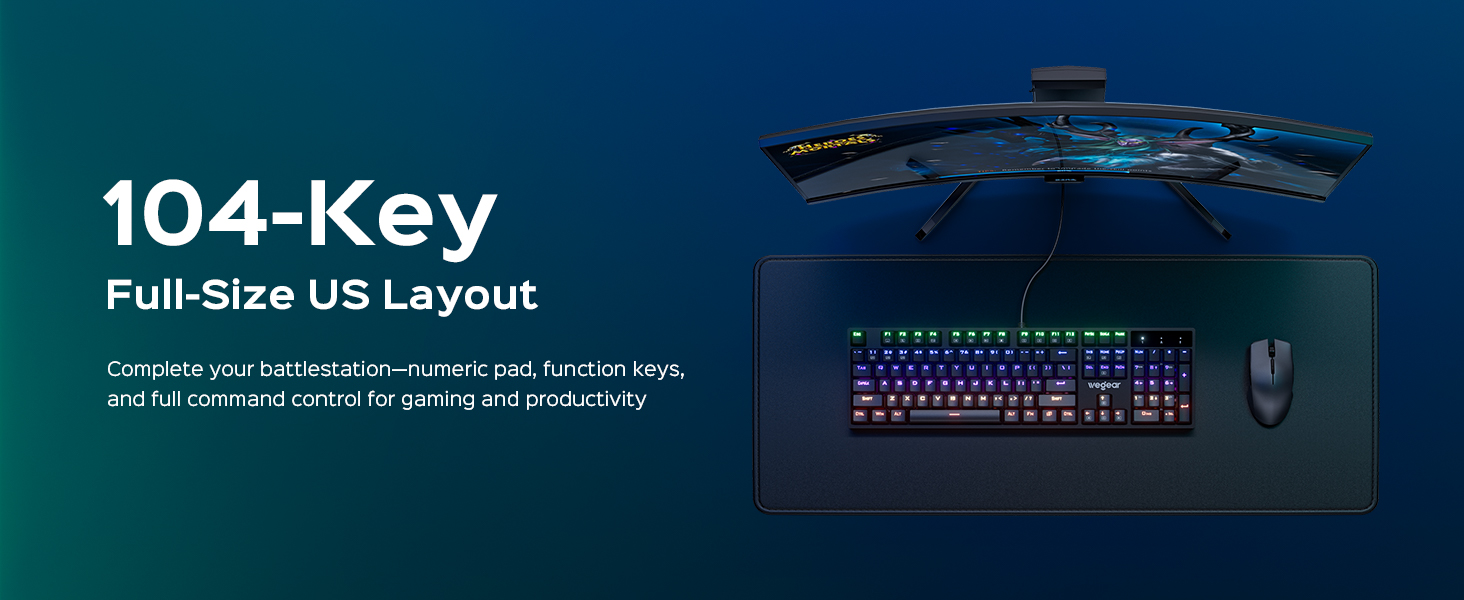
Thank you for choosing the wegear GK1 Mechanical Gaming Keyboard. This full-size, 104-key wired keyboard is designed for precision, durability, and an immersive user experience. Featuring professional Blue switches, vibrant RGB backlighting, and advanced anti-ghosting technology, it is suitable for both intense gaming sessions and efficient productivity tasks.
This manual provides detailed instructions for setting up, operating, maintaining, and troubleshooting your new keyboard. Please read it thoroughly to ensure optimal performance and longevity of your device.
2. پيڪيج مواد
- wegear GK1 Mechanical Gaming Keyboard
- استعمال ڪندڙ دستي
3. سيٽ اپ
3.1 ڪي بورڊ کي ڳنڍڻ
The wegear GK1 is a wired keyboard designed for plug-and-play functionality. No additional drivers are typically required for basic operation on most operating systems.
- Locate an available USB-A port on your computer (Laptop, PC, Tablet).
- Plug the USB-A connector of the keyboard cable into the USB-A port on your computer.
- The keyboard's RGB backlighting should illuminate, indicating a successful connection. Your computer will automatically detect and install the necessary drivers.
3.2 ڪي بورڊ ٽِلٽ کي ترتيب ڏيڻ
For enhanced ergonomic comfort, the keyboard features adjustable tilt stands on its underside.
- Gently flip the keyboard over.
- Locate the two foldable kickstands at the top corners of the keyboard.
- Flip out the kickstands to achieve a 7° ergonomic tilt, or keep them folded for a flat typing experience.
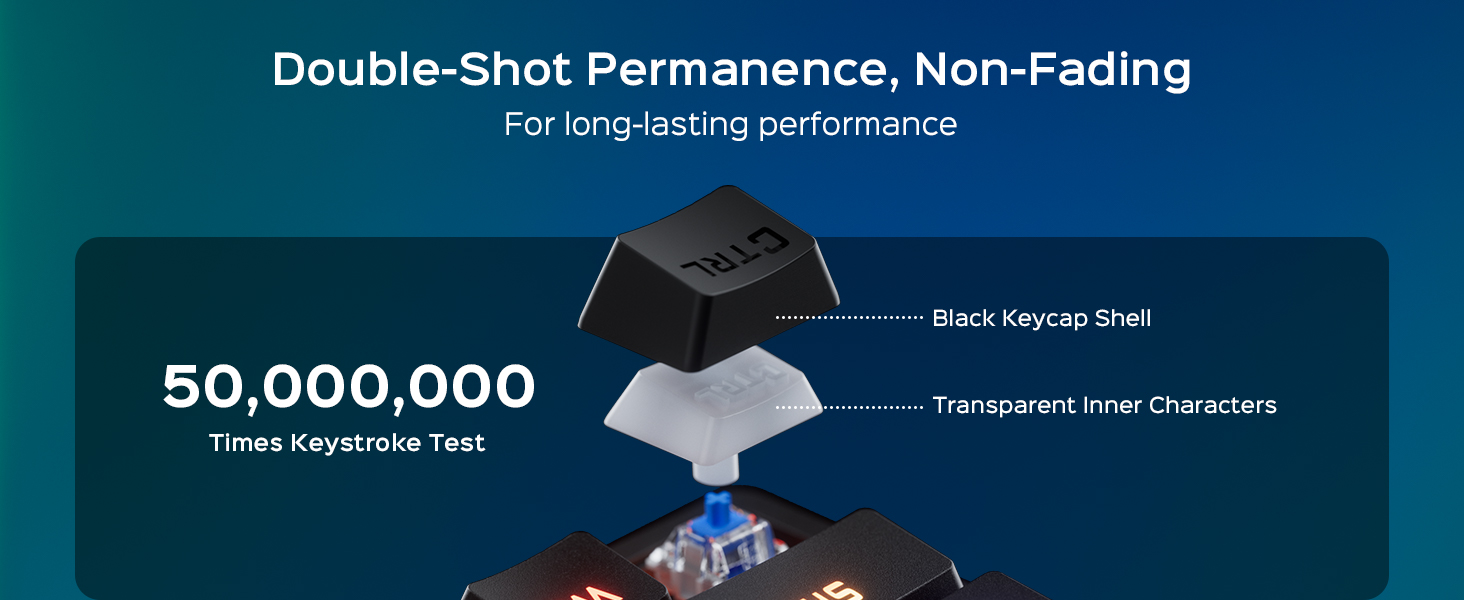
Image: The wegear GK1 keyboard demonstrating its ergonomic 7-degree adjustable tilt for comfortable typing.

Image: A user's hands positioned comfortably on the wegear GK1 keyboard, highlighting the ergonomic design for reduced wrist strain.
4. آپريٽنگ هدايتون
4.1 Mechanical Blue Switches
The wegear GK1 keyboard features professional Blue mechanical switches, known for their tactile bump and crisp audible click. This provides satisfying feedback for both typing and gaming, enhancing precision and responsiveness.
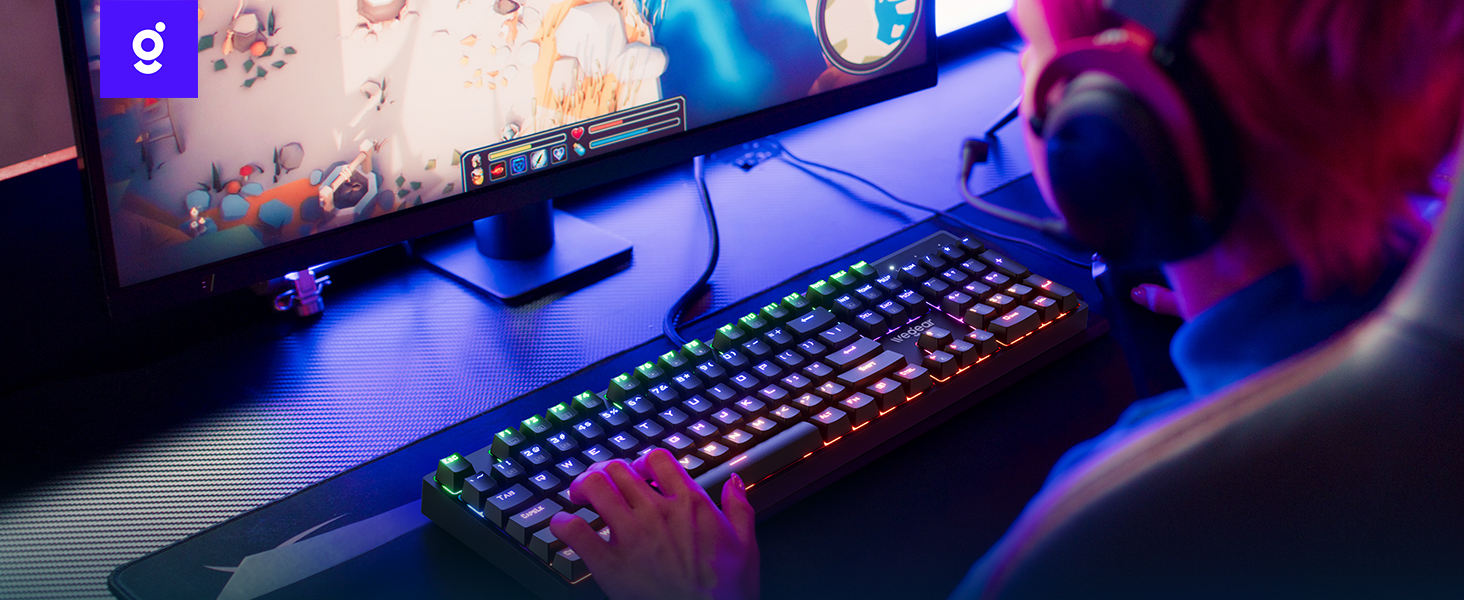
Image: A detailed diagram illustrating the internal mechanism of a clicky blue mechanical switch, emphasizing its tactile bump and crisp acoustic feedback.
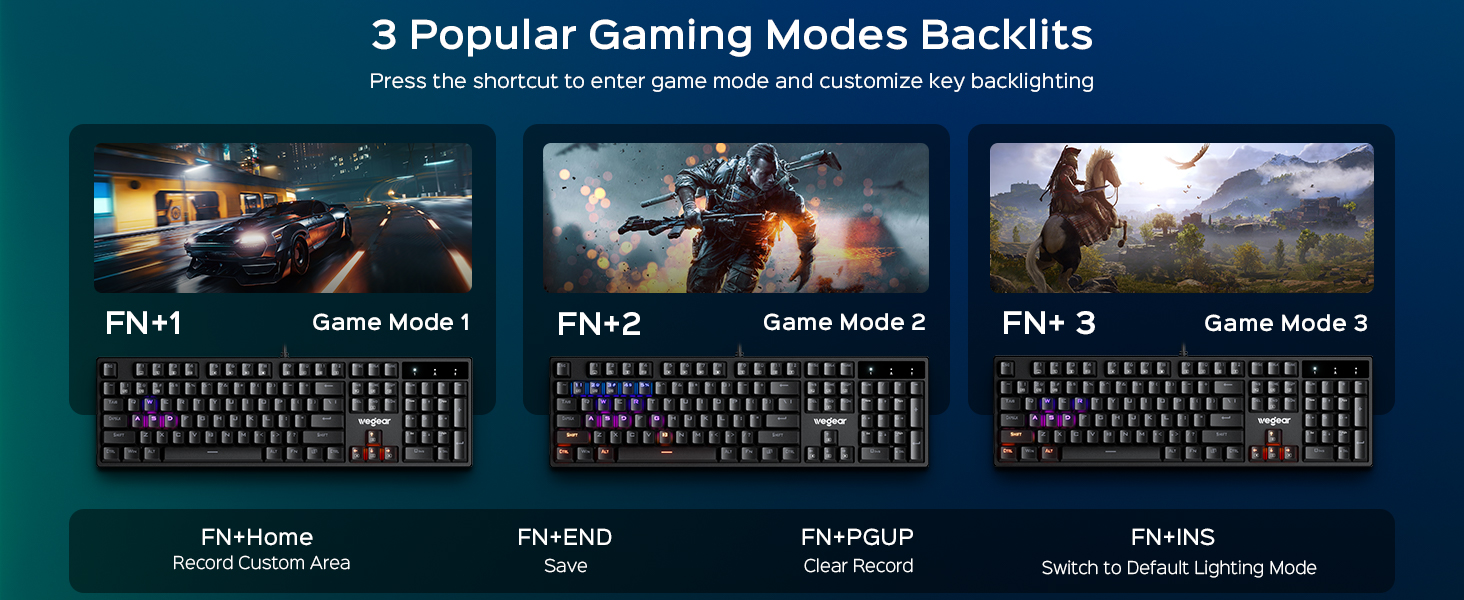
Image: A close-up of a finger pressing a blue mechanical switch on the wegear GK1 keyboard, illustrating the tactile and auditory feedback.
4.2 آر بي جي بائيٽ لائٽنگ
The keyboard features dynamic RGB backlighting with 11 distinct modes, adjustable brightness, and speed settings to customize your visual experience.
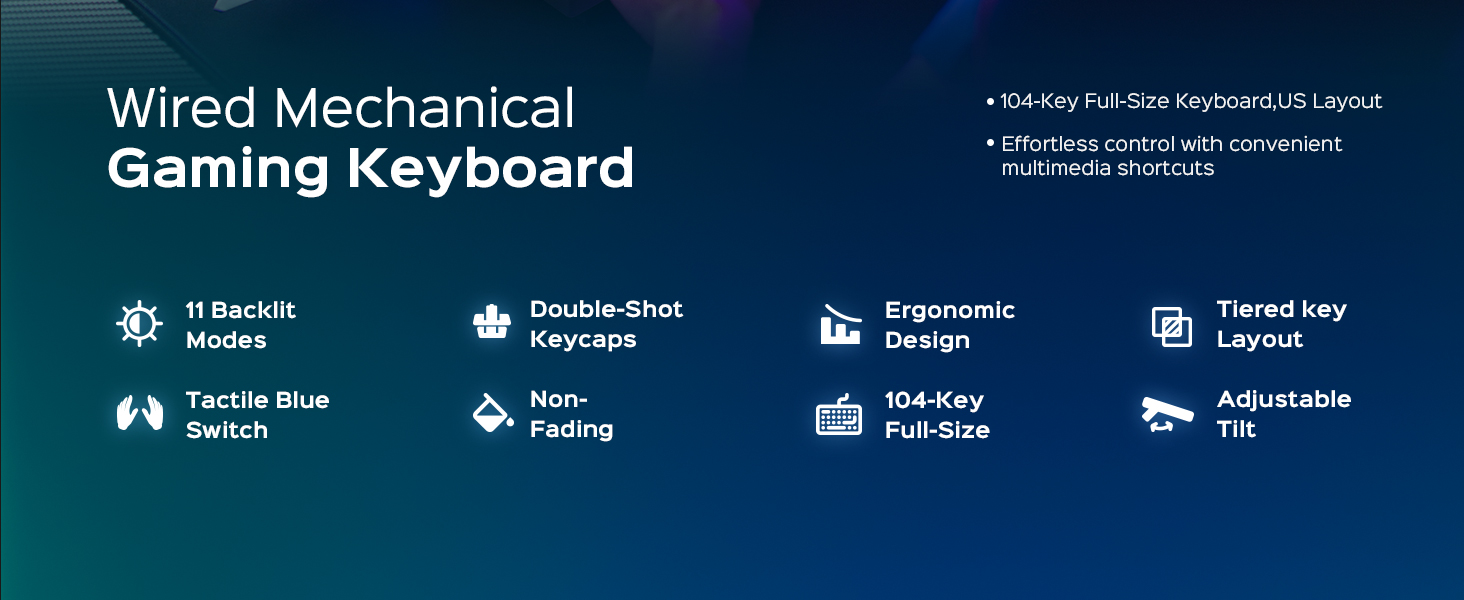
Image: The wegear GK1 keyboard displaying its dynamic RGB lightscape with various backlight modes, brightness levels, and adjustable speeds.
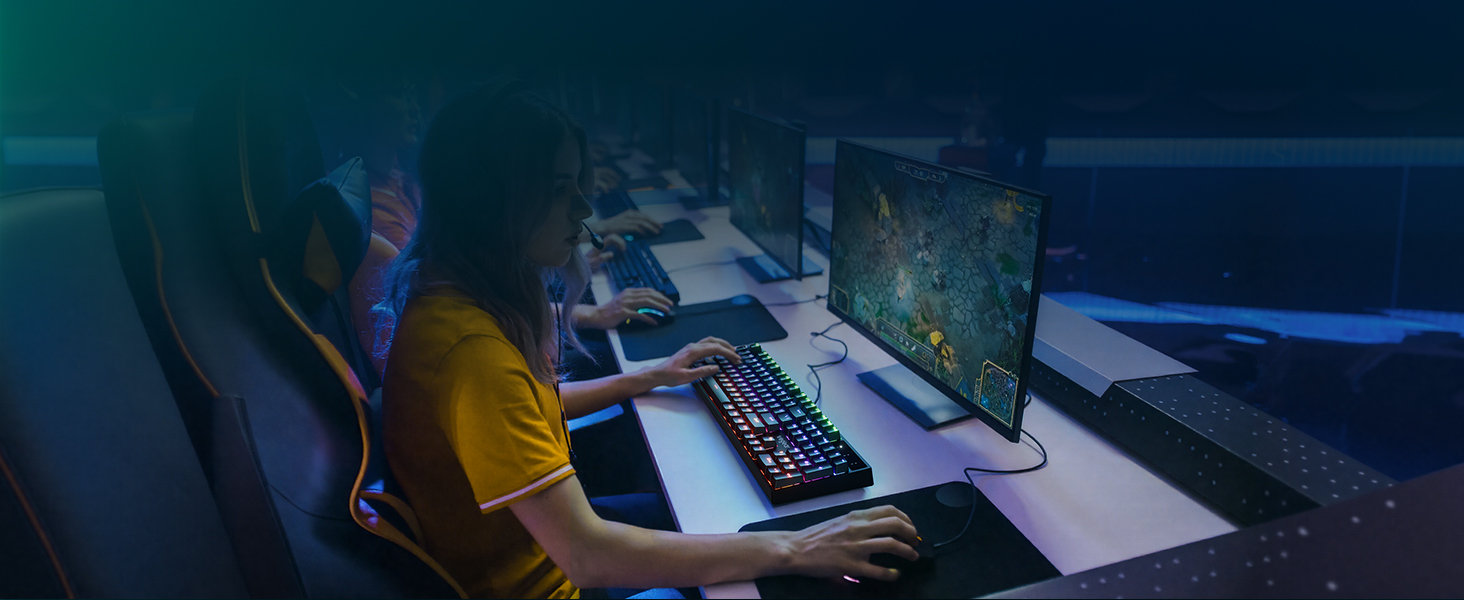
Image: The wegear GK1 keyboard highlighting its RGB lighting controls, including switching backlight modes, adjusting brightness, and setting light speed using FN key combinations.
Lighting Control Functions:
- Fn + INS: Switch between 11 dynamic backlight modes.
- ايف اين + مٿي/هيٺ تير: بيڪ لائيٽ جي چمڪ کي ترتيب ڏيو (5 سطحون).
- ايف اين + کاٻو/ساڄو تير: بيڪ لائيٽ جي رفتار کي ترتيب ڏيو.
گيمنگ موڊس:
The keyboard supports 3 popular gaming modes with customizable key backlighting.
- Fn + 1: راند جي موڊ 1
- Fn + 2: راند جي موڊ 2
- Fn + 3: راند جي موڊ 3
- Fn + گهر: Record Custom Area
- Fn + END: Save Custom Area
- Fn + PGUP: Clear Recorded Area
- Fn + INS: Switch to Default Lighting Mode

Image: The wegear GK1 keyboard illustrating its three dedicated gaming modes (Fn+1, Fn+2, Fn+3) and controls for recording, saving, and clearing custom backlight areas.
4.3 ملٽي ميڊيا شارٽ ڪٽ
Access common multimedia functions quickly using the Fn key in combination with the F-keys.
- Fn+F1: ڪمپيوٽر
- Fn+F2: ڳولا
- Fn+F3: حساب ڪندڙ
- Fn+F4: CD
- Fn+F5: اڳيون ٽريڪ
- Fn+F6: ايندڙ ٽريڪ
- Fn+F7: راند/روڪ
- Fn+F8: سي ڊي اسٽاپ
- Fn+F9: گونگا
- Fn+F10: حجم ھيٺ
- Fn+F11: حجم مٿي
- Fn+F12: لاڪ ڪيبورڊ
4.4 اينٽي گھوسٽنگ ۽ ون لاڪ
The keyboard features 100% anti-ghosting on all 104 keys, ensuring every keystroke is registered accurately, even during rapid, simultaneous presses. The Win Lock function prevents accidental interruptions during gameplay or work.
- 100٪ مخالف گھوسٽنگ: All 104 keys respond instantly, preventing missed inputs.
- ايف اين + ون: Activates/Deactivates the Win Lock function, disabling the Windows key to avoid accidental presses.
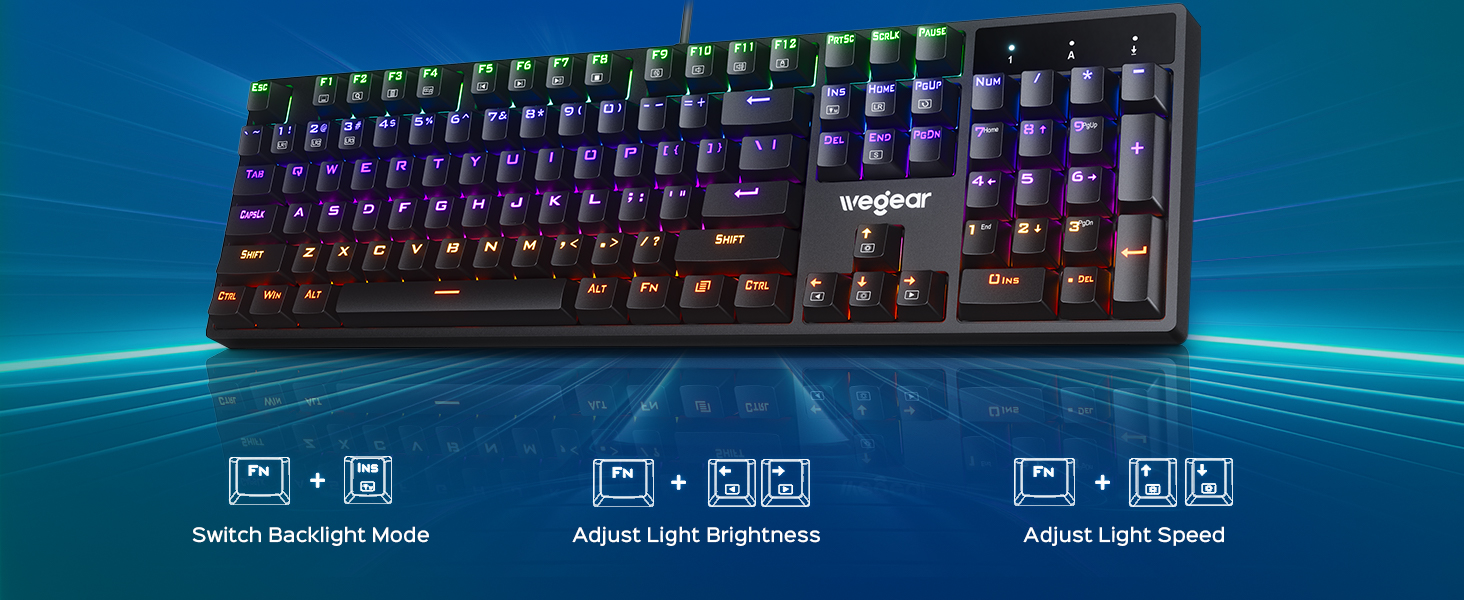
Image: A user actively gaming with the wegear GK1 keyboard, illustrating the benefit of 100% anti-ghosting for flawless multi-key input without missed commands.
5. سار سنڀال
5.1 ڪي بورڊ صاف ڪرڻ
To maintain optimal performance and appearance, regular cleaning is recommended.
- صفائي ڪرڻ کان اڳ ڪيبورڊ کي ڪمپيوٽر کان ڌار ڪريو.
- نرم، لِنٽ کان خالي ڪپڙو استعمال ڪريو ٿورڙو ڊيampڪي ڪيپ ۽ ڪيبورڊ جي مٿاڇري کي صاف ڪرڻ لاءِ پاڻي يا هلڪي صفائي واري محلول سان صاف ڪريو. گهڻي نمي کان بچو.
- For deeper cleaning, you may use a keycap puller (not included) to remove individual keycaps and clean underneath with compressed air or a small brush.
- ڪيبورڊ کي ٻيهر ڳنڍڻ کان اڳ پڪ ڪريو ته سڀئي جزا مڪمل طور تي سڪي ويا آهن.
5.2 Keycap Durability
The wegear GK1 features double-shot ABS keycaps, designed for long-lasting performance. The legends are wear-resistant and have high light transmission, ensuring they remain vibrant and do not fade over time.
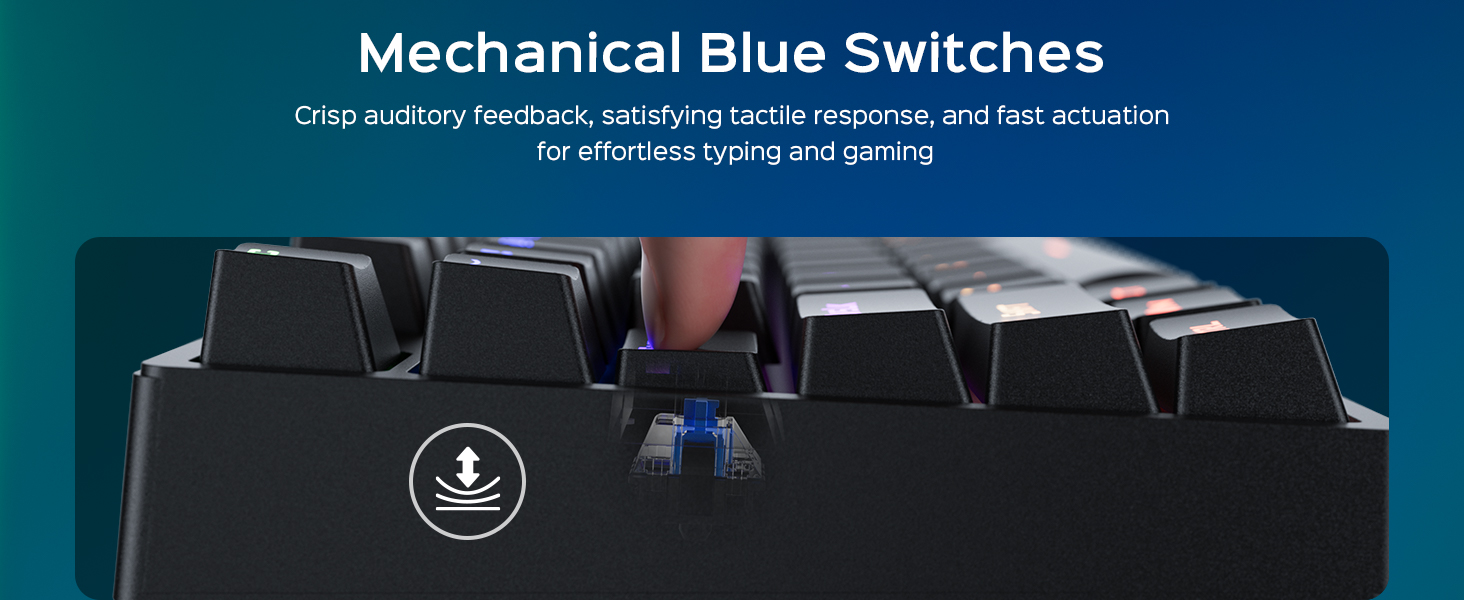
Image: A diagram illustrating the double-shot molding process of the keycaps, highlighting their fade-resistant and scratch-proof properties for long-lasting performance.
تصوير: هڪ ويجهو تصوير view of a double-shot keycap, showing the black keycap shell and transparent inner characters, which ensures the legends do not fade.
6. مسئلا حل ڪرڻ
| مسئلو | ممڪن سبب | حل |
|---|---|---|
| ڪي بورڊ جواب نه ڏئي رهيو آهي | Loose USB connection; Faulty USB port; Driver issue | پڪ ڪريو ته USB ڪيبل محفوظ طور تي پلگ ان ٿيل آهي. هڪ مختلف USB پورٽ آزمايو. پنهنجو ڪمپيوٽر ٻيهر شروع ڪريو. |
| بيڪ لائيٽنگ ڪم نه ڪري رهي آهي | Backlight turned off or brightness set to minimum; Software conflict | دٻايو Fn + مٿي تير چمڪ وڌائڻ لاءِ. دٻايو Fn + INS to cycle through modes. Ensure no conflicting software is running. |
| چاٻيون ٻٽي ٽائيپ ڪرڻ يا رجسٽر نه ٿيڻ | Dust/debris under keycap; Switch malfunction | Clean under the keycap using compressed air. If issue persists, contact customer support. |
| ملٽي ميڊيا ڪيز ڪم نه ڪري رهيو آهي | Incorrect key combination; Software conflict | Ensure you are pressing the correct Fn + F-key combination. Check for any conflicting media player software. |
7. وضاحتون
- برانڊ: لباس
- ماڊل نالو: GK1-MK
- ماڊل نمبر: GK1-black
- رابطي ٽيڪنالاجي: USB-A (وائرڊ)
- ڪي بورڊ وضاحت: گيمنگ
- چاٻين جو تعداد: 104
- سوئچ جو قسم: ڪلڪي بليو ميڪيڪل سوئچز
- ڪي بورڊ لي آئوٽ: QWERTY (US Layout)
- خاص خاصيتون: Backlit, Ergonomic, 100% Anti-Ghosting, Win Lock, Multimedia Shortcuts
- ڪي بورڊ جي پس منظر واري رنگ جي حمايت: RGB (11 modes, 5 brightness levels, adjustable speed)
- ڪي ڪيپ مواد: ڊبل شاٽ ABS
- پيداوار جي ماپ: 17.3"ليٽر x 5.03"ڊبليو x 1.42"ايڇ
- مطابقت رکندڙ ڊوائيسز: Laptop, PC, Tablet (Windows OS)
- مواد: پلاسٽڪ
8. وارنٽي ۽ سپورٽ
8.1 وارنٽي ڄاڻ
The wegear GK1 Mechanical Gaming Keyboard comes with a 1 سالن جي محدود وارنٽي خريداري جي تاريخ کان. هي وارنٽي عام استعمال هيٺ پيداوار جي خرابين ۽ ڪاريگري کي ڍڪيندي آهي. اهو غلط استعمال، حادثي، ترميم، يا غير مجاز مرمت جي ڪري ٿيندڙ نقصان کي ڍڪي نه ٿو.
8.2 ڪسٽمر سپورٽ
For technical assistance, warranty claims, or any questions regarding your wegear GK1 keyboard, please contact our customer support team. Refer to the contact information provided on the product packaging or our official webسائيٽ.
Video: An official product video from Lenovo Product Marketplace, Inc. (wegear's seller) highlighting the features and benefits of the wegear Mechanical Keyboard. This video provides a visual overview of the keyboard's design, lighting, and functionality.