
1. تعارف
Thank you for choosing the Pisichen 24 inch Touch Screen Gaming Monitor. This manual provides essential information for setting up, operating, and maintaining your monitor. Please read it thoroughly before use to ensure optimal performance and safety.
This monitor features a 24-inch QHD (2560x1440P) display with a 165Hz refresh rate, 2ms response time, and 10-point projected capacitive touchscreen functionality. It supports FreeSync and HDR, offering a vibrant and responsive visual experience for both gaming and professional applications.

Image: The Pisichen 24-inch 2K 165Hz Touch Screen Monitor highlighting its key features like HDR, IPS Panel, and 10-point Touch.
2. پيڪيج مواد
سيٽ اپ سان اڳتي وڌڻ کان اڳ، مھرباني ڪري تصديق ڪريو ته سڀئي جزا پيڪيج ۾ موجود آھن:
- Pisichen 24 inch Touch Screen Monitor
- مانيٽر اسٽينڊ (بنياد ۽ گردن)
- ڊي پي ڪيبل
- HDMI ڪيبل
- USB B Touch Cable
- USB CC ڪيبل
- ڊي سي پاور اڊاپٽر
- استعمال ڪندڙ جو دستياب (ھي دستاويز)
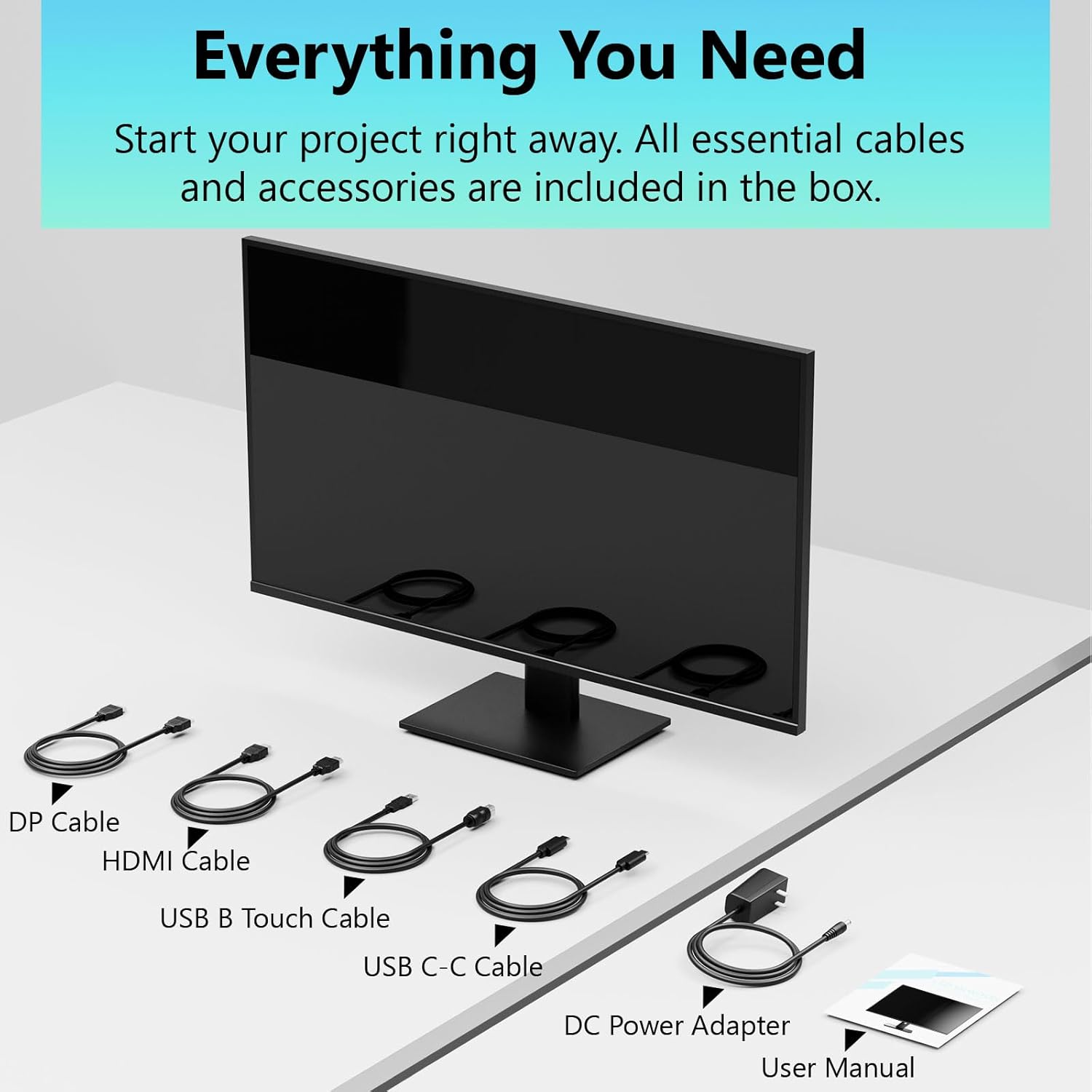
Image: All essential cables and accessories included in the box for the monitor setup.
3. سيٽ اپ جون هدايتون
3.1 اسٽينڊ کي گڏ ڪرڻ
- مانيٽر کي احتياط سان ان جي پيڪنگنگ مان هٽايو، ان کي منهن هيٺ نرم، صاف مٿاڇري تي رکو ته جيئن ڇڪڻ کان بچي سگهجي.
- Attach the stand neck to the monitor's rear panel.
- مهيا ڪيل اسڪرو استعمال ڪندي اسٽينڊ بيس کي اسٽينڊ گردن تائين محفوظ ڪريو.
- Ensure all connections are firm before placing the monitor upright.
3.2 ويسا ماؤنٽ انسٽاليشن (اختياري)
This monitor supports VESA mounting. If you plan to use a VESA-compatible arm or wall mount, remove the stand and attach the VESA mount according to the mount's instructions. The VESA pattern is typically 75x75mm or 100x100mm (refer to specifications for exact details).
3.3 هڪ ڊوائيس سان ڳنڍڻ
The monitor offers multiple connectivity options:
- HDMI: HDMI ڪيبل جي هڪ ڇيڙي کي مانيٽر جي HDMI پورٽ سان ۽ ٻئي ڇيڙي کي پنهنجي ڪمپيوٽر جي HDMI آئوٽ پُٽ سان ڳنڍيو.
- ڊسپلي پورٽ (DP): Connect one end of the DP cable to the monitor's DP port and the other end to your computer's DP output.
- USB قسم-سي: For compatible devices, connect the USB C-C cable to the monitor's USB Type-C port and your device's USB Type-C port. This single cable can transmit video, data, and power (charging).
- USB Type-B (for Touch Functionality): To enable the touch screen feature, connect the USB B Touch Cable from the monitor's USB Type-B port to an available USB Type-A port on your computer.

Image: The monitor's rear panel with various connectivity options, including HDMI, DisplayPort, and USB-C ports.
3.4 پاور ڪنيڪشن
Connect the DC Power Adapter to the monitor's power input port, then plug the adapter into a power outlet.
3.5 Initial Power On and Touch Compatibility
Press the power button on the monitor. The display should light up. If no image appears, ensure all cables are securely connected and the correct input source is selected on the monitor (via the OSD menu).
For touch functionality, ensure the USB B Touch Cable is connected to your computer. Touch compatibility may vary by operating system and device. Most Windows PCs support multi-touch. For Mac devices, single-touch click is generally supported, but multi-touch may require specific drivers or configurations. Game consoles (PS3/4/5, Xbox, Steam Deck) and some other devices (Fire TV, Apple products like iPhone/iPad) typically do not support touch functionality.

Image: A compatibility chart illustrating which devices support multi-touch or single-touch, and which devices do not support touch functionality with the monitor.
4. آپريٽنگ هدايتون
4.1 پاور آن/آف
مانيٽر کي آن يا آف ڪرڻ لاءِ ان تي موجود پاور بٽڻ کي دٻايو. پاور انڊيڪيٽر لائيٽ مانيٽر جي حالت ڏيکاريندي.
4.2 آن اسڪرين ڊسپلي (OSD) مينيو
The OSD menu allows you to adjust various monitor settings. Use the control buttons (usually located on the back or bottom of the monitor) to navigate the menu. Common menu options include:
- تصويري سيٽنگون: Brightness, Contrast, Sharpness, Color Temperature, HDR mode.
- ڊسپلي سيٽنگون: Aspect Ratio, Input Source selection (HDMI, DP, USB-C).
- گيمنگ سيٽنگون: FreeSync, Response Time (Overdrive), Crosshair.
- آڊيو سيٽنگون: Volume (if internal speakers or audio output are present).
- سسٽم سيٽنگون: Language, OSD Transparency, Reset to Factory Defaults.
4.3 Touch Screen Functionality
The monitor supports 10-point multi-touch, allowing for intuitive interaction directly on the screen. Ensure the USB B Touch Cable is connected to your computer for this feature to work.
- سنگل ٽيپ: Equivalent to a left-click.
- ٽيپ ڪريو ۽ جهلو: ساڄي ڪلڪ ڪرڻ جي برابر.
- زوم ڪرڻ لاءِ پنچ: زوم ان يا آئوٽ ڪرڻ لاءِ ٻه آڱريون استعمال ڪريو.
- سوائپ Navigate through content or scroll.

Image: A user interacting with the monitor's touch screen, highlighting its precision and responsiveness for creative tasks.
4.4 ايرگونومڪ ترتيبون
The monitor stand allows for tilt adjustments to achieve the most comfortable viewing and touch angle. Gently adjust the screen to your preferred position.
4.5 اکين جي سنڀال جون خاصيتون
The monitor includes advanced eye-comfort features such as Flicker-Free technology and Low Bluelight mode to reduce eye strain during prolonged use. These settings can typically be adjusted within the OSD menu.

Image: Visual representation of the monitor's advanced eye-comfort features, including Flicker-Free and Low Bluelight technologies.
5. سار سنڀال
5.1 مانيٽر جي صفائي
- صاف ڪرڻ کان اڳ هميشه مانيٽر کي بند ڪريو ۽ پاور ڪنڊ کي ان پلگ ڪريو.
- استعمال ڪريو نرم، lint-آزاد ڪپڙو روشنيءَ سان ڊيampپاڻي يا نرم، غير رگڙيندڙ اسڪرين ڪلينر سان صاف ڪيو وڃي.
- صاف ڪندڙ کي سڌو سنئون اسڪرين تي نه اسپري ڪريو. پهرين ان کي ڪپڙي تي لڳايو.
- بينزين، ٿلهو، امونيا تي ٻڌل ڪلينر، يا رگڙيندڙ مواد استعمال ڪرڻ کان پاسو ڪريو، ڇاڪاڻ ته اهي اسڪرين جي مٿاڇري کي نقصان پهچائي سگهن ٿا.
5.2 اسٽوريج
When storing the monitor for an extended period, ensure it is powered off, unplugged, and stored in a cool, dry place away from direct sunlight and extreme temperatures. Use the original packaging if available for best protection.
6. مسئلا حل ڪرڻ
جيڪڏهن توهان کي پنهنجي مانيٽر سان مسئلا درپيش اچن ٿا، ته هيٺ ڏنل عام مسئلا حل ڪرڻ واري قدمن جو حوالو ڏيو:
- طاقت ناهي: پڪ ڪريو ته پاور اڊاپٽر مانيٽر ۽ ڪم ڪندڙ پاور آئوٽليٽ ٻنهي سان محفوظ طور تي ڳنڍيل آهي. چيڪ ڪريو ته ڇا پاور انڊيڪيٽر لائيٽ آن آهي.
- ڪابه تصوير/سگنل ناهي:
- Verify that the video cable (HDMI, DP, or USB-C) is securely connected to both the monitor and your computer.
- پڪ ڪريو ته مانيٽر جي OSD مينيو ۾ صحيح ان پٽ سورس چونڊيو ويو آهي.
- پنهنجي ڪمپيوٽر جي ڊسپلي سيٽنگز کي چيڪ ڪريو ته جيئن پڪ ڪري سگهجي ته مانيٽر ڳوليو ويو آهي ۽ فعال آهي.
- ڪو به ٽچ ڪارڪردگي:
- Confirm the USB B Touch Cable is connected from the monitor to your computer.
- Check your computer's device manager to see if the touch screen driver is installed and functioning correctly.
- Refer to the "Initial Power On and Touch Compatibility" section for device-specific limitations.
- ٽمٽار يا بگڙيل تصوير:
- نقصان يا ڍلو ڪنيڪشن لاءِ وڊيو ڪيبل چيڪ ڪريو.
- ڪا ٻي وڊيو ڪيبل يا پورٽ آزمايو.
- پنهنجي ڪمپيوٽر جي ڊسپلي سيٽنگز ۾ ريفريش ريٽ کي ترتيب ڏيو.
- مردار پکسلز: A small number of bright or dark pixels are common in LCD/LED technology and are not considered a defect unless they exceed manufacturer specifications.
جيڪڏهن انهن قدمن کي آزمائڻ کان پوءِ به مسئلو برقرار رهي ٿو، ته مهرباني ڪري ڪسٽمر سپورٽ سان رابطو ڪريو.
7. وضاحتون
| خاصيت | تفصيل |
|---|---|
| برانڊ | پسيچن |
| ماڊل نمبر | 24IN165HZ-QHD |
| اسڪرين جي ماپ | 23.8 انچ |
| قرارداد | QHD Wide 1440p (2560 x 1440) |
| اسپيڪٽ ريشو | 16:9 |
| ريفريش جي شرح | 165 هز |
| جوابي وقت | 2 ملي سيڪنڊ |
| ڊسپلي جو قسم | LED IPS |
| روشني | 400 ڪينڊيلا (سي ڊي/چڪر چورس ميٽر) |
| مقابلي جي نسبت | 3000:1 |
| Viewزاويه | 178 درجا |
| رنگ گامٽ | 99% |
| Picture Quality Enhancement | ايڇ ڊي آر |
| موافقت واري هم وقت سازي | FreeSync |
| رابطي ٽيڪنالاجي | DisplayPort, HDMI, USB Type-C, USB Type-B |
| اضافي خاصيتون | Tilt Adjustment, 10-Point Touchscreen |
| شيون طول و عرض (D x W x H) | 0.75"ڊي x 21.5"ڊي x 12.7"ايڇ |
| شيءِ جو وزن | 5.38 ڪلوگرام |
| رنگ | ڪارو |
8. وارنٽي ڄاڻ
This product comes with a 1-year limited warranty from the date of purchase. The warranty covers manufacturing defects and workmanship under normal use. It does not cover damage caused by misuse, accidents, unauthorized modifications, or external factors. Please retain your proof of purchase for warranty claims.
9. ڪسٽمر سپورٽ
For technical assistance, warranty claims, or further inquiries, please contact Pisichen customer support. You may find contact information on the official Pisichen webسائيٽ تي يا پنهنجي پرچون ڪندڙ ذريعي.
اضافي وسيلن ۽ پيداوار جي معلومات لاءِ، دورو ڪريو Pisichen Store on Amazon.