
تعارف
Thank you for choosing the ProtoArc KM310 Wireless Mechanical Keyboard and Mouse. This combo offers a responsive typing experience with low-profile linear red switches and versatile multi-device connectivity. The ergonomic mouse is designed for comfort and precision. This manual provides detailed instructions for setup, operation, maintenance, and troubleshooting to ensure optimal performance.
دٻي ۾ ڇا آهي

Image: Contents of the ProtoArc KM310 package, including the keyboard, mouse, charging cable, and user manual.
- ProtoArc KM310 Wireless Mechanical Keyboard
- ProtoArc Wireless Mouse
- USB-C چارجنگ ڪيبل
- استعمال ڪندڙ دستي
پيداوار ختمview
ڪي بورڊ جون خاصيتون

تصوير: هڪ ويجهو تصوير view of the ProtoArc KM310 keyboard, highlighting its low-profile keys and linear red switches.
- گھٽ پروfile مشيني چاٻيون: Equipped with linear red switches for a smooth, quiet, and responsive typing experience.
- Aluminum Top Case: Provides durability and a sleek, modern aesthetic.
- ترتيب ڏيڻ وارا جھڪندڙ پير: Ergonomically designed with 2-stage foot mats offering 6° and 9° tilt options for comfortable typing.
- مڪمل-سائيز ترتيب: A 108-key layout suitable for office and business use.
ماؤس جون خاصيتون

Image: The ProtoArc KM310 mouse being held, showcasing its ergonomic design for a natural grip.
- 63G Ultra-Lightweight: Reduces hand fatigue during extended use and enhances portability.
- Ergonomic ڊيزائن: Contoured shape for a comfortable and natural grip.
- ترتيب ڏيڻ وارو DPI: Three DPI levels (1000/1600/2400) for tailored control and precision.
- خاموش ڪلڪ: خاموش آپريشن لاءِ ٺهيل.
- اڳتي/پوئتي بٽڻ: Integrated for seamless browsing.
ڪنيڪشن ۽ پاور
- ملٽي ڊوائيس ڪنيڪشن: Connects up to 3 devices via 2.4G USB receiver or Dual Bluetooth (BT1, BT2).
- ريچارج لائق: Both keyboard and mouse feature Type-C charging. The mouse's USB receiver is stored on its bottom.
- ڊگھي بيٽري زندگي: Up to 150-200 days standby time; 2-3 hours for a full charge.
سيٽ اپ جون هدايتون
1. ڊوائيسز کي چارج ڪرڻ

Image: The keyboard and mouse are shown connected to power sources via USB-C cables for charging.
- Connect the provided USB-C charging cable to the charging port on the keyboard (located on the top edge) and the mouse (located on the front edge).
- ڪيبل جي ٻئي ڇيڙي کي USB پاور سورس ۾ لڳايو (مثال طور، ڪمپيوٽر USB پورٽ، USB وال اڊاپٽر).
- The indicator lights will show charging status. Allow 2-3 hours for a full charge.
2. ڊوائيسز سان ڳنڍڻ

Image: A desk setup showing the ProtoArc KM310 keyboard and mouse connected to a laptop, monitor, and tablet, illustrating multi-device capability.
The KM310 combo supports three connection modes: 2.4G wireless via USB receiver, Bluetooth 1 (BT1), and Bluetooth 2 (BT2).
2.1. 2.4G وائرليس ڪنيڪشن
- مائوس جي تري ۾ ڪمپارٽمينٽ ۾ ذخيرو ٿيل USB رسيور ڳوليو.
- USB رسيور کي توهان جي ڪمپيوٽر تي موجود USB پورٽ ۾ پلگ ان ڪريو.
- ڪي بورڊ ۽ مائوس کي انهن جي لاڳاپيل پاور سوئچز استعمال ڪندي آن ڪريو.
- The devices should connect automatically.
2.2. Bluetooth Connection (BT1 / BT2)
- ڪيبورڊ ۽ مائوس کي چالو ڪريو.
- ڪيبورڊ تي، دٻايو بي ٽي 1 or بي ٽي 2 key (usually located on the number pad, indicated by orange keycaps) to select the desired Bluetooth channel. The indicator light will flash.
- On your device (computer, tablet, etc.), go to Bluetooth settings and search for "ProtoArc KM310 Keyboard" and "ProtoArc KM310 Mouse".
- Select the devices to pair. The indicator light will stop flashing once connected.
- Repeat for a second Bluetooth device using the other BT channel.
2.3. ڊوائيسز جي وچ ۾ سوئچنگ
To switch between connected devices, simply press the corresponding connection key on the keyboard (2.4G, BT1, or BT2) and the channel switch button on the bottom of the mouse.
آپريٽنگ هدايتون
ڪي بورڊ جو استعمال
- ٽائپنگ: گھٽ پروfile linear red switches provide a responsive and quiet typing experience.
- آپريٽنگ سسٽم مطابقت: The keyboard is compatible with Windows and Mac OS. Keys like 'Win' and 'Alt' also show 'Option' and 'Cmd' for Mac users.
- جھلڻ کي ترتيب ڏيڻ: Use the adjustable tilt legs on the underside of the keyboard to set your preferred typing angle (6° or 9°).
مائوس جو استعمال
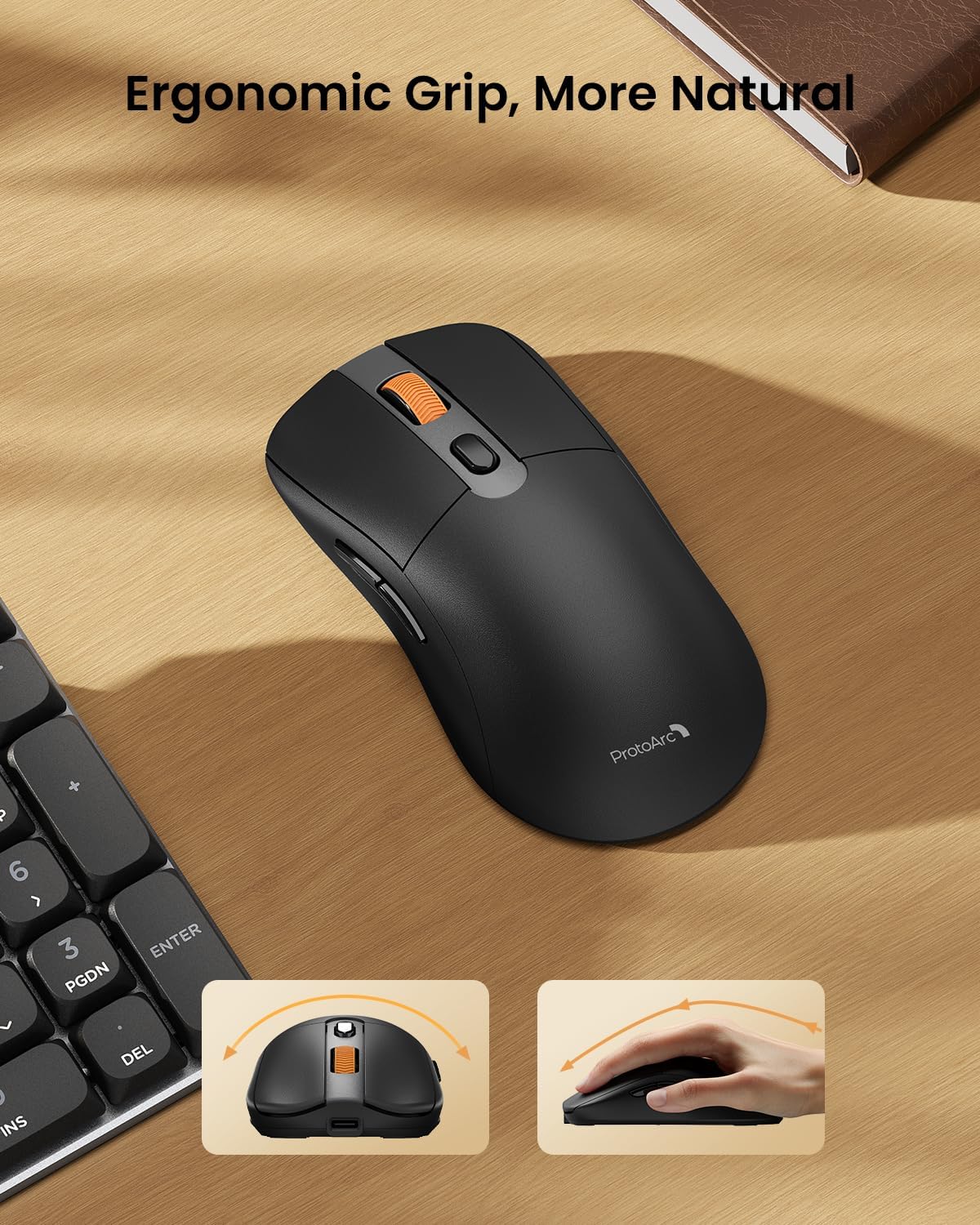
Image: A close-up of the ProtoArc KM310 mouse, illustrating the three adjustable DPI settings (1000, 1600, 2400).
- ڊي پي آءِ ايڊجسٽمينٽ: Press the DPI switch button (usually located near the scroll wheel) to cycle through the 3 DPI levels (1000/1600/2400) to match your preference for cursor speed and precision.
- نيويگيشن بٽڻ: Use the forward and backward buttons on the side of the mouse for quick navigation in web برائوزر يا file ڳولا ڪندڙ
- خاموش ڪلڪون: The mouse features silent click buttons for a quiet working environment.
سار سنڀال
- صفائي: ڪيبورڊ ۽ مائوس کي صاف ڪرڻ لاءِ نرم، سڪل ڪپڙو استعمال ڪريو. ضدي مٽيءَ لاءِ، ٿورو ڊيamp هلڪي صابڻ سان ڪپڙو استعمال ڪري سگهجي ٿو، انهي ڳالهه کي يقيني بڻائي ته ڪو به مائع ڊوائيس ۾ داخل نه ٿئي.
- بيٽري جي سنڀال: Recharge the devices when the battery indicator is low. Avoid prolonged exposure to extreme temperatures.
- اسٽوريج: When not in use for extended periods, turn off the devices to conserve battery life. Store the USB receiver inside the mouse to prevent loss.
مشڪلاتون
Keyboard/Mouse Not Turning On or Stopping Working
- بيٽري چيڪ ڪريو: Ensure both the keyboard and mouse are sufficiently charged. Connect them to a power source using the USB-C cable.
- Re-pair Devices:
- For 2.4G connection, ensure the USB receiver is securely plugged in and the devices are set to 2.4G mode.
- For Bluetooth connection, ensure the devices are set to the correct BT channel (BT1 or BT2) and re-pair them through your device's Bluetooth settings.
- ڪوشش ڪريو مختلف ڪيبل: If charging issues persist, try using a different USB-C cable to rule out a faulty cable.
- مداخلت: Move the devices closer to your computer or away from other wireless devices that might cause interference.
- رابطي جي حمايت: If the issue persists, please contact ProtoArc customer support for further assistance.
وضاحتون
| ماڊل نمبر | KM310 |
| برانڊ | پروٽو آرڪ |
| رنگ | خلائي گرين |
| رابطي ٽيڪنالاجي | بلوٽوٿ، يو ايس بي (2.4 جي وائرليس) |
| خاص خاصيتون | گھٽ پروfile Keys, Linear Red Switches, Ergonomic Design, Ultra-Light Mouse, Ergonomic Mouse |
| مطابقت رکندڙ ڊوائيسز | Laptop, Personal Computer, Tablet (Windows 7/8/10, Mac OS X 10.12, Android 4.3 or higher) |
| شيءِ جو وزن | 2.31 پائونڊ |
| پيڪيج جي ماپ | 17.68 x 8.07 x 2.05 انچ |
وارنٽي ۽ سپورٽ
The ProtoArc KM310 Mechanical Keyboard and Mouse combo comes with a 2-سال وارنٽي.
For any questions, technical support, or warranty claims, please contact ProtoArc customer service:
- اي ميل: support@protoarc.com
- فون: +1 866-287-8188
سرڪاري پراڊڪٽ وڊيو
وڊيو: سرڪاري پراڊڪٽ وڊيو شوڪasing the features and design of the ProtoArc KM310 Aluminum Mechanical Keyboard and Mouse.