
1. تعارف
This manual provides essential information for setting up, operating, and maintaining your Prechen 15.6 Inch Portable Touchscreen Monitor. Featuring a 10-point multi-touch IPS FHD 1080P display with a 60Hz refresh rate, this monitor is designed for versatility and clear visuals. It includes built-in stereo speakers and supports various connectivity options, making it suitable for diverse environments and applications.
2. دٻي ۾ ڇا آهي
پڪ ڪريو ته هيٺ ڏنل سڀئي شيون توهان جي پيڪيج ۾ شامل آهن:
- Prechen 15.6 Inch Portable Touchscreen Monitor
- HDMI کان HDMI ڪيبل
- USB-A کان USB-C ڪيبل
- USB-C کان USB-C ڪيبل
- پاور اڊاپٽر
- Protective Carry Sleeve
- استعمال ڪندڙ جو دستياب ۽ تڪڙي شروعات گائيڊ

3. پراڊڪٽ ختمview
3.1 بندرگاهن ۽ ڪنٽرول
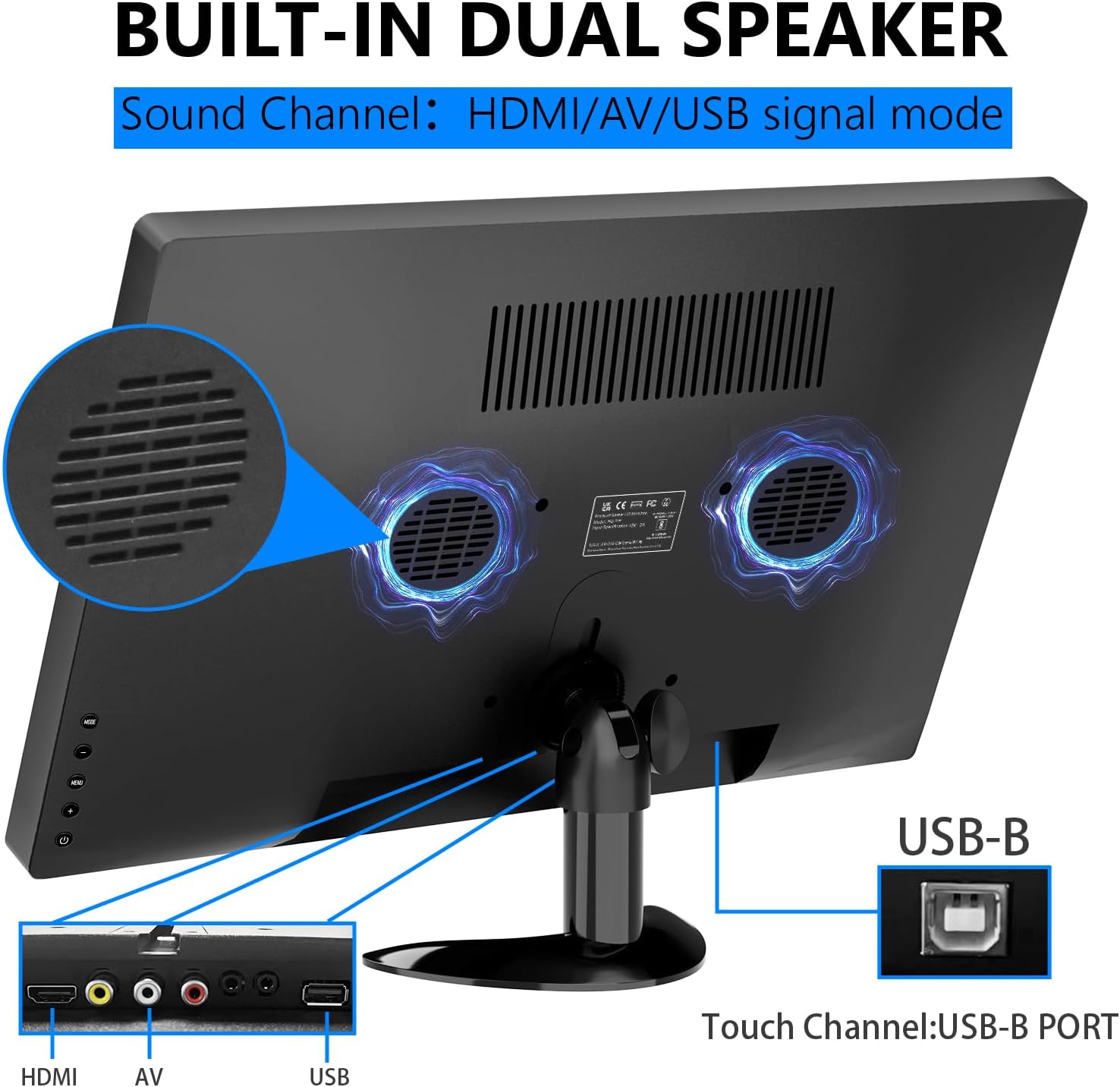
The monitor features various ports and control buttons for connectivity and settings adjustment:
- ڊي سي پاور ان پٽ: ٻاهرين بجلي جي فراهمي لاءِ.
- VGA ان پٽ: For connecting to devices with VGA output.
- ها ايم ڊي ان پٽ: هاءِ ڊيفينيشن وڊيو ۽ آڊيو ان پٽ لاءِ.
- AV ان پٽ: For analog video and audio input.
- مائڪ انپٽ: For microphone connection.
- ائرفون جڪ: هيڊفون يا ٻاهرين اسپيڪرن کي ڳنڍڻ لاءِ.
- USB پورٽ: USB ڊوائيسز کي ڳنڍڻ لاءِ.
- USB-B پورٽ: Essential for enabling touch functionality when connected to a compatible device.
- ڪنٽرول بٽڻ: For navigating the On-Screen Display (OSD) menu, adjusting brightness, volume, and other settings.

3.2 ترتيب ڏيڻ وارو اسٽينڊ
The monitor features an integrated adjustable stand that allows for up to 180° rotation, providing versatile viewing angles for various uses.

4. سيٽ اپ
4.1 پاور ڪنيڪشن
Connect the power adapter to the DC power input on the monitor and plug it into a power outlet. Alternatively, if using a USB-C connection that supports power delivery, the monitor can draw power directly from the connected device.
4.2 Video and Touch Connection
The monitor supports multiple connection methods. For touch functionality, a USB-B connection is required in addition to the video input.
- HDMI ڪنيڪشن: Connect one end of the HDMI cable to your device and the other end to the HDMI input on the monitor. For touch functionality, also connect the USB-B cable from your device to the USB-B port on the monitor.
- USB-C ڪنيڪشن: If your device has a full-featured USB-C port (supporting video, audio, and power delivery), connect the USB-C to USB-C cable directly from your device to one of the USB-C ports on the monitor. This single cable can provide video, audio, power, and touch functionality.
- VGA/AV Connection: Connect the appropriate VGA or AV cable from your device to the monitor. For touch functionality, a separate USB-B connection from your device to the monitor is required.

4.3 Compatibility Notes for Touch Function
The touch function is compatible with Windows and Chromebook systems. However, it is غير مطابقت هيٺين ڊوائيسز سان:
- پي ايس 3/4/5
- Nintendo سوئچ
- Xbox ڪنسولز
- ٻاڦ جي ڇت
- فائر ٽي وي اسٽيڪ
- فائر ٽي وي ڪيوب
- Some Apple products

5. مانيٽر کي هلائڻ
5.1 پاور آن/آف
Press the power button located on the side of the monitor to turn it on or off. The power indicator light will illuminate when the monitor is active.
5.2 آن اسڪرين ڊسپلي (OSD) مينيو
Use the control buttons to navigate the OSD menu. Here you can adjust various settings:
- روشني ۽ تضاد: Adjust display luminosity and contrast levels.
- حجم: Control the output level of the built-in stereo speakers.
- ان پٽ جو ذريعو: Select between HDMI, USB-C, VGA, or AV inputs.
- رنگ جو اثر: Choose from various color modes to optimize your viewتجربو.
- ٻولي: Select your preferred language for the OSD menu.
- سسٽم سيٽنگون: Access advanced display and power management options.
5.3 ٽچ اسڪرين اشارو
The 10-point multi-touch display supports intuitive gestures for navigation and interaction:
- ٽيپ ڪريو: Single tap to select items or activate functions.
- ٻٽي ٽيپ: Double tap to open files يا ايپليڪيشنون.
- ڇڪيو: Touch and drag to move items or scroll through content.
- زوم ان / آئوٽ: Use a two-finger pinch gesture to zoom in or out.
- گھمايو: Use a two-finger twist gesture to rotate images or objects.
- سوائپ Swipe across the screen to navigate between pages or applications.

5.4 بلٽ ان اسپيڪر
The monitor is equipped with integrated dual stereo speakers, providing audio output without the need for external devices. Volume can be adjusted via the control buttons or the OSD menu.
6. چڙهڻ جا اختيار
In addition to the adjustable stand, the monitor supports VESA 75x75mm wall mounting for fixed installations in offices, homes, or kiosks.

7. وضاحتون
| خاصيت | تفصيل |
|---|---|
| پيداوار جي ماپ | 14.17 x 1.18 x 9.05 انچ |
| شيءِ جو وزن | 4.2 پائونڊ |
| اسڪرين جي ماپ | 15.6 انچ |
| قرارداد | 1920 x 1080 پڪسل (FHD 1080p) |
| اسپيڪٽ ريشو | 16:9 |
| تصوير جي روشني | 300 Candela |
| اسڪرين جي مٿاڇري جي وضاحت | چمڪندڙ |
| ڪل USB بندرگاهن | 1 (USB-B for touch) |
| ٺاهيندڙ | Shenzhen Kenowa Electronics Co., LTD |
8. مسئلا حل ڪرڻ
- ڪابه ڊسپلي: Ensure the monitor is powered on and all video cables (HDMI, USB-C, VGA, AV) are securely connected to both the monitor and your source device. Try different cables or ports if available.
- ٽچ فنڪشن ڪم نه ڪري رهيو آهي: Verify that the USB-B cable is correctly connected from your device to the monitor. Confirm your device's operating system (Windows/Chromebook) is compatible with the touch function. Note that gaming consoles and some Apple products do not support touch.
- آواز ناهي: Check the monitor's volume settings via the OSD menu. Ensure your audio source is correctly selected and that any external headphones/speakers are properly connected to the earphone jack.
- Touch Screen Effect Displayed on Main Screen (Windows): If the touch effect is incorrectly displayed on your main laptop screen instead of the portable monitor, you may need to calibrate the touch screen. Access the 'Control Panel' -> 'Hardware and Sound' -> 'Tablet PC Settings'. In the 'Display Options', select 'InnoView' (or the corresponding name for your portable monitor) and then click 'Setup'. Follow the on-screen prompts to tap the portable monitor to identify it as the touchscreen.
9. سار سنڀال
- اسڪرين جي صفائي: اسڪرين کي نرميءَ سان صاف ڪرڻ لاءِ نرم، لِنٽ فري ڪپڙو استعمال ڪريو. ضدي داغن لاءِ، ٿورو ڊيampen the cloth with water or a screen-cleaning solution. Avoid using harsh chemicals, abrasive cleaners, or alcohol-based solutions.
- عام صفائي: Wipe the exterior of the monitor with a soft, dry cloth. Keep vents clear of dust and debris to ensure proper airflow.
- اسٽوريج: When not in use or during travel, store the monitor in its protective carry sleeve to prevent scratches and damage.
10. وارنٽي ۽ سپورٽ
For warranty information, technical support, or service inquiries, please refer to the documentation included in your product package or contact Prechen customer service directly. Keep your purchase receipt for warranty claims.