
تعارف
The Roku Hiro 32-inch 720p HD Smart TV offers an integrated Roku streaming experience. This television features an HD display for clear picture quality and speakers with enhanced audio. It supports Bluetooth for private listening with headphones and includes Wi-Fi for internet connectivity. The Roku operating system provides a customizable home screen, access to numerous streaming channels, and automatic updates, making it suitable for various living spaces.
دٻي ۾ ڇا آهي
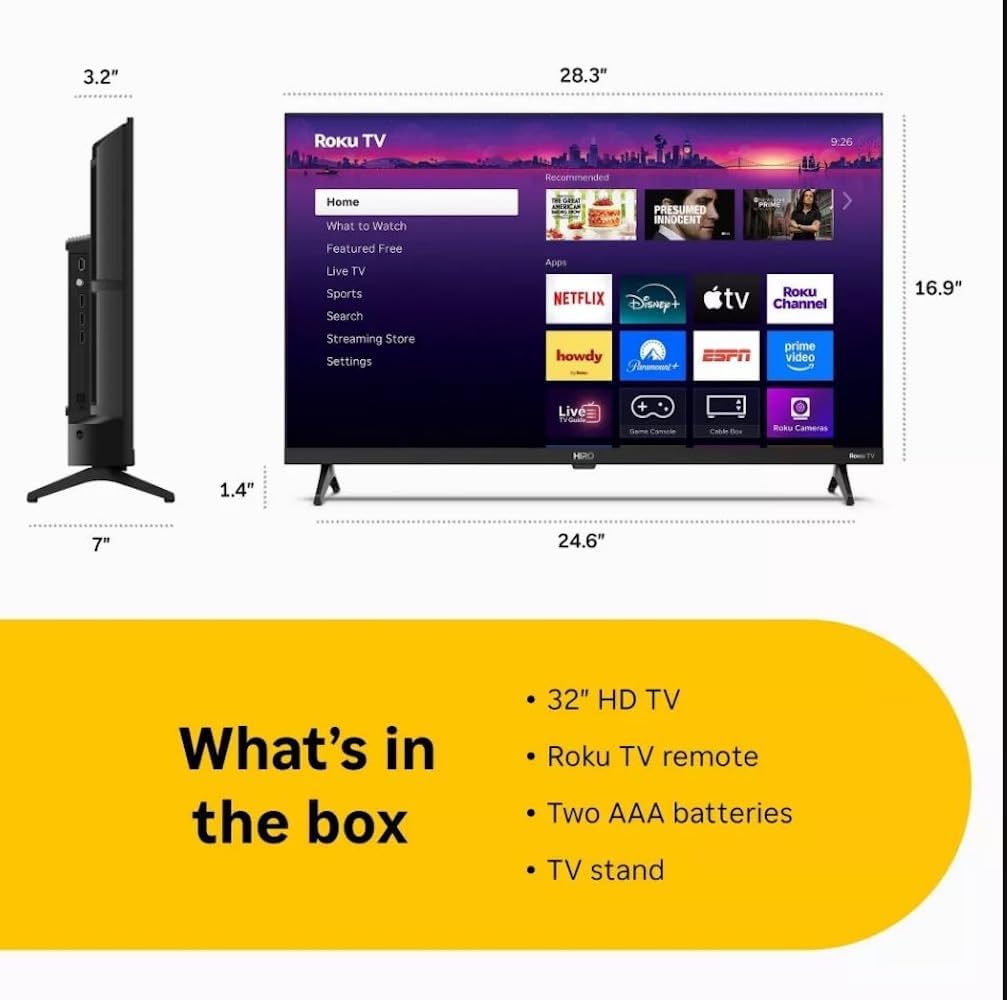
Diagram showing the dimensions of the Roku Hiro 32-inch TV and a list of included accessories: 32-inch HD TV, Roku TV remote, two AAA batteries, and TV stand.
- Hiro 32" 720p HD Smart TV Flat Screen LED Television with Roku TV
- ريموٽ ڪنٽرول
- ٽي وي اسٽينڊ
- پاور ڪيبل
- استعمال ڪندڙ ھدايت
سيٽ اپ ڪريو
1. اسٽينڊ لڳائڻ
Carefully place the TV screen-down on a soft, clean surface to prevent damage. Align the TV stand with the designated slots on the bottom of the TV. Secure the stand using the provided screws. Ensure the stand is firmly attached before proceeding.
2. ڪنيڪشن جا آلات

ريڙهه view of the Roku Hiro TV, showing the input/output ports including USB, HDMI, and antenna connections.
- طاقت: پاور ڪيبل کي ٽي وي جي پاور ان پٽ سان ڳنڍيو ۽ پوءِ وال آئوٽليٽ سان.
- HDMI: Connect external devices such as Blu-ray players, game consoles, or cable boxes to the HDMI ports. This TV features 3 HDMI ports.
- USB: USB ڊرائيو مان ميڊيا پلے بیک لاءِ USB پورٽ استعمال ڪريو.
- آپٽيڪل آڊيو: Connect an external sound system using an optical audio cable for enhanced sound.
- اينٽينا / ڪيبل: Connect an antenna or cable TV feed to the RF input for over-the-air or cable channels.
3. شروعاتي سيٽ اپ
After connecting all necessary cables, power on the TV. Follow the on-screen instructions to:
- پنھنجي ٻولي چونڊيو.
- پنھنجي وائي فائي نيٽ ورڪ سان ڳنڍيو.
- پنهنجو روڪو اڪائونٽ چالو ڪريو (يا نئون اڪائونٽ ٺاهيو).
- Scan for available channels if an antenna is connected.
آپريٽنگ هدايتون
ريموٽ ڪنٽرول افعال

Close-up of the Roku TV remote control, highlighting buttons for TV power, volume, mute, sleep timer, instant replay, options, and app shortcuts.
- پاور بٽڻ: ٽي وي کي آن يا بند ڪري ٿو.
- هدايتي پيڊ (ڊي-پيڊ): مينيو کي نيويگيٽ ڪري ٿو ۽ شيون چونڊي ٿو.
- OKيڪ بٽڻ: چونڊ جي تصديق ڪري ٿي.
- هوم بٽڻ: روڪو هوم اسڪرين ڏانهن واپس اچي ٿو.
- پوئتي بٽڻ: پوئين اسڪرين ڏانهن واپسي.
- حجم مٿي / ھيٺ: ٽي وي جي مقدار کي ترتيب ڏئي ٿو.
- گونگا بٽڻ: ٽي وي جي آواز کي ميوٽ يا ان ميوٽ ڪري ٿو.
- ايپ شارٽ ڪٽ بٽڻ: Direct access to popular streaming services (e.g., Netflix, Disney+, Apple TV+, Prime Video).
- سمهڻ جو ٽائمر ٽي وي کي خودڪار طريقي سان بند ڪرڻ لاءِ ٽائمر سيٽ ڪري ٿو.
- فوري ريپلي: Jumps back a few seconds in supported content.
- اختيارن: Accesses additional settings or information for the current content.
روڪو او ايس کي نيويگيٽ ڪرڻ

The Roku TV home screen interface, showing recommended content and various streaming applications.
The Roku home screen provides access to all your streaming channels, inputs, and settings. Use the D-Pad on your remote to navigate through the menu options on the left and the app grid on the right. You can customize the order of your channels by highlighting an app, pressing the * (Options) button, and selecting 'Move channel'.
اسٽريمنگ مواد
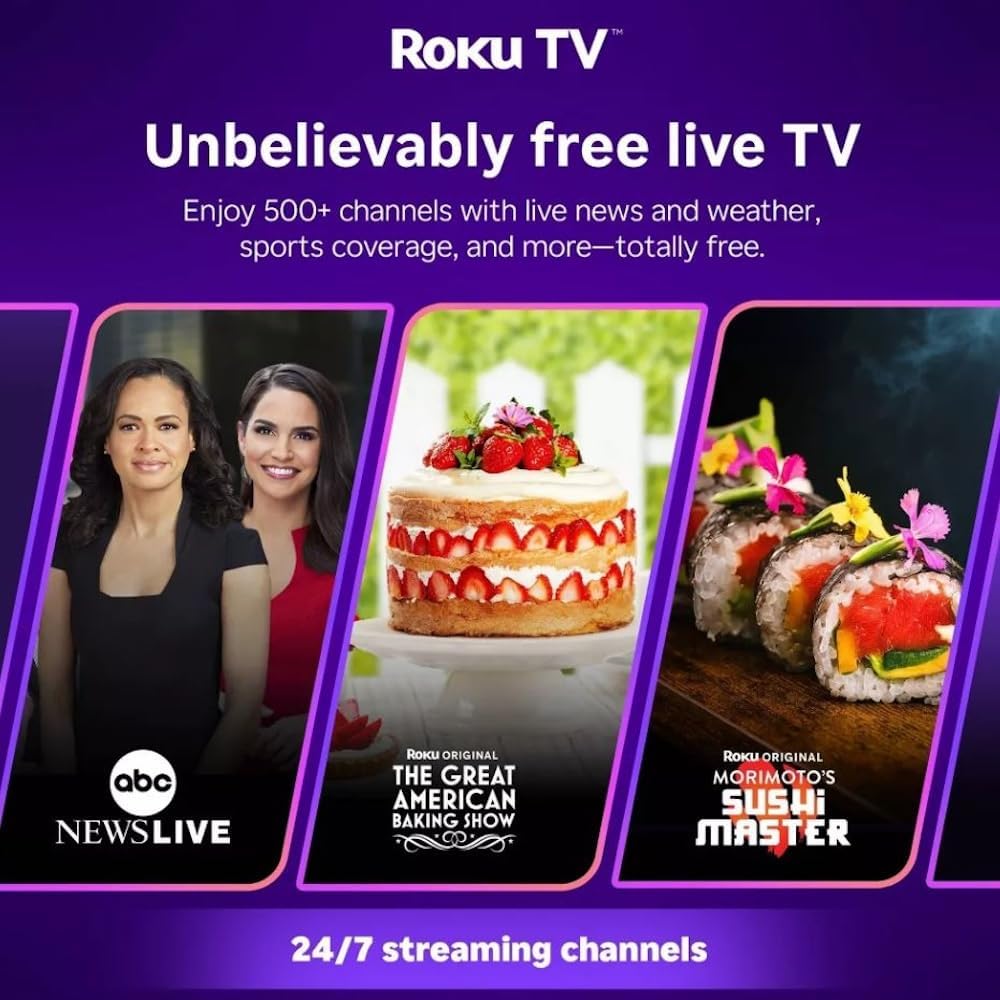
Roku TV interface promoting free live TV channels, featuring examples like ABC News Live, The Great American Baking Show, and Morimoto's Sushi Master.
Access a wide range of streaming services and free content through the Roku Channel Store. The Roku platform offers over 500 free channels, including live television, movies, and news. Use the 'Search' function on the home screen to find specific titles or channels.
آڊيو خاصيتون

Roku Hiro TV displaying the home screen with various streaming apps, emphasizing enhanced audio quality.
The TV features enhanced audio quality. For private listening, you can pair Bluetooth headphones directly with the TV. Navigate to Settings > Remotes & devices > Bluetooth devices > Pair new device to connect your headphones.
سار سنڀال
ٽي وي جي صفائي
- صفائي ڪرڻ کان اڳ هميشه ٽي وي کي ان پلگ ڪريو.
- اسڪرين ۽ ڪيبينيٽ کي نرميءَ سان صاف ڪرڻ لاءِ نرم، لِنٽ فري ڪپڙو استعمال ڪريو.
- ضدي نشانن لاءِ، هلڪو ڊيampڪپڙي کي پاڻي يا نرم، غير رگڙندڙ اسڪرين ڪلينر سان ڌوئڻ ڏيو. ڪلينر کي سڌو سنئون اسڪرين تي نه اسپري ڪريو.
- سخت ڪيميڪلز، رگڙيندڙ پيڊ، يا محلول استعمال ڪرڻ کان پاسو ڪريو.
سافٽ ويئر اپڊيٽس
The Roku TV automatically checks for and installs software updates when connected to the internet. To manually check for updates, go to سيٽنگون > سسٽم > سافٽ ويئر اپڊيٽ.
مشڪلاتون
| مسئلو | حل |
|---|---|
| طاقت نه آهي | پڪ ڪريو ته پاور ڪيبل ٽي وي ۽ ڪم ڪندڙ بجلي جي آئوٽليٽ ٻنهي سان محفوظ طور تي ڳنڍيل آهي. هڪ مختلف آئوٽليٽ آزمايو. |
| تصوير ناهي، پر آواز موجود آهي. | ان پٽ سورس چيڪ ڪريو. دٻايو گهر button on the remote and select the correct input. Ensure all HDMI cables are securely connected. |
| آواز ڪونهي، پر تصوير موجود آهي. | Check the volume level and ensure the TV is not muted. If using external audio, verify connections and settings. |
| وائي فائي سان ڳنڍجي نٿو سگھي | Verify your Wi-Fi password. Restart your router and modem. Go to سيٽنگون> نيٽ ورڪ> ڪنيڪشن سيٽ اپ ڪريو to reconfigure. |
| ريموٽ ڪنٽرول ڪم نه ڪري رهيو آهي | ريموٽ ۾ بيٽريون تبديل ڪريو. پڪ ڪريو ته ريموٽ ۽ ٽي وي جي IR سينسر جي وچ ۾ ڪا به رڪاوٽ نه آهي. |
وضاحتون
| ماڊل نالو | ايڇ 32 سي 2 سي 4 |
| اسڪرين جي ماپ | 32 انچ |
| ڊسپلي ٽيڪنالاجي | ايل اي ڊي |
| قرارداد | 720 ص |
| ريفريش جي شرح | 60 هز |
| آپريٽنگ سسٽم | Roku OS |
| رابطي ٽيڪنالاجي | Bluetooth, HDMI, Optical Audio, USB, Wi-Fi |
| Total Number of HDMI Ports | 3 |
| ڪل USB بندرگاهن | 1 |
| پيداوار جا طول و عرض (ڊي x ڊبليو x ايڇ) | 3.2"ڊي x 28.3"ڊي x 16.9"ايڇ |
| شيءِ جو وزن | 7.5 پائونڊ |
| جلدtage | 120 وولٽ (AC) |
| چڙهڻ جو قسم | ٽيبل جبل |
| رنگ | ڪارو |
وارنٽي ڄاڻ
This Roku Hiro TV is covered by a 90-day Replacement Warranty. Please retain your proof of purchase for any warranty claims. For detailed terms and conditions, refer to the warranty documentation included with your product or visit the official Roku support webسائيٽ.
حمايت
For further assistance, troubleshooting guides, or to contact customer support, please visit the official Roku support website. You can find comprehensive FAQs and contact information there.