تعارف
This manual provides instructions for the setup, operation, maintenance, and troubleshooting of your Microsoft Wireless Optical Mouse Blue, Model K80-00004. Please read this manual thoroughly before using your device.
دٻي ۾ ڇا آهي
پڪ ڪريو ته سڀئي شيون پيڪيج ۾ موجود آهن:
- Microsoft Wireless Optical Mouse
- وائرليس وصول ڪندڙ
- 2 AA Batteries (pre-installed or included separately)
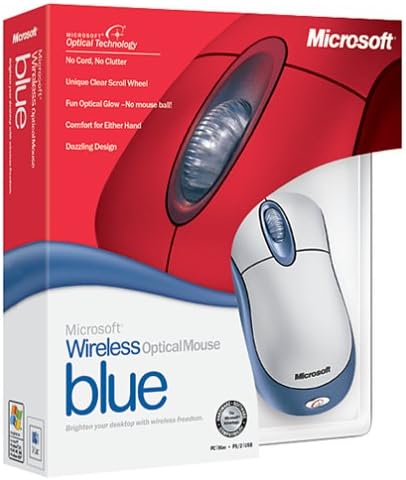
Image: Retail packaging of the Microsoft Wireless Optical Mouse Blue, showing the mouse and receiver.
سيٽ اپ ڪريو
1. بيٽرين کي انسٽال ڪريو
- مائوس جي هيٺئين پاسي واري بيٽري جي ڪمري کي ڳولھيو.
- بيٽري جي ڪمري واري ڍڪ کي کوليو.
- ٻه AA بيٽريون داخل ڪريو، صحيح پولارٽي (+/-) کي يقيني بڻائي.
- بيٽري جي ڪمري واري ڍڪ کي بند ڪريو.

تصوير: سامهون view of the Microsoft Wireless Optical Mouse Blue, showing the top buttons and scroll wheel. The battery compartment is on the underside.
2. Connect the Wireless Receiver
- Plug the USB wireless receiver into an available USB port on your computer.
- Allow your operating system to detect and install the necessary drivers. This process is usually automatic.
- For optimal performance, ensure the receiver is placed at least 12 inches away from other wireless devices or large metal objects.
3. Optional Software Installation (IntelliPoint)
- While not required for basic functionality, installing Microsoft IntelliPoint software provides advanced customization options for your mouse buttons and scroll wheel.
- Refer to the Microsoft support website for the latest IntelliPoint software compatible with your operating system.
4. Set Orientation (Calibration)
- After initial setup, it is recommended to perform an "Orientation Set" or calibration if available through the IntelliPoint software or your operating system's mouse settings. This helps optimize tracking performance.
آپريٽنگ هدايتون
The Microsoft Wireless Optical Mouse Blue is designed for comfortable and precise navigation.
بنيادي ڪم
- کاٻي ڪلڪ ڪريو: شيون چونڊڻ، کولڻ لاءِ پرائمري بٽڻ files، ۽ سافٽ ويئر سان لهه وچڙ ۾.
- ساڄي ڪلڪ ڪريو: حوالي جي مينيو ۽ اضافي اختيارن تائين رسائي لاءِ ثانوي بٽڻ.
- اسڪرول ويل: دستاويزن ذريعي اسڪرول ڪرڻ لاءِ ڦيٿي کي مٿي يا هيٺ ڪريو ۽ web pages. The scroll wheel may also function as a clickable button for additional commands, depending on software configuration.
وائرليس آپريشن
- The mouse operates wirelessly up to 6 feet (approximately 1.8 meters) from its receiver.
- Optical technology scans the desktop surface for precise cursor movement without the need for a mouse pad on most surfaces.
- The mouse is designed for comfortable use with either the right or left hand.

تصوير: زاويه view of the Microsoft Wireless Optical Mouse Blue, highlighting its ergonomic shape and blue/silver design.
سار سنڀال
بيٽري مٽائڻ
- The mouse requires two AA batteries.
- When battery power is low, your computer may display a notification (if IntelliPoint software is installed) or mouse performance may degrade.
- Replace batteries as described in the "Install Batteries" section under Setup.
- Always use fresh, high-quality batteries for optimal performance.
صفائي
- To clean the mouse, gently wipe the surface with a soft, damp ڪپڙو.
- سخت ڪيميڪل يا رگڙيندڙ ڪلينر استعمال ڪرڻ کان پاسو ڪريو، ڇاڪاڻ ته اهي ختم کي نقصان پهچائي سگهن ٿا.
- پڪ ڪريو ته ڪو به مائع مائوس جي اندروني حصن ۾ داخل نه ٿئي.
Travel Considerations
- The Microsoft Wireless Optical Mouse is a transmitting device. When traveling by air, it is recommended to remove the batteries from the mouse before boarding to comply with airline regulations regarding electronic devices.
مشڪلاتون
Mouse Not Responding or Lagging
- بيٽري چيڪ ڪريو: پڪ ڪريو ته بيٽريون صحيح طرح سان نصب ٿيل آهن ۽ ڪافي چارج آهن. جيڪڏهن ضروري هجي ته تبديل ڪريو.
- رسيور ڪنيڪشن چيڪ ڪريو: Ensure the wireless receiver is securely plugged into a functioning USB port. Try a different USB port.
- قربت: Ensure the mouse is within 6 feet of the receiver. Reduce obstacles between the mouse and receiver.
- مداخلت: Other wireless devices (e.g., Wi-Fi routers, cordless phones) can cause interference. Move the receiver away from such devices.
- سطح: Ensure the mouse is used on a suitable surface. Highly reflective or transparent surfaces may affect optical tracking.
- ٻيهر هم وقت سازي: Some wireless mice have a re-sync button on both the mouse and receiver. Consult the full product manual or Microsoft support for specific re-sync procedures for this model if issues persist.
Clicking Issues
- If clicks are not registering or require multiple presses, check for physical obstructions or debris around the buttons.
- پڪ ڪريو ته مائوس آن آهي ۽ ڳنڍيل آهي.
سافٽ ويئر مطابقت
- The IntelliPoint software may have specific operating system requirements. For example, older versions may not be compatible with newer operating systems like Windows Vista or later.
- Always download the latest software from the official Microsoft support webتوهان جي مخصوص آپريٽنگ سسٽم لاءِ سائيٽ.
وضاحتون
| خاصيت | تفصيل |
|---|---|
| ماڊل نمبر | K80-00004 |
| برانڊ | Microsoft |
| رابطي ٽيڪنالاجي | وائرليس |
| حرڪت جي چڪاس | بصري |
| رنگ | Blue / Silver |
| بيٽريون | 2 AA بيٽريون (شامل) |
| شيءِ جو وزن | 13.6 آونس (تقريبن 385.5 گرام) |
| پيداوار جي ماپ | 9.3 x 8.9 x 2.1 انچ (تقريبن 23.6 x 22.6 x 5.3 سينٽي ميٽر) |
| پهرين دستياب تاريخ | آگسٽ 1، 2002 |
وارنٽي ڄاڻ
According to the legal disclaimer, this product is sold without a warranty. Please refer to your point of purchase for any return or exchange policies.
حمايت
For further assistance, driver downloads, or updated information regarding your Microsoft Wireless Optical Mouse Blue, please visit the official Microsoft support webسائيٽ.
You can typically find support resources by searching for "Microsoft support" and your product model number (K80-00004).


