1. تعارف
The Digitus USB to Serial Adapter (Model DA-70157) provides a convenient solution for connecting serial devices to a computer via a USB port. This adapter converts a USB 2.0 port into an RS485 serial port, enabling modern computers without traditional serial ports to communicate with a wide range of serial devices. It is ideal for industrial automation, data acquisition, and other applications requiring RS485 communication.

Figure 1: Digitus USB to Serial Adapter (DA-70157) with included RS485 terminal block.
2. پيڪيج مواد
مھرباني ڪري تصديق ڪريو ته سڀ شيون توھان جي پيڪيج ۾ موجود آھن:
- 1x Digitus USB to Serial Adapter (DA-70157)
- 1x USB A Extension Cable (80cm)
- 1x RS485 Terminal Block
- 1x Product Support CD-ROM (containing drivers and documentation)

Figure 2: The Digitus USB to Serial Adapter as packaged, showing the adapter and the terminal block.
3. سيٽ اپ ۽ تنصيب
Follow these steps to set up your Digitus USB to Serial Adapter:
- ڊرائيور لڳائڻ: Before connecting the adapter, it is recommended to install the necessary drivers.
- Insert the provided Product Support CD-ROM into your computer's optical drive.
- Navigate to the driver folder for your operating system (e.g., Windows, macOS, Linux).
- Run the driver setup executable and follow the on-screen instructions to complete the installation.
- Alternatively, the latest drivers can often be downloaded from the official Digitus webسائيٽ.
- اڊاپٽر کي ڳنڍيو:
- Connect the USB-A male end of the Digitus USB to Serial Adapter to an available USB port on your computer. You may use the included 80cm USB extension cable if needed.
- The operating system should detect the new hardware and, if drivers were pre-installed, configure the device automatically.
- Connect your Serial Device:
- Attach your RS485 serial device to the DB9 male connector of the adapter.
- For devices requiring screw terminal connections, use the provided RS485 terminal block. Connect the appropriate RS485 A/B and ground wires from your device to the terminal block, then connect the terminal block to the DB9 female port on the adapter.

Figure 3: Connection options for the adapter, including RS485 female, RS485 male, 4-pole industrial terminal, and USB Type-A male.

شڪل 4: مثالample of a one-to-one connection setup, showing a label printer connected to a PC via the USB 2.0 Serial Adapter and an extension cable.
4. آپريٽنگ هدايتون
Once the adapter and drivers are successfully installed, your computer will recognize the adapter as a virtual COM port. You can then use any serial communication software to interact with your connected RS485 device.
- COM پورٽ جي سڃاڻپ ڪريو: Open your computer's Device Manager (Windows) or equivalent system utility (macOS/Linux) to identify the assigned COM port number for the Digitus USB to Serial Adapter. It will typically appear under "Ports (COM & LPT)".
- سافٽ ويئر ترتيب ڏيو: In your serial communication application (e.g., PuTTY, RealTerm, custom software), select the identified COM port and configure the serial parameters (baud rate, data bits, parity, stop bits, flow control) to match those of your RS485 device.
- رابطو شروع ڪريو: Once configured, you can open the serial port in your software and begin sending and receiving data to and from your RS485 device.
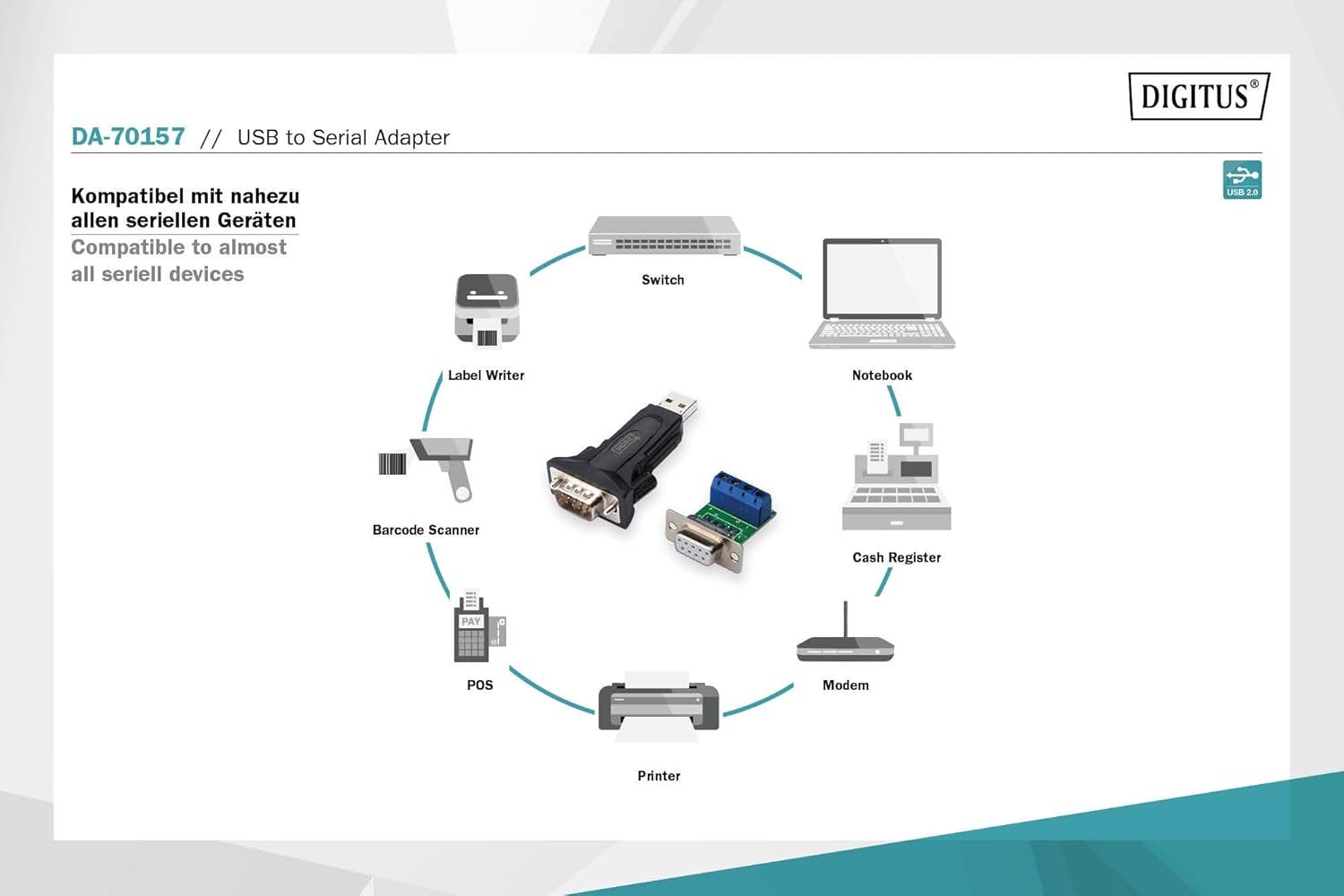
Figure 5: The adapter is compatible with a wide range of serial devices including switches, notebooks, cash registers, modems, printers, POS systems, barcode scanners, and label writers.
5. سار سنڀال
The Digitus USB to Serial Adapter is designed for durability and requires minimal maintenance. Follow these guidelines to ensure its longevity:
- صفائي: Use a soft, dry cloth to clean the adapter. Avoid using liquid cleaners or solvents, as they may damage the device.
- اسٽوريج: جڏهن استعمال ۾ نه هجي ته اڊاپٽر کي ٿڌي، سڪل جاءِ تي سڌو سج جي روشني ۽ انتهائي گرمي پد کان پري رکو.
- سنڀالڻ: اڊاپٽر کي احتياط سان سنڀاليو. ان کي ڇڏڻ يا مضبوط اثرن کان پاسو ڪريو.
- ڪيبل جو انتظام: Ensure that cables are not excessively bent or kinked, which can lead to internal wire damage.
6. مسئلا حل ڪرڻ
If you encounter issues with your Digitus USB to Serial Adapter, refer to the following common problems and solutions:
| مسئلو | ممڪن سبب | حل |
|---|---|---|
| ڪمپيوٽر اڊاپٽر کي سڃاڻي نٿو سگهي. | Missing or incorrect drivers. Faulty USB port. | Ensure drivers are correctly installed from the CD-ROM or Digitus website. Try a different USB port on your computer. Restart your computer. |
| Communication errors with serial device. | Incorrect serial port settings (baud rate, etc.). Incorrect wiring of RS485 terminal block. | Verify that the serial parameters in your software match those of your device. Double-check the wiring of the RS485 terminal block (A to A, B to B, Ground to Ground). |
| Device Manager shows "Unknown Device" or error. | Driver installation issue. | Uninstall any existing drivers for the device, then reinstall the correct drivers. Ensure your operating system is up to date. |
| وقفي وقفي سان ڳنڍڻ. | Loose connection. USB cable issue. | Ensure all connections (USB, serial, terminal block) are secure. Try using a different USB extension cable or connecting the adapter directly to the computer's USB port. |
7. وضاحتون
| خاصيت | تفصيل |
|---|---|
| ماڊل نمبر | ڊي اي-70157 |
| انٽرفيس | USB 2.0 (Type-A male) to RS485 (DB9 male) |
| چپ سيٽ | FT232RL (FTDI) |
| ڊيٽا جي منتقلي جي شرح | 3 Mbps تائين |
| آپريٽنگ سسٽم جي حمايت ڪئي وئي | Windows, macOS, Linux (driver dependent) |
| Cable Length (Extension) | 80 cm (USB A male / USB A female) |
| پيداوار جي ماپ (L x W x H) | 2.64 x 1.38 x 0.59 انچ (تقريبن) |
| شيءِ جو وزن | 0.035 آونس (تقريبن) |
| رنگ | Black (DA-70157) |
8. وارنٽي ۽ سپورٽ
Digitus products are designed for reliability and performance. For information regarding warranty coverage and technical support, please refer to the documentation included on the Product Support CD-ROM or visit the official Digitus webسائيٽ. وارنٽي دعوائن لاءِ خريداري جي ثبوت طور پنهنجي خريداري جي رسيد رکو.
For further assistance, you may contact Digitus customer support through their official channels. Please have your product model number (DA-70157) and a detailed description of your issue ready.


