1. تعارف
This manual provides instructions for the installation, operation, and maintenance of your DIGITUS DN-70542 Wireless LAN USB 2.0 Adapter. This device allows your computer to connect to a wireless network using the 802.11n standard, offering data transfer rates of up to 300 Mbps.
The adapter is backward compatible with IEEE 802.11g and 802.11b standards and operates within the 2.4-2.4835GHz frequency range. It also features a Wireless Protected Setup (WPS) function for easy and secure network connection.

شڪل 1.1: مٿي view of the DIGITUS DN-70542 Wireless LAN USB 2.0 Adapter.

شڪل 1.2: زاويه view of the DIGITUS DN-70542 adapter, highlighting its compact design.

شڪل 1.3: تفصيلي view of the USB 2.0 connector of the DIGITUS DN-70542 adapter.
2. پيڪيج مواد
مھرباني ڪري تصديق ڪريو ته سڀ شيون پيڪيج ۾ موجود آھن:
- 1 x DIGITUS DN-70542 Mini USB WiFi Adapter
- 1 x Product Support CD-ROM (containing drivers and utilities)
- 1 x استعمال ڪندڙ دستياب (هي دستاويز)
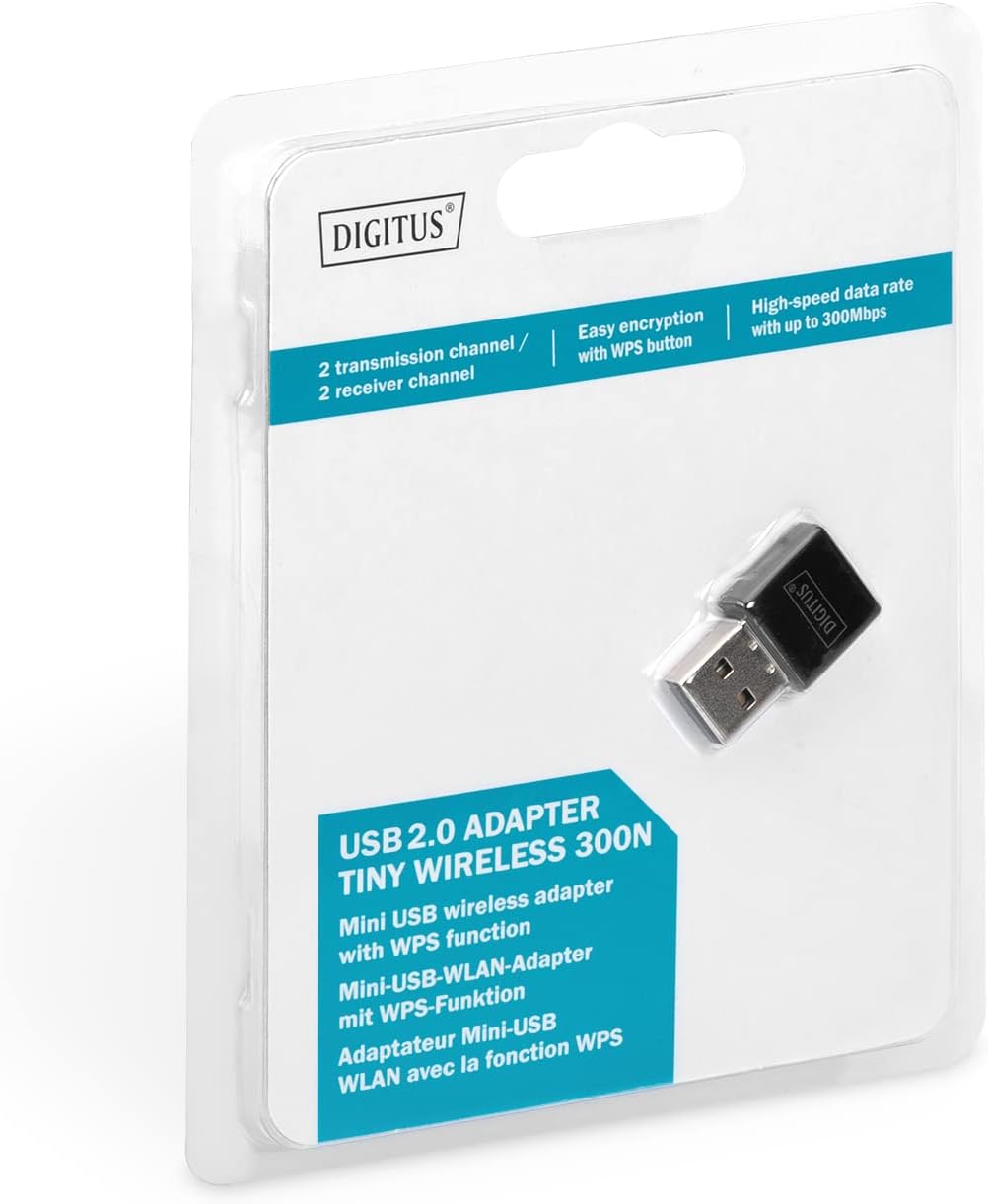
Figure 2.1: Retail packaging of the DIGITUS DN-70542 adapter, showing the adapter and its key features.
3. سيٽ اپ گائيڊ
Follow these steps to install your Wireless LAN USB Adapter:
- انسٽال ڪريو ڊرائيور: Before connecting the adapter, insert the included Product Support CD-ROM into your computer's optical drive. Follow the on-screen instructions to install the necessary drivers. If your computer does not have an optical drive, or if you encounter issues, please visit the official DIGITUS website to download the latest drivers for your operating system (Windows).
Note: Some operating systems, particularly older versions of Windows, may require driver installation prior to connecting the device. Refer to the Troubleshooting section if you encounter issues during this step.
- اڊاپٽر کي ڳنڍيو: Locate an available USB 2.0 port on your computer. Carefully insert the DIGITUS DN-70542 Wireless LAN USB 2.0 Adapter into the USB port.
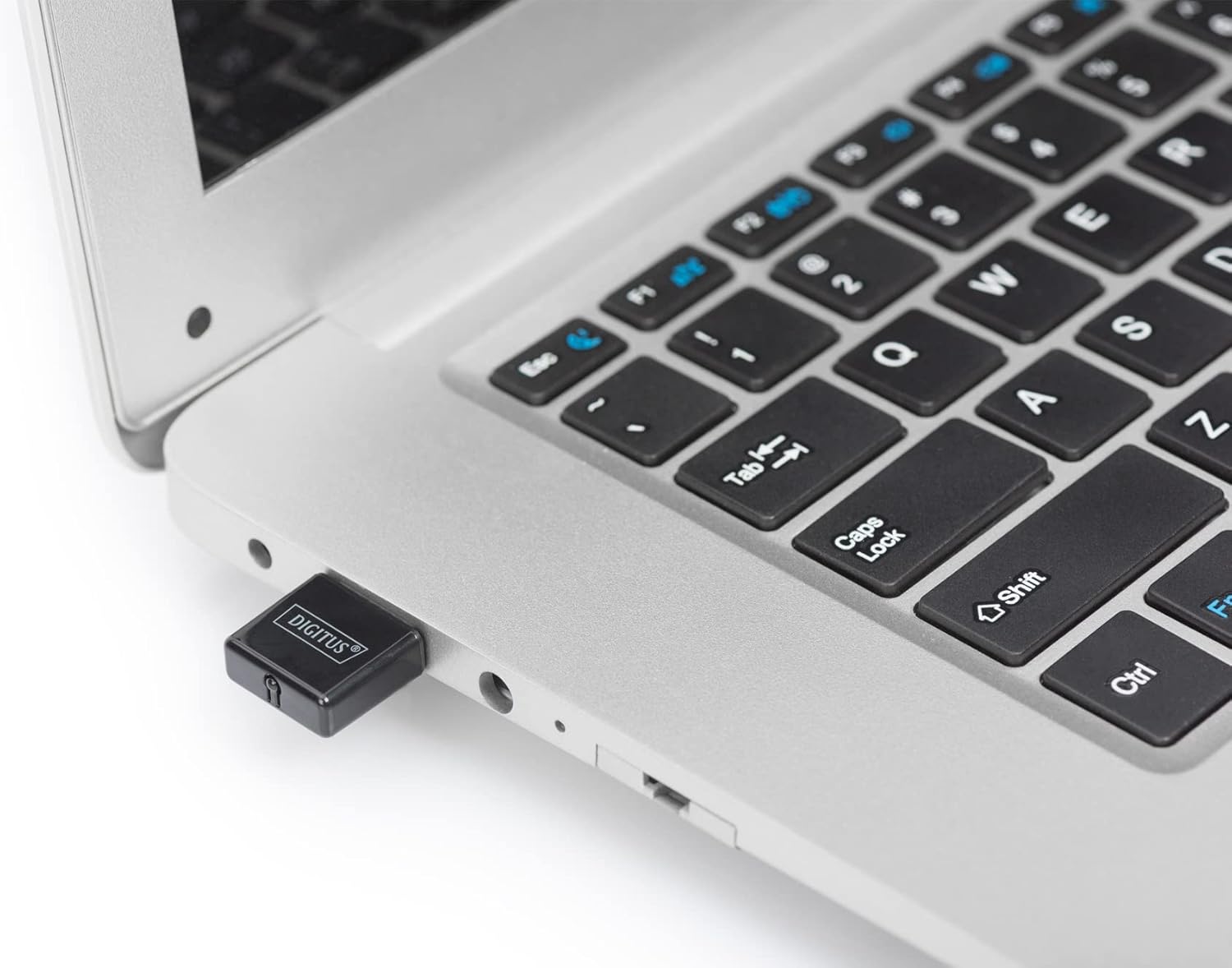
Figure 3.1: The DIGITUS DN-70542 adapter inserted into a laptop's USB port.

شڪل 3.2: هڪ ويجهو view of the adapter connected to a laptop, showing its compact size.
- انسٽاليشن جي تصديق ڪريو: After connecting, your operating system should detect the new hardware and complete the installation. You can verify the installation by checking your computer's Device Manager (for Windows) to ensure the wireless adapter is listed and functioning correctly.
4. آپريٽنگ هدايتون
Once the adapter is successfully installed, you can connect to a wireless network.
- وائرليس نيٽ ورڪ سان ڳنڍڻ:
- Open your computer's wireless network settings.
- Scan for available wireless networks.
- Select your desired network (SSID) from the list.
- جيڪڏهن اشارو ڪيو وڃي ته نيٽ ورڪ سيڪيورٽي ڪي (پاسورڊ) داخل ڪريو.
- Click "Connect" to establish the wireless connection.
- Using WPS (Wi-Fi Protected Setup):
The adapter supports WPS for a simplified and secure connection to compatible routers.
- پنھنجي وائرليس روٽر تي WPS بٽڻ کي دٻايو.
- Within two minutes, press the WPS button on the DIGITUS DN-70542 adapter. The WPS button is a small, recessed button on the side of the adapter.
- The adapter and router will automatically establish a secure connection.

Figure 4.1: The WPS button located on the side of the adapter.
5. سار سنڀال
To ensure optimal performance and longevity of your DIGITUS DN-70542 adapter, follow these guidelines:
- اڊاپٽر کي صاف ۽ مٽيءَ کان پاڪ رکو. صفائي لاءِ نرم، سڪل ڪپڙو استعمال ڪريو.
- اڊاپٽر کي انتهائي گرمي پد، نمي، يا سڌي سج جي روشني ۾ بي نقاب ڪرڻ کان پاسو ڪريو.
- اڊاپٽر کي پاڻ ڌار ڪرڻ يا مرمت ڪرڻ جي ڪوشش نه ڪريو. اهو وارنٽي کي رد ڪري ڇڏيندو.
- جسماني نقصان کي روڪڻ لاءِ استعمال ۾ نه هجڻ وقت اڊاپٽر کي محفوظ جاءِ تي رکو.
6. مسئلا حل ڪرڻ
If you encounter issues with your DIGITUS DN-70542 Wireless LAN USB 2.0 Adapter, refer to the following common problems and solutions:
- Adapter Not Detected / Driver Installation Issues:
- پڪ ڪريو ته اڊاپٽر مڪمل طور تي هڪ فنڪشنل USB پورٽ ۾ داخل ٿيل آهي.
- ڪوشش ڪريو مختلف USB پورٽ.
- Reinstall the drivers from the provided CD-ROM.
- Download the latest drivers from the official DIGITUS webسائيٽ.
- If using Windows 8.1 or newer and encountering issues like "Bluescreen" or "infected file" warnings during driver installation, temporarily disable antivirus software (like Windows Defender) during driver installation, then re-enable it immediately after. Ensure you are downloading drivers from a trusted source (DIGITUS official webسائيٽ).
- Check Device Manager to see if the adapter is listed with any error symbols.
- Cannot Connect to Wireless Network:
- Verify that your wireless router is powered on and broadcasting a signal.
- Ensure you are entering the correct network security key (password).
- سگنل جي طاقت کي بهتر بڻائڻ لاءِ وائرليس روٽر جي ويجهو وڃو.
- Restart your computer and the wireless router.
- Check if other devices can connect to the same wireless network.
- سست ڪنيڪشن جي رفتار:
- Ensure your router supports 802.11n for optimal speeds.
- ٻين اليڪٽرانڪ ڊوائيسز (مثال طور، مائڪرو ويز، ڪارڊ لیس فون) جي مداخلت کي گھٽ ڪريو.
- پنھنجي روٽر جي فرم ويئر کي اپڊيٽ ڪريو.
- Check for other devices consuming bandwidth on your network.
7. وضاحتون
| خاصيت | وصف |
|---|---|
| ماڊل | ڊي اين-70542 |
| ھارڊويئر انٽرفيس | USB 2.0 |
| وائرليس معيار | IEEE 802.11n، IEEE 802.11g، IEEE 802.11b |
| ڊيٽا جي منتقلي جي شرح | 300 Mbps تائين |
| تعدد جي حد | 2.4 - 2.4835 گيگا هرٽز |
| سيڪيورٽي خاصيتون | WPS (Wireless Protected Setup) function |
| آپريٽنگ سسٽم جي حمايت | ونڊوز |
| پيداوار جي ماپ | 24 x 15 x 2 mm (approximate); 15 g |
| ٺاهيندڙ | ASSMANN Electronic GmbH PES - BO DE |
8. وارنٽي ۽ سپورٽ
For warranty information and technical support, please refer to the documentation included with your product or visit the official DIGITUS webسائيٽ. ڪسٽمر سپورٽ لاءِ رابطي جا تفصيل عام طور تي ٺاهيندڙ جي ويب سائيٽ تي ملي سگهن ٿا webسائيٽ.
مھرباني ڪري ڪنھن به وارنٽي دعوائن لاءِ خريداري جو ثبوت رکو.


