تعارف
This manual provides detailed instructions for the setup, operation, maintenance, and troubleshooting of your AOC E2261FWH 21.5-inch monitor. Please read this manual thoroughly before using your monitor to ensure proper installation and optimal performance.
The AOC E2261FWH monitor features a 21.5-inch display with a narrow screen border, a 50,000,000:1 Dynamic Contrast Ratio, and Clear Vision technology for enhanced image quality. It is designed for energy efficiency with LED backlighting.
1. سيٽ اپ
1.1 کولڻ
Carefully remove all components from the packaging. Ensure all items listed in the packing list are present. Retain the packaging materials for future transport or storage.
1.2 اسٽينڊ کي گڏ ڪرڻ
- ڇڪڻ کان بچڻ لاءِ مانيٽر جو مُنهن نرم، صاف مٿاڇري تي هيٺ رکو.
- اسٽينڊ بيس کي اسٽينڊ گردن سان ڳنڍيو، ان کي مهيا ڪيل اسڪرو سان محفوظ ڪريو.
- Align the assembled stand with the mounting slot on the back of the monitor and gently push until it clicks into place.
1.3 ڳنڍيندڙ ڪيبل
ڪنهن به ڪيبل کي ڳنڍڻ کان اڳ، پڪ ڪريو ته مانيٽر ۽ توهان جو ڪمپيوٽر ٻئي بند آهن.
- پاور ڪيبل: پاور ڪيبل جي هڪ ڇيڙي کي مانيٽر جي پاور ان پٽ سان ۽ ٻئي ڇيڙي کي گرائونڊ ٿيل اليڪٽريڪل آئوٽليٽ سان ڳنڍيو.
- HDMI ڪيبل: For digital video and audio, connect an HDMI cable from your computer's HDMI output to the monitor's HDMI input.
- VGA ڪيبل: For analog video, connect a VGA cable from your computer's VGA output to the monitor's VGA input.

شڪل 1: سامهون view of the AOC E2261FWH monitor, showing the display and stand.
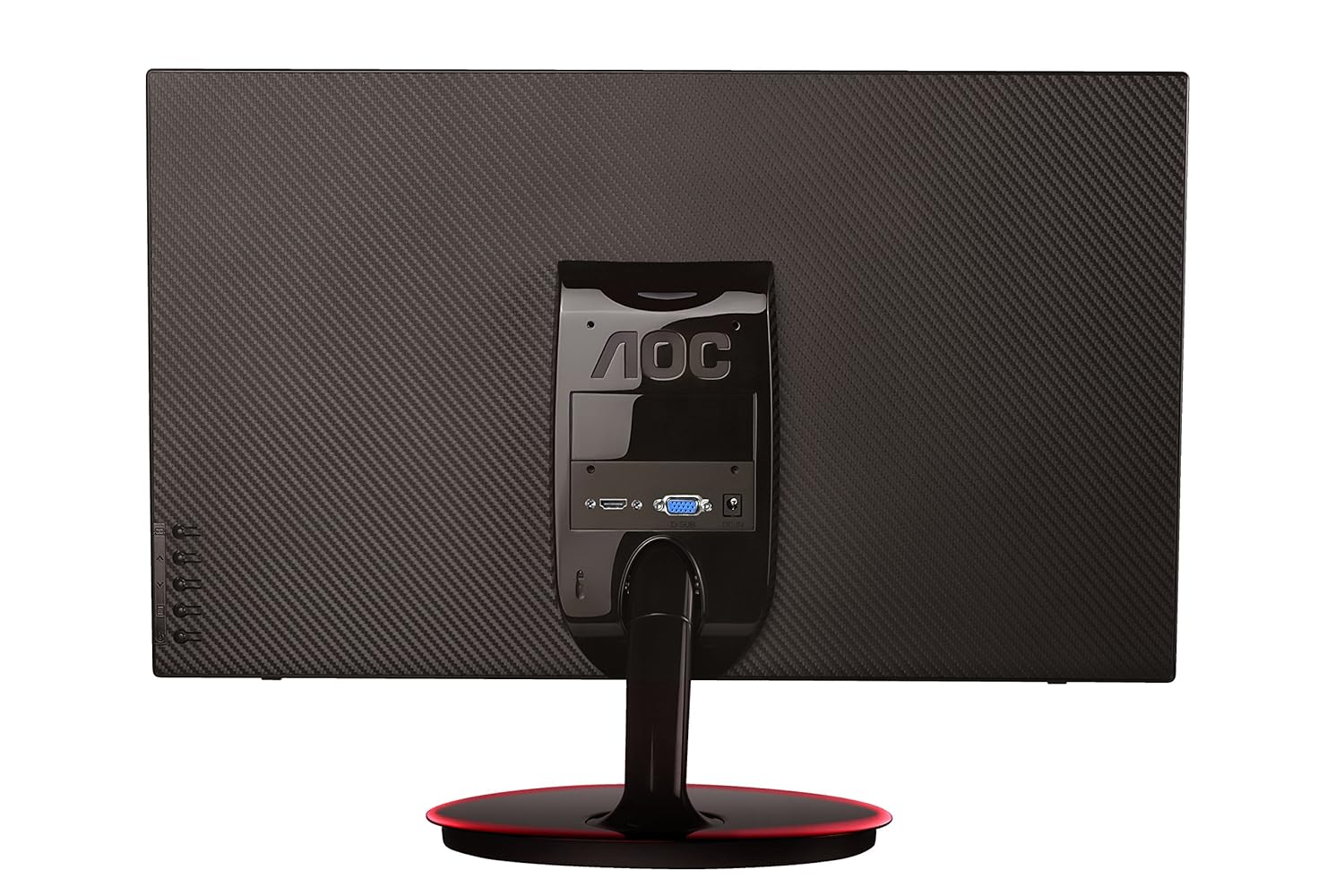
شڪل 2: پوئتي view of the AOC E2261FWH monitor, highlighting the power, HDMI, and VGA input ports.
1.4 شروعاتي پاور آن
After connecting all necessary cables, power on your computer, then press the power button on the monitor. The monitor should automatically detect the input signal. If not, you may need to manually select the input source using the OSD menu.
2. مانيٽر کي هلائڻ
2.1 پاور آن/آف
Press the power button located on the monitor's bezel to turn the monitor on or off. The power indicator light will illuminate when the monitor is on.
2.2 آن اسڪرين ڊسپلي (OSD) مينيو
The OSD menu allows you to adjust various monitor settings. Use the control buttons (usually located on the bottom right or rear of the monitor) to navigate the menu.
- مينيو بٽڻ: او ايس ڊي مينيو کوليو.
- تير بٽڻ: مينيو اختيارن جي ذريعي وڃو.
- داخل ڪريو/چونڊو بٽڻ: چونڊ جي تصديق ڪري ٿو يا ذيلي مينيو ۾ داخل ٿئي ٿو.
- نڪرڻ جو بٽڻ: موجوده مينيو يا او ايس ڊي مان نڪرندو آهي.
2.3 سيٽنگون ترتيب ڏيڻ
عام ترتيب ڏيڻ واريون سيٽنگون شامل آهن:
- چمڪ/ برعڪس: روشني ۽ اونداهي علائقن جي وچ ۾ مجموعي روشني ۽ فرق کي ترتيب ڏيو.
- رنگ سيٽنگون: رنگ جي گرمي پد، گاما، ۽ انفرادي آر بي جي سطحن کي تبديل ڪريو.
- ان پٽ چونڊيو: دستي طور تي HDMI ۽ VGA ان پٽ ذريعن جي وچ ۾ سوئچ ڪريو.
- صاف نظر: Enable or disable Clear Vision technology to enhance image clarity for standard definition content.
- تصويري موڊ: Select from preset display modes (e.g., Standard, Text, Internet, Game, Movie, Sports).
3. سار سنڀال
3.1 مانيٽر جي صفائي
- صاف ڪرڻ کان اڳ هميشه مانيٽر کي بند ڪريو ۽ پاور ڪنڊ کي ان پلگ ڪريو.
- استعمال ڪريو نرم، lint-آزاد ڪپڙو روشنيءَ سان ڊيampپاڻي يا نرم، غير رگڙيندڙ اسڪرين ڪلينر سان صاف ڪيو وڃي.
- صاف ڪندڙ کي سڌو سنئون اسڪرين تي نه اسپري ڪريو. پهرين ان کي ڪپڙي تي لڳايو.
- بينزين، ٿنڀا، امونيا تي ٻڌل ڪلينر، يا رگڙيندڙ مواد استعمال ڪرڻ کان پاسو ڪريو، ڇاڪاڻ ته اهي اسڪرين يا سي کي نقصان پهچائي سگهن ٿا.asing.
3.2 عام سنڀال
- مانيٽر کي سڌو سورج جي روشني ۾ يا گرمي جي ذريعن جي ويجهو رکڻ کان پاسو ڪريو.
- مانيٽر جي چوڌاري مناسب هوا جي وهڪري کي يقيني بڻايو وڃي.
- مانيٽر يا ان جي ڪيبل تي ڳري شيون نه رکو.
- مانيٽر کي وڌيڪ مٽي ۽ نمي کان بچايو.
4. مسئلا حل ڪرڻ
جيڪڏهن توهان کي پنهنجي مانيٽر سان مسئلا درپيش اچن ٿا، ته هيٺ ڏنل عام مسئلن ۽ حلن جو حوالو ڏيو:
| مسئلو | ممڪن سبب | حل |
|---|---|---|
| ڪابه طاقت | پاور ڪيبل ڳنڍيل نه آهي؛ پاور آئوٽليٽ خراب آهي؛ مانيٽر بند آهي. | Check power cable connections; Try a different outlet; Press the monitor's power button. |
| ڪوبه سگنل | وڊيو ڪيبل ڳنڍيل نه آهي؛ غلط ان پٽ سورس چونڊيو ويو آهي؛ ڪمپيوٽر آن نه آهي. | Ensure video cable (HDMI/VGA) is securely connected; Select the correct input source via OSD; Power on your computer. |
| Image is Blurry/Distorted | Incorrect resolution; Loose video cable; Monitor settings. | Set your computer's display resolution to 1920 x 1080; Reconnect the video cable; Adjust OSD settings like phase, clock, brightness, and contrast. |
| رنگ غلط آهن | Color settings in OSD; Faulty video cable. | Adjust color settings in the OSD menu; Try a different video cable. |
If the problem persists after trying these solutions, please contact AOC customer support.
5. وضاحتون
| خاصيت | تفصيل |
|---|---|
| برانڊ | AOC |
| ماڊل | E2261FWH |
| اسڪرين جي ماپ | 21.5 انچ |
| اسڪرين جي قرارداد | 1920 x 1080 |
| اسپيڪٽ ريشو | 16:9 |
| جوابي وقت | 5 ملي سيڪنڊ |
| متحرڪ ڪنٽراسٽ ريشو | 50,000,000: 1 (عام) |
| ان پٽ پورٽس | 1 x HDMI، 1 x VGA |
| Frequency Range (H) | 30-83 KHz |
| Frequency Range (V) | 55-76 هز |
| بجلي جو استعمال | 22 واٽ (عام) |
| شيءِ جو وزن | 3.51 ڪلوگرام (تقريبن) |
6. وارنٽي ۽ سپورٽ
6.1 وارنٽي ڄاڻ
AOC monitors are covered by a limited warranty. For specific warranty terms and conditions applicable to your region, please refer to the warranty card included with your product or visit the official AOC webسائيٽ. وارنٽي دعوائن لاءِ خريداري جي ثبوت طور پنهنجي خريداري جي رسيد رکو.
6.2 ڪسٽمر سپورٽ
For technical assistance, product inquiries, or service requests, please contact AOC customer support. You can typically find contact information (phone numbers, email, or support portals) on the official AOC webسائيٽ يا توهان جي مانيٽر سان مهيا ڪيل دستاويزن ۾.
AOC Official Webسائيٽ: www.aoc.com


