1. تعارف
هي دستورالعمل توهان جي ريڪو افيشيو ايم پي سي 3004 رنگين ليزر ملٽي فنڪشن ڪاپيئر جي محفوظ ۽ ڪارآمد آپريشن لاءِ ضروري معلومات فراهم ڪري ٿو. مھرباني ڪري مشين استعمال ڪرڻ کان اڳ ھن دستورالعمل کي چڱي طرح پڙھو ۽ مستقبل جي حوالي لاءِ ان کي محفوظ جاءِ تي رکو. ريڪو افيشيو ايم پي سي 3004 اعليٰ ڪارڪردگي واري ڪاپي ڪرڻ، پرنٽنگ ڪرڻ، اسڪيننگ ڪرڻ ۽ فيڪس ڪرڻ لاءِ ٺهيل آهي، جنهن ۾ 10.1 انچ سمارٽ آپريشن پينل ۽ نيٽ ورڪ ڪنيڪٽيويٽي شامل آهي.
2. حفاظت جي ڄاڻ
مشين کي زخم يا نقصان کان بچڻ لاءِ هيٺ ڏنل حفاظتي احتياطن تي عمل ڪريو.
- بجلي جي فراهمي: مشين کي گرائونڊ ٿيل پاور آئوٽليٽ سان ڳنڍيو. پاور اسٽرپس کي اوورلوڊ نه ڪريو.
- لڳائڻ: مشين کي هڪ مستحڪم، هموار مٿاڇري تي رکو جتي مناسب وينٽيليشن هجي. سڌي سج جي روشني، گهڻي گرمي، نمي، يا مٽيءَ کان پاسو ڪريو.
- سنڀالڻ: مشين کي ڌار ڪرڻ يا تبديل ڪرڻ جي ڪوشش نه ڪريو. سڀني سروسنگ کي قابل اهلڪارن جي حوالي ڪريو.
- مشين کي منتقل ڪرڻ: مشين کي حرڪت ڏيندي، پڪ ڪريو ته سڀئي پيپر ٽري بند آهن ۽ بجلي جي تار ڪٽيل آهي. ان جي وزن جي ڪري مناسب کڻڻ جي طريقن يا مدد استعمال ڪريو.
- ٻار: مشين کي ٻارن جي پهچ کان پري رکو.
3. سيٽ اپ
3.1 Unpacking ۽ لڳائڻ
مشين کي ان جي پيڪنگ مان احتياط سان هٽايو. پڪ ڪريو ته سڀئي پيڪنگ مواد هٽايو ويو آهي. مشين کي هڪ مضبوط، هموار مٿاڇري تي رکو جيڪو ان جي وزن کي سپورٽ ڪرڻ جي قابل هجي. مشين جي چوڌاري وينٽيليشن ۽ ٽري ۽ ڪَوَر تائين رسائي لاءِ ڪافي جاءِ ڏيو.
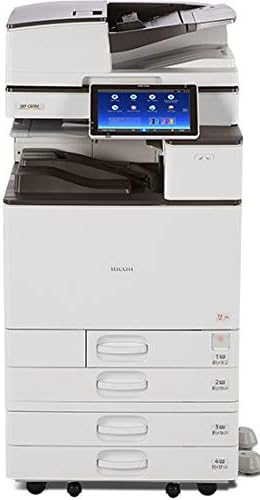
هي تصوير مڪمل ريڪو افيشيو ايم پي سي 3004 ملٽي فنڪشن ڪاپيئر يونٽ ڏيکاري ٿي، جنهن ۾ ان جي مکيه باڊي، انٽيگريٽڊ اسٽينڊ، ملٽيپل پيپر ان پٽ ٽري، ۽ سمارٽ آپريشن پينل شامل آهن.
3.2 پاور ڪنيڪشن
بجلي جي تار کي مشين سان محفوظ طور تي ڳنڍيو ۽ پوءِ گرائونڊ ٿيل بجلي جي آئوٽليٽ سان. مکيه پاور سوئچ کي آن ڪريو، جيڪو عام طور تي مشين جي پاسي تي هوندو آهي.
3.3 شروعاتي سيٽ اپ ۽ نيٽ ورڪ ترتيب
پهرين پاور آن ٿيڻ تي، 10.1 انچ جو سمارٽ آپريشن پينل توهان کي شروعاتي سيٽ اپ ذريعي رهنمائي ڪندو، جنهن ۾ ٻولي جي چونڊ ۽ بنيادي نيٽ ورڪ سيٽنگون شامل آهن. نيٽ ورڪ ڪنيڪشن لاءِ، توهان وائرڊ ايٿرنيٽ ڪنيڪشن يا بلٽ ان وائي فائي استعمال ڪري سگهو ٿا. IP پتي کي ترتيب ڏيڻ يا پنهنجي وائرليس نيٽ ورڪ سان ڳنڍڻ لاءِ سمارٽ آپريشن پينل ذريعي نيٽ ورڪ سيٽنگن تائين رسائي حاصل ڪريو.
3.4 ڊرائيور لڳائڻ
پنهنجي ڪمپيوٽر تي ضروري پرنٽر ۽ اسڪينر ڊرائيور انسٽال ڪريو. مشين اڳ ۾ نصب ٿيل پوسٽ اسڪرپٽ 3 سپليمينٽ سان گڏ اچي ٿي، جيڪا مختلف آپريٽنگ سسٽم ۽ ايپليڪيشنن سان مطابقت کي يقيني بڻائي ٿي. ڊرائيور عام طور تي ريڪو سپورٽ تي ڳولي سگهجن ٿا. webسائيٽ.
3.5 لوڊ ڪندي پيپر
گهربل پيپر ٽري کوليو ۽ پيپر جي سائيز مطابق پيپر گائيڊز کي ترتيب ڏيو. پرنٽ سائڊ کي مٿي ڪري پيپر لوڊ ڪريو (يا جيئن ٽري ڊاگرام ۾ ڏيکاريل آهي). پڪ ڪريو ته پيپر اسٽيڪ وڌ ۾ وڌ ڀرڻ واري لائن کان وڌيڪ نه هجي. مشين 11" x 17" / A3 تائين پيپر سائيز ۽ مختلف ميڊيا قسمن جي سپورٽ ڪري ٿي.
4. آپريٽنگ هدايتون
4.1 سمارٽ آپريشن پينل استعمال ڪندي
10.1 انچ وائڊ سپر VGA سمارٽ آپريشن پينل سڀني مشين جي ڪمن لاءِ هڪ وجداني انٽرفيس فراهم ڪري ٿو. مينيو ۽ ايپليڪيشنن ذريعي نيويگيٽ ڪرڻ لاءِ ٽيپ ڪريو، ڇڪيو، سوائپ ڪريو ۽ اسڪرول ڪريو. هوم اسڪرين عام ڪمن لاءِ آئڪن ڏيکاري ٿي ۽ ويجيٽس سان ذاتي ڪرڻ جي اجازت ڏئي ٿي.

هي تصوير هڪ تفصيلي ڏيکاري ٿي view 10.1 انچ سمارٽ آپريشن پينل جو، ڪوئڪ ڪاپي، پرنٽر، ڪوئڪ اسڪينر، ڊاڪيومينٽ سرور جهڙن ڪمن لاءِ آئڪن سان ان جي ٽچ انٽرفيس کي نمايان ڪري ٿو، Web برائوزر، ۽ استعمال ڪندڙ ھدايت.
4.2 دستاويزن جي نقل ڪرڻ
- پنهنجي اصل دستاويز کي ايڪسپوزر گلاس تي يا آٽوميٽڪ ڊاڪيومينٽ فيڊر (ADF) ۾ رکو.
- سمارٽ آپريشن پينل تي، 'ڪاپي' ايپليڪيشن چونڊيو.
- مقدار، رنگ موڊ (رنگ/ڪارو ۽ اڇو)، ڊپلڪس (آٽو ڊپلڪس سپورٽ ٿيل)، پيپر ٽري، ۽ زوم جهڙيون سيٽنگون ترتيب ڏيو.
- ڪاپي ڪرڻ شروع ڪرڻ لاءِ 'شروع' بٽڻ دٻايو.
4.3 دستاويز ڇپائڻ
ڪمپيوٽر تان پرنٽ ڪرڻ لاءِ، پڪ ڪريو ته ڊرائيور انسٽال ٿيل آهن ۽ مشين نيٽ ورڪ سان ڳنڍيل آهي. پنهنجي ايپليڪيشن جي پرنٽ ڊائلاگ مان پنهنجي پرنٽر طور Ricoh Aficio MP C3004 چونڊيو. ضرورت مطابق پرنٽ سيٽنگون ترتيب ڏيو (مثال طور، رنگ، ڊپلڪس، پيپر سائيز) ۽ پرنٽ جاب موڪليو. موبائل پرنٽنگ پڻ وائي فائي ڪنيڪٽوٽي ذريعي سپورٽ ڪئي وئي آهي.
4.4 دستاويزن کي اسڪين ڪرڻ
- پنهنجي اصل دستاويز کي ايڪسپوزر گلاس تي يا ADF ۾ رکو.
- سمارٽ آپريشن پينل تي 'اسڪينر' ايپليڪيشن چونڊيو.
- پنھنجي اسڪين جي منزل چونڊيو (مثال طور، اي ميل ڏانهن اسڪين، فولڊر ڏانهن اسڪين، USB ڏانهن اسڪين).
- اسڪين سيٽنگون ترتيب ڏيو جهڙوڪ ريزوليوشن، رنگ موڊ، ۽ file فارميٽ.
- اسڪيننگ شروع ڪرڻ لاءِ 'شروع' بٽڻ دٻايو.
4.5 دستاويزن کي فيڪس ڪرڻ
فيڪس موڪلڻ لاءِ، پنهنجو دستاويز ADF ۾ رکو. سمارٽ آپريشن پينل تي 'فيڪس' ايپليڪيشن چونڊيو. آن-اسڪرين ڪي پيڊ استعمال ڪندي وصول ڪندڙ جو فيڪس نمبر داخل ڪريو يا ايڊريس بڪ مان چونڊيو. ڪا به ضروري سيٽنگ ترتيب ڏيو ۽ فيڪس موڪلڻ لاءِ 'شروع' کي دٻايو.
5. سار سنڀال
5.1 مشين جي صفائي
باقاعدگي سان مشين جي ٻاهرئين حصي کي نرم، ڊيamp ڪپڙو. اسڪينر شيشي لاءِ، لِنٽ فري ڪپڙو ۽ هلڪو شيشي جو صاف ڪندڙ استعمال ڪريو. رگڙيندڙ صاف ڪندڙن يا محلولن کان پاسو ڪريو.
5.2 ٽونر ڪارٽريجز کي تبديل ڪرڻ
جڏهن ٽونر ڪارٽريج گهٽ يا خالي هوندو ته سمارٽ آپريشن پينل هڪ ڊيڄاريندڙ ڏيکاريندو. اسڪرين تي ڏنل هدايتن تي عمل ڪريو يا ٽونر ڪارٽريجز کي تبديل ڪرڻ جي مخصوص قدمن لاءِ مشين جي اندروني گائيڊ جو حوالو ڏيو. پڪ ڪريو ته توهان بهترين ڪارڪردگي لاءِ حقيقي ريڪو ٽونر استعمال ڪريو ٿا.
5.3 صاف ڪرڻ وارا پيپر جام
جيڪڏهن ڪاغذ جام ٿئي ٿو، ته سمارٽ آپريشن پينل جام جي جڳهه کي ظاهر ڪندو. مخصوص ڪَوَر کوليو ۽ احتياط سان جام ٿيل پيپر کي هٽايو، ان کي نرميءَ سان ڪاغذ جي رستي جي طرف ڇڪيو. جام صاف ڪرڻ کان پوءِ سڀني ڪَوَرن کي محفوظ طور تي بند ڪريو.
6. مسئلا حل ڪرڻ
هي سيڪشن عام مسئلن کي حل ڪري ٿو جيڪي توهان کي پنهنجي Ricoh Aficio MP C3004 سان منهن ڏيڻا پوندا.
- مشين آن نه ٿي: پاور ڪنڊ ڪنيڪشن چيڪ ڪريو ۽ پڪ ڪريو ته مين پاور سوئچ آن آهي. پڪ ڪريو ته پاور آئوٽليٽ ڪم ڪري رهيو آهي.
- خراب پرنٽ معيار: ٽونر ليول چيڪ ڪريو. سمارٽ آپريشن پينل تي مينٽيننس مينيو مان پرنٽ هيڊ جي صفائي يا ڪيليبريشن ڪريو. پڪ ڪريو ته توهان پنهنجي پرنٽ سيٽنگز لاءِ مناسب پيپر استعمال ڪري رهيا آهيو.
- پيپر جام: ڪاغذ جي جام کي صاف ڪرڻ لاءِ سيڪشن 5.3 جو حوالو ڏيو. پڪ ڪريو ته ڪاغذ صحيح طرح سان لوڊ ٿيل آهي ۽ ڦاٽل يا خراب نه آهي.
- نيٽ ورڪ ڪنيڪٽيويٽي جا مسئلا: نيٽ ورڪ ڪيبل ڪنيڪشن يا وائي فائي سيٽنگز جي تصديق ڪريو. مشين ۽ پنهنجي نيٽ ورڪ روٽر کي ٻيهر شروع ڪريو. سمارٽ آپريشن پينل تي IP ايڊريس سيٽنگز چيڪ ڪريو.
- سمارٽ آپريشن پينل غير جوابده: مشين کي ٻيهر شروع ڪرڻ جي ڪوشش ڪريو. جيڪڏهن مسئلو برقرار رهي، ته سپورٽ سان رابطو ڪريو.
7. وضاحتون
| خاصيت | تفصيل |
|---|---|
| افعال | ڪاپي، پرنٽ، اسڪين، فيڪس، آٽو ڊپلڪس، نيٽ ورڪ، وائي فائي |
| پرنٽ جي رفتار | 30 صفحن تائين في منٽ (رنگ ۽ ڪارو ۽ اڇو) |
| ڪاغذ جي ماپ | 11" x 17" / A3 تائين |
| ڏيکاريو | 10.1 انچ ويڪرو سپر VGA سمارٽ آپريشن پينل |
| قرارداد | 1200 x 1200 ڊي پي آءِ (وڌ ۾ وڌ) |
| رابطي | Ethernet، وائي فائي |
| ماڊل نمبر | 417483 |
8. وارنٽي ۽ سپورٽ
توهان جو Ricoh Aficio MP C3004 ٺاهيندڙ جي وارنٽي سان ڍڪيل آهي. مخصوص وارنٽي جي شرطن ۽ ضابطن لاءِ، مهرباني ڪري خريداري وقت مهيا ڪيل دستاويزن جو حوالو ڏيو يا سرڪاري Ricoh جو دورو ڪريو. webسائيٽ. ٽيڪنيڪل سپورٽ، ڊرائيور ڊائون لوڊ، يا سروس جي درخواستن لاءِ، مھرباني ڪري ريڪو ڪسٽمر سپورٽ يا پنھنجي مجاز ڊيلر سان رابطو ڪريو.


