1. تعارف
This user manual provides detailed instructions for the safe and efficient operation of your Xerox VersaLink B405/DN Monochrome Multifunction Printer. It covers initial setup, daily use, routine maintenance, and troubleshooting common issues. Please read this manual thoroughly before using the device to ensure optimal performance and longevity.

شڪل 1.1: سامهون view of the Xerox VersaLink B405/DN Multifunction Printer.
2. حفاظت جي ڄاڻ
پرنٽر کي زخم ۽ نقصان کان بچڻ لاءِ هيٺ ڏنل حفاظتي احتياطن تي عمل ڪريو:
- پرنٽر کي هميشه گرائونڊ ٿيل پاور آئوٽليٽ سان ڳنڍيو.
- وينٽيليشن جي افتتاح کي نه روڪيو.
- پرنٽر کي پاڻي يا گهڻي نمي کان پري رکو.
- Use only specified power cords and accessories.
- پرنٽر جي پاڻ سروس ڪرڻ جي ڪوشش نه ڪريو؛ سڀني سروسنگ کي قابل اهلڪارن جي حوالي ڪريو.
3. پيڪيج مواد
پڪ ڪريو ته سڀئي شيون پيڪيج ۾ موجود آهن:
- Xerox VersaLink B405 Multifunction Printer
- Standard Capacity Toner Cartridge (5900 capacity)
- سافٽ ويئر ۽ دستاويزي سي ڊي
- انسٽاليشن ھدايت
- جلدي استعمال جي ھدايت
- طاقت جي تار
- فيڪس ڪنڊ
4. سيٽ اپ
4.1 Unpacking ۽ لڳائڻ
Carefully remove the printer from its packaging. Place the printer on a stable, level surface with adequate ventilation. Ensure sufficient space around the device for operation and maintenance.
4.2 پاور ڪنيڪشن
Connect the provided power cord to the printer's power inlet and then to a grounded electrical outlet.
4.3 نيٽورڪ ڪنيڪشن
Connect an Ethernet cable from your network router or switch to the Ethernet port on the rear of the printer. This printer uses an Ethernet hardware interface for network connectivity.
4.4 سافٽ ويئر جي انسٽاليشن
Insert the software and documentation CD into your computer's CD-ROM drive. Follow the on-screen instructions to install the printer drivers and utility software. Alternatively, visit the official Xerox support webجديد ڊرائيور ڊائون لوڊ ڪرڻ لاءِ سائيٽ.
4.5 لوڊ ڪندي پيپر
Open the paper tray located at the front of the printer. Adjust the paper guides to fit the size of your paper. Load the paper stack, ensuring it does not exceed the maximum fill line. The printer supports various print media including plain paper, envelopes, and labels, with a maximum media size of 8.5 x 14 inches.

شڪل 4.1: سامهون view showing the paper trays for loading media.
4.6 ٽونر ڪارٽريج جي انسٽاليشن
If the toner cartridge is not pre-installed, open the front access panel of the printer. Carefully insert the standard capacity toner cartridge into its designated slot until it clicks into place. Close the access panel.
5. آپريٽنگ هدايتون
The VersaLink B405/DN features an intuitive control panel for managing various functions.
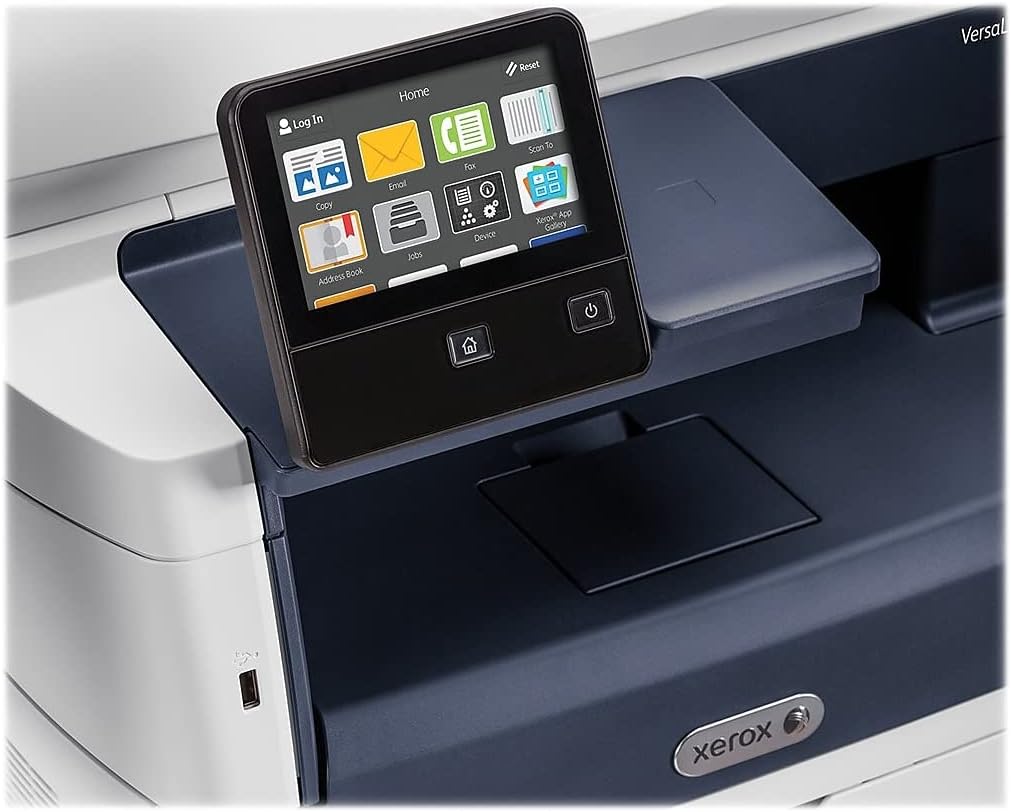
Figure 5.1: The touch-screen control panel for printer operation.
5.1 ڇپائي
To print a document from your computer, select the Xerox VersaLink B405/DN from your printer list. Adjust print settings such as paper size, orientation, and duplex printing (automatic dual-sided printing is supported) as needed. Confirm the print job.
5.2 ڪاپي ڪرڻ
Place your document face-up in the Automatic Document Feeder (ADF) or face-down on the scanner glass. On the control panel, select the 'Copy' function. Adjust settings like number of copies, lightness/darkness, and two-sided copying. Press the 'Start' button to begin copying.

Figure 5.2: Paper loaded in the Automatic Document Feeder for copying or scanning multiple pages.
5.3 اسڪيننگ
Place your document in the ADF or on the scanner glass. On the control panel, select the 'Scan' function. Choose your desired scan destination (e.g., Scan to Email, Scan to Network, Scan to USB). Configure scan settings such as resolution and file format. Press 'Start' to initiate the scan.

Figure 5.3: The scanner lid open, showing the flatbed for scanning single pages or delicate documents.
5.4 فيڪسنگ
Connect the provided fax cord to the printer's fax port and a telephone wall jack. Place your document in the ADF or on the scanner glass. On the control panel, select the 'Fax' function. Enter the recipient's fax number and press 'Start'.
6. سار سنڀال
6.1 ٽونر جي متبادل
When the printer indicates low toner, order a replacement Xerox toner cartridge. Open the front access panel, remove the old cartridge by pulling it out, and insert the new cartridge until it locks into place. Close the panel.
6.2 صفائي
پرنٽر جي ٻاهرين حصي کي باقاعدي طور تي نرم، ڊي سان صاف ڪريو.amp ڪپڙو. اسڪينر شيشي لاءِ، لِنٽ فري ڪپڙو ۽ غير رگڙندڙ شيشي جو صاف ڪندڙ استعمال ڪريو. شيشي تي سڌو سنئون صاف ڪندڙ اسپري ڪرڻ کان پاسو ڪريو.
6.3 صاف ڪرڻ وارا پيپر جام
If a paper jam occurs, the control panel will display instructions. Open the indicated access covers and carefully remove any jammed paper, pulling in the direction of the paper path. Ensure all paper fragments are removed before closing the covers.
7. مسئلا حل ڪرڻ
هي حصو عام مسئلن کي حل ڪري ٿو جيڪي توهان کي منهن ڏئي سگهن ٿا:
- پرنٽر جواب نه ڏئي رهيو آهي: Check power connections, network cable, and ensure the printer is online. Restart both the printer and your computer.
- خراب پرنٽ معيار: Check toner levels. Perform a print quality diagnostic from the printer's control panel or software. Clean the print heads if necessary (refer to the printer's internal menu).
- پيپر جام: Follow the instructions on the control panel to locate and clear the jam. Ensure paper is loaded correctly and not creased or damaged.
- اسڪيننگ جا مسئلا: Verify network connectivity. Ensure the scanner glass and ADF are clean. Check scan settings on the control panel.
For more complex issues, consult the full documentation on the provided CD or the Xerox support webسائيٽ.
8. وضاحتون
| خاصيت | تفصيل |
|---|---|
| پيداوار جي ماپ | 19.5"ڊي x 19.5"ڊي x 21.7"ايڇ |
| شيءِ جو وزن | 48 پائونڊ |
| وڌ ۾ وڌ ميڊيا سائيز | 8.5 x 14 انچ |
| وڌ ۾ وڌ ان پٽ شيٽ جي گنجائش | 2350 ورق |
| وڌ ۾ وڌ ڪارو ۽ اڇو پرنٽ ريزوليوشن | 1200 x 1200 dpi |
| وڌ ۾ وڌ پرنٽ اسپيڊ مونوڪروم | 47 پي پي ايم |
| وڌ ۾ وڌ ڪاپي اسپيڊ (ڪارو ۽ اڇو) | 6.2 seconds (first copy out) |
| ٻٽي طرفي پرنٽنگ | خودڪار |
| ھارڊويئر انٽرفيس | ايٿرنيٽ، يو ايس بي |
| ميموري رکڻ جي صلاحيت | 2 جي بي |
| پروسيسر شمار | 2 |
| پرنٽر انڪ جو قسم | ٽونر |
| اسڪينر جو قسم | Document (ADF and Flatbed) |
9. وارنٽي ۽ سپورٽ
The Xerox VersaLink B405/DN Monochrome Multifunction Printer comes with a standard one-year warranty. For warranty claims, technical support, or service inquiries, please contact Xerox customer support directly. Refer to the official Xerox website or the documentation included with your product for contact details and further support resources.


