1. تعارف
Thank you for choosing the Logitech MK275 Wireless Keyboard and Mouse Set. This combo provides a reliable 2.4 GHz wireless connection, offering convenience and efficiency for your computing needs. The full-size keyboard features quiet, low-profile keys and dedicated multimedia controls, while the compact mouse ensures comfortable and precise navigation. This manual will guide you through the setup, operation, and maintenance of your new wireless set.

Image: The Logitech MK275 Wireless Keyboard and Mouse Set, showcasinٻئي ڊوائيسز.
2. پيڪيج مواد
پڪ ڪريو ته سڀئي شيون توهان جي پيڪيج ۾ موجود آهن:
- Logitech MK275 Wireless Keyboard
- لاگٽيڪ وائرلیس ماؤس
- يو ايس بي نانو رسيور
- استعمال ڪندڙ دستاويز
- AA and AAA Batteries (pre-installed or included)

Image: The USB Nano Receiver, typically found within the product packaging or a dedicated slot.
3. سيٽ اپ گائيڊ
3.1. بيٽري لڳائڻ
The keyboard requires two AAA batteries, and the mouse requires one AA battery. Batteries are typically included with the product. If not already installed, open the battery compartments on the underside of both the keyboard and mouse, insert the batteries according to the polarity indicators (+/-), and close the compartments. Remove any plastic pull tabs if present.
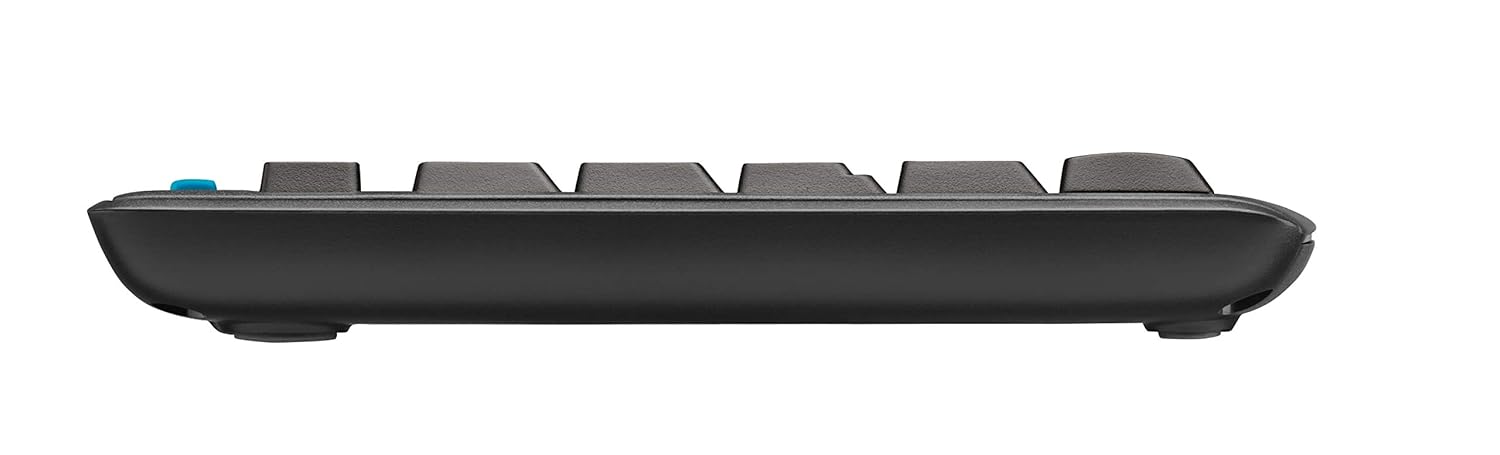
تصوير: سائڊ پروfile of the keyboard, showing its slim design and indicating the location of the battery compartment on the underside.
3.2. وصول ڪندڙ کي ڳنڍڻ
The Logitech MK275 uses a single USB Nano Receiver for both the keyboard and mouse. This allows you to use only one USB port on your computer.
- Locate the USB Nano Receiver. It is small and designed to be left in your computer.
- Plug the USB Nano Receiver into an available USB port on your desktop PC or laptop.
- Turn on the keyboard and mouse using their respective On/Off switches, usually located on the underside of each device.
- Your computer should automatically detect and install the necessary drivers. No software installation is typically required for Windows XP, Vista, Windows 7, and Windows 8.
4. آپريٽنگ هدايتون
4.1. بنيادي استعمال
Once the USB Nano Receiver is connected and the devices are powered on, your keyboard and mouse are ready for immediate use. The 2.4 GHz wireless connection provides a strong and reliable signal, minimizing lag and interference.
4.2. Multimedia and Shortcut Keys
The Logitech MK275 keyboard features 8 convenient multimedia and shortcut keys located above the function keys (F1-F12). These keys provide quick access to frequently used functions:
- گهر: توهان جو ڊفالٽ کوليندو آهي web browser's home page.
- اي ميل: Launches your default email client.
- PC Sleep: Puts your computer into sleep mode.
- خاموش: آڊيو کي ميوٽ يا ان ميوٽ ڪري ٿو.
- حجم ھيٺ آڊيو حجم گھٽائي ٿو.
- حجم مٿي آڊيو حجم وڌائي ٿو.
- راند/روڪ: ميڊيا پلے بیک کي ڪنٽرول ڪري ٿو.
- ڪليڪٽر Opens the calculator application.

Image: The Logitech MK275 keyboard, highlighting the dedicated multimedia and shortcut keys for quick access to common functions.
5. سار سنڀال ۽ سنڀال
To ensure the longevity and optimal performance of your Logitech MK275 set, follow these maintenance guidelines:
- صفائي: نرم، لِنٽ کان خالي ڪپڙو استعمال ڪريو ٿورڙو ڊيampڪيبورڊ ۽ مائوس جي مٿاڇري کي صاف ڪرڻ لاءِ پاڻي يا هلڪي صفائي واري محلول سان صاف ڪريو. سخت ڪيميڪلز يا رگڙيندڙ مواد کان پاسو ڪريو.
- ڦُلڻ جي مزاحمت: The keyboard is designed to be spill-resistant. In case of accidental spills, immediately turn off the keyboard, disconnect it, and allow it to dry completely before reuse. Do not immerse the keyboard in liquid.
- بيٽري جي زندگي: The keyboard offers up to 24 months of battery life, and the mouse up to 12 months. Battery life may vary based on usage. Replace batteries when performance degrades.
- اسٽوريج: When not in use for extended periods, turn off both the keyboard and mouse to conserve battery life. Store the USB Nano Receiver in the dedicated slot within the mouse (if available) or in a safe place to prevent loss.
- ماحول: ڊوائيسز کي انتهائي گرمي پد، سڌي سج جي روشني، يا وڌيڪ نمي جي سامهون آڻڻ کان پاسو ڪريو.
6. مسئلا حل ڪرڻ
If you encounter issues with your Logitech MK275 set, try the following solutions:
- ڪوبه ڪنيڪشن/لئگ ناهي:
- پڪ ڪريو ته USB نانو رسيور محفوظ طور تي ڪم ڪندڙ USB پورٽ ۾ لڳل آهي.
- Verify that both the keyboard and mouse are turned on.
- Replace the batteries in both devices. Low battery can cause connection issues.
- Move the keyboard and mouse closer to the receiver. The effective range is approximately 10 meters (33 feet).
- Try plugging the receiver into a different USB port or a different computer to rule out port issues.
- Avoid placing the receiver near other electrical devices that might cause interference (e.g., cordless phones, Wi-Fi routers).
- چاٻيون جواب نه ڏئي رهيون آهن:
- بيٽري جي سطح چيڪ ڪريو.
- پڪ ڪريو ته ڪيبورڊ چالو آهي.
- If specific keys are not working, check for debris under the keycaps.
- ماؤس ڪرسر ٽپي ٿو يا بي ترتيب آهي:
- مائوس جي هيٺئين پاسي واري آپٽيڪل سينسر کي صاف ڪريو.
- مائوس کي صاف، غير عڪاسي ڪندڙ مٿاڇري تي استعمال ڪريو.
- بيٽري جي سطح چيڪ ڪريو.
7. ٽيڪنيڪل وضاحتون
| خاصيت | تفصيل |
|---|---|
| ماڊل | MK275 |
| رابطي | 2.4 GHz Wireless (USB Nano Receiver) |
| وائرلیس رينج | 10 ميٽر (33 فوٽ) تائين |
| ڪي بورڊ جي بيٽري جي زندگي | 24 مهينن تائين |
| مائوس جي بيٽري جي زندگي | 12 مهينن تائين |
| ڪي بورڊ بيٽري جو قسم | 2 x AAA (Alkaline) |
| مائوس جي بيٽري جو قسم | 1 x AA (Alkaline) |
| مطابقت رکندڙ آپريٽنگ سسٽم | Windows XP, Windows Vista, Windows 7, Windows 8, Windows 10, Windows 11 |
| ڪي بورڊ جي ماپ (LxWxH) | لڳ ڀڳ. 50 X 15.6 x 4.4 سينٽ |
| شيءِ جو وزن | لڳ ڀڳ. 726 جي |
| رنگ | ڪارو |
8. وارنٽي ۽ سپورٽ
Logitech products are manufactured to the highest quality standards. For detailed warranty information and technical support, please visit the official Logitech webسائيٽ:
تي website, you can find product registration, FAQs, driver downloads, and contact information for customer service.


