تعارف
Thank you for choosing the 360 Robot Vacuum and Mop Cleaner. This intelligent cleaning device is designed to provide efficient and thorough cleaning for your home, featuring advanced laser navigation, powerful suction, and smart app control. This manual will guide you through the setup, operation, and maintenance of your new robot vacuum to ensure optimal performance and longevity.

The 360 Robot Vacuum and Mop Cleaner, Model S6, shown with its companion mobile application interface.
حفاظت جي ڄاڻ
- اوزار استعمال ڪرڻ کان پهريان سڀ هدايتون احتياط سان پڙهو.
- ٻارن کي روبوٽ ويڪيوم هلائڻ جي اجازت نه ڏيو. جڏهن روبوٽ ڪم ڪري رهيو هجي ته ٻارن ۽ پالتو جانورن جي نگراني ڪريو.
- Ensure the charging dock is placed on a flat surface against a wall, with clear space around it.
- Do not use the robot vacuum in wet environments or near liquids.
- صفائي ڪرڻ کان اڳ فرش تان ڪنهن به ڍڪيل ڪيبل، ننڍيون شيون، يا نازڪ شيون هٽايو ته جيئن ڦاسي يا نقصان کان بچي سگهجي.
- Do not use the robot vacuum to pick up large debris, sharp objects, or burning/smoking materials.
- Only use the original charger and battery provided by the manufacturer.
- محفوظ ۽ ڪارآمد آپريشن کي يقيني بڻائڻ لاءِ هن دستور ۾ بيان ڪيل باقاعده سار سنڀال ڪريو.
پيڪيج مواد
پڪ ڪريو ته سڀئي جزا پيڪيج ۾ موجود آهن:
- 360 Robot Vacuum and Mop Cleaner (S6)
- چارجنگ ڊاک
- پاور اڊاپٽر
- پاڻي جي ٽانڪي
- ماپي ڪپڙو
- پاسي وارا برش (2 جوڙا)
- صفائي جو اوزار
- استعمال ڪندڙ دستي
- بيٽري (اڳ ۾ نصب ٿيل)
- فلٽر (اڳ ۾ نصب ٿيل)
پيداوار ختمview
Familiarize yourself with the main components of your 360 Robot Vacuum and Mop Cleaner.

مٿانview of the robot vacuum's intelligent features including anti-collision, anti-drop sensors, long-lasting battery, LDS laser navigation, and SLAM algorithm for mapping.
مٿو View:
- LDS Laser Navigation Sensor: For accurate mapping and navigation.
- پاور/صاف بٽڻ: Press to start/pause cleaning, long press to turn on/off.
- Recharge Button: روبوٽ کي چارجنگ ڊاک ڏانهن واپس موڪلڻ لاءِ دٻايو.
- Dustbin Compartment: Located under the top cover.
هيٺيون View:
- مکيه برش: For deep cleaning carpets and hard floors.
- پاسي وارا برش: To sweep debris from edges and corners.
- ڊرائيونگ ويلز: مختلف سطحن تي حرڪت لاءِ.
- Omni-directional Wheel: For steering.
- رابطا چارج ڪرڻ: To connect with the charging dock.
- ڪلف سينسر: ڏاڪڻين کان هيٺ ڪرڻ کان بچڻ لاءِ.
- ڀت سينسر: To sweep along walls and corners effectively.
سيٽ اپ ڪريو
1. Charging the Robot Vacuum
- Place the charging dock on a hard, level surface against a wall. Ensure there is at least 0.5 meters (1.6 feet) of clear space on both sides and 1.5 meters (4.9 feet) in front of the dock.
- Connect the power adapter to the charging dock and plug the other end into a power outlet.
- Place the robot vacuum onto the charging dock, ensuring the charging contacts align. The robot will announce that it is charging. For first use, fully charge the robot before operation.
2. Connecting to the 360 Robot App
- Download the "360 Robot" app from the App Store (iOS) or Google Play Store (Android).
- ايپ کوليو ۽ اڪائونٽ ٺاهيو يا لاگ ان ٿيو.
- Follow the in-app instructions to add your device. This typically involves selecting your robot model, connecting to its Wi-Fi hotspot, and then connecting the robot to your home Wi-Fi network (2.4GHz only).
- هڪ ڀيرو ڳنڍيل، توهان روبوٽ کي ڪنٽرول ڪري سگهو ٿا، view cleaning maps, set schedules, and access advanced features through the app.
آپريٽنگ
حصو 1 صفائي جو چڪر شروع ڪريو
- روبوٽ بٽڻ ذريعي: Press the Power/Clean button on the robot once to start a cleaning cycle. Press again to pause.
- ايپ ذريعي: Open the 360 Robot app and tap the "Clean" button. You can also select specific cleaning modes (e.g., Spot cleaning, Proximity cleaning) or set schedules.
- Via Voice Command (Alexa): If integrated with Alexa, you can use voice commands like "Alexa, ask 360 Robot to start cleaning."
صفائي جا طريقا

The robot vacuum is capable of both sweeping (vacuuming) and mopping, utilizing its main brush, side brushes, and mop cloth.
- خودڪار صفائي: The robot intelligently maps your home and cleans systematically. It identifies carpet and automatically switches to Max Mode with 1800Pa suction power for deep cleaning.
- جھ جي صفائي: روبوٽ کي هدايت ڪري ٿو ته هڪ مخصوص ننڍڙي علائقي کي شدت سان صاف ڪري.
- Proximity Cleaning: Cleans a designated area around the robot.
- صفائي جو طريقو: پاڻي جي ٽانڪي کي اشتهار سان ڳنڍيوamp mop cloth. The robot will mop hard floors. Note: The mopping function is designed for light mopping and not for heavy stains.
ترقي يافته ايپ خاصيتون
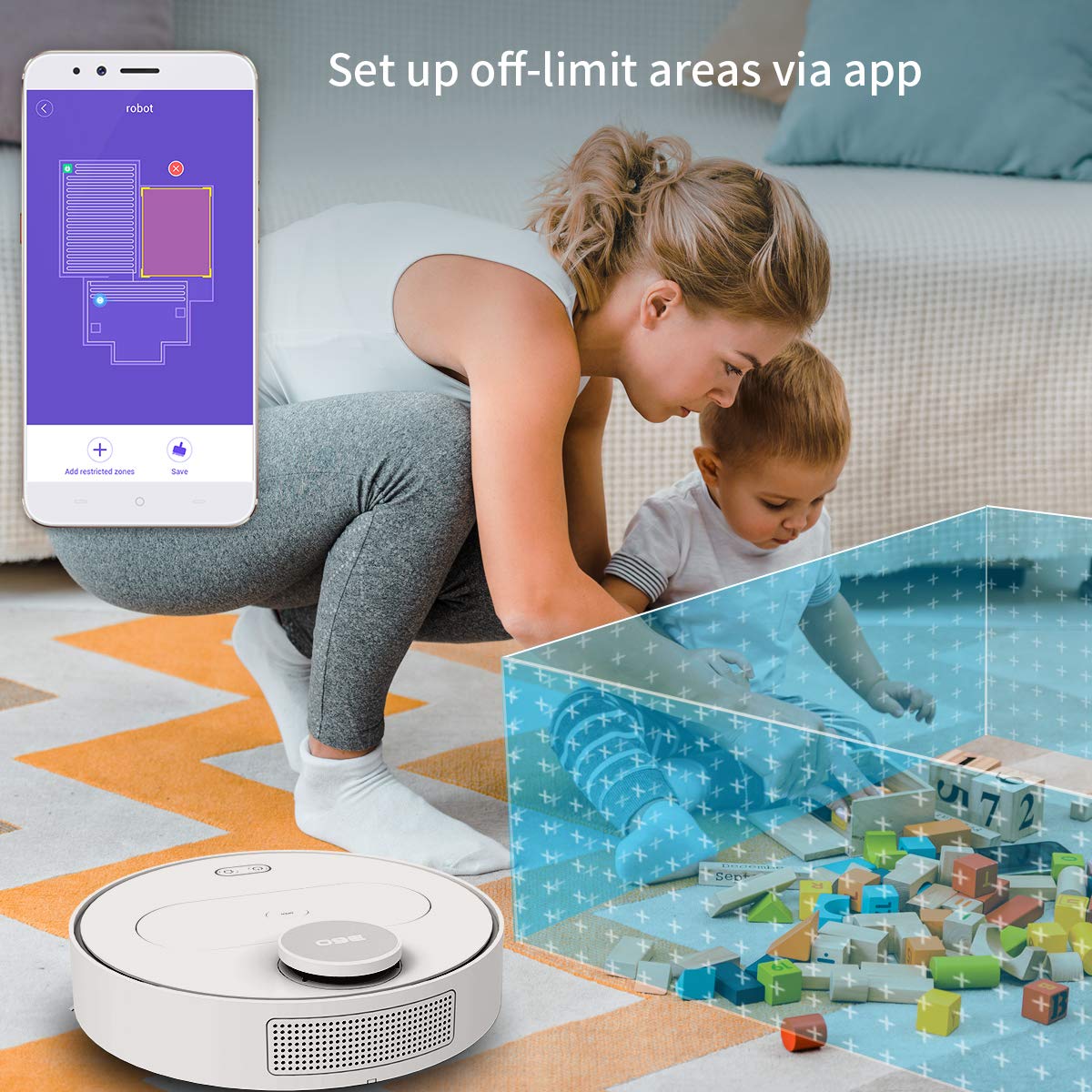
The 360 Robot app allows users to define and set up off-limit areas on the cleaning map, preventing the robot from entering specific zones.
- Multi-map Management: Save and manage multiple floor plans for different levels of your home.
- Off-limit Area: Draw virtual boundaries or no-go zones on the map to prevent the robot from entering specific areas.
- شيڊيولنگ: روبوٽ لاءِ مخصوص وقت مقرر ڪريو ته جيئن هو پاڻمرادو صفائي شروع ڪري سگهي.
- ريموٽ ڪنٽرول: Manually control the robot's movement using the app.
- ٽريڪ جي صفائي: Monitor the robot's real-time cleaning path and progress on the map.
- سکشن جي سطح: Adjust suction power (Quiet, Normal, Powerful, Max) according to your cleaning needs.
Automatic Recharge and Breakpoint Resume
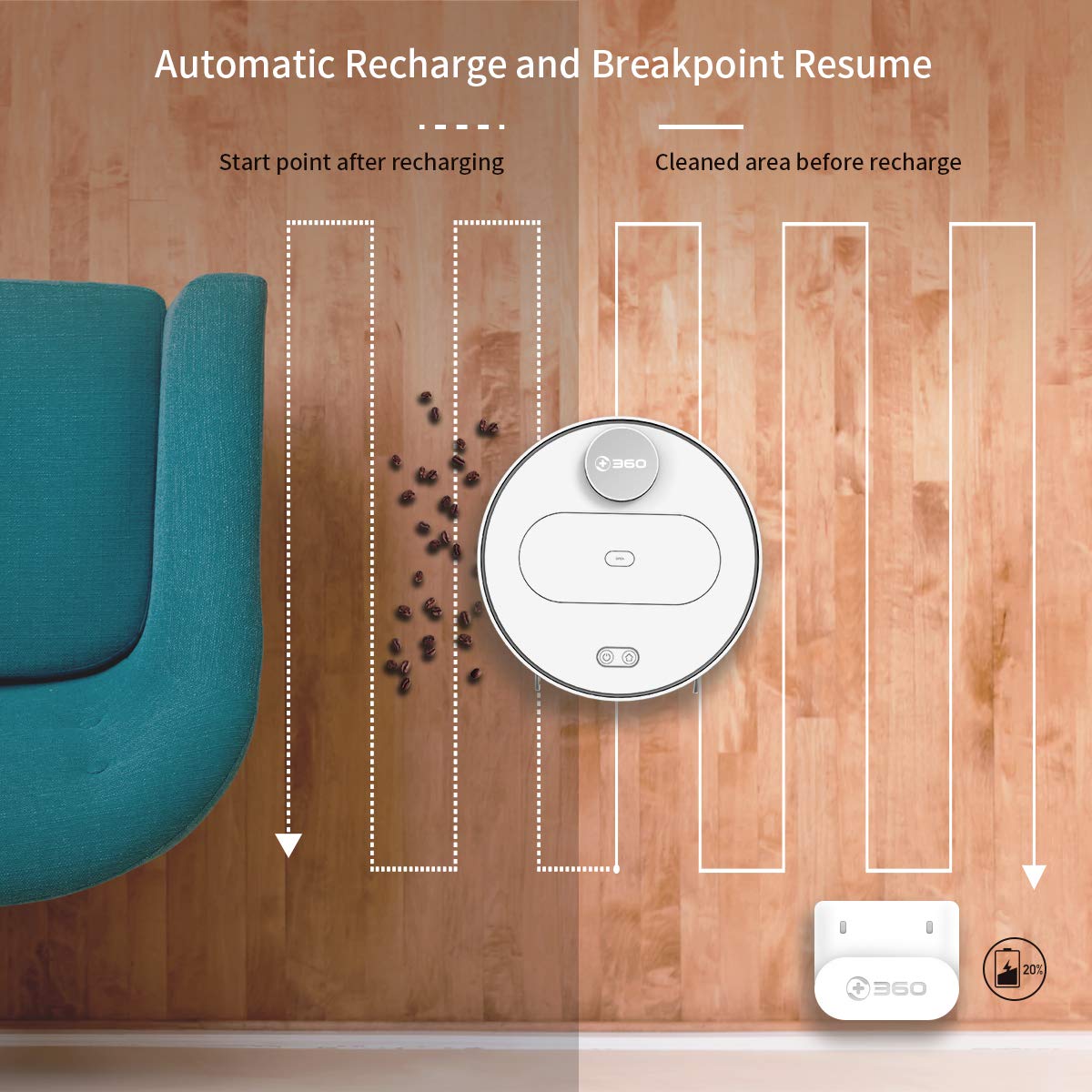
The robot automatically returns to its charging dock when the battery is low and resumes cleaning from the last uncleaned spot after recharging.
When the battery level is low during a cleaning cycle, the robot will automatically return to its charging dock. Once fully recharged, it will resume cleaning from where it left off, ensuring complete coverage of your home.
سار سنڀال
توهان جي روبوٽ ويڪيوم جي بهترين ڪارڪردگي ۽ ڊگهي عمر لاءِ باقاعده سار سنڀال تمام ضروري آهي.
1. ڪچري جي دٻي کي خالي ڪرڻ
- روبوٽ جي مٿين ڍڪ کي کوليو ۽ ڪچري کي هٽايو.
- ڪچري جي دٻي جو ڍڪ کوليو ۽ ان جي مواد کي ڪچري جي دٻي ۾ خالي ڪريو.
- It is recommended to empty the dustbin after each cleaning cycle.
2. فلٽر کي صاف ڪرڻ

The 360 Robot Vacuum features a washable HEPA filter, which helps maintain high filtration efficiency and contributes to cleaner indoor air.
- ڪچري جي دٻي مان فلٽر ڪڍو.
- Tap the filter gently to remove loose dirt.
- Rinse the filter under running water. Ensure it is completely dry before reinserting it into the dustbin. Do not use a brush or other tools to clean the filter, as this may damage it.
- It is recommended to clean the filter weekly and replace it every 3-6 months, depending on usage.
3. صفائي برش
- مکيه برش: Remove the main brush cover and then the main brush. Use the provided cleaning tool to remove hair and debris tangled around the brush. Reinstall the brush and cover. Clean weekly.
- پاسي وارا برش: Check side brushes for tangled hair or debris. If necessary, remove them (they can be pulled off) and clean. Reinstall, ensuring they click into place. Replace if worn or damaged. Clean monthly.
4. سينسر ۽ چارجنگ رابطن جي صفائي
- Wipe the cliff sensors (on the bottom of the robot), wall sensor (on the side), and charging contacts (on the robot and charging dock) with a clean, dry cloth. This ensures proper navigation and charging. Clean monthly.
5. Water Tank and Mop Cloth Maintenance
- صفائي ڪرڻ کان پوءِ، پاڻي جي ٽانڪي کي هٽايو ۽ باقي پاڻي خالي ڪريو.
- Remove the mop cloth and wash it thoroughly. Allow it to air dry completely before reattaching or storing.
- Do not leave water in the tank when the robot is not in use for extended periods.
مشڪلاتون
| مسئلو | ممڪن سبب | حل |
|---|---|---|
| روبوٽ نه ٿو ڦري. | بيٽري گهٽ يا ختم ٿي وئي آهي. | Place the robot on the charging dock and ensure it is charging. |
| روبوٽ وائي فائي سان ڳنڍي نٿو سگهي. | غلط وائي فائي پاسورڊ؛ 5GHz نيٽ ورڪ؛ روبوٽ روٽر کان تمام پري آهي. | Ensure correct 2.4GHz Wi-Fi password. Move robot closer to router. Restart robot and router. |
| روبوٽ اڪثر ڦاسي پوندو آهي. | Obstacles on the floor; narrow spaces. | Clear obstacles. Use the app to set off-limit areas for problematic zones. |
| خراب صفائي جي ڪارڪردگي. | ڪچري جو دٻو ڀريل؛ فلٽر بند؛ برش الجھيل. | ڪچري جي دٻي کي خالي ڪريو. فلٽر صاف ڪريو يا تبديل ڪريو. مکيه ۽ پاسي وارا برش صاف ڪريو. |
| روبوٽ چارجنگ ڊاک ڏانهن واپس نه ٿو اچي. | Charging dock obstructed; charging contacts dirty. | Ensure clear space around the dock. Clean charging contacts on both robot and dock. |
وضاحتون
| خاصيت | تفصيل |
|---|---|
| برانڊ | 360 |
| ماڊل نالو | S6 |
| خاص خاصيتون | Anti-Collision, Anti-Fall, Washable Filter |
| رنگ | گهڻ رنگ |
| فلٽر جو قسم | ڪپڙو |
| بيٽري جي زندگي | 110 منٽ |
| طاقت جو ذريعو | بيٽري سان هلندڙ |
| ڪنٽرول جو طريقو | ايپ |
| مطابقت رکندڙ ڊوائيسز | Alexa |
| شيءِ جو وزن | 3 ڪلو 490 گرام |
| شيون طول و عرض (LxWxH) | 35 x 35 x 10 سينٽي ميٽر |
وارنٽي ۽ سپورٽ
For warranty information and technical support, please refer to the warranty card included in your product packaging or visit the official 360 SmartAI website. You can also contact customer service through the 360 Robot app for assistance.
اضافي وسيلن ۽ اڪثر پڇيا ويندڙ سوالن لاءِ، مهرباني ڪري دورو ڪريو 360 Store on Amazon.


