1. پراڊڪٽ ختمview
The Elecom M-FBL01DBXSBK is a 5-button wireless mouse designed for comfortable and quiet operation. It features a Blue LED sensor for versatile surface compatibility and a compact USB receiver.

Image 1.1: Elecom M-FBL01DBXSBK Wireless Mouse with its compact USB receiver.
2. پيڪيج مواد
- Elecom M-FBL01DBXSBK Wireless Mouse
- USB وائرليس وصول ڪندڙ
- AA Alkaline Battery (for operation confirmation)
- استعمال ڪندڙ جو دستياب (ھي دستاويز)
3. سيٽ اپ جون هدايتون
3.1. بيٽري لڳائڻ
- مائوس جي هيٺئين پاسي بيٽري جي ڪمپارٽمينٽ ڪَوَر کي ڳوليو.
- ڪمپارٽمينٽ کولڻ لاءِ ڍڪ کي سلائڊ ڪريو يا مٿي کڻو.
- Insert one AA alkaline battery, ensuring the positive (+) and negative (-) terminals align correctly with the markings inside the compartment.
- بيٽري جي ڪمري واري ڍڪ کي محفوظ طور تي بند ڪريو.

Image 3.1: The underside of the mouse, indicating the battery compartment and power switch.
3.2. USB رسيور کي ڳنڍڻ
- Remove the compact USB receiver from its storage slot on the underside of the mouse.
- USB رسيور کي پنهنجي ڪمپيوٽر تي موجود USB-A پورٽ ۾ لڳايو.
- توهان جي ڪمپيوٽر کي خودڪار طريقي سان ضروري ڊرائيور ڳولڻ ۽ انسٽال ڪرڻ گهرجي. ان ۾ ڪجهه لمحا لڳي سگهن ٿا.
3.3. مائوس کي آن ڪرڻ
After installing the battery and connecting the receiver, locate the power switch on the underside of the mouse and slide it to the 'ON' position. The mouse is now ready for use.
3.4. OS Compatibility
The Elecom M-FBL01DBXSBK Wireless Mouse is compatible with:
- Windows 11, Windows 10, Windows RT8.1, Windows 8.1, Windows 7, Windows Vista
- macOS هاء سيرا 10.13 ۽ بعد ۾
Ensure your operating system is updated to the latest version and any service packs are installed for optimal performance.
4. مائوس هلائڻ
4.1. بنيادي ڪم
The mouse features five buttons and a scroll wheel:
- کاٻي بٽڻ: پرائمري ڪلڪ فنڪشن.
- ساڄي بٽڻ: ثانوي ڪلڪ فنڪشن (حوالو مينيو).
- اسڪرول ويل: دستاويزن کي اسڪرول ڪري ٿو ۽ web pages vertically. Can also be pressed for a middle-click function.
- فارورڊ بٽڻ: اڳتي نيويگيٽ ڪري ٿو web برائوزر يا file ڳولا ڪندڙ
- پوئتي بٽڻ: پوئتي نيويگيٽ ڪري ٿو web برائوزر يا file ڳولا ڪندڙ

Image 4.1: The five buttons of the Elecom M-FBL01DBXSBK mouse, including the scroll wheel.
4.2. Quiet Click Feature
All five buttons incorporate a silent switch mechanism, significantly reducing clicking noise. This allows for quiet operation in various environments.

Image 4.2: The silent switch design minimizes operational noise.
4.3. Blue LED Sensor
The mouse is equipped with a Blue LED optical sensor, which provides accurate tracking on a variety of surfaces, including those with slight unevenness or dust. This enhances usability in diverse settings.

Image 4.3: The Blue LED sensor allows for comfortable use on various surfaces.
4.4. وائرليس ڪنيڪشن
The mouse utilizes a 2.4 GHz wireless band for stable communication. The effective radio distance is approximately 3 meters (9.8 feet) on magnetic surfaces (e.g., steel desks) and up to 10 meters (32.8 feet) on non-magnetic surfaces (e.g., wooden desks).
4.5. بيٽري جو اشارو
An integrated battery indicator light notifies you when the battery level is low, signaling that a replacement is needed.
4.6. Elecom Mouse Assistant Software
Button functions can be customized using the free downloadable Elecom Mouse Assistant software. This allows users to reassign functions to the mouse buttons for improved workflow efficiency.
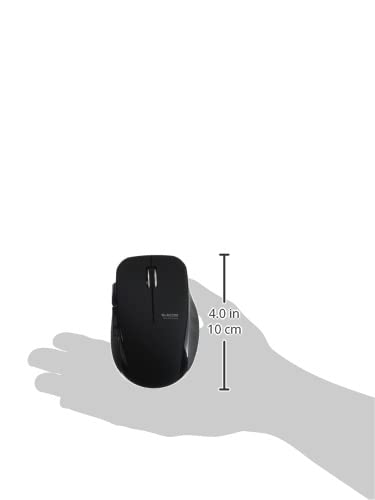
Image 4.4: The Elecom Mouse Assistant software enables button customization.
5. سار سنڀال
5.1. بيٽري مٽائڻ
When the battery indicator signals low power, replace the AA battery with a new AA alkaline, manganese, or NiMH battery. Follow the battery installation steps outlined in Section 3.1.
5.2. صفائي
To clean the mouse, gently wipe its surface with a soft, dry cloth. Avoid using harsh chemicals or abrasive materials, as these can damage the finish. Ensure no liquid enters the mouse.
5.3. Receiver Storage
The USB receiver can be stored inside the mouse body when not in use or during transport. This helps prevent loss of the receiver.
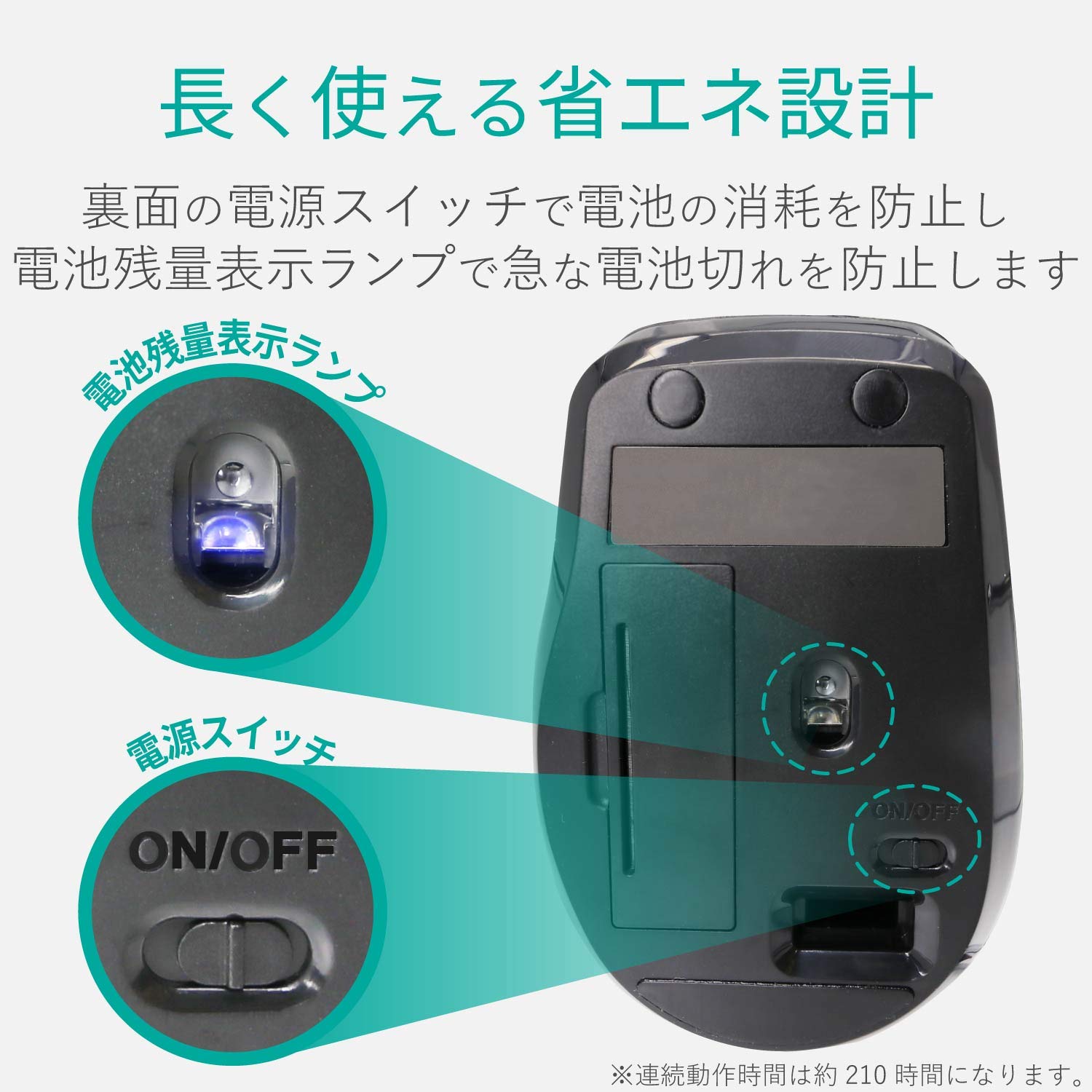
Image 5.1: The compact receiver can be stored within the mouse for convenience.
6. مسئلا حل ڪرڻ
- مائوس جواب نه ڏئي رهيو آهي:
- Check if the mouse is powered on (power switch on the underside).
- پڪ ڪريو ته بيٽري صحيح طرح سان نصب ٿيل آهي ۽ ختم نه ٿي آهي. جيڪڏهن ضروري هجي ته تبديل ڪريو.
- پڪ ڪريو ته USB رسيور توهان جي ڪمپيوٽر تي ڪم ڪندڙ USB پورٽ ۾ محفوظ طور تي پلگ ان ٿيل آهي. هڪ مختلف USB پورٽ آزمايو.
- پنهنجي ڪمپيوٽر کي ٻيهر شروع ڪريو.
- ڪرسر جي بي ترتيب حرڪت:
- Clean the optical sensor area on the underside of the mouse.
- پڪ ڪريو ته توهان مائوس کي مناسب مٿاڇري تي استعمال ڪري رهيا آهيو. تمام گهڻي عڪاسي ڪندڙ يا شفاف سطحن کان پاسو ڪريو.
- ٻين وائرليس ڊوائيسز کان مداخلت جي جانچ ڪريو. مائوس کي رسيور جي ويجهو منتقل ڪريو.
- Buttons not functioning correctly:
- If using Elecom Mouse Assistant, ensure button assignments are correct.
- Reinstall the Elecom Mouse Assistant software if issues persist.
7. وضاحتون
| انٽرفيس | USB |
| ڪنيڪٽر جي شڪل | USB-A مرد |
| مطابقت رکندڙ OS | Windows 11, 10, RT8.1, 8.1, 7, Vista; macOS High Sierra 10.13+ |
| قرارداد | 1600 شمار |
| رابطي جو طريقو | GFSK جو طريقو |
| ريڊيو فريڪوئنسي | 2.4GHz بينڊ |
| Radio Distance | Magnetic objects: 3m (9.8 ft); Non-magnetic objects: 10m (32.8 ft) |
| پڙهڻ جو طريقو | آپٽيڪل سينسر سسٽم (بليو ايل اي ڊي) |
| بٽڻ جو تعداد | 5 (including wheel button) |
| ويلز جو تعداد | 1 |
| وصول ڪندڙ اسٽوريج | ها |
| مسلسل آپريٽنگ وقت | لڳ ڀڳ. 210 ڪلاڪ |
| اسٽينڊ بائي ٽائيم | لڳ ڀڳ. 1666 ڏينهن |
| Estimated Battery Usage Time | لڳ ڀڳ. 478 ڏينهن |
| بجلي جي فراهمي (مکيه يونٽ) | 1 AA alkaline, manganese, or NiMH battery |
| درجه بندي Voltage (Body) | 1.5V |
| رنگ | ڪارو |
| Weight (Mouse) | تقريبن 62 گرام (بيٽري کان سواءِ) |
| External Dimensions (Receiver) | 14.5 x 18.0 x 6.3 ملي ميٽر |
| Weight (Receiver) | لڳ ڀڳ. 2 گرام |
8. وارنٽي ۽ سپورٽ
8.1. وارنٽي جو مدو
هي پراڊڪٽ خريداري جي تاريخ کان 6 مهينن جي وارنٽي سان گڏ اچي ٿو.
8.2. Product Inquiries
For product inquiries or technical support, please contact the Elecom General Information Center:
- ٽيليفون: 0570-084-465
- فيڪس: 0570-050-012
- Reception Time: 10:00 - 19:00 (24/7)


