1. تعارف ۽ اوورview
جي ViewSonic ELITE XG270 is a 27-inch gaming monitor engineered for eSports enthusiasts, delivering exceptional speed and visual clarity. This monitor features an IPS display with an ultra-fast 1ms (GtG) response time and a 240Hz refresh rate, ensuring smooth screen transitions and responsive gameplay. It offers accurate color reproduction and wide viewing angles, making it suitable for competitive gaming and general use. The panel supports Full HD (1920x1080) resolution with 99% sRGB color coverage and is NVIDIA G-SYNC Compatible, which helps eliminate screen tearing and stuttering for a seamless gaming experience. Advanced ergonomic features and ELITE Design Enhancements are integrated for user comfort and a premium setup.

تصوير: ViewSonic ELITE XG270 highlighting key performance features.
2. دٻي ۾ ڇا آهي
توهان جي انباڪسنگ تي ViewSonic ELITE XG270 monitor, please ensure all the following items are present:
- LCD مانيٽر (ViewSonic ELITE XG270)
- ELITE Hood (Sight Shields)
- پاور ڪيبل
- AC/DC اڊاپٽر
- ڊسپلي پورٽ ڪيبل
- USB 3.1 ڪيبل
- تڪڙو شروع ھدايت
Video: Unboxing the ViewSonic ELITE XG270 27" Gaming Monitor. This video demonstrates the contents of the product packaging and initial setup steps.
3. سيٽ اپ ۽ اسيمبلي
جي ViewSonic ELITE XG270 monitor is designed for easy, tool-less assembly. The stand column is pre-mounted to the monitor head, requiring only the base to be attached.
- اسٽينڊ بيس ڳنڍيو: Carefully place the monitor face down on a soft, clean surface. Align the stand base with the bottom of the pre-attached stand column and secure it using the captive thumbscrew. Tighten until firm.
- مانيٽر کي پوزيشن ڏيو: Gently lift the assembled monitor and place it upright on your desk.
- ڪيبل ڳنڍڻ: Connect the DisplayPort cable from your computer to the monitor for optimal performance, especially for 240Hz refresh rate and G-SYNC. Connect the USB 3.1 cable from your computer to the monitor to enable the integrated USB hub. Finally, connect the AC/DC adapter and power cable to the monitor and a power outlet.
Ergonomic ترتيبون
The monitor's advanced ergonomic stand allows for various adjustments to optimize your viewآرام ڪرڻ:
- اونچائي جي ترتيب: پنهنجي گهربل حاصل ڪرڻ لاءِ مانيٽر کي نرميءَ سان مٿي يا هيٺ دٻايو يا ڇڪيو. viewاونچائي.
- گھمڻ: Rotate the monitor left or right on its base to adjust the horizontal viewزاويه.
- محور: لينڊ اسڪيپ ۽ پورٽريٽ اورينٽيشن جي وچ ۾ سوئچ ڪرڻ لاءِ مانيٽر کي 90 درجا گھمايو.
- جھلڻ: Tilt the screen forwards or backwards to find the most comfortable vertical viewزاويه.

Image: Ergonomic adjustments of the ViewSonic ELITE XG270 monitor.
4. ڪنيڪشن
The XG270 offers flexible connectivity options to support various devices, including laptops, PCs, Macs, PlayStation, and Xbox consoles.
- ڊسپلي پورٽ: Recommended for achieving the full 240Hz refresh rate and enabling NVIDIA G-SYNC Compatible technology.
- HDMI: Supports high refresh rates, suitable for gaming consoles and other HDMI-enabled devices.
- USB 3.1: Connect the monitor to your computer via the USB 3.1 upstream cable to activate the integrated USB hub, allowing you to connect peripherals like keyboards and mice directly to the monitor.
- آڊيو آئوٽ: هيڊفونز يا ٻاهرين اسپيڪرن کي ڳنڍڻ لاءِ 3.5 ايم ايم آڊيو جيڪ موجود آهي.

تصوير: پوئين پاسي view of ViewSonic ELITE XG270 connectivity ports.
5. اهم خاصيتون
Display & Performance
- 240Hz ريفريش ريٽ ۽ 1ms (GtG) جوابي وقت: Experience ultra-smooth gameplay with minimal input lag, crucial for competitive eSports.
- NVIDIA G-SYNC مطابقت رکندڙ: اسڪرين جي ڦاٽڻ ۽ هٻڪڻ کي ختم ڪرڻ لاءِ مانيٽر جي ريفريش ريٽ کي توهان جي GPU جي فريم ريٽ سان هم وقت سازي ڪري ٿو.
- PureXP Blur Reduction: Tuned by Blur Busters, this technology utilizes backlight strobing to drastically improve motion image clarity in fast-moving scenes.
- IPS Panel with 99% sRGB: متحرڪ رنگن ۽ وسيع مان لطف اندوز ٿيو viewing angles without compromising on speed.
- HDR10 سپورٽ: Delivers enhanced contrast and color depth for a more immersive visual experience.

Image: Visual representation of 1ms (GtG) response time.
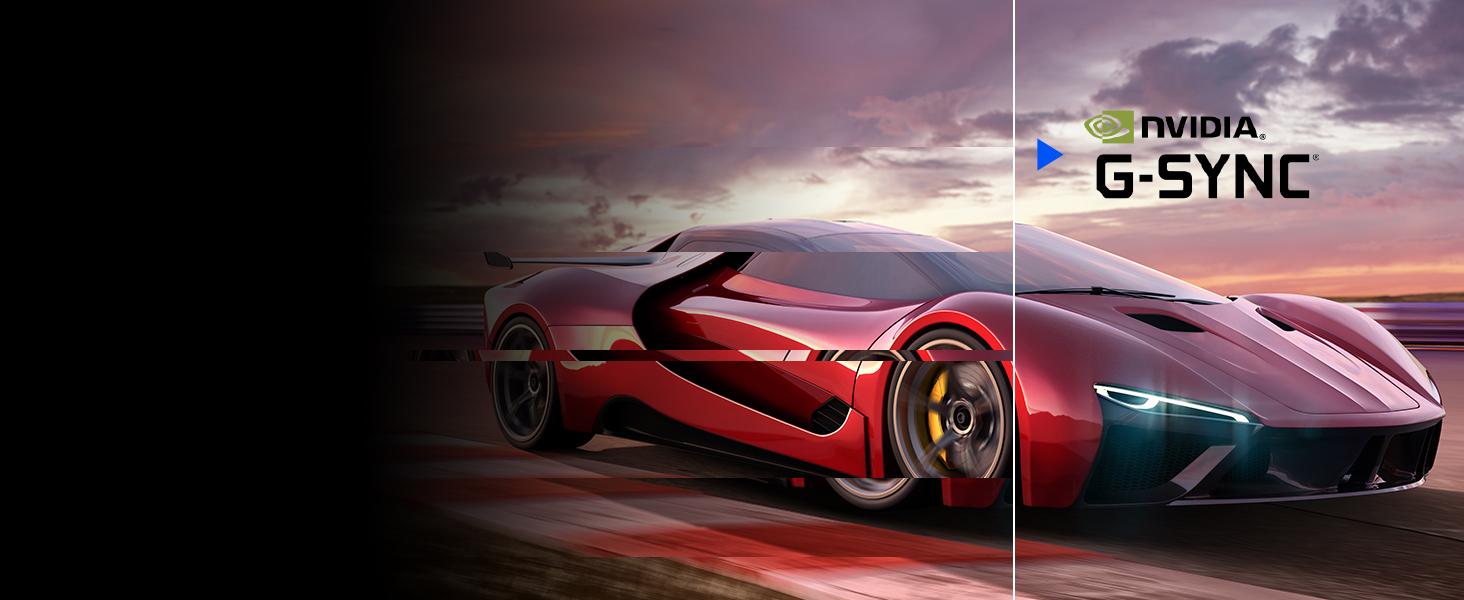
Image: Visual representation of NVIDIA G-SYNC Compatible technology.
ELITE Design Enhancements
- Built-in Mouse Bungee: Helps manage your mouse cable, preventing tangles and drag for unrestricted movement.
- Reinforced Headphone Hook: Conveniently store your gaming headset within easy reach.
- ELITE RGB Ambient Lighting: Customizable RGB lighting on the back of the monitor adds aesthetic flair to your gaming setup.
- Sight Shields (ELITE Hood): Attachable side panels reduce glare and distractions, enhancing focus during competitive play.

تصوير: پوئين پاسي view of the monitor with ELITE RGB Lighting System.

Image: Headphone hook and mouse bungee on the ViewSonic ELITE XG270.
وڊيو: ختمview جو ViewSonic ELITE XG270 G-Sync Monitor, highlighting its design and features.
6. آپريٽنگ هدايتون
پاور آن / آف
To power on the monitor, press the power button located on the bottom right side of the monitor. To power off, press and hold the power button until the screen turns off.
آن-اسڪرين ڊسپلي (OSD) مينيو
The OSD menu allows you to adjust various monitor settings. Use the joystick or buttons (depending on model variation) located on the back or bottom of the monitor to navigate the menu. Common settings include:
- تصوير: Adjust brightness, contrast, color temperature, and gamma.
- ان پٽ چونڊيو: دستي طور تي DisplayPort ۽ HDMI ان پٽ جي وچ ۾ سوئچ ڪريو.
- آڊيو: حجم کي ترتيب ڏيو يا گونگا.
- راند: Configure refresh rate, response time overdrive, G-SYNC settings, and other gaming-specific features like Black Stabilization.
- سيٽنگ مينيو: Access general settings like OSD language, OSD timeout, and factory reset.
7. سار سنڀال
مناسب سار سنڀال توهان جي مانيٽر جي ڊگهي عمر ۽ بهترين ڪارڪردگي کي يقيني بڻائي ٿي.
- اسڪرين جي صفائي: نرم، لِنٽ فري ڪپڙي سان اسڪرين کي نرميءَ سان صاف ڪريو. ضدي داغن لاءِ، هلڪو ڊيampen the cloth with water or a specialized screen cleaner. Avoid using alcohol, ammonia, or abrasive cleaners.
- سي جي صفائيasing: مانيٽر جي سي کي صاف ڪرڻ لاءِ نرم، سڪل ڪپڙو استعمال ڪريوasing.
- وينٽيليشن: پڪ ڪريو ته مانيٽر جي وينٽيليشن جا سوراخ بند نه آهن ته جيئن وڌيڪ گرم ٿيڻ کان بچي سگهجي.
- پاور آف جڏهن استعمال ۾ نه هجي: جڏهن مانيٽر ڊگهي عرصي تائين استعمال ۾ نه هجي ته توانائي بچائڻ ۽ ان جي عمر وڌائڻ لاءِ ان کي بند ڪريو.
8. مسئلا حل ڪرڻ
جيڪڏهن توهان کي پنهنجي سان مسئلا درپيش اچن ٿا ViewSonic ELITE XG270 monitor, try the following basic troubleshooting steps:
- طاقت ناهي: Ensure the power cable and AC/DC adapter are securely connected to both the monitor and a working power outlet. Check if the power button is pressed.
- ڪوبه سگنل/ڪاري اسڪرين ناهي: Verify that the DisplayPort or HDMI cable is securely connected to both the monitor and your computer/device. Ensure the correct input source is selected in the OSD menu.
- Image Issues (Blurry, Flickering, Incorrect Colors): Check the cable connections. Adjust picture settings in the OSD menu. Ensure your graphics card drivers are up to date. For G-SYNC related issues, confirm it's enabled in both the monitor OSD and NVIDIA Control Panel.
- USB بندرگاهن ڪم نه ڪري رهيا آهن: Ensure the USB 3.1 upstream cable is connected from the monitor to your computer.
For more detailed troubleshooting or persistent issues, please refer to the full user manual available on the Viewسونڪ webسائيٽ يا رابطو Viewسونڪ ڪسٽمر سپورٽ.
9. وضاحتون
| خاصيت | تفصيل |
|---|---|
| ماڊل نمبر | XG270 |
| اسڪرين جي ماپ | 27 انچ |
| پينل جو قسم | آئي پي ايس |
| قرارداد | 1920x1080 (مڪمل HD) |
| ريفريش جي شرح | 240Hz |
| جوابي وقت | 1ms (GtG) |
| جي-سي اين سي مطابقت | NVIDIA G-SYNC مطابقت رکندڙ |
| رنگ گامٽ | 99٪ sRGB |
| HDR سپورٽ | HDR10 |
| رابطي | HDMI, DisplayPort, USB 3.0 (4 ports) |
| ايرگونومڪس | Height, Swivel, Pivot, Tilt Adjustable |
| وزن | 17.38 پائونڊ |
| طول و عرض (LxWxH) | 18.06 x 24.2 x 2.7 انچ |
10. وارنٽي ۽ سپورٽ
تنهنجو ViewSonic ELITE XG270 monitor comes with a manufacturer's warranty. For specific warranty terms and conditions, please refer to the warranty card included in your product packaging or visit the official Viewسونڪ webسائيٽ.
ٽيڪنيڪل سپورٽ، ڊرائيور ڊائون لوڊ، يا اضافي پراڊڪٽ جي معلومات لاءِ، مھرباني ڪري دورو ڪريو ViewSonic support page or contact their customer service directly. Keep your product's serial number handy when seeking support.