تعارف
This manual provides comprehensive instructions for the setup, operation, maintenance, and troubleshooting of your Kensington Pro Fit Ergonomic Wireless Keyboard and Mouse (Model K75407US). This ergonomist-approved combo is designed to enhance comfort and productivity with its split and sloped keyboard, adjustable reverse tilt, and built-in wrist rest. The dual wireless connectivity offers flexibility via 2.4 GHz and Bluetooth 4.0 LE, secured with 128-bit AES encryption. Both the keyboard and mouse feature quiet, spill-proof keys for a smooth and non-disruptive user experience.

هڪ اوور هيڊ view of the Kensington Pro Fit Ergonomic Wireless Keyboard and Mouse, showcasing their ergonomic design and grey color.
سيٽ اپ ڪريو
Follow these steps to set up your Kensington Pro Fit Ergonomic Wireless Keyboard and Mouse.
1. بيٽري لڳائڻ
- ڪيبورڊ ۽ مائوس جي هيٺئين پاسي بيٽري جي خانن کي ڳوليو.
- Insert the required batteries (1 Lithium Ion battery for the mouse, typically AA batteries for the keyboard, though not explicitly stated for the keyboard in provided data, assume standard). Ensure correct polarity.
- بيٽري جي حصن کي محفوظ طور تي بند ڪريو.
2. ڊوائيسز کي ڳنڍڻ
The keyboard and mouse support dual wireless connectivity: 2.4 GHz via a USB receiver and Bluetooth 4.0 LE.

هڪ تفصيلي view of the three-mode power-saving switch on the device, allowing selection between 2.4G, Off, and BT (Bluetooth) modes, along with a connect button.
2.1. 2.4 GHz وائرليس ڪنيڪشن
- Locate the USB receiver. It is typically stored within the mouse or packaged separately.
- USB رسيور کي توهان جي ڪمپيوٽر تي موجود USB پورٽ ۾ پلگ ان ڪريو.
- On both the keyboard and mouse, set the power-saving switch to the '2.4G' position.
- The devices should automatically connect. If not, press the 'CONNECT' button on the underside of the devices (if available) or refer to the troubleshooting section.

The compact USB receiver for 2.4 GHz wireless connectivity, featuring Kensington branding.
2.2. بلوٽوٽ ڪنيڪشن
- On both the keyboard and mouse, set the power-saving switch to the 'BT' (Bluetooth) position.
- Press and hold the 'CONNECT' button (if available) or a dedicated Bluetooth pairing button on the device until the indicator light begins to flash, indicating pairing mode.
- On your computer (Windows 7 or above, macOS 10.14 or above, Chrome OS), navigate to your Bluetooth settings.
- ڳولھيو new devices and select the Kensington keyboard or mouse from the list.
- جوڙڻ جي عمل کي مڪمل ڪرڻ لاءِ ڪنهن به آن-اسڪرين اشارن تي عمل ڪريو.
آپريٽنگ هدايتون
ڪي بورڊ جون خاصيتون
- Ergonomic ڊيزائن: The split and sloped keyboard with adjustable reverse tilt is designed to position your hands, wrists, and forearms for improved comfort and neutral alignment.
- Built-in Wrist Rest: The integrated wrist rest provides support, cushions, and cradles the wrists during typing.
- خاموش چاٻيون: The keys are designed for quiet operation, minimizing typing noise.
- اسپيل پروف: The keyboard features spill-proof keys for easy cleanup in case of accidental spills.
- فنڪشن ڪيچ: Standard F-keys (F1-F12) are available, often with secondary functions accessible via the 'Fn' key.
- Lock Indicators: Dedicated indicator lights for Caps Lock, Numbers Lock, and Scroll Lock provide visual feedback.

A user's hands positioned naturally on the split and sloped ergonomic keyboard, demonstrating comfortable typing posture.

بند ڪرڻ view of the keyboard's integrated wrist rest, designed to support and cushion the wrists during use.
A close-up of the keyboard keys with water droplets, illustrating their spill-proof design for easy cleanup.
ماؤس جون خاصيتون
- Ergonomic ڊيزائن: The mouse is shaped to fit comfortably in your hand, promoting a natural wrist and forearm position.
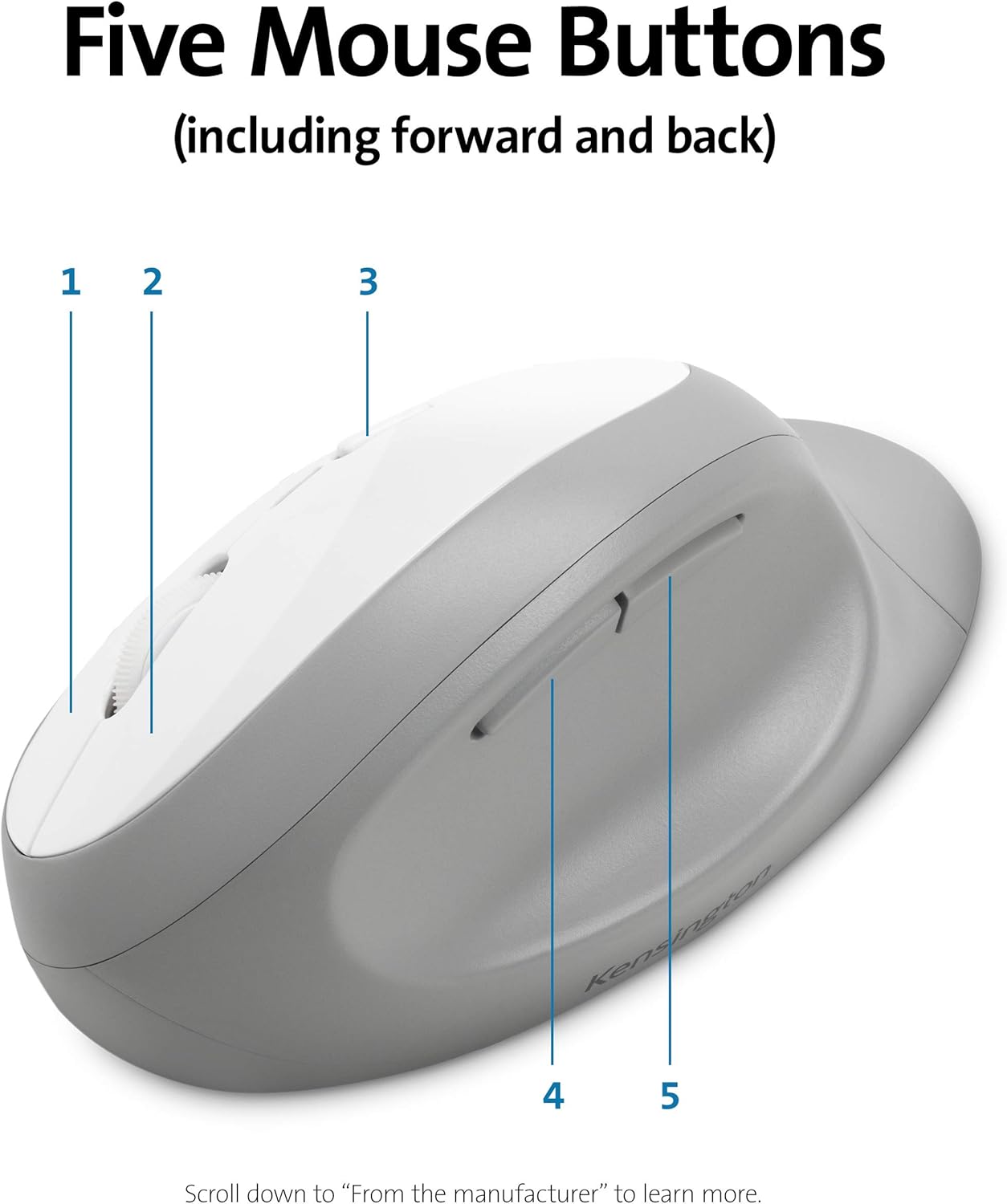
- Five Buttons: The mouse includes five buttons, typically comprising left-click, right-click, scroll wheel click, and two side buttons (forward/back) for enhanced navigation.
- Quiet Clicking: Designed for quiet operation to minimize disruptive noise.

The ergonomic mouse with five distinct buttons labeled 1 through 5, indicating its multi-functionality.
Power-Saving Switch
The three-mode power-saving switch allows you to toggle between 2.4 GHz, Bluetooth, and Off modes to optimize battery life. Set to 'Off' when not in use for extended periods.
سار سنڀال
صفائي
- عام صفائي لاءِ، نرم، ڊي استعمال ڪريوamp cloth to wipe down the surfaces of the keyboard and mouse.
- Due to the spill-proof design, minor liquid spills on the keyboard can be wiped away. Ensure the device is powered off before cleaning.
- سخت ڪيميڪلز يا رگڙيندڙ ڪلينر استعمال ڪرڻ کان پاسو ڪريو، ڇاڪاڻ ته اهي ختم کي نقصان پهچائي سگهن ٿا.
بيٽري مٽائڻ
- When battery life is low, the device's performance may degrade. Replace batteries as needed.
- Refer to the 'Battery Installation' section under Setup for instructions on accessing the battery compartments.
- مقامي ضابطن جي مطابق استعمال ٿيل بيٽرين کي ختم ڪريو.
مشڪلاتون
If you encounter issues with your keyboard or mouse, try the following troubleshooting steps:
رابطي جا مسئلا
- طاقت چيڪ ڪريو: Ensure both devices are powered on and the power-saving switch is set to the correct mode (2.4G or BT).
- بيٽري چيڪ: جيڪڏهن بيٽريون گهٽ يا ختم ٿي ويون آهن ته انهن کي تبديل ڪريو.
- USB Receiver (2.4 GHz): Ensure the USB receiver is securely plugged into a working USB port. Try a different USB port.
- Re-pair Devices: For 2.4 GHz, try unplugging and re-plugging the USB receiver. For Bluetooth, remove the device from your computer's Bluetooth settings and re-pair it.
- مداخلت: Move the devices closer to the receiver/computer. Avoid placing them near other wireless devices or large metal objects that might cause interference.
Keys Not Responding / Double Strokes
- بيٽري جي سطح: Low battery can affect key responsiveness. Replace batteries.
- رابطي: Ensure a stable connection (see Connectivity Issues above).
- ٻيهر شروع ڪريو: Turn the keyboard off and then on again. Restart your computer.
- صاف چاٻيون: Although spill-proof, debris under keys can sometimes affect performance. Gently clean around the affected keys.
Mouse Not Tracking / Scroll Wheel Issues
- سطح: Ensure the mouse is used on a suitable, non-reflective surface.
- Sensor Cleanliness: Check the optical sensor on the underside of the mouse for any obstructions or dirt and clean gently.
- بيٽري جي سطح: Low battery can cause erratic tracking. Replace batteries.
- اسڪرول ويل: If the scroll wheel squeaks or is unresponsive, ensure it is free of debris.
وضاحتون
| برانڊ | ڪنسنگٽن |
| ماڊل نمبر | ڪي 75407 يو ايس |
| آپريٽنگ سسٽم مطابقت | Chrome OS, macOS 10.14 or above, Windows 7 or above |
| شيءِ جو وزن | 2.9 اونس |
| پيداوار جي ماپ (LxWxH) | 2.56 x 22.28 x 9.92 انچ |
| رنگ | ڀورو |
| رابطي ٽيڪنالاجي | Wireless (2.4GHz USB Receiver, Bluetooth 4.0 LE) |
| سيڪيورٽي | 128-bit اي سي اي ايڊريشن |
| طاقت جو ذريعو | بيٽري سان هلندڙ |
| بيٽريون | 1 Lithium Ion battery required (included for mouse) |
| خاص خصوصيت | Ergonomic, Spill-proof keys, Quiet keys |
وارنٽي ۽ سپورٽ
For warranty information, technical support, or further assistance, please visit the official Kensington website or contact Kensington customer service. Details regarding product registration and warranty claims can typically be found on their support pages.
Kensington is a trusted leader in desktop and mobile device accessories, with over 40 years of experience.


