1. پراڊڪٽ ختمview
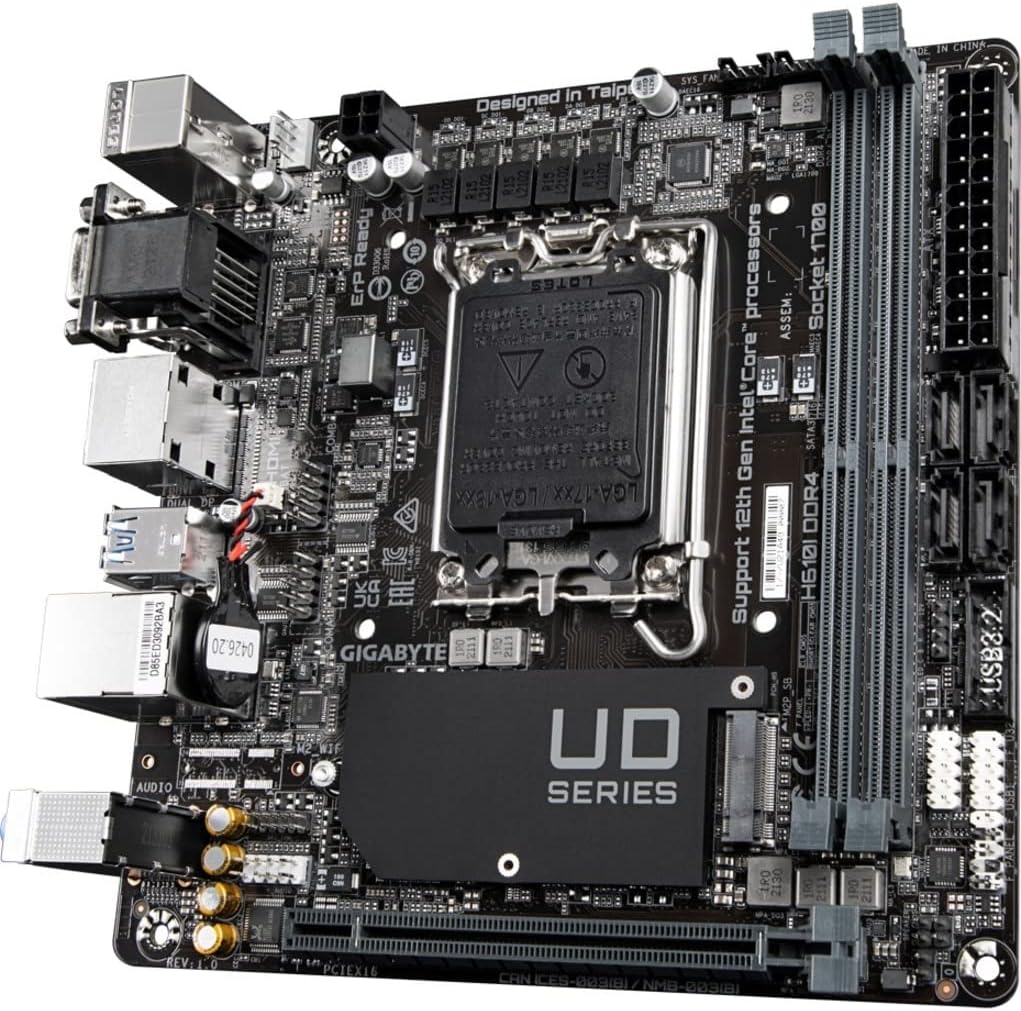
The GIGABYTE H610I DDR4 is a Mini-ITX motherboard designed to support 12th Generation Intel Core Series Processors. It offers a robust platform for building compact yet powerful systems, suitable for various applications from gaming to everyday computing. This motherboard integrates essential features for reliable performance and connectivity.
اهم خاصيتون:
- انٽيل LGA 1700 ساکٽ: Supports 12th Gen Intel Core Series Processors.
- DDR4 مطابقت رکندڙ: Features Dual Channel Non-ECC Unbuffered DDR4 memory support with 2 DIMM slots.
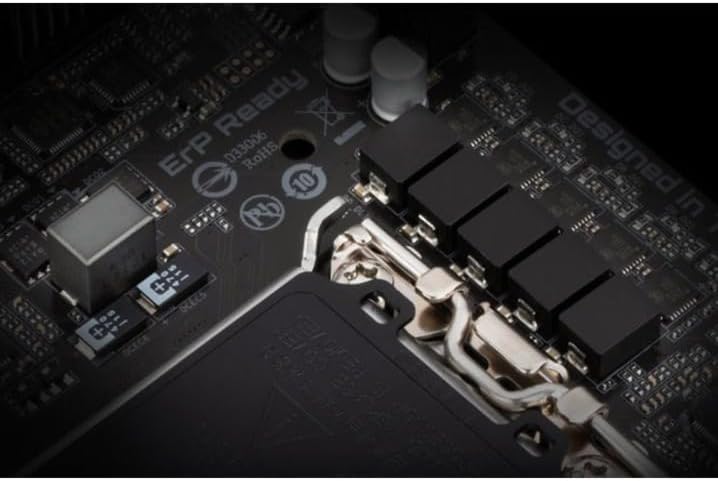
- ڪمانڊنگ پاور ڊيزائن: Equipped with a 4+1+1 Hybrid Digital VRM Design for stable power delivery.
- ترقي يافته رابطي: Includes PCIe 4.0 support, a Single NVMe PCIe 3.0 x4 M.2 slot, and USB 3.2 Gen1 ports.
- تيز نيٽ ورڪنگ: Integrated Intel GbE LAN Chip for reliable wired network connections.
- متحرڪ آڊيو: Features High Quality Audio Capacitors and Audio Noise Guard for enhanced sound experience.


2. سيٽ اپ ۽ تنصيب
Follow these steps for proper installation of your GIGABYTE H610I DDR4 motherboard and its components.
2.1 سي پي يو انسٽال ڪرڻ
- مدر بورڊ تي LGA 1700 CPU ساکٽ ڳوليو.
- سي پي يو ساڪٽ ليور کوليو ۽ حفاظتي ڍڪ هٽايو.
- Carefully align your 12th Gen Intel Core processor with the socket, ensuring the notches on the CPU match the keys on the socket.
- زور لڳائڻ کان سواءِ، نرميءَ سان سي پي يو کي ساڪٽ ۾ رکو.
- پروسيسر کي محفوظ ڪرڻ لاءِ سي پي يو ساڪٽ ليور بند ڪريو.

2.2 Installing DDR4 Memory
- Locate the two DDR4 DIMM slots on the motherboard.
- DIMM سلاٽ جي ٻنهي پاسن تي ڪلپس کوليو.
- DDR4 ميموري ماڊيول تي نشان کي DIMM سلاٽ ۾ چاٻي سان ترتيب ڏيو.
- ميموري ماڊيول کي سلاٽ ۾ مضبوطيءَ سان داخل ڪريو جيستائين ڪلپس پنهنجي جاءِ تي نه اچن.
2.3 Installing NVMe M.2 SSD
- Locate the single NVMe PCIe 3.0 x4 M.2 slot.
- Remove the M.2 screw and standoff from the motherboard.
- M.2 SSD کي سلاٽ ۾ هڪ زاويه تي داخل ڪريو.
- Gently push down the M.2 SSD and secure it with the screw and standoff.
2.4 پاور ڪنيڪشن
- Connect the 24-pin ATX main power connector from your power supply to the corresponding header on the motherboard.
- Connect the 8-pin CPU power connector (or 4-pin if applicable) to the CPU power header.
2.5 Front Panel and Peripheral Connections
Connect your case's front panel headers (power button, reset button, USB, audio) to the corresponding pins on the motherboard. Refer to your case manual for specific pin layouts. Connect peripherals such as USB devices, display cables, and network cables to the rear I/O ports.
3. آپريٽنگ هدايتون
3.1 Initial Boot-up and BIOS/UEFI Setup
- سڀني حصن کي گڏ ڪرڻ کان پوءِ، پنهنجي مانيٽر، ڪي بورڊ ۽ مائوس کي ڳنڍيو.
- Power on your system. During the boot process, press the ڊي ايل key repeatedly to enter the BIOS/UEFI setup utility.
- In the BIOS/UEFI, you can configure boot order, system time, and other advanced settings. Save changes and exit to continue booting into your operating system installer.
3.2 ڊرائيور لڳائڻ
After installing your operating system, install the necessary drivers for the motherboard components. These typically include chipset drivers, LAN drivers, audio drivers, and any other peripheral drivers. Drivers can usually be found on the GIGABYTE official webتوهان جي مخصوص مدر بورڊ ماڊل لاءِ سائيٽ.
4. سار سنڀال
4.1 صفائي
Regularly clean your computer's interior to prevent dust buildup, which can lead to overheating and reduced performance. Use compressed air to remove dust from fans, heatsinks, and other components. Ensure the system is powered off and unplugged before cleaning.
4.2 BIOS/UEFI اپڊيٽس
وقتي طور تي GIGABYTE چيڪ ڪريو website for BIOS/UEFI updates. Updates can improve system stability, add support for new hardware, or fix bugs. Follow the instructions provided by GIGABYTE carefully when performing a BIOS/UEFI update to avoid system damage.
5. مسئلا حل ڪرڻ
هي سيڪشن عام مسئلن کي حل ڪري ٿو جيڪي توهان کي پنهنجي مدر بورڊ سان منهن ڏيڻا پوندا.
5.1 ڪوبه ڊسپلي آئوٽ پٽ ناهي
- مانيٽر ڪنيڪشن چيڪ ڪريو: Ensure your monitor is correctly connected to the graphics card or motherboard's integrated graphics port and is powered on.
- Verify RAM Installation: Reseat the DDR4 memory modules firmly in their slots. Incorrectly seated RAM is a common cause of no display.
- سي پي يو پاور: Confirm the 8-pin (or 4-pin) CPU power connector is securely plugged into the motherboard.
- گرافڪس ڪارڊ: If using a dedicated graphics card, ensure it is properly seated in the PCIe slot and has all necessary power cables connected.
- Bent CPU Pins: Carefully inspect the CPU socket for any bent pins. If found, contact GIGABYTE support.
5.2 System Unresponsive / Does Not Boot
- بجلي جي فراهمي: Ensure the power supply is connected to the motherboard (24-pin ATX and CPU power) and is switched on.
- صاف ڪريو CMOS: Try clearing the CMOS (Complementary Metal-Oxide-Semiconductor) settings. This can usually be done by removing the CMOS battery for a few minutes or using a dedicated jumper on the motherboard.
- Minimal Boot Configuration: Disconnect all non-essential peripherals and components (e.g., extra storage drives, expansion cards) and attempt to boot with only the CPU, one RAM stick, and the graphics card (if no integrated graphics).
5.3 RAM Slot Malfunction
- If one of the two DDR4 RAM slots is not functioning, try testing each RAM stick individually in each slot to isolate the faulty component (RAM stick or motherboard slot).
- Ensure the RAM is compatible with the motherboard's specifications (DDR4, Non-ECC Unbuffered).
6. ٽيڪنيڪل وضاحتون
| خاصيت | تفصيل |
|---|---|
| برانڊ | گيگا بائيٽ |
| ماڊل نالو | H610I DDR4 |
| سي پي يو ساکٽ | LGA 1700 |
| مطابقت رکندڙ پروسيسر | 12th Gen Intel Core Series Processors |
| چپ سيٽ جو قسم | Intel H610 |
| رام ميموري ٽيڪنالاجي | DDR4 (Dual Channel Non-ECC Unbuffered) |
| ميموري سلاٽ | 2 DIMMs |
| ياداشت جي گھڙي جي رفتار | 3200 MHz تائين |
| PCIe سلاٽون | PCIe 4.0 |
| M.2 سلاٽ | 1 x NVMe PCIe 3.0 x4 M.2 |
| USB بندرگاهن | USB 3.2 Gen1, USB 2.0 |
| LAN | Intel GbE LAN Chip |
| آڊيو | اعليٰ معيار جا آڊيو ڪيپيسٽر ۽ آڊيو شور گارڊ |
| فارم فيڪٽر | ميني ITX |
| پيداوار جي ماپ | 8.74 x 7.09 x 2.56 انچ |
| شيءِ جو وزن | 1.3 پائونڊ |
7. پراڊڪٽ وڊيوز
7.1 پراڊڪٽ جي مظاهري جي وڊيو
This video provides a brief demonstration of the GIGABYTE H610I DDR4 Mini-ITX Motherboard, showcasing its physical features and design. (Duration: 0:35)
7.2 پيداوار ختمview وڊيو
An official overview video detailing the features and benefits of the GIGABYTE H610I DDR4 Mini-ITX Motherboard. (Duration: 0:52)
8. وارنٽي ۽ سپورٽ
8.1 وارنٽي ڄاڻ
GIGABYTE products are covered by a limited warranty. The specific terms and duration of the warranty may vary by region and product type. Please refer to the warranty card included with your product or visit the official GIGABYTE webتفصيلي وارنٽي معلومات لاءِ سائيٽ.
8.2 ٽيڪنيڪل سپورٽ
For technical assistance, driver downloads, or further product information, please visit the official GIGABYTE support webسائيٽ. توهان اڪثر پڇيا ويندڙ سوال، مسئلا حل ڪرڻ جا گائيڊ، ۽ ڪسٽمر سروس لاءِ رابطي جي معلومات ڳولي سگهو ٿا.
گيگا بائيٽ آفيشل Webسائيٽ: www.gigabyte.com


