1. تعارف
This manual provides comprehensive instructions for setting up, operating, and maintaining your Logitech Ergo K860 Wireless Ergonomic Keyboard and MX Vertical Wireless Mouse. This combo is designed for all-day comfort, promoting a more relaxed posture and reducing strain during extended use.
مھرباني ڪري پراڊڪٽ استعمال ڪرڻ کان پھريائين ھن دستوري کي چڱي طرح پڙھو ته جيئن بھترين ڪارڪردگي ۽ ڊگھي عمر کي يقيني بڻائي سگھجي.
2. پراڊڪٽ ختمview

Figure 2.1: Logitech Ergo K860 Wireless Ergonomic Keyboard and MX Vertical Wireless Mouse Combo. This image displays the full product set, including the keyboard, mouse, and USB receivers.

Figure 2.2: Advanced Ergonomic Solution. This image highlights the ergonomic design of the keyboard and mouse, emphasizing comfort for prolonged use.
2.1 اهم خاصيتون
- Ergonomic Split Keyboard: The ERGO K860 features a curved, split, and sloping keyframe designed to reduce wrist bending and forearm strain.
- Pillowed Wrist Rest: Integrated wrist rest provides 54% more wrist support compared to standard keyboards, enhancing comfort.
- ترتيب ڏيڻ واري پام لفٽ: Tilt legs allow for adjustable angles (0, -4, -7 degrees) to maintain a natural wrist position whether seated or standing.
- MX Vertical Mouse: Designed with a unique 57-degree vertical angle to place the hand in a natural handshake position, reducing wrist pressure.
- ملٽي ڊوائيس ڪنيڪشن: Connects via Bluetooth or USB receiver to up to three devices, allowing seamless switching.
- خاموش چاٻيون: PerfectStroke keys are crafted for precision and quiet typing.
3. سيٽ اپ
3.1 انباڪسنگ ۽ شروعاتي معائنو
- مصنوعات جي پيڪنگنگ کي احتياط سان کوليو.
- Remove the keyboard, mouse, and USB receiver(s).
- Inspect all components for any signs of damage. If any damage is found, contact customer support.
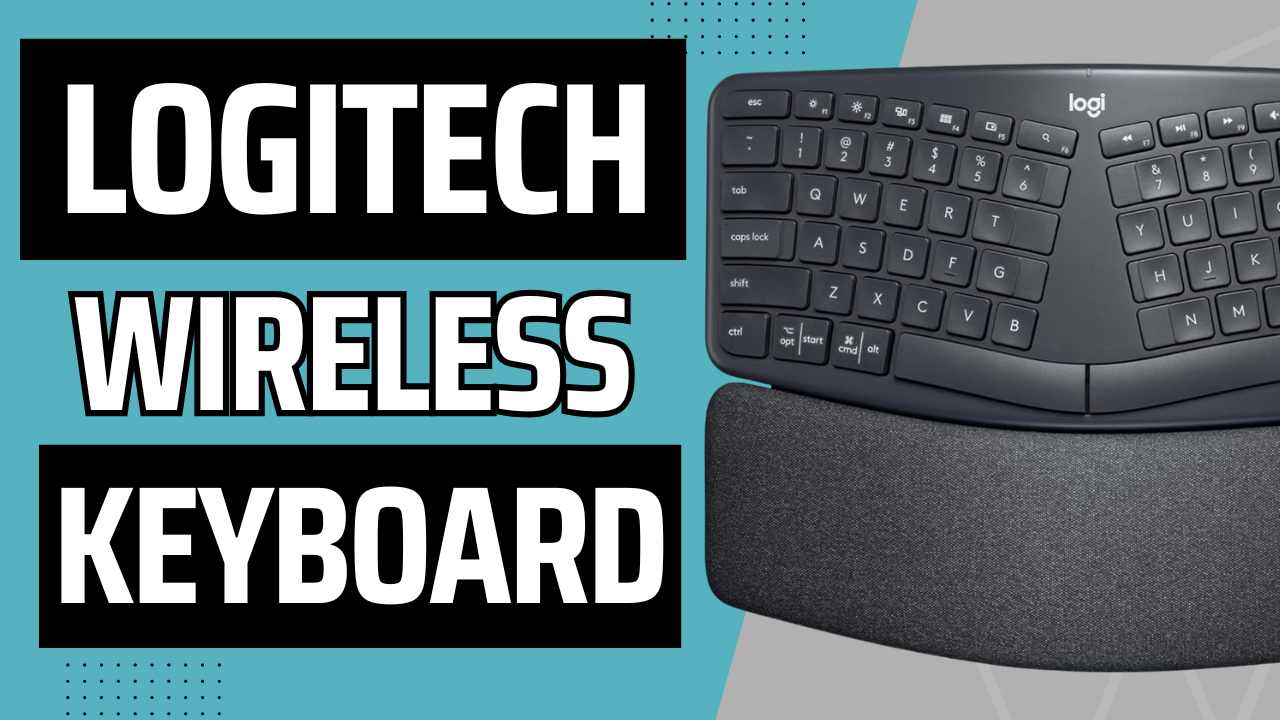
Figure 3.1: Unboxing the Logitech ERGO K860. This image shows the keyboard being removed from its packaging, highlighting the initial setup process.
3.2 پاور آن ۽ بيٽري لڳائڻ
The keyboard uses AAA batteries. The mouse has a built-in rechargeable battery.
- For the keyboard, locate the battery compartment on the underside.
- Insert the provided AAA batteries, ensuring correct polarity.
- Turn on the keyboard using the power switch, usually located on the top right edge.
- For the mouse, ensure it is charged. It comes with a USB cable for charging.
- Turn on the mouse using its power switch, typically on the underside.
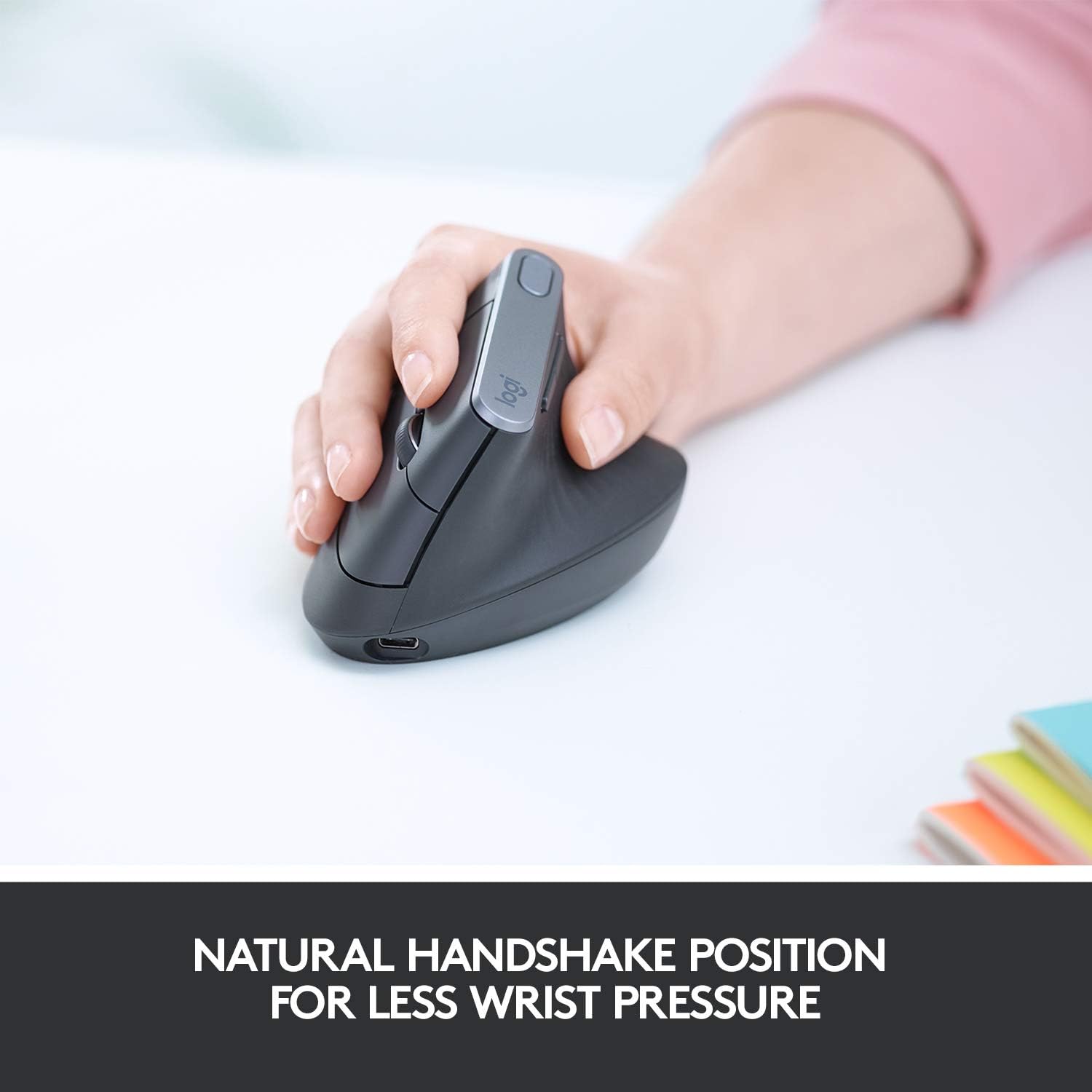
Figure 3.2: Keyboard Battery Compartment. This image illustrates the location for inserting AAA batteries into the keyboard.

Figure 3.3: MX Vertical Mouse Charging. This image shows the USB-C charging port on the MX Vertical mouse.
3.3 توهان جي ڊوائيس سان ڳنڍڻ
The combo supports both Bluetooth and Logitech Unifying USB receiver connections.
3.3.1 Using the Logitech Unifying USB Receiver
- Plug the Unifying USB receiver into an available USB port on your computer.
- The keyboard and mouse should automatically connect. If not, press and hold one of the Easy-Switch buttons (1, 2, or 3) on the keyboard/mouse until the LED blinks rapidly, then follow on-screen prompts or use Logitech Options software.
Figure 3.4: Logitech Unifying USB Receiver. The small USB dongle is visible, used for wireless connection.
3.3.2 بلوٽوت استعمال ڪندي
- پڪ ڪريو ته توهان جي ڪمپيوٽر تي بلوٽوت فعال آهي.
- On the keyboard/mouse, press and hold one of the Easy-Switch buttons (1, 2, or 3) until the LED blinks rapidly. This indicates it's in pairing mode.
- On your computer, go to Bluetooth settings and select "Logitech ERGO K860" or "Logitech MX Vertical" from the list of available devices.
- جوڙڻ واري عمل کي مڪمل ڪرڻ لاءِ ڪنهن به آن-اسڪرين هدايتن تي عمل ڪريو.

Figure 3.5: Multi-Device Pairing. This image demonstrates how the keyboard can be paired with up to three different devices, such as laptops and monitors.
4. توهان جي ڊوائيس کي هلائڻ
4.1 ڪي بورڊ جو استعمال
The split design of the ERGO K860 promotes a natural typing posture. Place your hands on the pillowed wrist rest, allowing your wrists to remain straight and relaxed.

Figure 4.1: Proper Ergonomic Typing. This image shows a user's hands positioned correctly on the keyboard, demonstrating the ergonomic benefits.

Figure 4.2: Ergonomic Certification. This image displays certifications for the product's ergonomic design, indicating user testing and approval.
4.1.1 Adjustable Palm Lift
The keyboard features adjustable tilt legs on the underside. You can set them to 0, -4, or -7 degrees to find the most comfortable angle for your wrists, whether you are sitting or standing.

Figure 4.3: Adjustable Keyboard Tilt. This image illustrates the adjustable feet on the keyboard's underside, allowing users to modify the tilt for optimal comfort.
4.1.2 Easy-Switch Buttons
Use the Easy-Switch buttons (1, 2, 3) located on the top right of the keyboard to seamlessly switch between connected devices. Simply press the button corresponding to the device you wish to control.
4.2 مائوس جو استعمال
The MX Vertical mouse is designed to reduce muscle strain by promoting a natural handshake position. Grip the mouse comfortably with your hand at a 57-degree vertical angle.
Figure 4.4: MX Vertical Mouse Grip. This image demonstrates the natural handshake grip encouraged by the MX Vertical mouse's design.

Figure 4.5: MX Vertical Mouse Features. This image labels various parts of the MX Vertical mouse, including the scroll wheel, buttons, and sensor.
4.2.1 Cursor Speed Switch
The MX Vertical mouse features a cursor speed switch (DPI button) to instantly adjust the pointer speed and accuracy. This allows for precise control for different tasks.
4.3 Logitech Options Software
سرڪاري Logitech تان Logitech آپشن سافٽ ويئر ڊائون لوڊ ۽ انسٽال ڪريو. webسائيٽ (www.logitech.com/software/logitech-options.html) to customize your keyboard and mouse settings. This software allows you to:
- فنڪشن ڪيز ۽ مائوس بٽڻ ٻيهر تفويض ڪريو.
- پوائنٽر جي رفتار ۽ اسڪرولنگ رويي کي ترتيب ڏيو.
- Enable Logitech Flow for seamless multi-computer control (requires compatible Logitech Flow devices).
5. سار سنڀال
5.1 صفائي
- نرم، لِنٽ کان خالي ڪپڙو استعمال ڪريو ٿورڙو ڊيampened with water or a mild cleaning solution to clean the surfaces of the keyboard and mouse.
- گھڙڻ وارا صاف ڪندڙ، سالوينٽس، يا ايروسول اسپري استعمال ڪرڻ کان پاسو ڪريو.
- For the keyboard's fabric wrist rest, gently wipe with a damp cloth. The fabric is stain-resistant.
5.2 بيٽري جي سنڀال
- Replace AAA batteries in the keyboard when the battery indicator light turns red.
- Recharge the MX Vertical mouse when its battery indicator is low using the provided USB-C cable. A full charge provides approximately four months of power, and a one-minute quick charge provides three hours of use.
- Store the devices in a cool, dry place when not in use for extended periods.
6. مسئلا حل ڪرڻ
| مسئلو | ممڪن سبب | حل |
|---|---|---|
| ڊوائيس نه ڳنڍي رهيو آهي | Low battery, incorrect pairing, USB receiver issue. |
|
| دير يا وقفي وقفي سان ڪنيڪشن | Interference, distance from receiver/device. |
|
| چاٻيون جواب نه ڏئي رهيون آهن | Software issue, physical damage. |
|
7. وضاحتون
| خاصيت | وصف |
|---|---|
| برانڊ | Logitech |
| ماڊل | ERGO K860 (Keyboard), MX Vertical (Mouse) |
| رابطي | Bluetooth, USB Unifying Receiver |
| ڪي بورڊ لي آئوٽ | Ergonomic Split, Full-size with Numpad |
| کلائي آرام | Integrated Pillowed Wrist Rest (Stain-resistant fabric) |
| Adjustable جھٽڪو | 0, -4, -7 degrees |
| Mouse Ergonomics | 57-degree vertical angle for natural handshake position |
| ماؤس سينسر | 4000 DPI high-precision sensor |
| بيٽري جي زندگي (ڪي بورڊ) | Up to 2 years (with AAA batteries) |
| بيٽري جي زندگي (ماؤس) | Up to 4 months (rechargeable, 1 min quick charge for 3 hrs) |
| مطابقت رکندڙ آپريٽنگ سسٽم | Windows, macOS, Chrome OS, Linux, iOS, Android |
8. وارنٽي ۽ سپورٽ
وارنٽي جي معلومات ۽ ٽيڪنيڪل سپورٽ لاءِ، مھرباني ڪري سرڪاري Logitech سپورٽ جو دورو ڪريو. webسائيٽ تي وڃو يا توهان جي پراڊڪٽ پيڪنگنگ ۾ شامل وارنٽي ڪارڊ جو حوالو ڏيو.
لاجيٽيڪ سپورٽ: support.logi.com
9. سرڪاري پراڊڪٽ وڊيوز
No official product videos from the seller are available for embedding in this manual based on the provided data.


