1. تعارف ۽ اوورview
The Alienware Aurora R10 Gaming Desktop is engineered to deliver exceptional performance for gaming and demanding applications. Featuring an AMD Ryzen 7 3700X processor, AMD Radeon RX 5700 XT graphics, and a robust storage configuration, this system provides a powerful computing experience. Its innovative design prioritizes efficient airflow and ease of access for upgrades.

شڪل 1: سامهون view of the Alienware Aurora R10 Gaming Desktop, showcasing its distinctive design and front panel ports.
2. سيٽ اپ گائيڊ
Follow these steps to set up your Alienware Aurora R10 Gaming Desktop:
- پيڪنگ کولڻ: Carefully remove the desktop from its packaging. Ensure all accessories, including the keyboard and mouse, are present.
- لڳائڻ: ڊيسڪ ٽاپ کي هڪ مستحڪم، هموار مٿاڇري تي رکو جنهن جي چوڌاري سڀني پاسن کان مناسب هوا جي وهڪري هجي. ان کي بند جڳهن ۾ يا گرمي جي ذريعن جي ويجهو رکڻ کان پاسو ڪريو.
- پردي سان ڳنڍڻ:
- Connect your monitor(s) to the appropriate display ports on the graphics card (DisplayPort, HDMI).
- شامل ڪيل ڪيبورڊ ۽ مائوس کي موجود USB پورٽن سان ڳنڍيو.
- Connect any other peripherals such as speakers, headphones, or external drives.
- پاور ڪنيڪشن: Connect the power cable to the power port on the rear of the desktop and then to a grounded electrical outlet.
- شروعاتي پاور آن: Press the power button located on the front of the desktop. The system will boot into Windows 10 Home. Follow the on-screen instructions for initial setup.

شڪل 2: پوئتي view of the Alienware Aurora R10, illustrating the various connectivity ports for peripherals and power.
3. آپريٽنگ هدايتون
Your Alienware Aurora R10 comes pre-installed with Windows 10 Home, providing a familiar and intuitive operating environment. For optimal performance, ensure your system drivers and Windows updates are kept current.
3.1 پاور مئنيجمينٽ
- پاور آن: Press the Alienware head icon on the front panel.
- بند ڪريو: ونڊوز ۾ اسٽارٽ بٽڻ تي ڪلڪ ڪريو، پوءِ پاور > شٽ ڊائون ڪريو.
- ٻيهر شروع ڪريو: ونڊوز ۾ اسٽارٽ بٽڻ تي ڪلڪ ڪريو، پوءِ پاور > ريسٽارٽ ڪريو.
- سمهڻ جو طريقو: ونڊوز ۾ اسٽارٽ بٽڻ تي ڪلڪ ڪريو، پوءِ پاور > سليپ.
3.2 AlienFX Lighting Control
The Alienware Aurora R10 features customizable AlienFX lighting. You can personalize the lighting zones on the front panel using the Alienware Command Center software, which is pre-installed on your system. This software allows you to choose from a wide range of colors and effects to match your setup or mood.
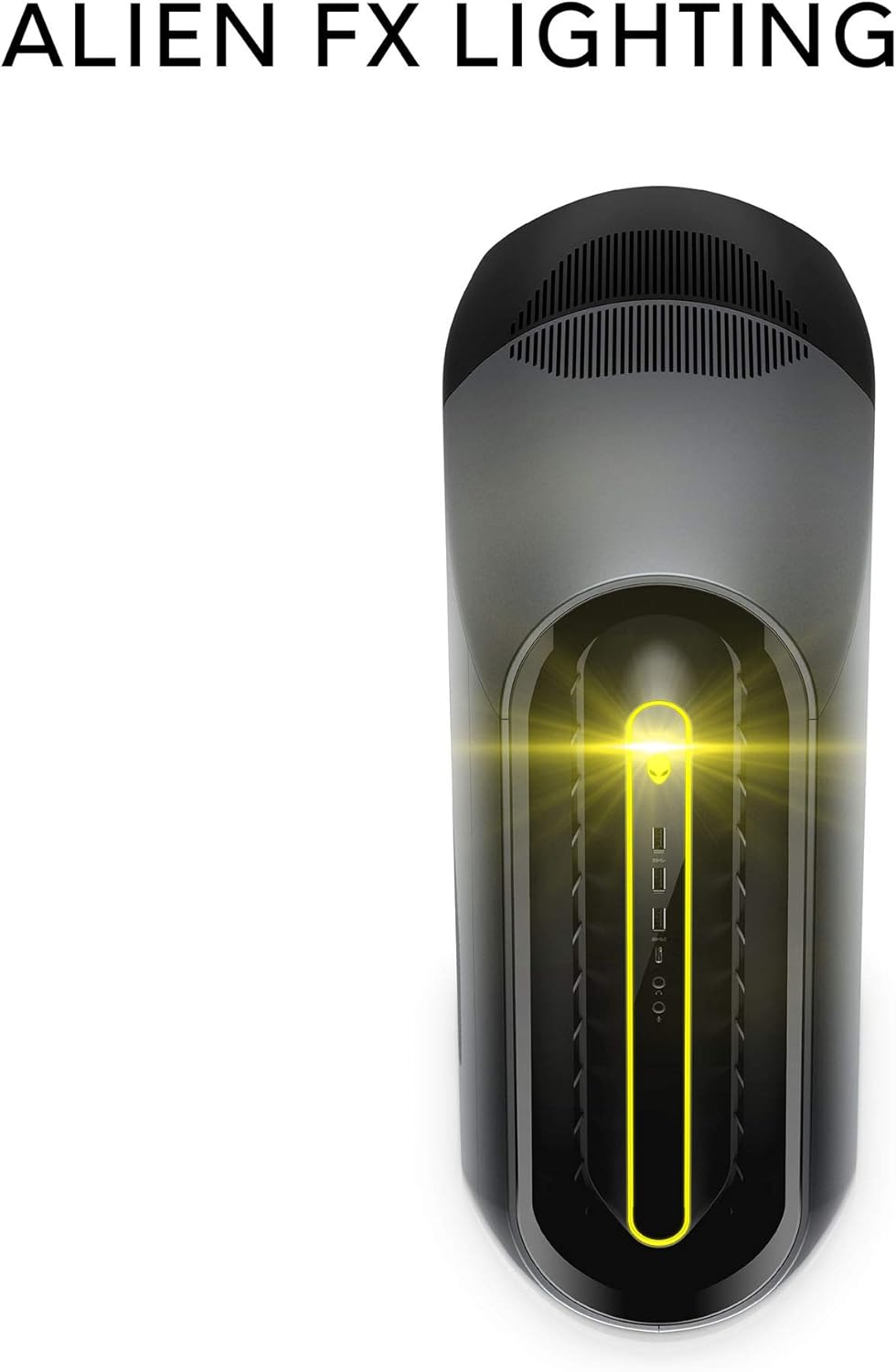
Figure 3: The AlienFX lighting system on the front of the desktop, offering personalized illumination.
3.3 ڪارڪردگي جي اصلاح
The Alienware Command Center also provides tools for performance monitoring and optimization, including fan speed control and overclocking options for advanced users. Refer to the software's built-in help for detailed instructions on these features.
وڊيو 1: سرڪاري وڊيو شوasing the features and design of the Alienware Aurora R10 Gaming Desktop.
4. اهم خاصيتون
The Alienware Aurora R10 is designed with several key features to enhance your computing and gaming experience:
- طاقتور پروسيسر: Equipped with an AMD Ryzen 7 3700X (8-Core, 32MB L3 Cache, max boost clock of 4.4GHz) processor, providing robust performance for multitasking and demanding applications.
- ترقي يافته گرافڪس: Features an AMD Radeon RX 5700 XT 8GB GDDR6 graphics card, delivering high frame rates and immersive visuals for modern games.
- PCI-Express 4.0 Technology: The first Alienware machine to feature PCI-Express 4.0, doubling the bandwidth available to graphics cards and other components for enhanced overall performance.
- بهتر ڪيل هوا جو وهڪرو: The Legend Industrial Design incorporates an improved airflow pattern, efficiently reducing CPU temperatures and allowing for more stable performance and higher overclocking potential.
- Hybrid Storage Solution: A combination of a 512GB M.2 PCIe NVMe SSD for fast boot times and application loading, paired with a 1TB 7200 RPM SATA 6 Gb/s HDD for ampاسٽوريج جي گنجائش.
- Tool-Less Entry: Designed for easy access to internal components, simplifying upgrades and maintenance.
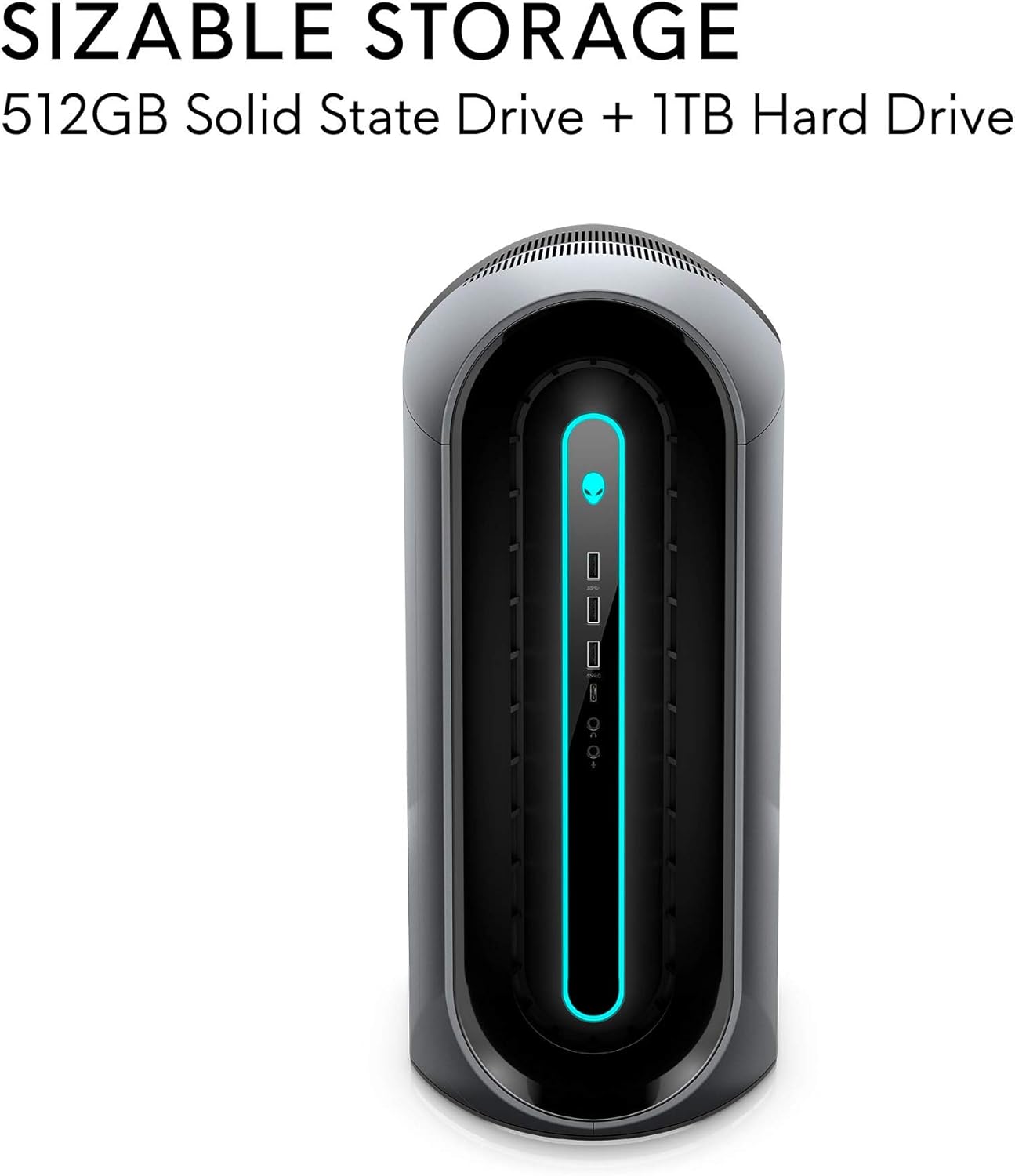
Figure 4: Illustration of the sizable storage configuration, combining SSD and HDD for speed and capacity.

Figure 5: The tool-less entry design of the desktop, allowing for convenient internal access.

Figure 6: Visual representation of the optimized airflow within the Aurora R10 chassis.

Figure 7: The AMD Radeon RX 5700 XT graphics card, a core component for high-performance gaming.
5. سار سنڀال
Regular maintenance helps ensure the longevity and optimal performance of your Alienware Aurora R10.
- مٽي هٽائڻ: Periodically clean the exterior and ventilation grilles with a soft, dry cloth. For internal components, use compressed air to gently remove dust from fans and heatsinks. Ensure the system is powered off and unplugged before cleaning.
- سافٽ ويئر اپڊيٽ: Regularly check for and install updates for Windows 10, graphics drivers (AMD Radeon Software), and Alienware Command Center. These updates often include performance improvements, security patches, and bug fixes.
- ڪيبل جو انتظام: Ensure all cables are neatly organized and not obstructing airflow.
- سسٽم جي تشخيص: Utilize the diagnostic tools available through Alienware Command Center or Dell SupportAssist to check for hardware issues.

شڪل 8: پاسي view of the desktop, highlighting the large ventilation grilles crucial for maintaining optimal temperatures.
6. مسئلا حل ڪرڻ
This section provides basic troubleshooting steps for common issues. For more complex problems, refer to the Alienware support webسائيٽ يا ٽيڪنيڪل سپورٽ سان رابطو ڪريو.
- طاقت ناهي:
- پڪ ڪريو ته پاور ڪيبل ڊيسڪ ٽاپ ۽ اليڪٽريڪل آئوٽليٽ ٻنهي سان محفوظ طور تي ڳنڍيل آهي.
- ٻئي ڊوائيس ۾ پلگ ان ڪندي پڪ ڪريو ته پاور آئوٽليٽ ڪم ڪري رهيو آهي.
- Check the power supply unit (PSU) for any indicator lights or unusual noises.
- ڪابه ڊسپلي:
- Confirm the monitor is powered on and connected to the correct display port on the graphics card.
- جيڪڏهن موجود هجي ته هڪ مختلف ڊسپلي ڪيبل يا مانيٽر آزمايو.
- Ensure the graphics card is properly seated in its slot (requires opening the chassis).
- سسٽم جي سست رفتاري/ڪارڪردگي جا مسئلا:
- غير ضروري پس منظر واري ايپليڪيشن کي بند ڪريو.
- Check for and install all available Windows updates and driver updates.
- Monitor system temperatures using Alienware Command Center to ensure components are not overheating.
- مالويئر يا وائرس لاءِ مڪمل سسٽم اسڪين هلايو.
- غير معمولي آواز:
- Loud fan noise may indicate dust buildup or high temperatures. Clean the fans and ensure proper airflow.
- Clicking or grinding noises from the hard drive may indicate a failing drive. Back up your data immediately and contact support.
7. وضاحتون
| خاصيت | تفصيل |
|---|---|
| برانڊ | اجنبي سامان |
| سلسلو | اورورا R10 |
| شيون ماڊل نمبر | AWAUR10-A886BLK-PUS |
| پروسيسر | AMD Ryzen 7 3700X (8-Core, 4.4 GHz Max Boost) |
| رام | 16 GB 2933MHz DDR4 XMP dual channel HyperX Fury |
| هارڊ ڊرائيو | 512 GB M.2 PCIe NVMe SSD Boot + 1 TB 7200 RPM SATA 6 Gb/s Storage |
| گرافڪس ڪوپروسيسر | AMD Radeon RX 5700 XT 8GB GDDR6 |
| آپريٽنگ سسٽم | ونڊوز 10 گهر |
| هارڊويئر پليٽ فارم | ونڊوز |
| شيءِ جو وزن | 38.5 پائونڊ |
| رنگ | Dark Side Of The Moon |
| USB 2.0 بندرگاهن جو تعداد | 6 |
| USB 3.0 بندرگاهن جو تعداد | 1 |
| ميموري سلاٽ موجود آهن | 4 |
8. دٻي ۾ ڇا آهي
Your Alienware Aurora R10 Gaming Desktop package includes:
- ايلين ويئر اورورا آر 10 گيمنگ ڊيسڪ ٽاپ
- ڪي بورڊ
- مائوس
- پاور ڪيبل
9. وارنٽي ۽ سپورٽ
Your Alienware Aurora R10 Gaming Desktop comes with a standard manufacturer's warranty. For detailed warranty information, technical support, and service requests, please visit the official Alienware support website or Dell's customer service portal.
توهان وڌيڪ معلومات ۽ سپورٽ وسيلا ڳولي سگهو ٿا دورو ڪندي Alienware Store on Amazon.


