1. تعارف
TOPDON فينڪس پلس 2 هڪ پيشيور گريڊ آٽوميٽو تشخيصي اسڪين ٽول آهي جيڪو جامع گاڏين جي نظام جي تجزيي، سار سنڀال، ۽ جديد ڪمن لاءِ ٺهيل آهي. هي دستورالعمل توهان جي ڊوائيس کي ترتيب ڏيڻ، هلائڻ ۽ برقرار رکڻ لاءِ تفصيلي هدايتون مهيا ڪري ٿو ته جيئن بهترين ڪارڪردگي ۽ صحيح تشخيص کي يقيني بڻائي سگهجي.
2. اهم خاصيتون
- ECU ڪوڊنگ: بينز، بي ايم ڊبليو، ۽ وي اي جي سميت مختلف برانڊن سان مطابقت رکندڙ، ڪسٽمائيزيشن ۽ ماڊيول جي متبادل جي اجازت ڏئي ٿو.
- ٻہ طرفي ڪنٽرول (فعال ٽيسٽ): گاڏين جي حصن تي مخصوص ٽيسٽ ڪريو ته جيئن مسئلن جي سڌي طرح سڃاڻپ ڪري سگهجي.
- 41+ گرم ري سيٽ خدمتون: سار سنڀال جي ڪمن جو هڪ وسيع سلسلو جهڙوڪ ايڊ بليو ري سيٽ، آئل ري سيٽ، ايس اي ايس ري سيٽ، اي پي بي ري سيٽ، ٽي پي ايم ايس ري سيٽ، بي ايم ايس ري سيٽ، ۽ وڌيڪ.
- سڀ سسٽم تشخيص: ڊائگنوسٽڪ ٽربل ڪوڊس (DTCs) حاصل ڪرڻ لاءِ سڀني موجود آن بورڊ سسٽمز (مثال طور، ٽرانسميشن، انجن، باڊي) جي جامع اسڪيننگ.
- ٽوپولوجي نقشو: آسانيءَ سان غلطي جي سڃاڻپ لاءِ گاڏي جي مڪمل سسٽم جي حيثيت جي بصري نمائندگي.
- آٽو وين ۽ آٽو اسڪين: گاڏي جي معلومات کي جلدي سڃاڻو ۽ خودڪار سسٽم اسڪين ڪريو.
- ايف سي اي ايس جي ڊبليو لاءِ آٽو آٿ: جديد تشخيص لاءِ ايف سي اي گاڏين ۾ سيڪيورٽي گيٽ وي ماڊل کي بائي پاس ڪريو.
- VAG ھدايت وارو ڪم: وي اي جي گاڏين لاءِ سڌريل طريقا.
- ترقي يافته هارڊويئر: اينڊرائيڊ 10.0 او ايس، 10.1 انچ ٽچ اسڪرين، 64GB روم، ۽ 2 سالن جي مفت سافٽ ويئر اپڊيٽ.
3. دٻي ۾ ڇا آهي
جڏهن توهان پنهنجي TOPDON Phoenix Plus 2 کي انباڪس ڪندا آهيو، ته توهان کي هيٺيان جزا ملندا:
- 1x فينڪس پلس 2 ڊائگنوسٽڪ ٽيبليٽ
- 1x وي سي آءِ ڊونگل
- 1x ڪيري ڪيس
- 1x استعمال ڪندڙ دستياب
- مختلف تشخيصي ڪنيڪٽر (مثال طور، BMW-20، Fiat-3، GM/VAZ-12، Benz-38، Honda-3، Toyota-17، Toyota-22، Nissan-14+16، Mitsubishi/Hyundai-12+16)
- او بي ڊي آءِ اڊاپٽر
- OBD II ايڪسٽينشن ڪيبل
- ٽائپ-سي کان USB ڪيبل
- سگريٽ لائٽر ڪيبل
- بيٽري ڪلamps ڪيبل
- پاور اڊاپٽر (برطانيه، يورپي يونين، آمريڪي گيج)
- پاسورڊ خط

تصوير: TOPDON فينڪس پلس 2 اسڪينر، VCI ڊونگل، ۽ مختلف ڪيبل ان جي حفاظتي ڪيري ڪيس اندر صاف سٿري سان ترتيب ڏنل آهن.
وڊيو: TOPDON فينڪس پلس 2 جو هڪ انباڪسنگ مظاهرو، شوڪasinٽيبليٽ، وي سي آءِ، ۽ شامل لوازمات.
4. سيٽ اپ ۽ شروعاتي ترتيب
4.1. ڊوائيس اوورview ۽ چارج ڪرڻ
پهرين استعمال کان اڳ، پڪ ڪريو ته فينڪس پلس 2 ٽيبليٽ مهيا ڪيل پاور اڊاپٽر ۽ ٽائيپ-سي USB ڪيبل استعمال ڪندي مڪمل طور تي چارج ٿيل آهي. ٽيبليٽ ۾ محفوظ پورٽن سان گڏ هڪ مضبوط ڊيزائن آهي.

تصوير: TOPDON فينڪس پلس 2 ٽيبليٽ جو ڪلوز اپ جيڪو USB پورٽ ۽ ٽائپ سي چارجنگ سلاٽ کي نمايان ڪري ٿو.
4.2. رجسٽريشن ۽ چالو ڪرڻ
سڀني خاصيتن تائين رسائي حاصل ڪرڻ ۽ سافٽ ويئر اپڊيٽ حاصل ڪرڻ لاءِ، توهان کي پنهنجي ڊوائيس کي رجسٽر ڪرڻ ۽ چالو ڪرڻ گهرجي.
- ٽيبليٽ کي وائي فائي نيٽ ورڪ سان ڳنڍيو.
- "صارف جي معلومات" > "سيٽنگون" > "لاگ ان" ڏانهن وڃو.
- "نئين رجسٽريشن" چونڊيو ۽ اڪائونٽ ٺاهڻ لاءِ اسڪرين تي ڏنل هدايتن تي عمل ڪريو. توهان کي يوزر نالو، پاسورڊ، ۽ اي ميل پتو داخل ڪرڻ جي ضرورت پوندي.
- توهان جي اي ميل تي هڪ تصديق ڪوڊ موڪليو ويندو. جڏهن چيو وڃي ته هي ڪوڊ داخل ڪريو.
- توهان جي پيڪيج ۾ شامل "پاسورڊ ليٽر" ڳوليو. ان ۾ توهان جي VCI (گاڏي ڪميونيڪيشن انٽرفيس) ڊونگل لاءِ سيريل نمبر ۽ ايڪٽيويشن ڪوڊ شامل آهي.
- ڊوائيس ۾ سيريل نمبر ۽ ايڪٽيويشن ڪوڊ داخل ڪريو.
- رجسٽريشن جي عمل کي مڪمل ڪرڻ لاءِ "فعال ڪريو" تي ٽيپ ڪريو.
وڊيو: پنهنجي TOPDON فينڪس پلس 2 ڊوائيس کي رجسٽر ڪرڻ ۽ چالو ڪرڻ بابت هڪ قدم بہ قدم گائيڊ.
4.3. گاڏي سان ڳنڍڻ
فينڪس پلس 2 گاڏي سان وائرليس رابطي لاءِ وي سي آءِ ڊونگل استعمال ڪري ٿو. پراڻين گاڏين لاءِ، مختلف تشخيصي ڪنيڪٽر مهيا ڪيا ويا آهن.
- گاڏي جي OBD-II پورٽ کي ڳوليو (عام طور تي ڊيش بورڊ جي هيٺان).
- VCI ڊونگل کي سڌو سنئون OBD-II پورٽ ۾ لڳايو. غير معياري OBD-II پورٽن لاءِ، ڪٽ مان مناسب تشخيصي ڪنيڪٽر ۽ ڪيبل استعمال ڪريو.
- پڪ ڪريو ته VCI ڊونگل جي انڊيڪيٽر لائيٽ آن آهي، جيڪا گاڏي جي پاور سان ڪامياب ڪنيڪشن جي نشاندهي ڪري ٿي.
- ٽيبليٽ پاڻمرادو 10 ميٽر جي حد اندر بلوٽوٿ ذريعي VCI سان ڳنڍجي ويندو.

تصوير: مختلف گاڏين جي ماڊلز لاءِ تشخيصي ڪنيڪٽرن جو هڪ انتخاب، جنهن ۾ BMW-20، Fiat-3، GM/VAZ-12، ۽ Benz-38 شامل آهن.
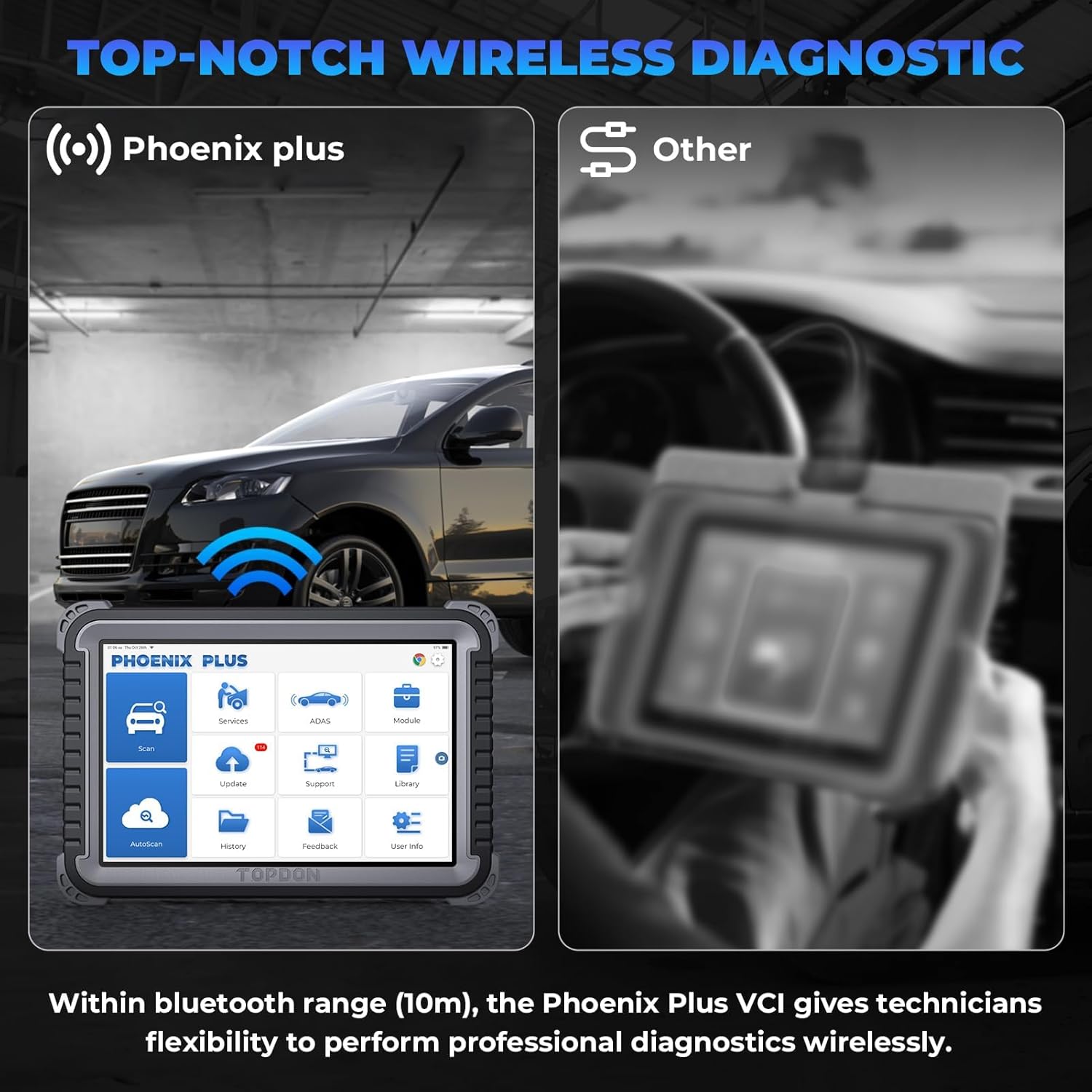
تصوير: فينڪس پلس 2 ٽيبليٽ گاڏي سان وائرليس تشخيص ڪري رهيو آهي، 10 ميٽر بلوٽوٿ رينج کي ظاهر ڪري ٿو.
5. آپريٽنگ هدايتون
5.1. انٽرفيس کي نيويگيٽ ڪرڻ
فينڪس پلس 2 اينڊرائيڊ 10.0 تي ڪم ڪري ٿو ۽ هڪ استعمال ڪندڙ-دوست 10.1 انچ ٽچ اسڪرين انٽرفيس سان گڏ آهي. مکيه اسڪرين اهم ڪمن تائين رسائي فراهم ڪري ٿي:
- اسڪين: هڪ تشخيصي اسڪين شروع ڪريو.
- خدمتون: مختلف سار سنڀال ۽ ري سيٽ افعال تائين رسائي حاصل ڪريو.
- ايڊاس: ترقي يافته ڊرائيور-اسسٽنس سسٽم ڪيليبريشن.
- ماڊل: مخصوص ماڊيول افعال.
- تازه ڪاري: سافٽ ويئر اپڊيٽ ڊائون لوڊ ۽ انسٽال ڪريو.
- حمايت: ٽيڪنيڪل سپورٽ ۽ وسيلن تائين رسائي حاصل ڪريو.
- لائبريري: او بي ڊي فالٽ ڪوڊ لائبريري، ڪوريج لسٽ، ۽ سکيا وارو مواد شامل آهي.
- خودڪار اسڪين: خودڪار گاڏي جي سڃاڻپ ۽ مڪمل سسٽم اسڪين.
- تاريخ: Review گذريل تشخيصي رپورٽون.
- راءِ: TOPDON ڏانهن موٽ موڪليو.
- استعمال ڪندڙ جي ڄاڻ: اڪائونٽ سيٽنگون ۽ ڊوائيس جي معلومات کي منظم ڪريو.
5.2. ڊائگنوسٽڪ اسڪين ڪرڻ
ڊوائيس دستي ۽ خودڪار اسڪيننگ جا ٻئي آپشن پيش ڪري ٿو.
- پڪ ڪريو ته VCI گاڏي سان ڳنڍيل آهي ۽ ٽيبليٽ آن آهي.
- ٽيپ ڪريو "آٽو اسڪين" هوم اسڪرين تي خودڪار گاڏين جي سڃاڻپ ۽ سڀني موجود سسٽم جي جامع اسڪين لاءِ.
- متبادل طور تي، ٽيپ ڪريو "اسڪين" دستي طور تي گاڏي جي ٺاهي، ماڊل ۽ سال چونڊڻ لاءِ، پوءِ سسٽم جي مخصوص اسڪين سان اڳتي وڌو.
- جي ٽوپولوجي نقشو هي خصوصيت گاڏي جي سسٽم جي حيثيت کي ظاهر ڪندي، جلدي سڃاڻپ لاءِ ڪنهن به خراب علائقن کي نمايان ڪندي.

تصوير: فينڪس پلس 2 اسڪرين تي ٽوپولوجي ميپ فنڪشن، هڪ بصري اوور ڏيکارينديview گاڏي جي اليڪٽرانڪ ڪنٽرول يونٽن ۽ انهن جي حيثيت جو.

تصوير: ڊوائيس ٽوپولوجي ميپنگ جو مظاهرو ڪري رهيو آهي ته جيئن جلدي خرابيون ڳولي سگهجن ۽ گاڏي جي تيز سڃاڻپ لاءِ آٽو وي آءِ اين.
5.3. ECU ڪوڊنگ ۽ ٻہ طرفي ڪنٽرول
اهي ترقي يافته ڪم گاڏي جي گهري ترتيب ۽ جزو جي جاچ جي اجازت ڏين ٿا.
- ECU ڪوڊنگ: لڪيل ڪمن کي چالو يا غير فعال ڪرڻ لاءِ ECU ڪوڊنگ مينيو تائين رسائي ڪريو، متبادل کان پوءِ نوان ECU ملائي، ۽ ويرينٽ ڪوڊنگ انجام ڏيو. هي مختلف گاڏين جي برانڊن سان مطابقت رکي ٿو.
- ٻہ طرفي ڪنٽرول (فعال ٽيسٽ): تشخيصي مينيو مان، گهربل سسٽم چونڊيو ۽ پوءِ مخصوص حصن کي حڪم ڏيڻ لاءِ "فعال ٽيسٽ" چونڊيو (مثال طور، ريڊيٽر فين آن ڪريو، فيول انجيڪٽرز کي جانچيو، ونڊوز هلائيو).

تصوير: فينڪس پلس 2 ECU ڪوڊنگ صلاحيتن کي ظاهر ڪري ٿو، جهڙوڪ لڪيل ڪمن کي چالو ڪرڻ ۽ نوان ECUs ملائڻ.

تصوير: ڊوائيس مختلف گاڏين جي حصن جهڙوڪ ريڊيٽر فين ۽ ونڊوز کي چالو ڪندي ٻه طرفي ڪنٽرول جو مظاهرو ڪري ٿو.

تصوير: تفصيلي view ٻہ طرفي ڪنٽرول افعال، جن ۾ فيول انجيڪٽرز، ڪولنٽ پمپ، ونڊوز، ۽ ونڊ شيلڊ وائپرز جي جانچ شامل آهي.
5.4. سار سنڀال جون خدمتون
فينڪس پلس 2 41 کان وڌيڪ سار سنڀال ۽ ري سيٽ خدمتون پيش ڪري ٿو. هوم اسڪرين تي "سروسز" آئڪن ذريعي انهن تائين رسائي حاصل ڪريو.
- عام خدمتن ۾ شامل آهن: آئل ري سيٽ، ايس اي ايس (اسٽيئرنگ اينگل سينسر) ري سيٽ، اي پي بي (اليڪٽرانڪ پارڪنگ بريڪ) ري سيٽ، ٽي پي ايم ايس (ٽائر پريشر مانيٽرنگ سسٽم) ري سيٽ، بي ايم ايس (بيٽري مئنيجمينٽ سسٽم) ري سيٽ، ايڊ بليو ري سيٽ، گيئر باڪس ري سيٽ، سن روف ري سيٽ، سسپنشن ري سيٽ، اي ايف ايس (اڊاپٽو فرنٽ لائيٽنگ سسٽم) هيڊلamp ري سيٽ ڪريو، ۽ وڌيڪ.
- هر مخصوص خدمت لاءِ اسڪرين تي ڏنل هدايتن تي عمل ڪريو.

تصوير: فينڪس پلس 2 اسڪرين 41 کان وڌيڪ سار سنڀال جي خدمتن جو انتخاب ڏيکاري ٿي، جنهن ۾ آئل ري سيٽ، ايڊبليو ري سيٽ، ۽ اي پي بي ري سيٽ شامل آهن.

تصوير: 41+ دستياب سار سنڀال جي خدمتن جي وڌيڪ تفصيلي فهرست، جهڙوڪ SRS، ABS، ٽرانسپورٽ، معطلي ري سيٽ، ۽ وڌيڪ.
5.5. گاڏين جي ڪوريج جي جاچ
ڪنهن خاص گاڏي لاءِ سپورٽ ڪيل مخصوص ڪمن کي جانچڻ لاءِ، گاڏي جي ڪوريج جي خصوصيت استعمال ڪريو:
- گھر جي اسڪرين مان، ٽيپ ڪريو "لائبريري".
- چونڊيو "ڪوريج لسٽ" ڪوريج لسٽ واري صفحي تي وڃڻ لاءِ.
- گاڏي جي برانڊ يا سروس فنڪشن چونڊيو جنهن بابت توهان پڇا ڳاڇا ڪرڻ چاهيو ٿا.
- مخصوص سروس افعال کي جانچڻ لاءِ گاڏي جو ماڊل، سال، ۽ ٻيون لاڳاپيل تفصيل چونڊيو يا داخل ڪريو.
وڊيو: مخصوص گاڏين جي ماڊلز ۽ سالن لاءِ سپورٽ ٿيل ڪمن کي جانچڻ لاءِ گاڏين جي ڪوريج جي خصوصيت کي ڪيئن استعمال ڪجي ان تي هڪ مظاهرو.
6. سار سنڀال
6.1. سافٽ ويئر اپڊيٽ
باقاعدي سافٽ ويئر اپڊيٽس بهترين ڪارڪردگي برقرار رکڻ، گاڏين جي ڪوريج کي وڌائڻ، ۽ نوان فيچر شامل ڪرڻ لاءِ اهم آهن. فينڪس پلس 2 ۾ 2 سالن جي مفت سافٽ ويئر اپڊيٽ شامل آهن.
- پڪ ڪريو ته ڊوائيس هڪ مستحڪم وائي فائي نيٽ ورڪ سان ڳنڍيل آهي.
- تي ٽيپ ڪريو "تازه ڪاري" گھر جي اسڪرين تي آئڪن.
- دستياب اپڊيٽس چونڊيو ۽ انهن کي انسٽال ڪرڻ لاءِ اسڪرين تي ڏنل هدايتن تي عمل ڪريو.
6.2. عام سنڀال
- ڊوائيس کي صاف ۽ مٽي ۽ نمي کان پاڪ رکو. صفائي لاءِ نرم، سڪل ڪپڙو استعمال ڪريو.
- نقصان کان بچڻ لاءِ جڏهن استعمال ۾ نه هجي ته ڊوائيس کي ان جي حفاظتي ڪيري ڪيس ۾ محفوظ ڪريو.
- ڊگھي عرصي تائين ڊيوائس کي انتهائي گرمي پد يا سڌي سج جي روشنيءَ کي بي نقاب ڪرڻ کان پاسو ڪريو.
- ڊوائيس کي الڳ ڪرڻ يا مرمت ڪرڻ جي ڪوشش نه ڪريو. مدد لاءِ ڪسٽمر سپورٽ سان رابطو ڪريو.
7. مسئلا حل ڪرڻ
جيڪڏهن توهان کي پنهنجي TOPDON Phoenix Plus 2 سان مسئلا درپيش اچن ٿا، ته هيٺ ڏنل عام حلن جو حوالو ڏيو:
- ڊوائيس تي طاقت نه آهي: پڪ ڪريو ته بيٽري چارج ٿيل آهي. ڊوائيس کي پاور اڊاپٽر سان ڳنڍيو ۽ ٻيهر ڪوشش ڪريو.
- VCI ڳنڍي نه رهيو آهي: چيڪ ڪريو ته VCI ڊونگل گاڏي جي OBD-II پورٽ ۾ محفوظ طور تي لڳل آهي ۽ گاڏي جي اگنيشن آن آهي. تصديق ڪريو ته ٽيبليٽ تي بلوٽوٿ فعال آهي.
- سافٽ ويئر منجمد/ڪريشنگ: ٽيبليٽ کي ٻيهر شروع ڪريو. پڪ ڪريو ته سافٽ ويئر اپڊيٽ ٿيل آهي. جيڪڏهن مسئلو برقرار رهي، ٽيڪنيڪل سپورٽ سان رابطو ڪريو.
- غلط تشخيصي نتيجا: پڪ ڪريو ته گاڏي جو صحيح ٺاهيندڙ، ماڊل ۽ سال چونڊيو ويو آهي. پڪ ڪريو ته سڀئي ڪنيڪشن محفوظ آهن.
- اپڊيٽ ناڪاميون: پنهنجي وائي فائي ڪنيڪشن جي استحڪام جي جانچ ڪريو. ڊوائيس تي ڪافي اسٽوريج جي جڳهه کي يقيني بڻايو.
وڌيڪ مدد لاءِ، پنهنجي ڊوائيس تي "سپورٽ" سيڪشن جو حوالو ڏيو يا سرڪاري TOPDON جو دورو ڪريو. webسائيٽ.
8. وضاحتون
| خاصيت | تفصيل |
|---|---|
| ماڊل | فينڪس پلس |
| آپريٽنگ سسٽم | Android 10.0 |
| پيداوار جي ماپ | 27 x 19 x 4.4 سينٽي |
| شيءِ جو وزن | 5.93 ڪلو |
| بيٽريون | 1 ليتيم آئن بيٽري گھربل |
| اسٽوريج (ROM) | 64 جي بي |
| اسڪرين جي ماپ | 10.1 انچ |
| سافٽ ويئر اپڊيٽس | 2 سال مفت اپڊيٽ |
9. وارنٽي ۽ سپورٽ
TOPDON هڪ پراڊڪٽ جي ضمانت جي مدت فراهم ڪري ٿو. مخصوص وارنٽي تفصيلن لاءِ، مھرباني ڪري پنھنجي ڊوائيس سان شامل دستاويزن جو حوالو ڏيو يا سڌو سنئون TOPDON ڪسٽمر سروس سان رابطو ڪريو. ڪنهن به آپريشنل يا ٽيڪنيڪل سوالن جي مدد لاءِ ٽيڪنيڪل سپورٽ موجود آهي.
مدد لاءِ، سرڪاري TOPDON تي وڃو webسائيٽ تي وڃو يا ڊوائيس جي انٽرفيس اندر "سپورٽ" خصوصيت استعمال ڪريو.


