1. تعارف
The Cradlepoint E3000 Router is a high-performance 5G and Cat20 LTE modem designed for enterprise branch connectivity. This robust router provides reliable and secure network access, leveraging both 5G and LTE technologies to ensure continuous operation. It comes bundled with a 1-year NetCloud Enterprise Branch Essentials Plan, offering comprehensive cloud management and support for advanced networking features.
2. پراڊڪٽ ختمview
The E3000 router is engineered for demanding enterprise environments, offering a range of ports and indicators for easy deployment and monitoring.
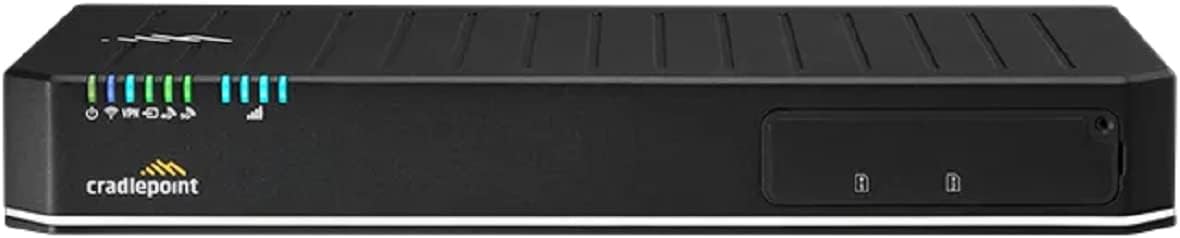
شڪل 2.1: سامهون View of the Cradlepoint E3000 Router. This image displays the front panel of the E3000 router, featuring status indicator lights on the left and two SIM card slots on the right, protected by a cover. The Cradlepoint logo is visible below the indicators.

شڪل 2.2: پوئتي View of the Cradlepoint E3000 Router. This image shows the rear panel of the E3000 router, highlighting various ports and connectors. From left to right, it includes a reset button, expansion port, USB ports, multiple Ethernet ports (some with PoE capability), a 2.5G WAN port, a console port, and power input. Several antenna connectors are also visible across the top edge.
اهم خاصيتون:
- 5G Branch Router: Designed for high-speed 5G connectivity in branch offices.
- 5G Modem: Integrated 5G modem for primary or failover connectivity.
- LTE Fallback: Automatically utilizes LTE (Cat20) when 5G is not available, ensuring continuous network access.
- NetCloud Enterprise Branch Essentials Plan: Includes a 1-year subscription for cloud management, security, and support.
- Dual-Band Wi-Fi: Supports 5 GHz Radio Frequency for wireless communication.
- ڪيترائي ايٿرنيٽ پورٽ: Equipped with various LAN/WAN switchable ports, including PoE.
3. سيٽ اپ گائيڊ
Follow these steps to set up your Cradlepoint E3000 Router:
- روٽر کوليو: Carefully remove the E3000 router and all accessories from its packaging. Verify that all components listed in the packing list are present.
- Insert SIM Cards (Optional): If using cellular connectivity, open the SIM card slot cover on the front of the router. Insert your activated 5G/LTE SIM cards into the designated slots until they click into place. Ensure correct orientation.
- اينٽينا ڳنڍيو: Attach the provided cellular and Wi-Fi antennas to their respective connectors on the rear of the router. Ensure they are securely tightened.
- پاور Connectنيو: Connect the power adapter to the router's power input port on the rear panel, then plug the adapter into a power outlet. The router will begin to power on.
- نيٽ ورڪ سان ڳنڍيو (اختياري):
- وائرڊ ڪنيڪشن: Connect an Ethernet cable from your computer to any of the LAN ports (e.g., ports 1-6) on the router.
- وائرليس ڪنيڪشن: Locate the default Wi-Fi SSID and password on the router's label and connect your device to it.
- Connect to WAN (Internet):
- Ethernet WAN: If using a wired internet connection, connect an Ethernet cable from your modem or existing network to the 2.5G WAN port (port 9) on the router.
- Cellular WAN: If relying solely on cellular, ensure SIM cards are inserted and activated.
- شروعاتي تشڪيل: روٽر تائين رسائي حاصل ڪريو web administration interface by opening a web browser and navigating to the default IP address (usually 192.168.0.1 or 192.168.1.1). Follow the on-screen prompts to complete the initial setup, including setting up your NetCloud account.
4. روٽر هلائڻ
Once set up, the E3000 router operates largely autonomously, providing continuous network connectivity. Monitoring its status is crucial for optimal performance.
اشارو بتيون:
The front panel features several LED indicators that provide real-time status information:
- پاور LED: طاقت جي حالت کي ظاهر ڪري ٿو.
- WAN/Internet LED: Shows the status of the internet connection (wired or cellular).
- LAN/Ethernet LEDs: وائرڊ LAN پورٽن تي سرگرمي جي نشاندهي ڪريو.
- وائي فائي LED: Shows Wi-Fi network status.
- Cellular Signal Strength LEDs: Multiple LEDs indicate the strength of the cellular signal (e.g., 5G or LTE). More lit LEDs mean stronger signal.
Refer to the router's detailed LED guide in the NetCloud documentation for specific light patterns and their meanings.
NetCloud Management:
The E3000 router is managed through the Cradlepoint NetCloud platform. This cloud-based service allows for remote configuration, monitoring, and troubleshooting of your device and network. Log in to your NetCloud account to access features such as:
- Device status and health monitoring.
- Configuration updates and firmware management.
- Network analytics and reporting.
- Security policy management.
- VPN and routing configurations.
5. سار سنڀال
Proper maintenance ensures the longevity and optimal performance of your E3000 router.
- صفائي: Regularly clean the exterior of the router with a soft, dry cloth. Avoid using liquid cleaners or aerosols. Ensure ventilation openings are free from dust and obstructions.
- فرم ويئر اپڊيٽس: Keep the router's firmware updated through the NetCloud platform. Firmware updates often include performance improvements, security patches, and new features.
- لڳائڻ: Place the router in a well-ventilated area, away from direct sunlight, heat sources, and excessive moisture. Avoid placing it in enclosed spaces that can restrict airflow. For optimal Wi-Fi and cellular signal, position it centrally and away from large metal objects.
- ڪيبل جو انتظام: Ensure all cables are neatly organized and not kinked or strained. This prevents accidental disconnections and potential damage.
6. مسئلا حل ڪرڻ
This section provides solutions to common issues you might encounter with your E3000 router.
- انٽرنيٽ ڪنيڪشن ناهي:
- Check all cable connections (power, WAN, LAN).
- Verify that the WAN/Internet LED is active.
- If using cellular, ensure SIM cards are properly inserted and activated, and check cellular signal strength LEDs.
- Restart the router by unplugging the power adapter for 10 seconds and plugging it back in.
- Log into NetCloud to check device status and connectivity logs.
- نيٽ ورڪ جي سست رفتار:
- Check cellular signal strength if using cellular WAN.
- Ensure the router is placed optimally for Wi-Fi coverage.
- Check for excessive network traffic or connected devices.
- Perform a speed test and compare with your internet plan.
- Update router firmware via NetCloud.
- وائي فائي رابطي جا مسئلا:
- پڪ ڪريو ته وائي فائي LED آن آهي.
- Verify Wi-Fi settings (SSID, password) on your devices.
- روٽر کي ٻيهر شروع ڪرڻ جي ڪوشش ڪريو.
- ٻين ڊوائيسز کان وائي فائي مداخلت جي جانچ ڪريو.
- Router Unresponsive / Cannot Access Web انٽرفيس:
- پڪ ڪريو ته توهان جو ڊوائيس روٽر سان ڳنڍيل آهي (وائرڊ يا وائرليس).
- Verify your computer's IP settings (should be set to obtain IP automatically).
- هڪ مختلف ڪوشش ڪريو web برائوزر.
- فيڪٽري ري سيٽ ڪريو (خبردار: This will erase all configurations. Only do this as a last resort and after backing up settings if possible. Use a paperclip to press and hold the reset button on the rear panel for 10-15 seconds while the router is powered on).
7. وضاحتون
Detailed technical specifications for the Cradlepoint E3000 Router:
| خاصيت | وصف |
|---|---|
| ماڊل نالو | E3000 |
| برانڊ | بنيادي سطح تي |
| رابطي ٽيڪنالاجي | Wi-Fi, 5G, LTE |
| وائرليس ڪميونيڪيشن معياري | 5 GHz ريڊيو فریکوئنسي |
| فريڪوئنسي بينڊ ڪلاس | ڊبل بينڊ |
| تعدد | 5 GHz |
| مطابقت رکندڙ ڊوائيسز | پرسنل ڪمپيوٽر |
| مصنوعات لاءِ سفارش ڪيل استعمال | سيڪيورٽي |
| شامل اجزاء | 1-yr NetCloud Enterprise Branch Essentials Plan |
| پيڪيج جي ماپ | 16.26 x 12.64 x 3.86 انچ |
| شيءِ جو وزن | 8.14 پائونڊ |
| ٺاهيندڙ | بنيادي سطح تي |
| اصل جو ملڪ | تائيوان |
| خاص خصوصيت | WPS |
| فائر وال جي ذريعي | 2 جي بي پي ايس |
| VPN سرنگ جي ڳڻپ | 20 |
| آپريٽنگ جي درجه حرارت | 0 °C کان 45 °C (32 °F کان 113 °F) |
| رک جو قابل چڙھڻ | ها |
8. وارنٽي ۽ سپورٽ
Your Cradlepoint E3000 Router includes a 1-year NetCloud Enterprise Branch Essentials Plan, which provides comprehensive support and services.
- NetCloud Enterprise Branch Essentials Plan: This plan includes 24x7 enterprise support and a limited lifetime warranty for the hardware, ensuring peace of mind and continuous operational efficiency.
- ٽيڪنيڪل سپورٽ: For technical assistance, troubleshooting, or warranty claims, please refer to the support resources available through your NetCloud account or visit the official Cradlepoint support webسائيٽ.
- آن لائين وسيلا: Additional documentation, FAQs, and community forums can be found on the Cradlepoint webسائيٽ: cradlepoint.com/support.


