تعارف
This manual provides comprehensive instructions for the setup, operation, and maintenance of your Plustek OpticFilm 8200i SE Film & Slide Scanner. The OpticFilm 8200i SE is designed for high-resolution scanning of 35mm negative film and mounted slides, featuring a built-in infrared channel for dust and scratch detection and removal.

Image: The Plustek OpticFilm 8200i SE scanner shown with included 35mm negative film stripe holders and a mounted slide holder.
پيڪيج مواد
پڪ ڪريو ته هيٺ ڏنل سڀئي شيون توهان جي پيڪيج ۾ شامل آهن:
- Plustek OpticFilm 8200i SE Scanner
- پاور اڊاپٽر
- USB ڪيبل
- 35mm Negative Film Stripe Holder (x2 kits, total 4 holders)
- لڳل سلائيڊ هولڊر
- تڪڙو رستو
- Software DVD (SilverFast SE Plus 8)
- کڻڻ وارو ٿلهو
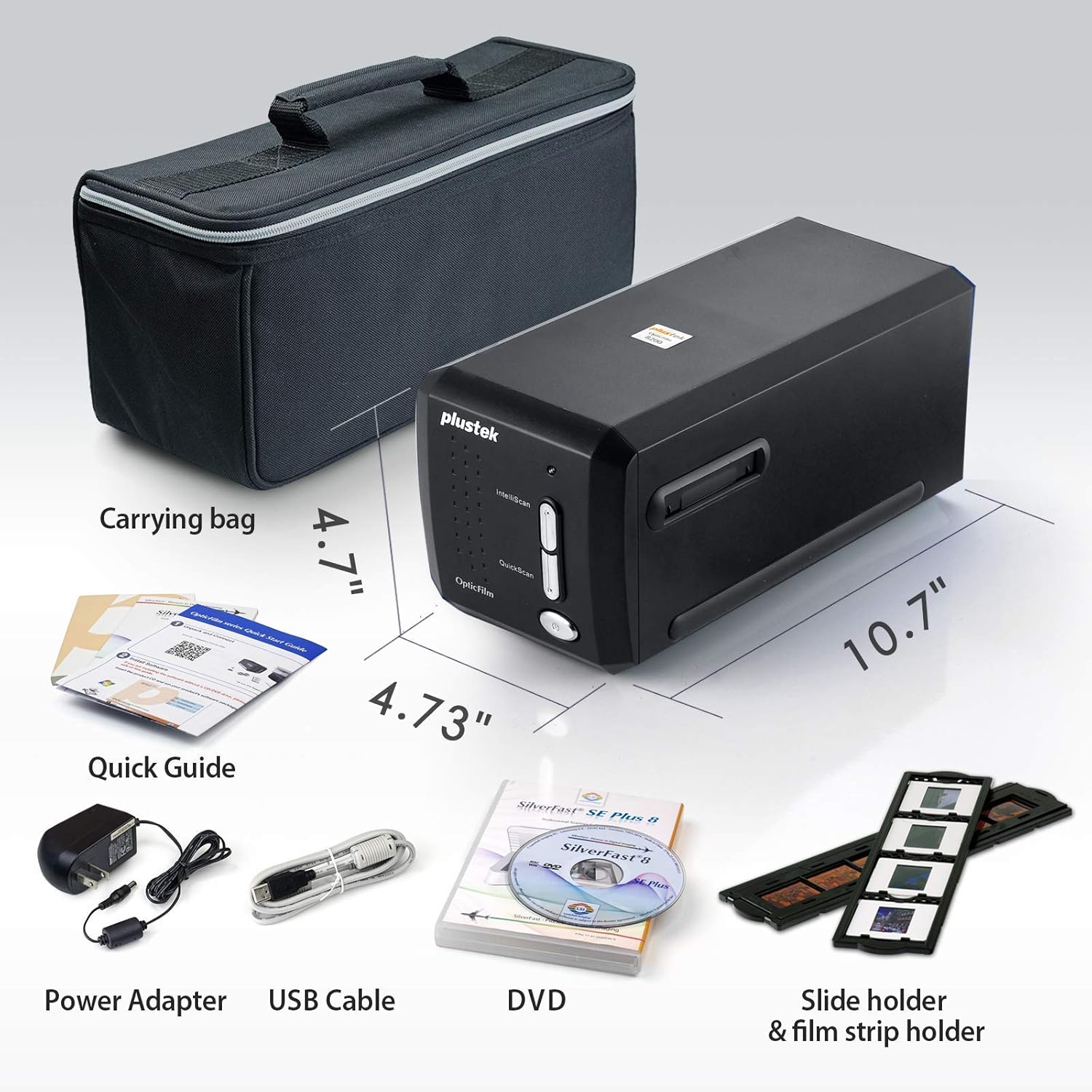
Image: All components included in the Plustek OpticFilm 8200i SE package, including the scanner, power adapter, USB cable, software DVD, quick guide, carrying bag, and film/slide holders.
سيٽ اپ ڪريو
- هارڊويئر ڪنيڪشن:
- پاور اڊاپٽر کي اسڪينر سان ڳنڍيو ۽ پوءِ پاور آئوٽليٽ سان.
- اسڪينر مان USB ڪيبل کي پنهنجي ڪمپيوٽر تي موجود USB پورٽ سان ڳنڍيو.
- سافٽ ويئر انسٽاليشن:
- Insert the provided SilverFast SE Plus 8 software DVD into your computer's optical drive.
- Follow the on-screen instructions to install the software and necessary drivers.
- If your computer does not have an optical drive, or for the latest drivers, download them from the official Plustek website. The scanner supports Windows 7/8/10/11 and Mac OS 10.12 ~ 11.x.
- SilverFast License Registration:
- After installation, launch the SilverFast software.
- You will be prompted to register your free SilverFast license. Follow the steps provided, which typically involve entering your scanner's hardware serial number.

Image: A visual guide demonstrating the steps for registering the SilverFast software license, including locating the serial number and inputting registration details.
آپريٽنگ هدايتون
Loading Film/Slides:
- For 35mm negative film strips, carefully insert the film into the 35mm Negative Film Stripe Holder. Ensure the film is flat and correctly aligned.
- For mounted slides, place the slide into the Mounted Slide Holder.
- لوڊ ٿيل هولڊر کي اسڪينر جي فلم سلاٽ ۾ داخل ڪريو.

Image: Two 35mm negative film holders, designed to securely hold film strips for scanning with the OpticFilm 8200i SE.
Scanning Process with SilverFast:
- Launch the SilverFast SE Plus 8 software.
- Select the appropriate film type (negative or slide) and film profile سافٽ ويئر جي اندر.
- اڳيون استعمال ڪريوview function to adjust scanning area and settings.
- iSRD (انفراريڊ سمارٽ ريموول آف ڊفيڪٽس): The scanner features a built-in infrared channel to detect and remove dust and scratches. Enable this function in the SilverFast software for optimal results.
- Multi-Exposure Function: For improved image quality and dynamic range, enable the Multi-Exposure feature in the software. This captures multiple exposures to enhance detail in highlights and shadows.
- Adjust other settings such as resolution (up to 7200 dpi), color depth (48-bit input), and image enhancements as needed.
- Initiate the scan. The scanned image will appear in the software interface.
- Save your scanned image in your desired format (e.g., TIFF, JPEG).

Image: A diagram illustrating how the infrared channel detects dust and scratches on film, showing the original source image, infrared scan, marker for defects, and the final corrected result.

Image: Screenshot of the SilverFast SE Plus 8 software interface, highlighting the iSRD (Infrared Dust and Scratch Removal) feature and its controls.

تصوير: Examples demonstrating the effects of SilverFast NegaFix for film profiles, iSRD for defect removal, and Multi-Exposure for increased dynamic range, showing before and after comparisons.
سار سنڀال
- اسڪينر جي صفائي: Use a soft, lint-free cloth to gently wipe the exterior of the scanner. Do not use liquid cleaners or abrasive materials.
- Cleaning Film/Slides: Before scanning, ensure your film and slides are free of dust and fingerprints. Use a soft brush or compressed air designed for photographic materials. Avoid touching the film surface directly.
- اسٽوريج: When not in use, store the scanner in a clean, dry, and dust-free environment, preferably in its original packaging or the provided carrying bag.
مشڪلاتون
عام مسئلا ۽ حل:
- اسڪينر نه مليو:
- پڪ ڪريو ته USB ڪيبل اسڪينر ۽ ڪمپيوٽر ٻنهي سان محفوظ طور تي ڳنڍيل آهي.
- Verify the power adapter is connected and the scanner is powered on.
- Reinstall the scanner drivers from the Plustek webسائيٽ.
- توهان جي ڪمپيوٽر تي هڪ مختلف USB پورٽ جي ڪوشش ڪريو.
- Dust/Scratches on Scans:
- Ensure the film/slides are clean before scanning.
- Activate and properly configure the iSRD (Infrared Smart Removal of Defects) function in the SilverFast software. This feature is specifically designed to address dust and scratches.
- Poor Image Quality (Low Dynamic Range, Lack of Detail):
- Ensure the film/slide is correctly loaded and flat in the holder.
- Utilize the Multi-Exposure function in SilverFast to capture more detail in highlights and shadows.
- Check and adjust exposure, contrast, and color settings in the SilverFast software.
- Ensure you are scanning at an appropriate resolution for your needs (e.g., 7200 dpi for maximum detail).
- Software Crashes or Freezes:
- Ensure your operating system meets the minimum system requirements (Windows 7 or later, Mac OS 10.12 or later).
- Update your SilverFast software and scanner drivers to the latest versions from the Plustek webسائيٽ.
- اسڪيننگ دوران ٻيون گهربل ايپليڪيشنون بند ڪريو.
وضاحتون
| خاصيت | وصف |
|---|---|
| ماڊل نالو | OpticFilm 8200i SE |
| اسڪينر جو قسم | Film (35mm Negative & Mounted Slides) |
| آپٽيڪل ريزوليوشن | 7200 ڊي پي آئي |
| متحرڪ رينج | Up to 3.6 Dmax |
| رنگ جي کوٽائي | 48-bit input, 24/48-bit output |
| نور جو ذريعو | ايل اي ڊي |
| سينسر جو قسم | سي سي ڊي |
| رابطي | USB |
| Infrared Channel | Yes (for dust and scratch removal) |
| سپورٽ ٿيل OS | Windows 7/8/10/11, Mac OS 10.12 ~ 11.x |
وارنٽي ۽ سپورٽ
For detailed warranty information, please refer to the warranty card included with your product or visit the official Plustek website. Plustek provides technical support and driver updates through their webسائيٽ.
Official Plustek Webسائيٽ: www.plustek.com
It is recommended to regularly check the Plustek website for the latest software updates and support resources to ensure optimal performance of your scanner.


