1. تعارف
This manual provides detailed instructions for the setup, operation, and maintenance of your MOES Smart Temperature Humidity Monitor with IR Remote Control. This device integrates temperature and humidity sensing with universal infrared remote control capabilities, allowing you to monitor your environment and control various IR-enabled appliances via a smartphone application or voice commands.
2. پراڊڪٽ ختمview
The MOES Smart Temperature Humidity Monitor is a compact device designed to provide real-time environmental data and smart control. It features an LCD display for immediate readings and connects to your home Wi-Fi network for remote access and automation.

Image 2.1: MOES Smart Temperature Humidity Monitor displaying temperature and humidity, alongside a smartphone showing the companion app interface.
اهم خاصيتون:
- حقيقي وقت جي نگراني: Displays current temperature and humidity on an LCD screen.
- IR ريموٽ ڪنٽرول: Controls various infrared appliances such as TVs, air conditioners, and fans.
- وائي فائي ڪنيڪشن: Connects to 2.4GHz Wi-Fi for remote access via the Tuya Smart or Smart Life app.
- سمارٽ آٽوميشن: Create rules to automatically control IR devices based on temperature and humidity changes.
- وائس ڪنٽرول: هينڊز فري آپريشن لاءِ Amazon Alexa ۽ گوگل اسسٽنٽ سان مطابقت رکندڙ.
- درجه حرارت يونٽ سوئچ: سيلسيئس ۽ فارنهائيٽ جي وچ ۾ آساني سان سوئچ ڪريو.
3. وضاحتون
Detailed technical specifications for the MOES Smart Temperature Humidity Monitor.

Image 3.1: Product dimensions and component labels for the MOES Smart Temperature Humidity Monitor.
| خاصيت | تفصيل |
|---|---|
| پيداوار جو نالو | سمارٽ IR ريموٽ ڪنٽرول |
| ماڊل نمبر | WR-TY-THR-BK-MS |
| طول و عرض | 65mm x 65mm x 17mm (2.56 x 2.56 x 0.67 انچ) |
| شيءِ جو وزن | 3.2 اونس |
| پاور ان پٽ | DC 5V/1A (Micro USB, adapter not included) |
| LED اشارو | نيرو |
| درجه حرارت جي درستگي | ±1°C |
| درجه حرارت جي ماپ جي حد | 0 ° C - 60 ° C |
| ڪم جي نمي | ±5٪ آر ايڇ |
| انفراريڊ فريڪوئينسي | 38KHz |
| IR فاصلو | <10 م |
| ڪنيڪشن | وائي فائي 2.4GHz |
| مطابقت رکندڙ ڊوائيسز | Air Conditioner, Humidifier, Fan, TV, Set-top Box, Projector, etc. |
| خاص خاصيتون | Voice Search, App Control, Automation |
4. سيٽ اپ
4.1 دٻي ۾ ڇا آهي
- MOES Smart Temperature Humidity Monitor
- مائڪرو USB ڪيبل
- استعمال ڪندڙ جو دستياب (ھي دستاويز)
4.2 جسماني سيٽ اپ
- پاور ڪنيڪشن: Connect the provided Micro USB cable to the Micro USB port on the device and plug the other end into a 5V/1A USB power adapter (not included). The device will power on and the LCD display will activate.
- لڳائڻ: Place the monitor in a central location within the room where you intend to measure temperature and humidity and control IR devices. Ensure there are no obstructions between the monitor and the IR-controlled appliances. The IR distance is typically up to 10 meters.
4.3 ايپ جي انسٽاليشن ۽ جوڙو ٺاهڻ
The MOES Smart Temperature Humidity Monitor works with the Tuya Smart or Smart Life app.
- ايپ ڊائون لوڊ ڪريو: ڳولھيو "Tuya Smart" or "Smart Life" in your smartphone's app store (iOS App Store or Google Play Store) and download it.
- رجسٽر/لاگ ان: ايپ کوليو ۽ نئين اڪائونٽ لاءِ رجسٽر ٿيو يا جيڪڏهن توهان وٽ اڳ ۾ ئي اڪائونٽ آهي ته لاگ ان ٿيو.
- ڊوائيس شامل ڪريو:
- پڪ ڪريو ته توهان جو اسمارٽ فون 2.4GHz وائي فائي نيٽ ورڪ سان ڳنڍيل آهي.
- ايپ ۾، ڊوائيس شامل ڪرڻ لاءِ مٿي ساڄي ڪنڊ ۾ "+" آئڪن تي ٽيپ ڪريو.
- Select "Sensor" or "Universal Remote Control" from the device list, or use the auto-scan feature.
- پيئرنگ موڊ داخل ڪريو: On the MOES monitor, press and hold the "Reset Button" (located at the back, often labeled 'C/F Switch' or 'Reset') for 5-7 seconds until the Wi-Fi icon on the LCD display starts blinking rapidly.
- Follow the on-screen instructions in the app to connect the device to your Wi-Fi network. This usually involves confirming the blinking indicator and entering your Wi-Fi password.
- Once successfully paired, the Wi-Fi icon on the monitor will stop blinking and remain solid.
5. آپريٽنگ هدايتون
5.1 LCD ڊسپلي اوورview
The LCD display provides essential information at a glance:

تصوير 5.1: تفصيلي view of the LCD display and its indicators.
- درجه حرارت ڊسپلي: Shows the current temperature (in °C or °F).
- نمي ڏيکاري: Shows the current relative humidity (%).
- وائي فائي سگنل: وائي فائي ڪنيڪشن جي ڪيفيت کي ظاهر ڪري ٿو.
- وقت ۽ تاريخ: موجوده وقت ۽ تاريخ ڏيکاري ٿو.
- Week/AM/PM: Shows the day of the week and AM/PM indicator.
5.2 سوئچنگ گرمي پد يونٽ (°C/°F)
To switch between Celsius and Fahrenheit, briefly press the "Reset Button" on the back of the device. The unit on the LCD display will change accordingly. This can also be adjusted within the Tuya Smart/Smart Life app.

Image 5.2: Switching temperature units via the Smart Life app.
5.3 IR Remote Control Functionality
The device can learn and emit IR signals to control various home appliances.
- Adding IR Devices:
- In the Tuya Smart/Smart Life app, navigate to your MOES monitor device.
- Look for an option like "IR Remote Control" or "Add Remote".
- Select the type of appliance you want to control (e.g., TV, Air Conditioner, Fan, Set-top Box).
- Follow the app's instructions to either select from a pre-programmed library of remote codes or use the "DIY" (Do It Yourself) function to learn commands from your original remote control.
- For DIY learning, point your original remote at the MOES monitor and press the desired button when prompted by the app.
- ڪنٽرول ڊوائيسز: Once an IR device is added, you can control it directly from the app interface, even when you are away from home.
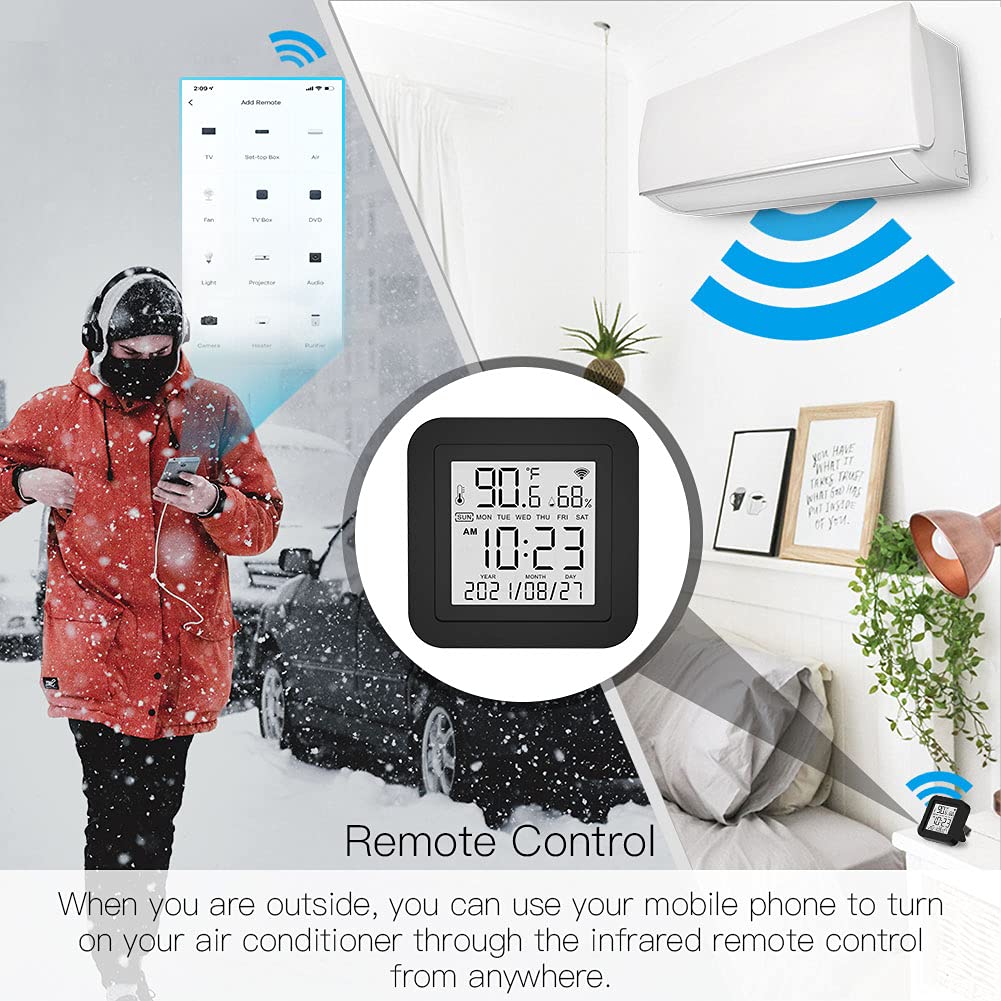
Image 5.3: Remote control functionality via the smartphone app.
5.4 سمارٽ آٽوميشن
Leverage the temperature and humidity data to create automated routines for your IR-controlled devices.
- Access Automation: In the Tuya Smart/Smart Life app, go to the "Smart" or "Automation" section.
- Create a Scene/Automation:
- Select "When device status changes" or "Schedule" as the condition.
- Choose your MOES monitor and set a condition based on temperature or humidity (e.g., "Temperature rises above 26°C" or "Humidity drops below 50%").
- For the task, select "Run the device" and choose the IR-controlled appliance (e.g., Air Conditioner, Humidifier). Set the desired action (e.g., "Turn On", "Set Temperature to 24°C").

تصوير 5.4: اڳوڻيample of temperature-based automation for an air conditioner.

تصوير 5.5: اڳوڻيample of humidity-based automation for a humidifier.
5.5 وائس ڪنٽرول
The MOES Smart Temperature Humidity Monitor is compatible with Amazon Alexa and Google Assistant.
- لنڪ اڪائونٽس: In the Alexa or Google Home app, enable the "Tuya Smart" or "Smart Life" skill/service and link your account.
- دريافت ڪريو آلات: Once linked, ask your voice assistant to discover new devices. Your MOES monitor and any configured IR devices will appear.
- وائس حڪم: You can now use voice commands to control your IR appliances. Examples:
- "اليڪسا، ٽي وي آن ڪر."
- "Hey Google, set the AC to 22 degrees."
- "Alexa, turn off the fan."

Image 5.6: Voice control integration with Amazon Alexa and Google Assistant.
6. سار سنڀال
- صفائي: Use a soft, dry cloth to clean the device. Do not use liquid cleaners or sprays, as they may damage the internal components.
- لڳائڻ: Avoid placing the device in direct sunlight, near heat sources, or in areas with high humidity to ensure accurate readings and optimal performance.
- فرم ويئر اپڊيٽس: The device's firmware may be updated periodically via the Tuya Smart/Smart Life app. Ensure your app is up-to-date and follow any prompts for device firmware updates.
7. مسئلا حل ڪرڻ
| مسئلو | ممڪن حل |
|---|---|
| ڊوائيس پاور نه آهي | Ensure the Micro USB cable is securely connected and the power adapter is working. Try a different USB port or adapter. |
| وائي فائي سان ڳنڍجي نٿو سگھي |
|
| IR remote control not working |
|
| غلط گرمي پد / نمي جي پڙهائي |
|
| وائس ڪنٽرول جواب نه ڏئي رهيو آهي |
|
| Device unresponsive / needs reset | Press and hold the "Reset Button" on the back of the device for approximately 10 seconds until the device restarts or enters pairing mode. You may need to re-pair it with the app. |
8. وارنٽي ۽ سپورٽ
MOES پراڊڪٽس اعتبار ۽ ڪارڪردگي لاءِ ٺهيل آهن. وارنٽي جي معلومات، ٽيڪنيڪل سپورٽ، يا وڌيڪ مدد لاءِ، مهرباني ڪري سرڪاري MOES جو حوالو ڏيو. webسائيٽ تي وڃو يا سڌو سنئون انهن جي ڪسٽمر سروس سان رابطو ڪريو. وارنٽي دعوائن لاءِ خريداري جي ثبوت طور پنهنجي خريداري جي رسيد رکو.
آن لائين وسيلا:
- جو دورو ڪريو ايميزون تي MOES اسٽور پراڊڪٽ اپڊيٽس ۽ لاڳاپيل لوازمات لاءِ.


