1. پراڊڪٽ ختمview
The Comelit IPNVR004S08PB is a standalone Network Video Recorder (NVR) designed for advanced surveillance systems. It supports up to 9 IP inputs, including 4 Power over Ethernet (PoE) ports, and offers 4K resolution recording. Featuring H.265/H.264/H.265+/H.264+ video compression and dual streaming, this NVR includes integrated video analytics functions such as Human Body Detection (Intrusion Detection, Line Cross Detection, Loiter Detection, People Gather Detection). It comes with a pre-installed 1TB HDD and a 52V power supply.
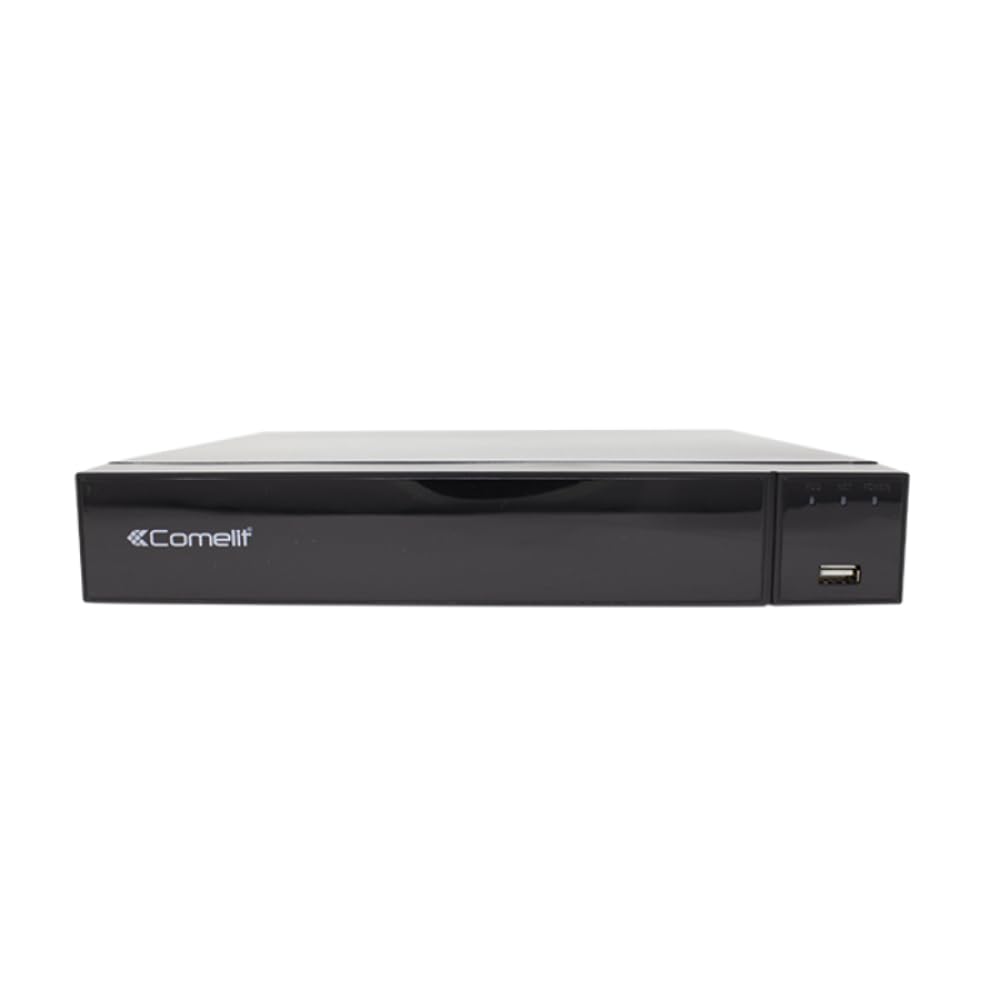
Figure 1: Comelit IPNVR004S08PB Network Video Recorder
2. سيٽ اپ ۽ تنصيب
Follow these steps to set up your Comelit IPNVR004S08PB NVR and connect your IP cameras.
2.1 شروعاتي پاور اپ
- Connect the 52V DC power adapter to the NVR's power input.
- Flip the power switch to the 'ON' position to power on the NVR.
2.2 Connecting IP Cameras to the NVR
There are two primary methods for connecting IP cameras to your NVR:
Method 1: Direct Connection to NVR PoE Ports
This method is ideal for a simplified setup where cameras are directly powered and connected by the NVR.
- Connect an Ethernet cable from the network port of your IP camera to one of the PoE ports on the NVR. The NVR will provide both power and data connectivity.
- Repeat for all desired PoE cameras (up to 4).
Method 2: Connection via a PoE Switch (for more cameras or network flexibility)
This method is used when you have more than 4 PoE cameras or require cameras to be on a separate network segment.
- Connect an Ethernet cable from the NVR's LAN port to your network router.
- Connect all your IP cameras to a separate PoE switch using Ethernet cables.
- Connect the PoE switch to the same network router as the NVR. This ensures all devices are on the same local network.
2.3 Initial NVR Configuration
You can configure the NVR using a monitor, the Reolink App, or the Reolink Client software.
Method A: Configuration via Monitor
- Connect the NVR to a monitor or TV using a VGA or HDMI cable.
- Connect a USB mouse to the NVR's USB port.
- Follow the on-screen prompts to configure settings such as language, screen resolution, date/time format, device name, storage, network access, and email settings.
- Once configured, all connected camera channels should display on the screen.
Method B: Configuration via Reolink App
- Ensure your smartphone and the NVR are connected to the same local network.
- Launch the Reolink App. If the NVR is automatically detected, it will appear in the 'Devices' tab.
- Select any of the device channels to initiate the setup process.
- Create a device password and assign a name to your NVR. Adjust any other necessary settings.
- If the NVR is not automatically added, tap the '+' button in the top right corner to add it manually. You can scan the QR code on the NVR, enter the UID or IP address, or use the LAN scan function.
Method C: Configuration via Reolink Client
- Ensure your computer and the NVR are connected to the same local network.
- Launch the Reolink Client software. The NVR should be automatically detected.
- Set a password and device name for the NVR.
- If the NVR is not automatically added, use the 'Add New Device(s)' option to scan for devices in the LAN, or manually enter the UID or IP address.
سيٽ اپ وڊيوز
Video 1: This video demonstrates how to configure a PoE camera system, including connecting cameras directly to the NVR and connecting the NVR to a router for remote access. It also covers initial NVR setup via monitor, app, and client software.
Video 2: This video provides a quick guide on how to connect a DVR and an IP camera from the beginning, focusing on the physical connections.
Video 3: This video illustrates the process of connecting a DVR system from scratch, detailing the steps for connecting the DVR to a monitor, power, and network.
3. اين وي آر هلائڻ
Once your NVR is set up, you can begin operating your surveillance system.
3.1 زنده View
لائيو تائين رسائي view through your connected monitor, Reolink App, or Reolink Client to see real-time footage from all connected cameras.
3.2 رڪارڊنگ
The NVR is pre-configured for continuous recording to the 1TB HDD. You can adjust recording schedules and modes (e.g., motion-triggered, scheduled) via the NVR's interface or software.
3.3 پلے بیک
Review رڪارڊ ٿيل footage by accessing the playback function. You can search by date, time, or event (e.g., motion detection) to quickly find specific incidents.
3.4 Video Analytics
The NVR supports advanced video analytics. Configure these features (Intrusion Detection, Line Cross Detection, Loiter Detection, People Gather Detection) through the NVR's settings to receive alerts for specific events.
4. سار سنڀال
Regular maintenance ensures optimal performance and longevity of your NVR system.
- فرم ويئر اپڊيٽس: Periodically check the Comelit website for firmware updates to ensure your NVR has the latest features and security patches.
- HDD صحت جي چڪاس: Monitor the health of the 1TB HDD through the NVR's system settings. Replace the HDD if any issues are detected.
- صفائي: Keep the NVR unit clean and free from dust to prevent overheating. Ensure proper ventilation around the device.
- پاسورڊ سيڪيورٽي: Regularly update your NVR's password to maintain system security.
HDD Compatibility Video
Video 4: This video provides information on recommended Hard Disk Drives (HDDs) compatible with NVR systems, which is useful for maintenance and potential upgrades.
5. مسئلا حل ڪرڻ
هتي عام مسئلن جا حل آهن جيڪي توهان کي منهن ڏئي سگهن ٿا:
- وڊيو ڊسپلي ناهي:
- Check all video cable connections (HDMI/VGA) between the NVR and the monitor.
- پڪ ڪريو ته مانيٽر آن آهي ۽ صحيح ان پٽ سورس تي سيٽ ڪيو ويو آهي.
- Verify that cameras are properly connected and powered (especially PoE cameras).
- ڪوبه نيٽ ورڪ ڪنيڪشن ناهي:
- Ensure the Ethernet cable is securely connected to the NVR's LAN port and the router.
- Check if the router is functioning correctly.
- Verify NVR network settings (IP address, gateway, DNS) are correct, or set to DHCP for automatic assignment.
- رڪارڊنگ جا مسئلا:
- Check the 1TB HDD status in the NVR settings. Ensure it's initialized and healthy.
- Verify recording schedules and motion detection settings are correctly configured.
- Ensure there is sufficient free space on the HDD.
- ريموٽ رسائي ناڪامي:
- Confirm the NVR has internet access.
- Check firewall settings on your router; port forwarding might be required for direct access (though P2P/Cloud access usually bypasses this).
- Ensure the Reolink App/Client is updated to the latest version.
6. وضاحتون
| خاصيت | تفصيل |
|---|---|
| برانڊ | ڪومليٽ |
| ماڊل | IPNVR004S08PB |
| وڊيو انپٽس | 9 IP Inputs (4 PoE) |
| قرارداد | Up to 8MP (4K) |
| وڊيو ڪمپريشن | H265/H264/H265+/H264+ |
| وهڻ | ualٽي وهڪرو |
| وڊيو تجزيي | Human Body Detection (Intrusion Detection, Line Cross Detection, Loiter Detection, People Gather Detection) |
| رکڻ جي گنجائش | 1 ٽي بي هارڊ ڊرائيو (اڳ ۾ نصب ٿيل) |
| بجلي جي فراهمي | 52V ڊي سي اڊاپٽر |
| مطابقت رکندڙ ڊوائيسز | IP Cameras, Alarm Systems |
| رابطي ٽيڪنالاجي | ايٿرنيٽ |
| وڊيو آئوٽ | VGA، HDMI |
| USB بندرگاهن | ها |
| Alarm Inputs/Outputs | ها |
7. وارنٽي ۽ سپورٽ
For warranty information, technical support, or further assistance, please refer to the official Comelit website or contact their customer service directly. Keep your purchase receipt and product serial number handy when seeking support.


