1. تعارف
The Raspberry Pi 4 Model B (2GB) is a powerful, compact single-board computer designed for a wide range of applications, from desktop computing to embedded projects. It offers enhanced processing power, improved multimedia capabilities, and expanded connectivity compared to previous models. This manual provides essential information for setting up, operating, and maintaining your Raspberry Pi 4 Model B.

Image 1.1: The Raspberry Pi 4 Model B (2GB) single-board computer, showcasinان جي ڪمپيڪٽ ڊيزائن ۽ مختلف بندرگاهن جي ڪري.
2. پيڪيج مواد
Upon opening your Raspberry Pi 4 Model B package, you should find the following:
- Raspberry Pi 4 Model B (2GB) board
Note: Additional accessories such as a power supply, microSD card, HDMI cables, and a case are typically sold separately.
3. مصنوعات جون خاصيتون
The Raspberry Pi 4 Model B (2GB) includes several key features:
- پروسيسر: Broadcom BCM2711، Quad core Cortex-A72 (ARM v8) 64-bit SoC @ 1.5GHz
- رام: 2GB LPDDR4-3200 SDRAM
- وائرلیس رابطي 2.4 GHz and 5.0 GHz IEEE 802.11ac wireless, Bluetooth 5.0, BLE
- Ethernet: Gigabit Ethernet
- USB بندرگاهن: 2 USB 3.0 ports; 2 USB 2.0 ports
- GPIO: Standard 40-pin GPIO header (fully backwards compatible with previous boards)
- وڊيو ۽ آڊيو: 2 micro-HDMI ports (up to 4Kp60 supported), 2-lane MIPI DSI display port, 2-lane MIPI CSI camera port, 4-pole stereo audio and composite video port
- اسٽوريج: آپريٽنگ سسٽم ۽ ڊيٽا اسٽوريج لاء مائڪرو ايس ڊي ڪارڊ سلاٽ
4. سيٽ اپ گائيڊ
4.1. Required Components (Not Included)
- USB-C Power Supply (5V/3A recommended)
- MicroSD Card (minimum 8GB, Class 10 recommended)
- HDMI Cable(s) (micro-HDMI to standard HDMI)
- USB ڪي بورڊ ۽ ماؤس
- HDMI ان پٽ سان مانيٽر يا ٽي وي
4.2. آپريٽنگ سسٽم انسٽال ڪرڻ
- Download the Raspberry Pi Imager software from the official Raspberry Pi webسائيٽ (www.raspberrypi.com/software/).
- Insert your microSD card into your computer's card reader.
- Open Raspberry Pi Imager, select your desired operating system (e.g., Raspberry Pi OS), and choose your microSD card as the destination.
- Click "Write" and wait for the process to complete.
- Safely eject the microSD card from your computer.
4.3. هارڊويئر ڪنيڪشن
- Insert the prepared microSD card into the card slot on the underside of the Raspberry Pi.
- Connect your USB keyboard and mouse to the USB ports on the Raspberry Pi.
- Connect your monitor(s) to the micro-HDMI ports using appropriate cables. The Raspberry Pi 4 supports up to two displays.
- (Optional) Connect an Ethernet cable for wired network access.
- Finally, connect the USB-C power supply to the Raspberry Pi. The device will power on automatically.
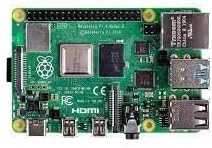
تصوير 4.3.1: هڪ ويجهو تصوير view of the Raspberry Pi 4 Model B's various ports, including USB, Ethernet, and micro-HDMI.
5. آپريٽنگ هدايتون
5.1. First Boot and Initial Configuration
On the first boot, the Raspberry Pi OS will guide you through an initial setup wizard. This includes setting your country, language, timezone, creating a user password, connecting to Wi-Fi, and updating the software. Follow the on-screen prompts to complete these steps.
5.2. Desktop Environment
Once configured, you will be presented with the Raspberry Pi OS desktop environment. This is similar to other desktop operating systems, allowing you to launch applications, browse the web، انتظام ڪرڻ files، ۽ وڌيڪ.
5.3. بند ڪرڻ
To safely shut down your Raspberry Pi, click the Raspberry Pi icon in the top-left corner of the screen, then select بند ڪريو. Always shut down the system properly before disconnecting power to prevent data corruption on the microSD card.
6. سار سنڀال
- سافٽ ويئر اپڊيٽ: Regularly update your operating system and installed software to ensure optimal performance and security. This can typically be done via the terminal using commands like
sudo apt update۽sudo apt full-upgrade. - ٿڌي ڪرڻ: The Raspberry Pi 4 can generate heat under heavy load. Consider using a heatsink or a fan case to ensure proper cooling and prevent thermal throttling, especially for demanding applications.
- بجلي جي فراهمي: Use a high-quality 5V/3A USB-C power supply to ensure stable operation. Insufficient power can lead to instability.
- MicroSD ڪارڊ جي سنڀال: Avoid frequently writing large amounts of data to the microSD card to prolong its lifespan. Consider using a USB SSD for heavy data operations.
7. مسئلا حل ڪرڻ
- ڪابه ڊسپلي آئوٽ پٽ ناهي: Ensure micro-HDMI cables are securely connected and your monitor is set to the correct input. Try a different micro-HDMI port or cable.
- پاور LED چمڪندڙ: This often indicates an insufficient power supply. Ensure you are using a 5V/3A USB-C power supply.
- Wi-Fi/Bluetooth Issues: Check your network settings in the Raspberry Pi OS. Ensure the device is within range of your Wi-Fi router.
- سسٽم جي عدم استحڪام/حادثا: This could be due to overheating (ensure proper cooling), a corrupted microSD card (try re-flashing the OS), or an inadequate power supply.
- عام مسئلا: The Raspberry Pi community forums and documentation are excellent resources for troubleshooting specific problems.
8. وضاحتون
| خاصيت | تفصيل |
|---|---|
| پروسيسر | Broadcom BCM2711، Quad core Cortex-A72 (ARM v8) 64-bit SoC @ 1.5GHz |
| رام | 2GB LPDDR4-3200 SDRAM |
| وائرليس جو قسم | 802.11ac, Bluetooth 5.0, BLE |
| ايٿرنيٽ | Gigabit Ethernet |
| USB بندرگاهن | 2 USB 3.0 ports, 2 USB 2.0 ports |
| وڊيو آئوٽ | 2 micro-HDMI ports (up to 4Kp60) |
| آڊيو آئوٽ | 4 قطب اسٽيريو آڊيو ۽ جامع وڊيو پورٽ |
| GPIO هيڊر | Standard 40-pin GPIO header |
| ذخيرو | مائڪرو ايس ڊي ڪارڊ سلاٽ |
| آپريٽنگ سسٽم | Linux (e.g., Raspberry Pi OS) |
| شيءِ جو وزن | 2.11 اونس |
9. وارنٽي ۽ سپورٽ
For warranty information and technical support, please refer to the official Raspberry Pi website or contact your retailer. The Raspberry Pi community also provides extensive resources, forums, and documentation for assistance with projects and troubleshooting.
سرڪاري Webسائيٽ: www.raspberrypi.com


