1. تعارف
This manual provides detailed instructions for the setup, operation, and maintenance of your Bisofice ZJ-5810 58mm Thermal Receipt Printer. Please read this manual thoroughly before using the printer to ensure proper functionality and to extend the product's lifespan.
2. پراڊڪٽ ختمview
2.1 اهم خاصيتون
- ڇپائي جو طريقو: سڌو حرارتي ڇپائي
- ڪاغذ جي ويڪر: 58mm
- مؤثر ڇپائي ويڪر: 48mm
- پرنٽ جي رفتار: 90mm/s تائين
- قرارداد: 203 dpi (8 نقطا/ميلي)
- رابطي: USB, Bluetooth 2.0/4.0
- بيٽري: 2000mAh 7.4V Rechargeable Lithium Battery
- مطابقت: iOS، Android، ونڊوز، لينڪس
- Barcode Support: 1D (UPC-A/E, EAN13/8, CODE39/93/128, ITF, CODABAR), 2D (QR Code)
2.2 پيڪيج مواد
پڪ ڪريو ته سڀئي شيون پيڪيج ۾ موجود آهن:
- 1 x Bisofice ZJ-5810 Thermal Receipt Printer
- 1 x حرارتي پيپر رول
- 1 x USB ڪيبل
- 1 x استعمال ڪندڙ دستياب

Image: Package contents including the printer, manual, USB cable, and a thermal paper roll.
3. وضاحتون
| خاصيت | تفصيل |
|---|---|
| ماڊل | ZJ-5810 |
| طول و عرض (L x W x H) | 11.2 x 8.4 x 5 سينٽي (4.4 x 3.3 x 2 انچ) |
| وزن | 254 گرام (9 اوز) |
| ڇپائيءَ جو طريقو | حرارتي لائن ڇپائي |
| پرنٽ سر جي عمر | 100 million pulses/dot, or 100 km |
| قرارداد | 203 dpi (8 نقطا/ميلي) |
| مؤثر پرنٽ ويڪر | 48 ملي ايم (384 نقطا) |
| Available Paper Width | 58 ± 1 ملي ايم |
| پيپر رول قطر | Max. ≤ 50 mm |
| پرنٽ جي رفتار | ≤ 90 mm/s |
| بيٽري | 2000mAh 7.4V Rechargeable Lithium Battery |
| چارج ڪرڻ جو طريقو | External Charger (5V-2A) |
| ڪميونيڪيشن انٽرفيس | USB, Bluetooth 2.0/4.0 |
| آپريٽنگ سسٽم | iOS, Android, Windows (9X/2000/2003/XP/Vista/7/8/10), Linux |

Image: Physical dimensions of the ZJ-5810 printer.
4. سيٽ اپ
4.1 پاور آن ۽ چارج ڪرڻ
- Ensure the printer is fully charged before first use. Connect the printer to the external charger using the provided USB cable. The charge indicator light will illuminate.
- Press and hold the power button to turn the printer on or off.

Image: The printer's battery compartment, showing the 2000mAh lithium battery. The product label indicates Model: ZJ-5810, Paper Width: 58mm, Power Supply: 9V/1.5A, and a serial number: 345276248958.
4.2 Installing the Thermal Paper Roll
- Open the printer's top cover by gently lifting it.
- Insert the thermal paper roll into the compartment, ensuring the printing side of the paper faces the print head.
- پرنٽ هيڊ جي ڀرسان ٿوري مقدار ۾ ڪاغذ ڪڍو.
- مٿئين ڍڪ کي مضبوطيءَ سان بند ڪريو جيستائين اهو جاءِ تي نه اچي.
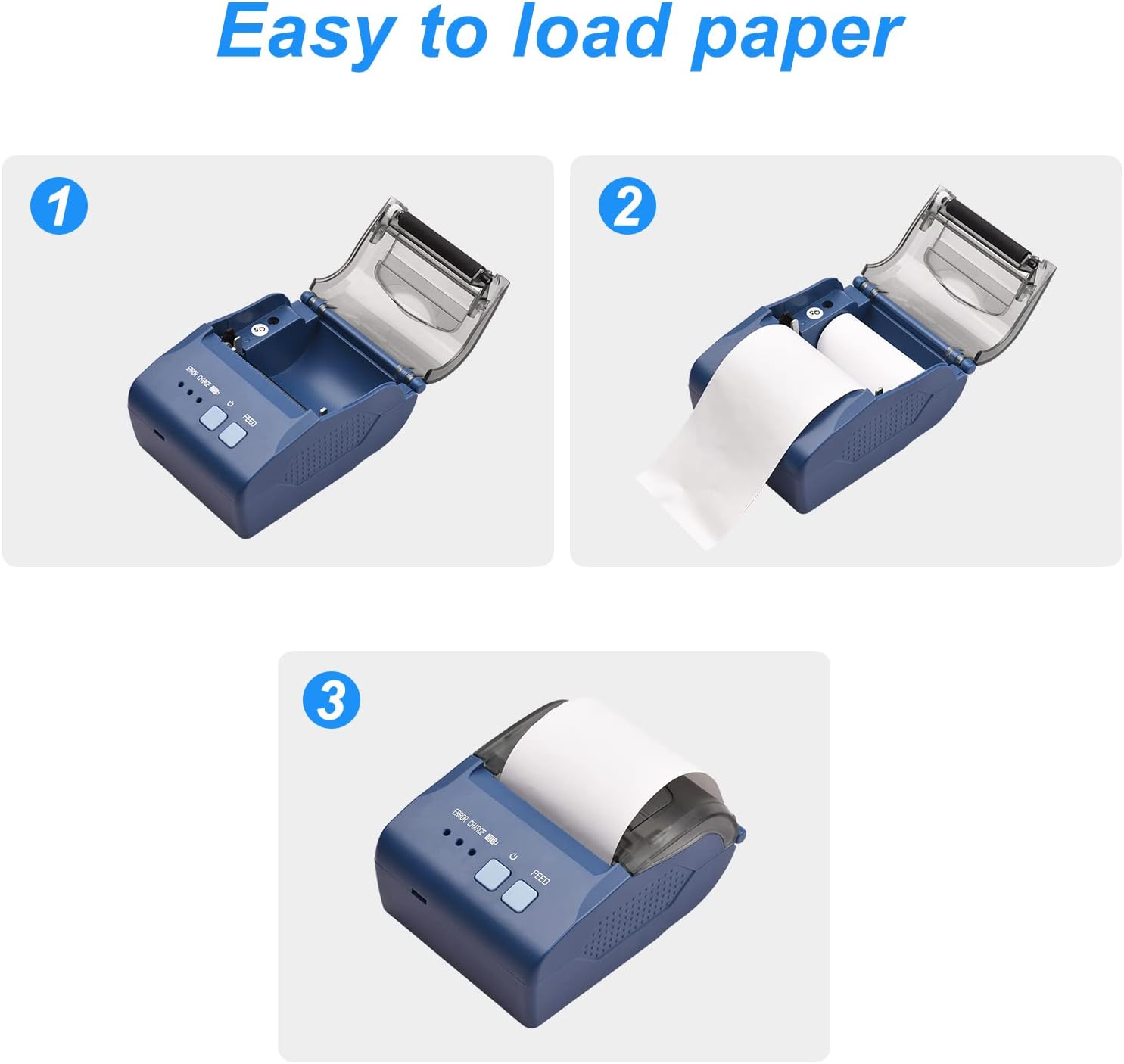
Image: Visual steps demonstrating how to open the cover, insert the paper roll, and close the cover.
4.3 Driver Installation (Windows/Linux)
For Windows and Linux operating systems, download the printer driver from the official webسائيٽ:
- گهمڻ: http://www.cnfujun.com/d/41
- ڊرائيور کي انسٽال ڪرڻ لاءِ اسڪرين تي ڏنل هدايتن تي عمل ڪريو.
4.4 Bluetooth Connection (iOS/Android)
To connect the printer via Bluetooth to a mobile device:
- Ensure the printer is powered on and Bluetooth is enabled on your mobile device.
- iOS لاءِ: Download the "POS-PrinterV1.0" application from the Apple App Store. Open the app and follow its instructions to connect to the printer.
- Android لاءِ: Scan the QR code provided in the physical user manual to download the DEMO APP. Alternatively, you may find the app at https://www.pgyer.com/Z59z?sign=&auSign=&code=. Follow the in-app instructions to complete the installation and connection.

Image: The printer connected to a smartphone via Bluetooth for mobile printing.
4.5 USB ڪنيڪشن
Connect the printer to your computer using the provided USB cable. After driver installation (Section 4.3), the printer should be recognized by your system.
5. آپريٽنگ هدايتون
5.1 بنيادي پرنٽنگ
Once the printer is connected and drivers/apps are installed, you can initiate printing from your application. The printer will automatically feed and cut the receipt after printing.

Image: The Bisofice ZJ-5810 printer with a sample receipt being printed.
5.2 Barcode and QR Code Printing
The ZJ-5810 supports various 1D and 2D barcode formats. Ensure your printing software or application is configured to send barcode data in a compatible format for optimal results.

Image: The printer's internal mechanism, illustrating its high-speed printing capability of up to 90mm/s.
6. سار سنڀال
6.1 پرنٽ هيڊ کي صاف ڪرڻ
Regular cleaning of the print head ensures clear print quality and extends the printer's life.
- پرنٽر بند ڪريو ۽ پاور ڪيبل ڊسڪنيڪٽ ڪريو.
- مٿو ڍڪ کوليو.
- ڪپهه جي سواب کي هلڪو استعمال ڪريو dampened with isopropyl alcohol to gently wipe the print head surface.
- پرنٽر کي بند ڪرڻ ۽ پاور آن ڪرڻ کان اڳ پرنٽ هيڊ کي مڪمل طور تي سڪي وڃڻ ڏيو.
6.2 بيٽري جي سنڀال
- بيٽري کي بار بار مڪمل طور تي چارج ڪرڻ کان پاسو ڪريو.
- If storing the printer for an extended period, charge the battery to approximately 50% and store in a cool, dry place.
- Use only the provided charger or a compatible 5V-2A charger.
7. مسئلا حل ڪرڻ
- طاقت ناهي: Ensure the printer is charged and the power button is pressed firmly. Check the USB cable and charger connection.
- خراب پرنٽ معيار: Clean the print head (Section 6.1). Ensure you are using high-quality thermal paper.
- پيپر جام: Turn off the printer, open the cover, carefully remove any jammed paper, and re-install the paper roll correctly (Section 4.2).
- بلوٽوٿ ذريعي ڳنڍي نه ٿو سگهجي: Ensure Bluetooth is enabled on both devices. Restart the printer and your mobile device. Re-pair the devices. Verify the correct app is installed for your operating system.
- Printer Not Recognized (USB): Ensure the USB cable is securely connected. Reinstall the printer drivers (Section 4.3). Try a different USB port or cable.
8. وارنٽي ۽ سپورٽ
Information regarding specific warranty terms and conditions for the Bisofice ZJ-5810 printer is not available in this manual. For warranty claims, technical support, or service inquiries, please refer to the documentation provided at the time of purchase or contact your retailer.


