1. تعارف
This manual provides detailed instructions for the proper use, setup, and maintenance of your HOCO GM15 Business Wireless Mouse. Please read this manual thoroughly before using the product to ensure optimal performance and longevity. Keep this manual for future reference.
2. پراڊڪٽ ختمview
The HOCO GM15 is a versatile dual-mode wireless mouse designed for business and everyday use. It offers both 2.4G wireless and Bluetooth connectivity, allowing seamless switching between devices. The mouse features adjustable DPI settings for precise control.

Figure 2.1: The HOCO GM15 Business Wireless Mouse with its accompanying USB receiver.
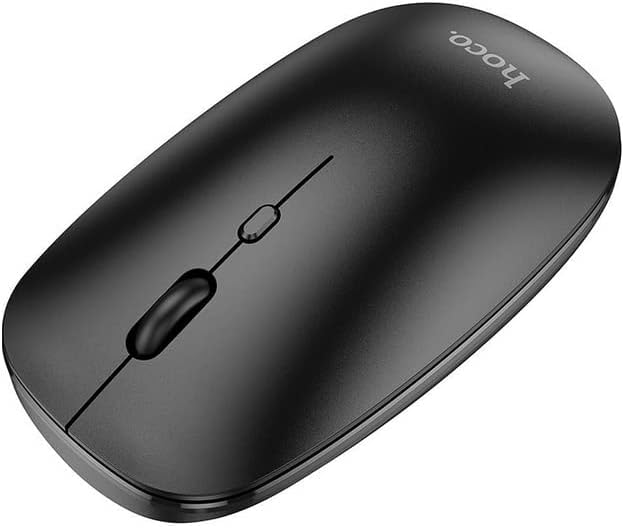
شڪل 2.2: مٿي view of the HOCO GM15 mouse, highlighting the scroll wheel and DPI adjustment button.
3. سيٽ اپ
3.1 بيٽري لڳائڻ
- مائوس جي هيٺئين پاسي بيٽري جي ڪمپارٽمينٽ ڪَوَر کي ڳوليو.
- ڪمپارٽمينٽ کولڻ لاءِ ڍڪ کي نرميءَ سان سلائڊ ڪريو يا مٿي ڪريو.
- Insert one AA battery (not included) into the compartment, ensuring the polarity (+/-) matches the indicators.
- بيٽري جي ڪمپارٽمينٽ جي ڍڪ کي تبديل ڪريو جيستائين اهو محفوظ طور تي جاءِ تي نه اچي.
3.2 Connecting via 2.4G Wireless
- Remove the USB receiver from its storage slot, usually located within the battery compartment.
- USB رسيور کي پنهنجي ڪمپيوٽر يا ڊوائس تي موجود USB پورٽ ۾ لڳايو.
- ماؤس کي ان جي هيٺئين پاسي واري پاور سوئچ استعمال ڪندي آن ڪريو.
- Ensure the mouse is in 2.4G mode. This is typically indicated by a switch or button on the mouse. The mouse should automatically connect to your device.

Figure 3.1: The HOCO GM15 mouse connected to a laptop using the 2.4G USB receiver.
3.3 بلوٽوت ذريعي ڳنڍڻ
- ماؤس کي ان جي هيٺئين پاسي واري پاور سوئچ استعمال ڪندي آن ڪريو.
- Switch the mouse to Bluetooth mode. This is usually done via a dedicated switch or button on the mouse's underside or top. An indicator light may flash to show it's in pairing mode.
- توھان جي ڪمپيوٽر يا ڊوائيس تي، بلوٽوت سيٽنگون ڏانھن وڃو.
- ڳولھيو new devices. The mouse should appear as "HOCO GM15" or similar.
- Select the mouse to pair. Once paired, the indicator light will typically become solid or turn off.
4. آپريٽنگ هدايتون
4.1 ڊي پي آئي ايڊجسٽمينٽ
The HOCO GM15 mouse features adjustable DPI (Dots Per Inch) settings, allowing you to change cursor sensitivity. This is useful for different tasks, such as precise graphic design work or faster navigation.
- Locate the DPI button, typically positioned behind the scroll wheel (refer to Figure 2.2).
- Press the DPI button to cycle through the available sensitivity settings: 800 DPI, 1200 DPI, and 1600 DPI.
- The cursor speed will change with each press, allowing you to select your preferred sensitivity.
4.2 موڊ سوئچنگ
To switch between 2.4G wireless and Bluetooth modes:
- Locate the mode switch on the underside of the mouse.
- Slide the switch to select either the 2.4G icon or the Bluetooth icon, depending on your desired connection method.
- Ensure your device is properly set up for the chosen connection mode as described in Section 3.
5. سار سنڀال
Proper maintenance ensures the longevity and optimal performance of your HOCO GM15 mouse.
- صفائي: مائوس جي مٿاڇري کي صاف ڪرڻ لاءِ نرم، سڪل ڪپڙو استعمال ڪريو. ضدي مٽيءَ لاءِ، ٿورو ڊيampڪپڙو پاڻي سان ڍڪيو. سخت ڪيميڪل يا رگڙيندڙ مواد استعمال ڪرڻ کان پاسو ڪريو.
- سينسر جي صفائي: Occasionally, clean the optical sensor on the underside of the mouse with a cotton swab to prevent tracking issues.
- بيٽري مٽائڻ: Replace the battery when the mouse performance degrades or if it stops responding. Always use a fresh AA battery.
- اسٽوريج: When not in use for extended periods, turn off the mouse to conserve battery life. Store the USB receiver in its designated slot to prevent loss.
6. مسئلا حل ڪرڻ
If you encounter issues with your HOCO GM15 mouse, refer to the following common problems and solutions:
| مسئلو | ممڪن سبب | حل |
|---|---|---|
| مائوس جواب نه ڏئي رهيو آهي | Low battery; Mouse is off; Incorrect connection mode; USB receiver not plugged in (2.4G); Bluetooth not paired. | Replace battery; Turn on mouse; Switch to correct mode (2.4G/BT); Plug in USB receiver; Pair via Bluetooth settings. |
| ڪرسر جي حرڪت بي ترتيب يا ٽپڪي آهي | گندو آپٽيڪل سينسر؛ اڻ برابر مٿاڇري؛ مداخلت. | Clean the optical sensor; Use on a smooth, opaque surface (e.g., mouse pad); Move closer to the receiver/device. |
| بلوٽوٿ ذريعي ڳنڍي نٿو سگھجي | Mouse not in pairing mode; Bluetooth on device is off; Already connected to another device. | Ensure mouse is in Bluetooth pairing mode (flashing light); Enable Bluetooth on your device; Disconnect from other devices. |
| 2.4G connection issues | USB receiver not recognized; Interference; Mouse too far from receiver. | Try a different USB port; Reduce distance between mouse and receiver; Avoid strong electromagnetic interference. |
7. وضاحتون
| خاصيت | تفصيل |
|---|---|
| ماڊل نمبر | جي ايم 15 |
| رابطي | 2.4G وائرليس، بلوٽوٿ |
| ڊي پي آئي سيٽنگون | 800/1200/1600 DPI |
| پيداوار جي ماپ | 4.4 x 11 x 19.1 سينٽي |
| وزن | 100 جي |
| ٺاهيندڙ | هيڪو |
| اصل جو ملڪ | چين |
8. وارنٽي ۽ سپورٽ
HOCO products are designed and manufactured to the highest quality standards. For information regarding warranty coverage, technical support, or service inquiries, please refer to the warranty card included with your purchase or visit the official HOCO webسائيٽ. مھرباني ڪري وارنٽي دعوائن لاءِ خريداري جو ثبوت رکو.


