1. تعارف
This manual provides essential information for setting up, operating, maintaining, and troubleshooting your Alienware X17 R2 Gaming Laptop. Please read this guide thoroughly to ensure optimal performance and longevity of your device.
The Alienware X17 R2 is designed for high-performance gaming and demanding tasks, featuring advanced cooling technologies, powerful processors, and dedicated graphics.
2. پراڊڪٽ ختمview
The Alienware X17 R2 is engineered to deliver an immersive gaming experience in a thin 17-inch form factor. Key features include:
- Powerful Intel CPUs: Experience high-performance action across all your favorite games with 12th Gen Intel Core processors.
- Next-Gen GPUs: Game unrestrained with NVIDIA GeForce RTX 3070Ti graphics, Dynamic Boost 2.0, and Deep Learning Super Sampling technology.
- Patented Quad Cooling: An industry-first design uses four intelligently controlled and programmable fans to dissipate heat.
- وڌايل راند جو وقت: Improve battery life with Advanced Optimus technology from NVIDIA—now available on all display options.
- Legend 2.0 Industrial Design: A fresh evolution in design with a high-endurance finish and customizable AlienFX lighting.

شڪل 2.1: سامهون view of the Alienware X17 R2 Gaming Laptop displaying a game.
3. سيٽ اپ
3.1 انباڪسنگ ۽ شروعاتي معائنو
- احتياط سان ليپ ٽاپ ۽ سڀني لوازمات کي پيڪنگ مان هٽايو.
- تصديق ڪريو ته "باڪس ۾ ڇا آهي" سيڪشن ۾ درج ڪيل سڀئي شيون موجود آهن.
- ڪنهن به جسماني نقصان لاءِ ليپ ٽاپ جو معائنو ڪريو. جيڪڏهن نقصان ملي ٿو، ته فوري طور تي پنهنجي پرچون ڪندڙ سان رابطو ڪريو.
3.2 ڳنڍڻ واري طاقت
- Connect the power adapter to the charging port located at the rear of the laptop.
- پاور ڪنڊ کي وال آئوٽليٽ ۾ لڳايو.
- The power indicator light will illuminate, indicating the laptop is receiving power.
3.3 پهريون بوٽ ۽ آپريٽنگ سسٽم سيٽ اپ
- Press the Alienware head power button to turn on the laptop.
- ونڊوز 11 هوم سيٽ اپ جي عمل کي مڪمل ڪرڻ لاءِ اسڪرين تي ڏنل هدايتن تي عمل ڪريو. ان ۾ توهان جو علائقو چونڊڻ، وائي فائي نيٽ ورڪ سان ڳنڍڻ، ۽ هڪ صارف اڪائونٽ ٺاهڻ شامل آهي.
- Allow the system to download and install any necessary updates.
4. توهان جي ليپ ٽاپ کي هلائڻ
4.1 ڪي بورڊ ۽ ٽچ پيڊ
The Alienware X17 R2 features a backlit keyboard and a responsive touchpad. The AlienFX lighting allows for customizable colors and effects across the keyboard and other zones.

شڪل 4.1: تفصيلي view بيڪ لِٽ ڪيبورڊ ۽ ٽچ پيڊ جو.
4.2 ڊسپلي ۽ گرافڪس
Enjoy stunning visuals on the 17.3-inch FHD display with a 480Hz refresh rate and 3ms response time. The NVIDIA GeForce RTX 3070Ti graphics card ensures smooth gameplay and high-fidelity rendering. The laptop supports Dolby Vision for optimized color profiles.
4.3 آڊيو
Experience immersive 3D sound via Dolby Atmos, designed to deliver audio as studios intended.
4.4 بندرگاهن ۽ ڪنيڪٽوٽي
The laptop offers a variety of ports for peripherals and external displays:

شڪل 4.2: پوئتي view illustrating the various connectivity ports.
- USB 3.0 بندرگاهن: 3 ports for connecting various USB devices.
- USB-C بندرگاهن: For versatile connectivity, including Thunderbolt 4.
- HDMI2.1: Supports up to 4K/120Hz output for external displays.
- Ethernet: Killer E3100 RJ45 Ethernet for stable wired network connections.
- وائرليس: Killer Wi-Fi 6 (802.11ax) and Bluetooth for wireless connectivity.
5. سار سنڀال
5.1 صفائي
- اسڪرين ۽ ٻاهرين سطحن کي صاف ڪرڻ لاءِ نرم، لِنٽ کان پاڪ ڪپڙو استعمال ڪريو.
- سخت ڪيميائي يا ٻرندڙ مواد استعمال ڪرڻ کان پاسو ڪريو.
- مٽي جي جمع ٿيڻ کي روڪڻ لاءِ کولنگ وينٽس کي باقاعدي صاف ڪريو، جيڪو ڪارڪردگي کي متاثر ڪري سگهي ٿو.
5.2 سافٽ ويئر اپڊيٽ
Ensure your operating system and drivers are kept up-to-date. Windows Update will handle OS updates, and Alienware Command Center can assist with driver and firmware updates.
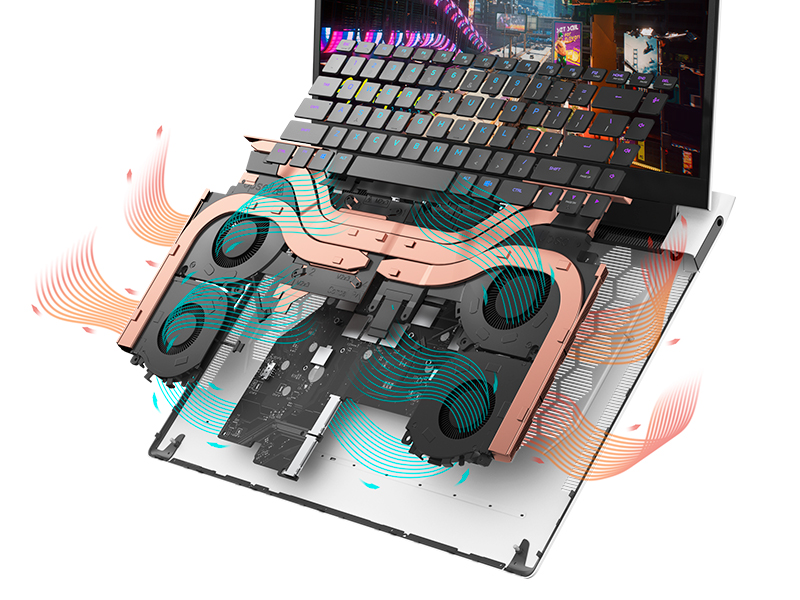
Figure 5.1: Alienware Command Center for system management.
6. مسئلا حل ڪرڻ
If you encounter issues with your Alienware X17 R2, consider the following basic troubleshooting steps:
- طاقت ناهي: پڪ ڪريو ته پاور اڊاپٽر ليپ ٽاپ ۽ ڪم ڪندڙ پاور آئوٽليٽ ٻنهي سان محفوظ طور تي ڳنڍيل آهي. پاور انڊيڪيٽر لائيٽ چيڪ ڪريو.
- ڊسپلي مسئلا: If the screen is black, try connecting an external monitor to verify if the issue is with the laptop's display or the graphics card. Update graphics drivers.
- گهڻو گرم ٿيڻ: Ensure cooling vents are clear of obstructions. Use Alienware Command Center to monitor temperatures and adjust fan profiles.
- ڪارڪردگي ۾ سستي: Close unnecessary applications. Check for background processes consuming high CPU or RAM. Ensure sufficient free space on the SSD.
- سافٽ ويئر مسئلا: Restart the laptop. If issues persist, consider performing a system restore or reinstalling the problematic software.
7. وضاحتون
| خاصيت | تفصيل |
|---|---|
| اسڪرين جي ماپ | 17.3 انچ |
| اسڪرين جي قرارداد | 1920 x 1080 پڪسل (ايف ايڇ ڊي) |
| پروسيسر | Intel Core i9-12900H (3.8 GHz, 14 Cores) |
| رام | 16 جي بي ڊي ڊي آر 5 (4800 ميگا هرٽز) |
| هارڊ ڊرائيو | 1 ٽي بي ايس ايس ڊي (سولڊ اسٽيٽ) |
| گرافڪس ڪوپروسيسر | NVIDIA GeForce RTX 3070 Ti (8 GB GDDR6) |
| آپريٽنگ سسٽم | ونڊوز 11 گهر |
| وائرليس جو قسم | 802.11ax (Killer Wi-Fi 6), Bluetooth |
| USB 3.0 بندرگاهن | 3 |
| شيءِ جو وزن | 6.82 پائونڊ |
| پيداوار جي ماپ | 11.79 x 15.72 x 0.58 انچ |
8. دٻي ۾ ڇا آهي
- Alienware X17 R2 گيمنگ ليپ ٽاپ
- پاور اڊاپٽر
- پاور ڪنڊ
- دستاويزي
9. سرڪاري پراڊڪٽ وڊيوز
Alienware X17 R2 Gaming Laptop Overview
وڊيو 9.1: هڪ سرڪاري اوورview of the Alienware X17 R2 Gaming Laptop, highlighting its design, cooling, and performance features.
About Alienware X17 R2 Gaming Laptop
Video 9.2: A detailed look at the Alienware X17 R2 Gaming Laptop, showcasing its features and design elements.
10. وارنٽي ۽ سپورٽ
Your Alienware X17 R2 Gaming Laptop comes with a standard manufacturer's warranty. For detailed warranty information, please refer to the documentation included with your product or visit the official Alienware support webسائيٽ.
For technical support, driver downloads, and service requests, please visit the Alienware support portal. You can also find FAQs and community forums for additional assistance.