1. تعارف
The TCNEWCL 4K@60Hz 2-Port HDMI KVM Switch is designed to provide efficient control over two computers using a single HD monitor, keyboard, and mouse. This device eliminates the need for multiple peripherals and simplifies your workspace by allowing seamless switching between two host systems. It supports high-resolution video output up to 4K@60Hz, ensuring a clear and smooth visual experience. Additionally, it offers connectivity for up to three USB 2.0 devices, making it a versatile solution for managing your computing environment.
2. پيڪيج مواد
پيڪيج کولڻ تي، توهان کي هيٺيون شيون ملنديون:
- 1 x TCNEWCL 2-Port HDMI KVM Switch
- 1 x استعمال ڪندڙ دستياب
- 1 x Desktop Wired Controller (1.5 meters)
- 2 x HDMI Cables (1.5 meters)
- 2 x USB Cables (1.5 meters)
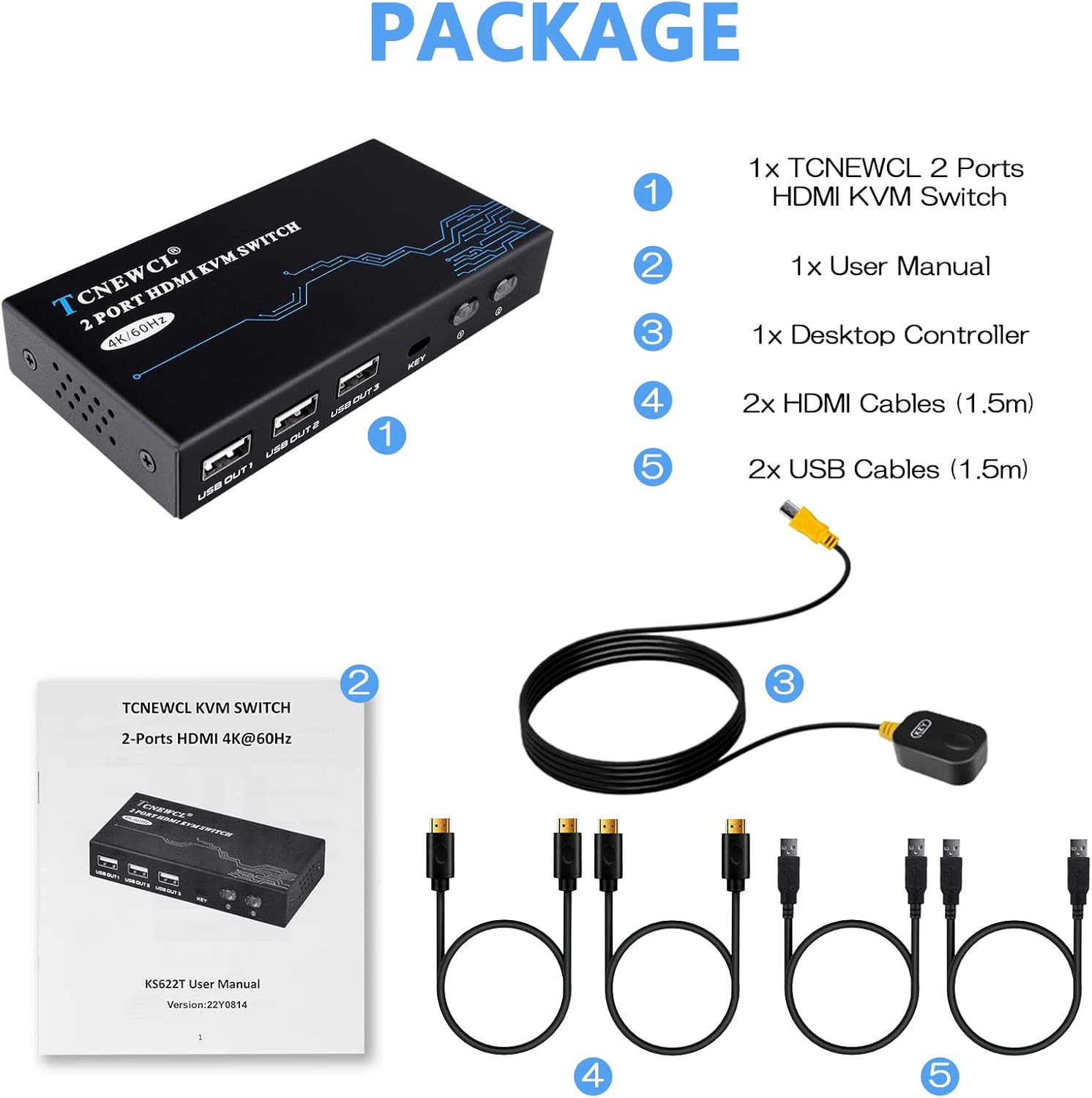
Image: The package contents include the KVM switch unit, user manual, desktop controller, two HDMI cables, and two USB cables.
3. مصنوعات جون خاصيتون
- 2-پورٽ HDMI KVM سوئچ: Control two computers from a single HD monitor and three USB 2.0 devices.
- 4K@60Hz Visuals: Supports resolutions up to 3840*2160@60Hz, backward compatible with 3840*2160@30Hz, 1920*1080P@60Hz, and other resolutions. Achieved when display device, computer, and HDMI cable support HDMI 2.0/2.1.
- اعلي مطابقت: Compatible with Windows 11/10/8/7/XP, Mac OS, Linux, and DOS systems. Supports various HDMI input sources like PS4, Xbox, set-top boxes, PCs, and laptops. Plug and Play functionality.
- Multiple USB Device Support: Features three USB 2.0 ports for connecting peripherals such as keyboards, mice, printers, and U-disks.
- Metal Heat Dissipation: پائيدار ڌاتو جasing موثر گرمي جي خاتمي لاءِ.
- ڪمپيڪٽ ڊيزائن: Item dimensions are 5.12 x 2.76 x 0.79 inches, allowing for a tidy workspace.
4. سيٽ اپ جون هدايتون
Follow these steps to set up your TCNEWCL 2-Port HDMI KVM Switch:
- ڪمپيوٽرن کي KVM سوئچ سان ڳنڍيو:
- Connect the first computer (PC1) to the KVM switch using one HDMI cable (PC1 HDMI IN) and one USB cable (PC1 USB IN).
- Connect the second computer (PC2) to the KVM switch using the second HDMI cable (PC2 HDMI IN) and the second USB cable (PC2 USB IN).
- Connect Monitor to KVM Switch: Connect your HD monitor to the HDMI OUT port on the KVM switch using an HDMI cable.
- Connect Peripherals to KVM Switch: Plug your keyboard, mouse, and any other USB 2.0 devices (e.g., printer, U-disk) into the USB OUT ports on the KVM switch.
- ڊيسڪ ٽاپ ڪنٽرولر ڳنڍيو: Plug the wired desktop controller into the 'KEY' port on the KVM switch. This allows for convenient remote switching.
- پاور آن: Ensure all connections are secure, then power on your computers and monitor. The KVM switch is plug-and-play and typically does not require additional drivers.

Image: A detailed diagram illustrating how to connect two PCs, a monitor, and multiple USB devices to the KVM switch.
Video: This video demonstrates the setup process for connecting two computers to one monitor, keyboard, and mouse using the KVM switch.
Video: A visual guide showcasing the features and connectivity of the 2-Port HDMI 4K@60Hz KVM Switch.
5. آپريٽنگ هدايتون
The KVM switch offers two convenient methods for switching between connected computers:
- بٽن سوئچ: Press the 'Switch' button located on the top of the KVM unit to toggle between PC1 and PC2. An LED indicator will illuminate to show which computer is currently active.
- Desktop Wired Controller: Use the included 1.5-meter wired desktop controller for remote switching. Simply press the button on the controller to switch between PC1 and PC2. This allows you to hide the KVM switch and cables for a tidier desk.

Image: Illustration of the two switching methods: directly pressing the button on the KVM unit or using the external desktop controller.

Image: A visual comparison showing a cluttered desk before using the KVM switch and a clean, organized desk after implementation.
6. مسئلا حل ڪرڻ
جيڪڏهن توهان کي پنهنجي KVM سوئچ سان مسئلا درپيش اچن ٿا، ته مهرباني ڪري هيٺ ڏنل عام مسئلا حل ڪرڻ واري قدمن جو حوالو ڏيو:
- ڪابه ڊسپلي/ٽمٽماندڙ اسڪرين ناهي:
- پڪ ڪريو ته سڀئي HDMI ڪيبل محفوظ طور تي KVM سوئچ ۽ توهان جي ڪمپيوٽرن/مانيٽر ٻنهي سان ڳنڍيل آهن.
- Verify that your monitor, computers, and HDMI cables all support the desired resolution (e.g., 4K@60Hz) and HDMI 2.0/2.1 standards.
- Try using shorter, high-quality HDMI cables if issues persist.
- ڪي بورڊ/ماؤس جواب نه ڏئي رهيو آهي:
- Ensure the USB cables from your computers are correctly connected to the KVM switch (PC1 USB IN, PC2 USB IN).
- Verify your keyboard and mouse are plugged into the correct USB OUT ports on the KVM switch.
- Some wireless keyboards/mice with special drivers may require direct connection to the computer or a powered USB hub.
- If using a Mac, you might encounter a "Keyboard Setup Assistant" pop-up. Simply quit this application as your keyboard should function correctly.
- سوئچنگ جا مسئلا:
- Confirm the desktop controller is properly connected to the 'KEY' port.
- Ensure both computers are powered on and active.
- If the KVM switch becomes unresponsive, try disconnecting and reconnecting the power source (USB-C 5V IN) to reset the device.
7. وضاحتون
| خاصيت | تفصيل |
|---|---|
| ماڊل نمبر | 622-KST |
| برانڊ | TCNEWCL |
| ڪنيڪشن پروٽوڪول | HDMI |
| وڊيو قرارداد | Up to 4K@60Hz (3840*2160@60Hz) |
| پسمانده مطابقت | 3840*2160@30Hz, 1920*1080P@60Hz, etc. |
| USB بندرگاهن | 3 x USB 2.0 (Output) |
| ان پٽ پورٽس | 2 x HDMI IN, 2 x USB IN |
| ٻاھرين بندرگاھن | 1 x HDMI OUT, 3 x USB OUT |
| مٽائڻ جا طريقا | Button on unit, Wired Desktop Controller |
| مطابقت رکندڙ ڊوائيسز | 2 computers, PS4, Xbox, set-top box, PC, laptop, 1 HD monitor |
| آپريٽنگ سسٽم مطابقت | Windows 11/10/8/7/XP, Mac OS, Linux, DOS |
| مواد | ڌاتو |
| شيون طول و عرض (LxWxH) | 5.12 x 2.76 x 0.79 انچ |
| شيءِ جو وزن | 1.41 پائونڊ |
| پاور ان پٽ | 5V (via USB-C port) |
8. وارنٽي ۽ سپورٽ
TCNEWCL products are designed for reliability and performance. For any questions or assistance with your KVM switch, please contact TCNEWCL customer support. Refer to the product packaging or the official TCNEWCL webمخصوص وارنٽي تفصيلن ۽ رابطي جي معلومات لاءِ سائيٽ.


