1. تعارف
This manual provides detailed instructions for the SANWA Bluetooth Finger Ring Mouse & Presentation Clicker, Model GMABT156BK. Please read this manual thoroughly before using the product to ensure proper operation and to maximize its features. Keep this manual for future reference.
2. پيڪيج مواد
- SANWA Bluetooth Finger Ring Mouse (GMABT156BK)
- چارج ڪيبل
- استعمال ڪندڙ جو دستياب (ھي دستاويز)
3. پراڊڪٽ ختمview
The SANWA Bluetooth Finger Ring Mouse is a versatile, wearable device designed for both mouse functionality and presentation control. It features a compact, ergonomic design for comfortable use and is rechargeable for convenience.

Image: The SANWA Bluetooth Finger Ring Mouse, a compact device designed to be worn on the finger, shown held in a user's hand.
اهم خاصيتون:
- Finger-Wearing Design: Allows for off-table use and reduces wrist strain.
- 5 Buttons & Touchpad: Functions as a mini mouse and a wireless presentation clicker.
- بلوٽوت 5.0 ڪنيڪشن: Ensures a stable and reliable connection up to 10 meters (32 feet).
- 1200 DPI: Provides precise cursor control.
- Rechargeable بيٽري: Offers up to 15 hours of constant working time or 25 days standby on a single charge.
- وسيع مطابقت: Supports macOS, Windows, iOS, and Android operating systems.
4. سيٽ اپ
4.1 ڊوائيس چارج ڪرڻ
- Locate the Micro USB charging port on the device.
- Connect the provided charging cable to the device and a USB power source (e.g., computer USB port, USB wall adapter).
- LED اشارو چارجنگ دوران روشن ٿيندو ۽ مڪمل چارج ٿيڻ تي بند ٿي ويندو.
- A full charge typically provides 15 hours of constant use or 25 days of standby time.

Image: The SANWA Bluetooth Finger Ring Mouse being charged via its USB cable, with an LED indicator visible.
4.2 بلوٽوٽ جوڙي
The SANWA Finger Ring Mouse uses Bluetooth 5.0 for wireless connection. Follow these steps to pair it with your device:
- Turn on the Mouse: Locate the ON/OFF switch on the bottom of the ring mouse and slide it to the "ON" position.
- پنهنجي ڊوائيس تي بلوٽوٿ کي فعال ڪريو:
- For PC/Laptop (Windows/macOS): Go to your computer's Bluetooth settings and ensure Bluetooth is enabled.
- موبائل ڊوائيسز لاءِ (iOS/Android): Go to your phone or tablet's settings, then navigate to the Bluetooth menu and ensure Bluetooth is enabled.
- ڳولھيو ڊوائيسز: Your device will begin searching for available Bluetooth devices.
- مائوس چونڊيو: Look for "400-MABT156" (or similar, e.g., "GMABT156BK") in the list of available devices and select it to initiate pairing.
- جوڙي جي تصديق ڪريو: If prompted for a passcode, try "0000" or "1234", or leave it blank if not specified. Confirm the pairing request on your device.
- ڪنيڪشن جي تصديق: Once successfully paired, the device will show "Connected" next to the mouse's name.
Video: A demonstration of how to connect the SANWA GMABT156BK Bluetooth Finger Ring Mouse to a device, showing the pairing process on both an iPad and an iPhone.
Important Notes for iOS Devices:
For full mouse functionality on iOS devices (iPhone/iPad), you may need to enable AssistiveTouch:
- ڏانهن وڃو سيٽنگون > پهچ > ڇڪڻ > مددگار ٽچ.
- ٽوگل مددگار ٽچ تي ڏانهن.
5. آپريٽنگ هدايتون
The SANWA Finger Ring Mouse features a touchpad for cursor movement and dedicated buttons for various functions.
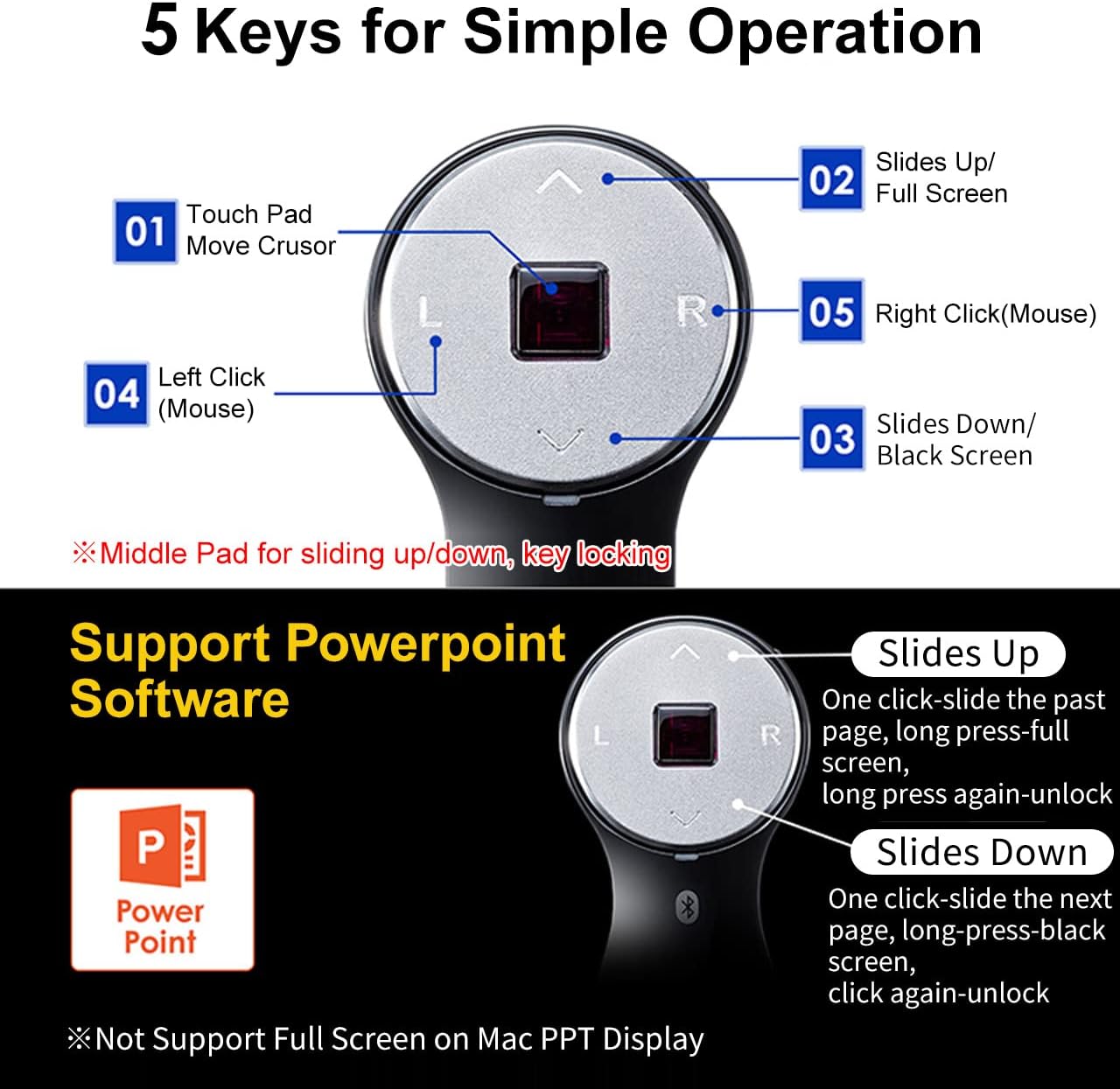
Image: A detailed diagram illustrating the 5 keys of the SANWA Finger Ring Mouse and their corresponding functions, including touchpad for cursor movement, left click, right click, slides up/full screen, and slides down/black screen.
5.1 بنيادي مائوس جا ڪم
- ڪرسر منتقل ڪريو: Use the central touchpad to move the cursor on your screen.
- کاٻي ڪلڪ ڪريو: Press the "L" button for a left click.
- ساڄي ڪلڪ ڪريو: Press the "R" button for a right click.
- Scroll Function (Page Up/Down): The central touchpad also functions as a scroll wheel. Swipe up or down on the touchpad to scroll pages.
- ڇڪيو ۽ ڇڏيو: Long press the "L" button, move the cursor to drag an item, then press "L" again to drop it.
Video: A demonstration of how to operate the SANWA GMABT156BK mouse, showing cursor movement, left/right clicks, and drag-and-drop functionality on a laptop.
5.2 Presentation Clicker Functions (PowerPoint/Keynote)
- Slides Up (Previous Page): Press the "Up Arrow" button. Long press for Full Screen (On/Off).
- Slides Down (Next Page): Press the "Down Arrow" button. Long press for Black Screen (On/Off).
Note: Full Screen functionality may not be supported on Mac PPT Display.
Video: A demonstration of the SANWA Finger Ring Mouse functioning as a 2-in-1 Bluetooth Finger Ring Mouse and PPT Clicker, showcasing its use for presentations and general navigation.
5.3 مطابقت جا نوٽس
- Compatible with Windows 11/10/8.1/8/7, Android 3.0+, macOS 10.12-10.15, Mac OS X 10.6-10.11, Chrome OS, iOS 13, iPadOS 13.4, Android 7-10.
- Fit for Notebook, PC, Laptop, Computer, and other devices.
- Not fully compatible with Apple products, and the recently launched Mac SONOMA system is not supported.
- Does not support TikTok, YouTube, Instagram, and Twitter for certain functions.
6. سار سنڀال
- صفائي: ڊوائيس کي صاف ڪرڻ لاءِ نرم، سڪل ڪپڙو استعمال ڪريو. سخت ڪيميڪلز يا رگڙيندڙ مواد استعمال ڪرڻ کان پاسو ڪريو.
- اسٽوريج: ڊوائيس کي سڌي سج جي روشني ۽ انتهائي گرمي پد کان پري ٿڌي، سڪل جاءِ تي رکو.
- بيٽري جي سنڀال: بيٽري جي زندگي کي وڌائڻ لاءِ، بيٽري کي بار بار مڪمل طور تي چارج ڪرڻ کان پاسو ڪريو. ڊوائيس کي باقاعدي طور تي چارج ڪريو، جيتوڻيڪ ڊگهي عرصي تائين استعمال ۾ نه هجي.
7. مسئلا حل ڪرڻ
7.1 Device Not Recognized or Bluetooth Cannot Be Searched
- Ensure the device is turned on and the ring mouse's power switch is in the "ON" position.
- Verify that your PC or device supports Bluetooth and has a functional Bluetooth module.
- Confirm that Bluetooth is enabled on your PC or device. If the Bluetooth icon is missing or shows as off, restart your computer and re-enable Bluetooth.
- Check the ring mouse's battery level. Recharge if necessary.
- Turn the ring mouse off, wait a few seconds, then turn it back on and attempt Bluetooth pairing again.
- If your PC connects to other Bluetooth devices but not the SANWA ring mouse, unpair those devices and then try reconnecting the SANWA device.
7.2 Cursor Movement Speed is Too Slow
You can adjust the DPI (Dots Per Inch) setting through your operating system:
- ونڊوز 11 لاءِ:
- Open Windows Settings (Windows Key + I).
- Navigate to "Bluetooth & devices" > "Mouse".
- Adjust the "Mouse pointer speed" slider. Moving it to the right increases speed.
- For other OS: Refer to your operating system's mouse or pointer settings to adjust sensitivity.
7.3 Prompted for a Passcode During Pairing
If a passcode is requested and not provided in the manual, try entering "0000" or "1234". Alternatively, leave the field blank if possible.
7.4 Scroll Wheel (Touchpad) Not Working
The product uses high-precision sensors on the middle touchpad for scrolling. Ensure the touchpad is clean and free from sweat stains or dirt, which can interfere with its operation.
8. وضاحتون
| خاصيت | تفصيل |
|---|---|
| ماڊل نمبر | GMABT156BK |
| برانڊ | سنوا |
| رابطي ٽيڪنالاجي | بلوٽوٿ 5.0 |
| حرڪت جي چڪاس | بصري |
| ڊي پي آئي | 1200 |
| آپريٽنگ فاصلو | 10 ميٽر (32 فوٽ) تائين |
| Battery Life (Constant Use) | لڳ ڀڳ. 15 ڪلاڪ |
| بيٽري جي زندگي (اسٽينڊ بائي) | لڳ ڀڳ. 25 ڏينهن |
| پيداوار جي ماپ | 2.36 x 1.3 x 1.42 انچ |
| شيءِ جو وزن | 2.39 اونس |
| سپورٽ ٿيل OS | Windows 11/10/8.1/8/7, Android 3.0+, macOS 10.12-10.15, Mac OS X 10.6-10.11, Chrome OS, iOS 13, iPadOS 13.4, Android 7-10 |
9. وارنٽي ۽ سپورٽ
For warranty information and technical support, please refer to the official SANWA webسائيٽ تي وڃو يا سڌو سنئون انهن جي ڪسٽمر سروس سان رابطو ڪريو. وارنٽي دعوائن لاءِ خريداري جي ثبوت طور پنهنجي خريداري جي رسيد رکو.
SANWA Official Webسائيٽ: www.sanwa.co.jp


