1. تعارف
This manual provides detailed instructions for the setup, operation, and maintenance of your Logitech MK670 Comfort Wave Wireless Keyboard and Mouse Combo, along with the included Mini Bluetooth Speaker, Gel Wrist Pad, and Gel Mouse Pad. Please read this manual thoroughly before using the products to ensure optimal performance and longevity.

Image 1.1: Complete bundle including the Logitech MK670 keyboard, mouse, mini Bluetooth speaker, and gel pads.
2. پيداوار جا حصا
توھان جي پيڪيج ۾ ھيٺيون شيون شامل ھجن:
- Logitech MK670 Comfort Wave Wireless Keyboard
- لاگٽيڪ وائرلیس ماؤس
- Logitech Unifying USB Receiver
- ميني پورٽبل وائرليس بلوٽوت اسپيڪر
- Gel Wrist Pad
- Gel Mouse Pad
- Micro USB Charging Cable (for speaker)
- استعمال ڪندڙ دستاويز (هي دستورالعمل)
3. سيٽ اپ جون هدايتون
3.1. Logitech Keyboard and Mouse Setup
- پيڪ ڪريو: احتياط سان ڪي بورڊ ۽ مائوس کي انهن جي پيڪنگ مان هٽايو.
- بيٽري داخل ڪريو: The keyboard and mouse typically come with pre-installed batteries or require standard AA/AAA batteries. Open the battery compartments (usually on the underside of each device) and ensure batteries are correctly inserted.
- Locate Unifying Receiver: The small USB Unifying receiver is often stored inside the mouse's battery compartment for safekeeping. Remove it.
- رسيور ڳنڍيو: Plug the Logitech Unifying USB receiver into an available USB port on your computer.
- پاور آن: Turn on the keyboard and mouse using their respective power switches (usually located on the underside or side). The devices should automatically connect to your computer.

Image 3.1: The Logitech MK670 wireless keyboard and mouse, ready for connection via the Unifying receiver.
3.2. Mini Bluetooth Speaker Setup
- چارج اسپيڪر: Before first use, fully charge the mini Bluetooth speaker using the provided Micro USB charging cable. Connect the Micro USB end to the speaker and the USB-A end to a power source (e.g., computer USB port, USB wall adapter). The charging indicator light will typically turn off or change color when fully charged.
- پاور آن: Press and hold the power button on the speaker until you hear an audible prompt or see an indicator light flash, indicating it is in pairing mode.
- بلوٽوت ذريعي جوڙيو:
- توهان جي ڊوائيس (اسمارٽ فون، ٽيبليٽ، ليپ ٽاپ) تي، بلوٽوٿ سيٽنگز ڏانهن وڃو.
- پڪ ڪريو بلوٽوٽ فعال آهي.
- ڳولھيو available devices. The speaker will typically appear as a name like "Mini Speaker" or similar.
- Select the speaker to pair. Once paired, you will hear a confirmation sound.
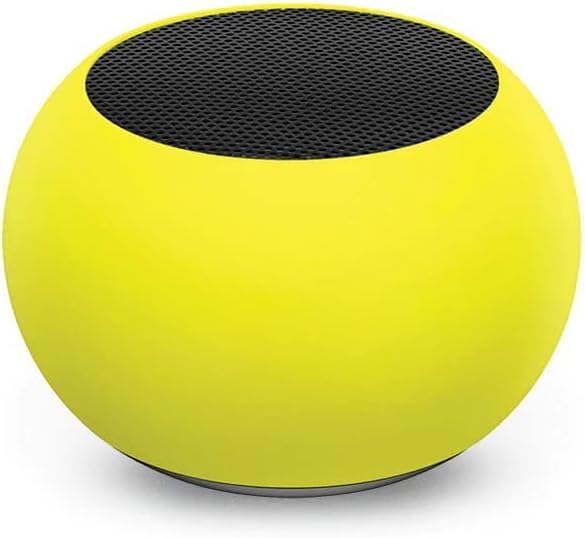
تصوير 3.2: هڪ ويجهو تصوير view of the compact mini Bluetooth speaker, highlighting its design.
3.3. Gel Pads Placement
- Keyboard Wrist Rest: Place the longer gel wrist pad directly in front of your Logitech MK670 keyboard, aligning it to support your wrists while typing.
- Mouse Pad with Wrist Rest: Position the gel mouse pad on your desk where you typically use your mouse. Ensure the integrated wrist rest provides comfortable support for your mousing hand.

Image 3.3: The ergonomic gel wrist pad and gel mouse pad, designed for comfort and support.
4. آپريٽنگ هدايتون
4.1. ڪي بورڊ جو استعمال
- ٽائپنگ: The Comfort Wave design provides an ergonomic layout for natural hand and wrist positioning.
- عددي ڪي پيڊ: Utilize the full-size numeric keypad for efficient data entry.
- شارٽ ڪٽ ڪيز: Access common functions quickly using the dedicated shortcut keys (e.g., media controls, volume, application launch). Refer to the key legends for specific functions.
- ترتيب ڏيڻ وارا جھڪندڙ پير: Flip out the tilt legs on the underside of the keyboard to adjust the typing angle for personalized comfort.

تصوير 4.1: پاسي view of the Logitech MK670 keyboard, illustrating the adjustable tilt legs for ergonomic customization.
4.2. مائوس جو استعمال
- اشارو ۽ ڪلڪ ڪرڻ: Use the mouse for precise cursor control, left-clicks, and right-clicks.
- سکرولنگ: اسڪرول ويل دستاويزن ذريعي هموار نيويگيشن جي اجازت ڏئي ٿو ۽ web صفحا.
- وسيع ڊيزائن: The mouse is designed for comfortable use by both left and right-handed users.
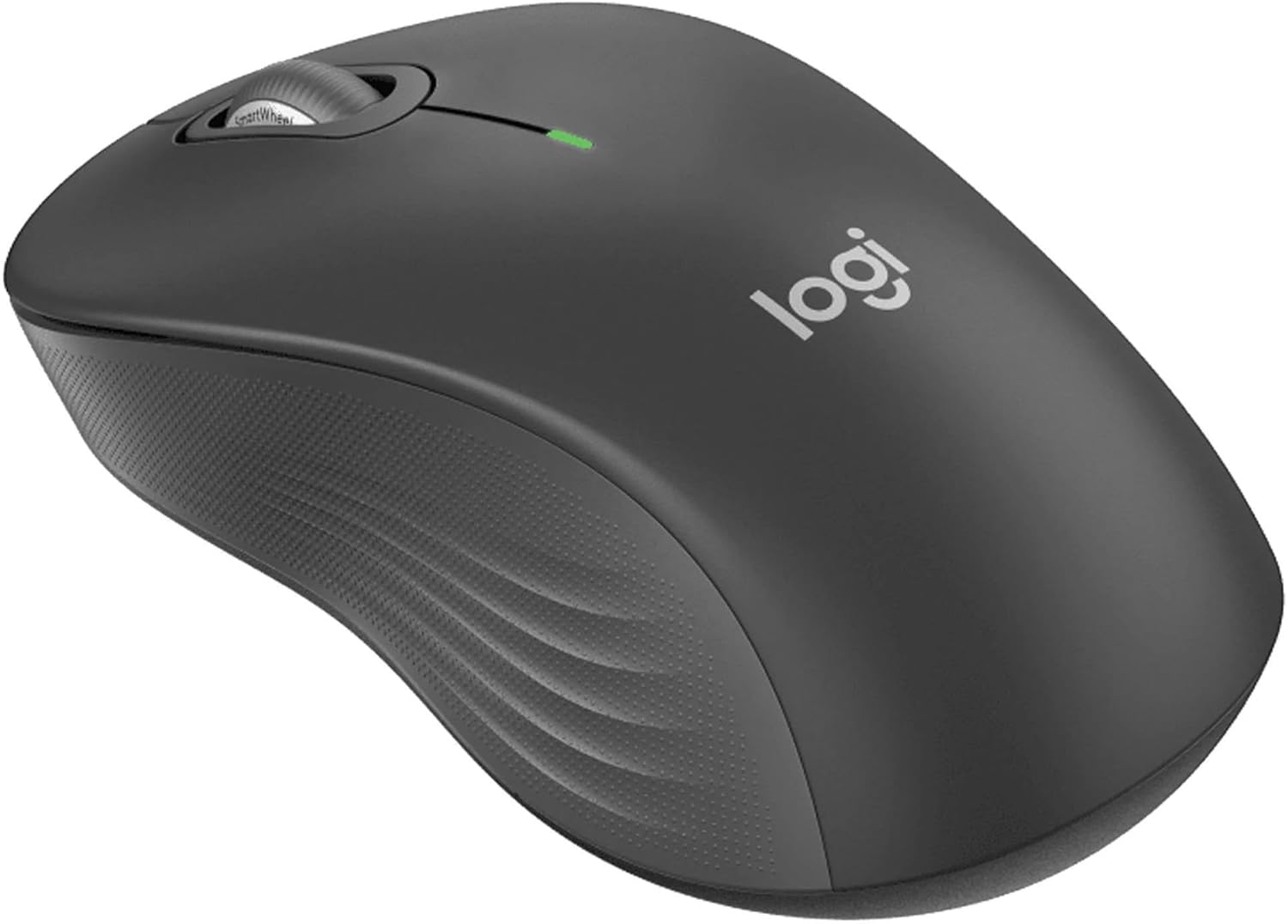
تصوير 4.2: هڪ تفصيلي view of the Logitech wireless mouse, showcasing its ergonomic shape.
4.3. Mini Bluetooth Speaker Usage
- پاور آن / آف: اسپيڪر کي آن يا آف ڪرڻ لاءِ پاور بٽڻ کي دٻايو ۽ رکو.
- بلوٽيون ٺاھڻ: Once powered on, the speaker will automatically attempt to connect to the last paired device. If not, it will enter pairing mode for new connections (refer to Section 3.2).
- حجم ڪنٽرول: Volume is typically controlled via the connected device. Some speakers may have integrated volume buttons.
- Selfie Remote: The speaker may feature a remote selfie button. Consult the speaker's specific instructions for activation and use with your device's camera.
- هينڊ فري ڪالنگ: With its built-in microphone, the speaker can be used for hands-free calls when connected to a smartphone.
5. سار سنڀال
5.1. صفائي
- ڪي بورڊ ۽ ماؤس: نرم، لِنٽ کان خالي ڪپڙو استعمال ڪريو ٿورڙو ڊيampened with water or a mild cleaning solution. Avoid harsh chemicals or abrasive materials. For dust between keys, use compressed air.
- Mini Bluetooth Speaker: Wipe the exterior with a soft, dry cloth. Do not immerse in water.
- جيل پيڊ: اشتهار سان صاف ڪريوamp cloth and mild soap if necessary. Allow to air dry completely before reuse.
5.2. Battery Replacement (Keyboard and Mouse)
When the battery indicator light on your keyboard or mouse signals low power, replace the batteries with new ones of the same type (e.g., AA or AAA). Ensure correct polarity when inserting new batteries.
6. مسئلا حل ڪرڻ
6.1. ڪي بورڊ/ماؤس جواب نه ڏئي رهيو آهي
- بيٽري چيڪ ڪريو: پڪ ڪريو ته بيٽريون صحيح طرح سان لڳل آهن ۽ ڪافي چارج آهن. جيڪڏهن ضروري هجي ته تبديل ڪريو.
- پاور سوئچز: Verify that both the keyboard and mouse power switches are in the 'ON' position.
- USB وصول ڪندڙ: Ensure the Logitech Unifying USB receiver is securely plugged into a working USB port on your computer. Try a different USB port.
- قربت: Ensure the keyboard and mouse are within the operational range (up to 33 feet) of the USB receiver.
- ٻيهر جوڙيو: If issues persist, you may need to re-pair the devices using Logitech's Unifying software (downloadable from the Logitech support webسائيٽ).
6.2. Mini Bluetooth Speaker Connection Issues
- اسپيڪر پاور: پڪ ڪريو ته اسپيڪر چارج ٿيل آهي ۽ پاور آن آهي.
- بلوٽوٿ آن: Verify Bluetooth is enabled on your source device.
- ڊيوائس وساريو: On your source device, 'forget' or 'unpair' the speaker from your Bluetooth device list, then attempt to pair again.
- قربت: Keep the speaker and source device within close range (typically 10 meters or 33 feet) for stable connection.
- مداخلت: ٻين وائرليس ڊوائيسز کان پري رهو جيڪي مداخلت جو سبب بڻجي سگهن ٿا.
6.3. اسپيڪر مان ڪو به آواز نه آهي
- حجم جي سطح: Check the volume on both the speaker and the connected device.
- سورس ڊيوائس آئوٽ پُٽ: Ensure your device's audio output is set to the Bluetooth speaker.
- ميڊيا پلے بیک Verify that media is playing on your source device.
7. وضاحتون
| خاصيت | تفصيل |
|---|---|
| برانڊ | Logitech |
| ماڊل | MK670 (Keyboard & Mouse Combo) |
| رابطي ٽيڪنالاجي | 2.4GHz Wireless (Keyboard & Mouse), Bluetooth 5.0 (Speaker) |
| وائرلیس رينج | 33 فوٽ (10 ميٽر) تائين |
| ڪي بورڊ جون خاصيتون | Ergonomic Comfort Wave design, Full-size with numeric keypad, Shortcut keys, Cushioned palm rest, Adjustable tilt legs |
| ماؤس جون خاصيتون | Ambidextrous design, Precise tracking |
| اسپيڪر طول و عرض | 45.45mm x 33mm (1.75″ x 1.3″) |
| اسپيڪر وزن | 2.46 اوز |
| اسپيڪر جي بيٽري جي گنجائش | 400mAh |
| Speaker Playback Time | 4 ڪلاڪ تائين |
| Speaker Special Features | Magnetic base, Built-in mic, Remote selfie button, Glow in the Dark (Yellow variant) |
| مطابقت رکندڙ ڊوائيسز | Laptops, Gaming Consoles (for keyboard/mouse functionality), Bluetooth-enabled devices (for speaker) |
| شيءِ جو وزن (بنڊل) | 4 پائونڊ |
| پيڪيج جي ماپ | 23 x 10 x 10 انچ |
8. وارنٽي ڄاڻ
Logitech products are typically covered by a limited hardware warranty. For specific warranty terms and conditions, including duration and coverage details, please refer to the warranty card included with your product or visit the official Logitech webسائيٽ. وارنٽي دعوائن لاءِ خريداري جو ثبوت رکو.
9. سپورٽ
For further assistance, technical support, or to download the latest drivers and software for your Logitech products, please visit the official Logitech support webسائيٽ. توهان اتي اڪثر پڇيا ويندڙ سوال ۽ ڪميونٽي فورم پڻ ڳولي سگهو ٿا.
Logitech سپورٽ Webسائيٽ: https://support.logi.com/


