1. تعارف
This manual provides essential instructions for the installation, operation, and maintenance of your Cradlepoint R2100 Series 5G Ruggedized Outdoor Router. The R2100 is designed for reliable 5G mobile performance in vehicles and IoT applications, featuring an integrated modem, antennas, and Wi-Fi 6 capabilities.
1.1. دٻي ۾ ڇا آهي
- Cradlepoint R2100 Series Router
- سمايل موڊيم
- Integrated Antennas
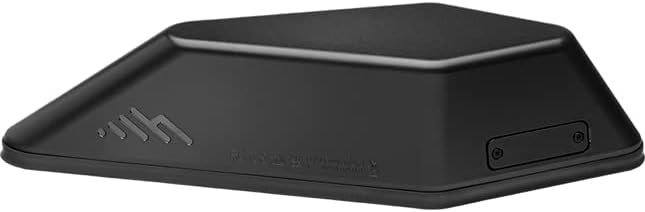
شڪل 1.1: مٿي view of the Cradlepoint R2100 Series 5G Ruggedized Outdoor Router. The device is black with a low-profile, aerodynamic design, featuring the Cradlepoint logo on one side.
2. مصنوعات جون خاصيتون
The Cradlepoint R2100 Series router offers a robust set of features for demanding mobile and IoT environments:
- Integrated 5G NR / Cat 20 LTE modem, antenna, and Wi-Fi 6 router in a single unit.
- Flexible deployment as a standalone 5G router or as a 5G adapter for existing network infrastructure.
- Simplified installation with power cable or Power over Ethernet (PoE) support, eliminating the need for coax cables.
- Prioritization of access on public safety networks for enhanced reliability and security.
- Integration with Automatic Vehicle Location (AVL) systems via GNSS/GPS.
- Aerodynamic and weather-resistant design suitable for outdoor and vehicle mounting.
- High Firewall Throughput of 900 Mbps.
- Dual Connectivity: 5G Low/Mid-Band & Cat 20 LTE.
- LAN Connectivity: Wi-Fi 6, 2.5 GbE.
3. سيٽ اپ گائيڊ
3.1. Unpacking ۽ انسپيڪشن
Carefully unpack all components and inspect them for any signs of damage. If any items are missing or damaged, contact your vendor immediately.
3.2. روٽر لڳائڻ
The R2100 is designed for outdoor and vehicle mounting. Ensure the mounting location provides clear line-of-sight for optimal cellular and GPS signal reception. Use appropriate hardware for secure installation. The underside of the router typically contains mounting points and cable pass-throughs.
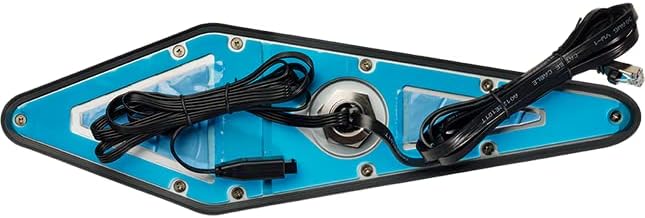
شڪل 3.1: هيٺان view of the Cradlepoint R2100 Series router, showing mounting points and integrated cables for power and data. The blue protective film is visible on the base.
3.3. پاورنگ آن
Connect the router to a power source using either the provided power cable or a Power over Ethernet (PoE) injector/switch. Refer to the specific wiring diagrams for your installation type (vehicle or fixed IoT). The device will initiate its boot sequence upon receiving power.
3.4. شروعاتي ترتيب
The Cradlepoint R2100 Series router is managed through NetCloud. Access the NetCloud Manager portal to register your device and perform initial configuration, including network settings, Wi-Fi setup, and security protocols. Detailed instructions for NetCloud setup are available in the NetCloud documentation.
4. آپريٽنگ هدايتون
4.1. نيٽ ورڪ ڪنيڪشن
Once configured via NetCloud, the router will automatically establish a 5G or LTE cellular connection. Verify the connection status through the NetCloud Manager dashboard or by observing the device's LED indicators (refer to the LED status guide in the full product documentation).
4.2. Wi-Fi Access
Devices can connect to the router's Wi-Fi network using the SSID and password configured during the initial setup. The R2100 supports Wi-Fi 6 for high-speed wireless connectivity.
5. سار سنڀال
5.1. فرمائيندڙ تازه ڪاريون
Regularly update the router's firmware through NetCloud Manager to ensure optimal performance, security, and access to new features. NetCloud Manager provides automated update options.
5.2. صفائي
Periodically clean the exterior of the router with a soft, damp cloth. Do not use harsh chemicals or abrasive cleaners. Ensure all cable connections are secure and free from debris.
5.3. Environmental Checks
For outdoor and vehicle installations, periodically inspect the router and its mounting for any signs of wear, corrosion, or damage due to environmental exposure. Ensure proper ventilation if applicable.
6. مسئلا حل ڪرڻ
6.1. ڪابه طاقت
- Verify the power cable is securely connected to both the router and the power source.
- If using PoE, ensure the PoE injector/switch is functioning correctly and providing power.
- ڪارڪردگي لاء طاقت جو ذريعو چيڪ ڪريو.
6.2. No Cellular Connection
- Ensure the router is in an area with adequate cellular signal coverage.
- Verify the SIM card is correctly inserted and activated.
- Check the cellular connection status in NetCloud Manager for error messages.
- Confirm that the cellular plan is active and has data available.
6.3. Wi-Fi Issues
- Ensure Wi-Fi is enabled on the router via NetCloud Manager.
- Verify the correct SSID and password are being used by client devices.
- ٻين وائرليس ڊوائيسز کان مداخلت لاء چيڪ ڪريو.
- روٽر کي ٻيهر شروع ڪريو.
For further troubleshooting, consult the comprehensive documentation available through your Cradlepoint NetCloud account or contact Cradlepoint support.
7. وضاحتون
| ماڊل نالو | R2105 |
| شيون ماڊل نمبر | MB01-2105-5GB-GA |
| برانڊ | بنيادي سطح تي |
| رابطي ٽيڪنالاجي | 5G |
| وائرليس ڪميونيڪيشن معياري | 802.11ax (وائي فائي 6) |
| فريڪوئنسي بينڊ ڪلاس | ڪواڊ بينڊ |
| فائر وال جي ذريعي | 900 ايم بي پي ايس |
| خاص خاصيتون | WPS, Weather Resistant |
| شامل اجزاء | Router, Modem, Antennas (integrated) |
| رنگ | ڪارو |
8. وارنٽي ۽ سپورٽ
8.1. پراڊڪٽ وارنٽي
The Cradlepoint R2100 Series router typically includes a limited hardware warranty. For specific warranty terms and conditions, please refer to the documentation provided with your purchase or visit the official Cradlepoint website. Warranty coverage usually requires product registration.
8.2. ٽيڪنيڪل سپورٽ
For technical assistance, troubleshooting, or further inquiries, please contact Cradlepoint support. Support resources, including knowledge bases, FAQs, and contact information, are available through your NetCloud account or on the official Cradlepoint support portal.


