1. تعارف
This manual provides detailed instructions for users of Apple AirPods Pro (2nd Generation) and AirPods Max. It covers essential information regarding device setup, operation, and general care to ensure an optimal user experience. Understanding the features and functionalities described herein will help you maximize the potential of your Apple audio devices.
The AirPods Pro (2nd Generation), released in 2022, introduces enhancements in audio quality, active noise cancellation, and transparency mode. The AirPods Max offers a premium over-ear listening experience with high-fidelity audio and adaptive EQ.
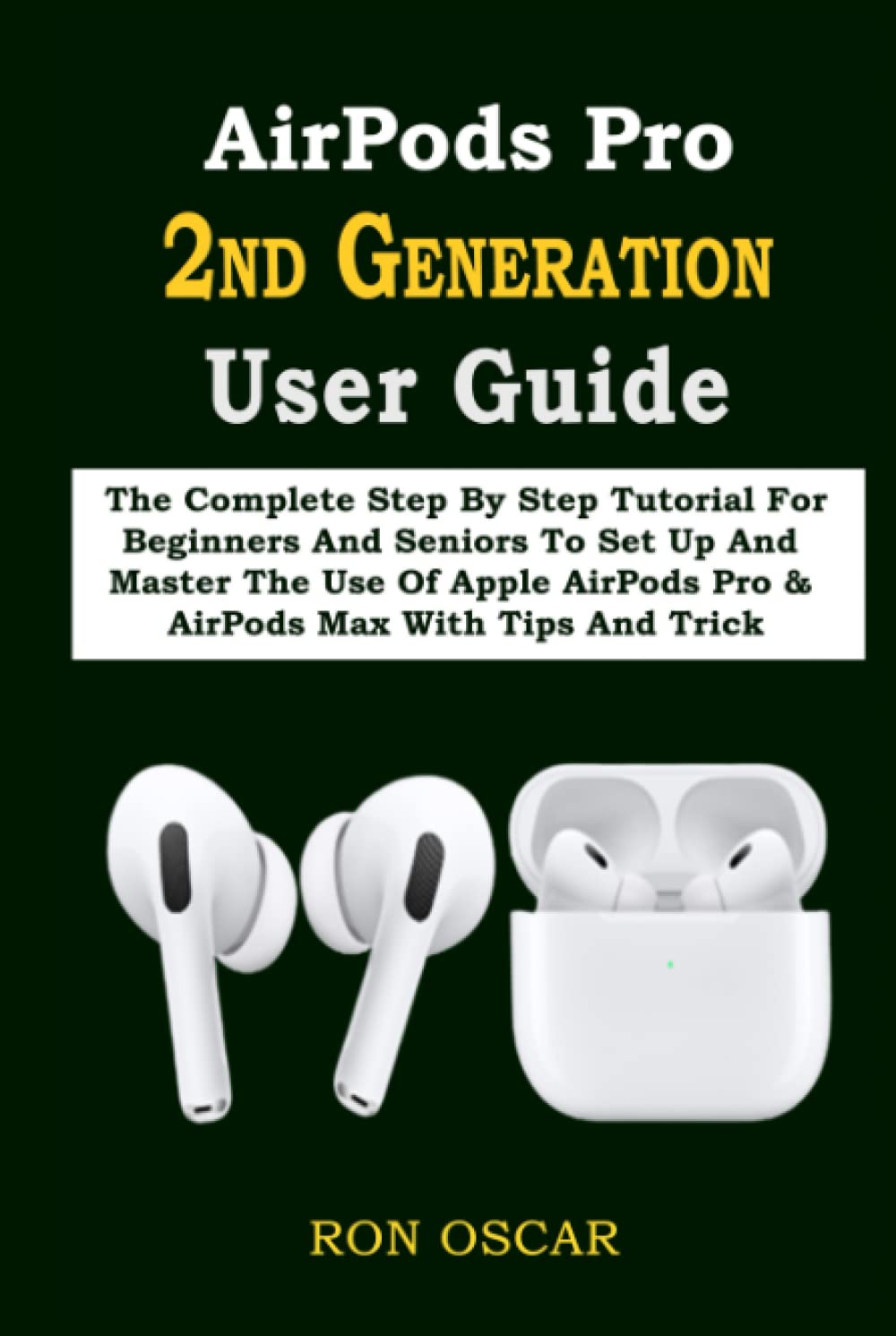
Image 1.1: Front cover of the user guide for Apple AirPods Pro 2nd Generation and AirPods Max. This image displays the title of the manual and an illustration of the AirPods Pro earbuds and charging case.
2. سيٽ اپ ۽ جوڙو ٺاهڻ
This section guides you through the initial setup and pairing process for your AirPods Pro and AirPods Max with compatible Apple devices.
2.1. Initial Pairing with Apple Devices
To pair your AirPods with an iPhone, iPad, iPod Touch, or Mac:
- Ensure your Apple device is running the latest iOS, iPadOS, or macOS version.
- For AirPods Pro: Open the charging case with your AirPods inside, and hold it near your unlocked iPhone, iPad, or iPod Touch. For AirPods Max: Remove them from the Smart Case.
- A setup animation will appear on your device's screen. Follow the on-screen instructions.
- If the animation does not appear, ensure Bluetooth is enabled on your device and try again.
2.2. Charging Your AirPods
Proper charging ensures your AirPods are always ready for use.
- AirPods Pro: Place the earbuds in the charging case. The case can be charged wirelessly using a Qi-certified mat or via a Lightning cable. The LED indicator on the case shows charging status.
- AirPods و Max: Place them in the Smart Case to conserve battery. Charge them using the Lightning to USB-C cable.
2.3. Checking Battery Status
You can check the battery level of your AirPods and their charging case in several ways:
- آئي فون / iPad تي: Open the charging case near your device, or check the Batteries widget.
- Mac تي: Click the Bluetooth icon in the menu bar and hover over your AirPods.
2.4. Changing AirPods Name
To personalize your AirPods, you can change their name:
- Connect your AirPods to your iPhone or iPad.
- ڏانهن وڃو سيٽنگون > بلوٽوٿ.
- تي ٽيپ ڪريو "i" icon next to your AirPods.
- ٽيپ ڪريو نالو, then enter your desired name.
3. آپريشن
This section details how to use your AirPods for various audio functions, calls, and Siri interactions.
3.1. Playing and Sharing Audio
- راند/روڪ: Press the force sensor on an AirPods Pro stem once, or the Digital Crown on AirPods Max once.
- اڳتي ڇڏيو Press the force sensor twice (AirPods Pro) or Digital Crown twice (AirPods Max).
- واپس وڃايو: Press the force sensor three times (AirPods Pro) or Digital Crown three times (AirPods Max).
- آڊيو شيئرنگ: With two pairs of AirPods connected to one Apple device, you can share audio. Tap the AirPlay icon in Control Center or the Lock Screen, then select "Share Audio."
3.2. ڪالون ڪرڻ ۽ وصول ڪرڻ
- جواب/آخر ڪال: Press the force sensor once (AirPods Pro) or Digital Crown once (AirPods Max).
- ڪال رد ڪريو: Press the force sensor twice (AirPods Pro) or Digital Crown twice (AirPods Max).
- ڪالن جي وچ ۾ سوئچ ڪريو: Press the force sensor once to answer a second incoming call and put the first call on hold. Press twice to end the current call and switch to the other.
3.3. Siri Integration
Siri can assist with various tasks, including announcing messages.
- سري کي چالو ڪريو: Say "Hey Siri" or press and hold the force sensor (AirPods Pro) or Digital Crown (AirPods Max).
- Announce Messages: To enable Siri to announce incoming messages, go to سيٽنگون > نوٽيفڪيشن > Announce Messages with Siri توهان جي فون تي.
- Respond to Messages: After Siri announces a message, you can reply by saying "Reply" and then your message.
3.4. Customizing Audio Settings
Adjust your audio experience through various settings:
- Noise Control Modes (AirPods Pro/Max): Switch between Active Noise Cancellation, Transparency Mode, and Off. This can be done by pressing and holding the force sensor (AirPods Pro) or the Noise Control button (AirPods Max). You can also adjust these in Control Center or Bluetooth settings on your device.
- فضائي آڊيو: Experience immersive sound with dynamic head tracking. Enable or disable this feature in Control Center or Bluetooth settings.
- Headphone Accommodations: Customize audio to suit your hearing needs. Found in سيٽنگون > پهچ > آڊيو/بصري > هيڊ فون جي رهائش.
4. سار سنڀال
Proper care and cleaning will extend the lifespan and maintain the performance of your AirPods.
- Cleaning AirPods Pro/Max: Use a soft, dry, lint-free cloth. For stubborn dirt, slightly dampen the cloth with water. Avoid getting moisture in any openings. Do not use abrasive materials or harsh chemicals.
- Cleaning Ear Tips (AirPods Pro): Remove the ear tips and rinse them with water. Dry them thoroughly with a soft, dry, lint-free cloth before reattaching.
- Cleaning Charging Case: Use a soft, dry, lint-free cloth. If necessary, you can lightly dampen the cloth with isopropyl alcohol. Ensure no liquid enters the charging ports.
- اسٽوريج: When not in use, store your AirPods Pro in their charging case and AirPods Max in their Smart Case to protect them and conserve battery.
5. مسئلا حل ڪرڻ
جيڪڏهن توهان کي پنهنجي AirPods سان مسئلا درپيش اچن ٿا، ته پوءِ هيٺيان عام مسئلا حل ڪرڻ جا قدم آزمايو:
- ايئر پوڊز نه ڳنڍي رهيا آهن:
- پڪ ڪريو ته توهان جي ڊوائيس تي بلوٽوت فعال آهي.
- Check that your AirPods are charged.
- Place AirPods in their case, close the lid, wait 15 seconds, then open the lid.
- Restart your iPhone/iPad/Mac.
- Sound Issues (Low Volume, No Sound):
- Clean your AirPods, especially the speaker meshes.
- پنهنجي ڳنڍيل ڊوائس تي حجم جي سطح چيڪ ڪريو.
- Ensure the correct audio output is selected on your device.
- Resetting AirPods: If problems persist, you may need to reset your AirPods.
- ڏانهن وڃو سيٽنگون > بلوٽوٿ توهان جي iOS ڊوائيس تي.
- تي ٽيپ ڪريو "i" icon next to your AirPods, then tap هن ڊوائيس کي وساريو.
- With the lid open (AirPods Pro) or out of the Smart Case (AirPods Max), press and hold the setup button on the back of the case (AirPods Pro) or the Noise Control button (AirPods Max) until the status light flashes amber, then white.
- Reconnect your AirPods as described in the "Initial Pairing" section.
6. وضاحتون
This section provides general specifications for the AirPods Pro (2nd Generation) and AirPods Max. For detailed technical specifications, please refer to Apple's official product pages.
| خاصيت | تفصيل |
|---|---|
| ASIN | B0C63P692C |
| پبلشر | آزاد طور تي شايع ٿيل |
| اشاعت جي تاريخ | مئي 23، 2023 |
| ٻولي | انگريزي |
| پرنٽ ڊگھائي | 118 صفحا |
| ISBN-13 | 979-8395820174 |
| شيءِ جو وزن | 8.2 اونس |
| طول و عرض | 6 x 0.46 x 9 انچ |
Note: The specifications listed above pertain to the physical user guide book itself, not the Apple AirPods devices.

Image 6.1: Back cover of the user guide, displaying the ISBN barcode and publishing information.
7. وارنٽي ۽ سپورٽ
For warranty information and official product support for your Apple AirPods Pro (2nd Generation) or AirPods Max, please refer to Apple's official webسائيٽ تي وڃو يا سڌو سنئون ايپل سپورٽ سان رابطو ڪريو.
- ايپل سپورٽ Webسائيٽ: گهمڻ support.apple.com جامع رهنمائي، مسئلا حل ڪرڻ جا مضمون، ۽ رابطي جي اختيارن لاءِ.
- پيداوار وارنٽي: Details regarding your product's limited warranty can be found on Apple's official warranty page or within the packaging of your AirPods.


